182050 User manual.pdf - 第181页
semi automatic ',163(& 7,21 02'8/( 29(59,(: Software Version 07SP02 User Manual 7.7 Graphical Use r Interf ace (GUI) 2D Inspecti on utilizes a Gr aphical User Int erface (GUI) all owing inspectio n sites…
semi automatic
',163(&7,21
02'8/(29(59,(:
7.6 User Manual Software Version 07SP02
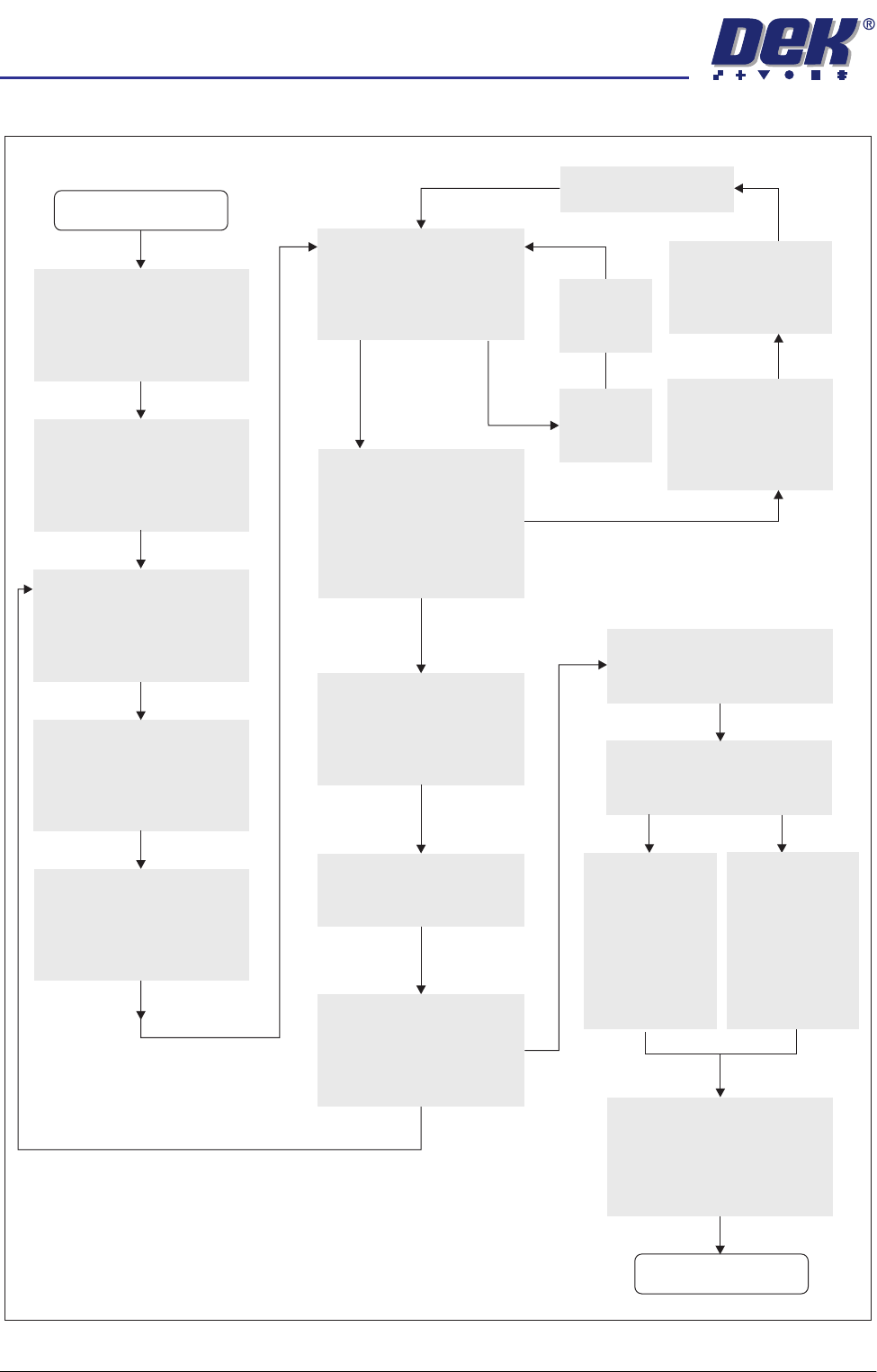
Figure 7-4 2D Inspection Setup Guide
Adjust Lighting:
Adjust so all board pads are
white with sharp edges and
the screen is seen clearly.
Add Limits Sets:
Set wide tolerances so no
alarms occur.
Add Site:
Name, Location Etc
Ensure all pads are within
the search box.
Set Globals as required:
Board Inspect
Learn Site / Learn Board:
Adjust board graphic ‘X’
and ‘Y’ accurately
START
Exit out
Auto Scale:
Determine the print closest
to 100% and auto scale on
that pad
Inspect Site:
Paste present data for
all pads are close to
the same value ?
More Sites to Teach ?
Add the rest of the sites
using the same light
settings as this first one
NO
NO
NO
NO
YES
YES
YES
YES
Print Board:
Step through the cycle
until a board is printed.
Is it a good print ?
Place a clean board
into the machine.
Clean stencil
Re-adjust Lighting:
Adjust the LED’s to
balance the lighting
Run Product:
Have QC Calc ?
Reset the Globals:
Set the min sites/cycle.
Re-adjust the Limit Sets:
The customer may have to
adjust these settings a few
times until the proper
values are found.
SPC Data:
Collect SPC
data on the
2Di. From
this data
derive the
proper ‘limit
sets’ settings.
Trial & Error:
Increase the
‘limit sets’ and
use the data
when it alarms
to derive the
proper
settings.
DONE
New Pre-image taken
Exit out
Adjust
Process
semi automatic
',163(&7,21
02'8/(29(59,(:
Software Version 07SP02 User Manual 7.7
Graphical User Interface (GUI)
2D Inspection utilizes a Graphical User Interface (GUI) allowing inspection sites
to be set up quickly and easily.
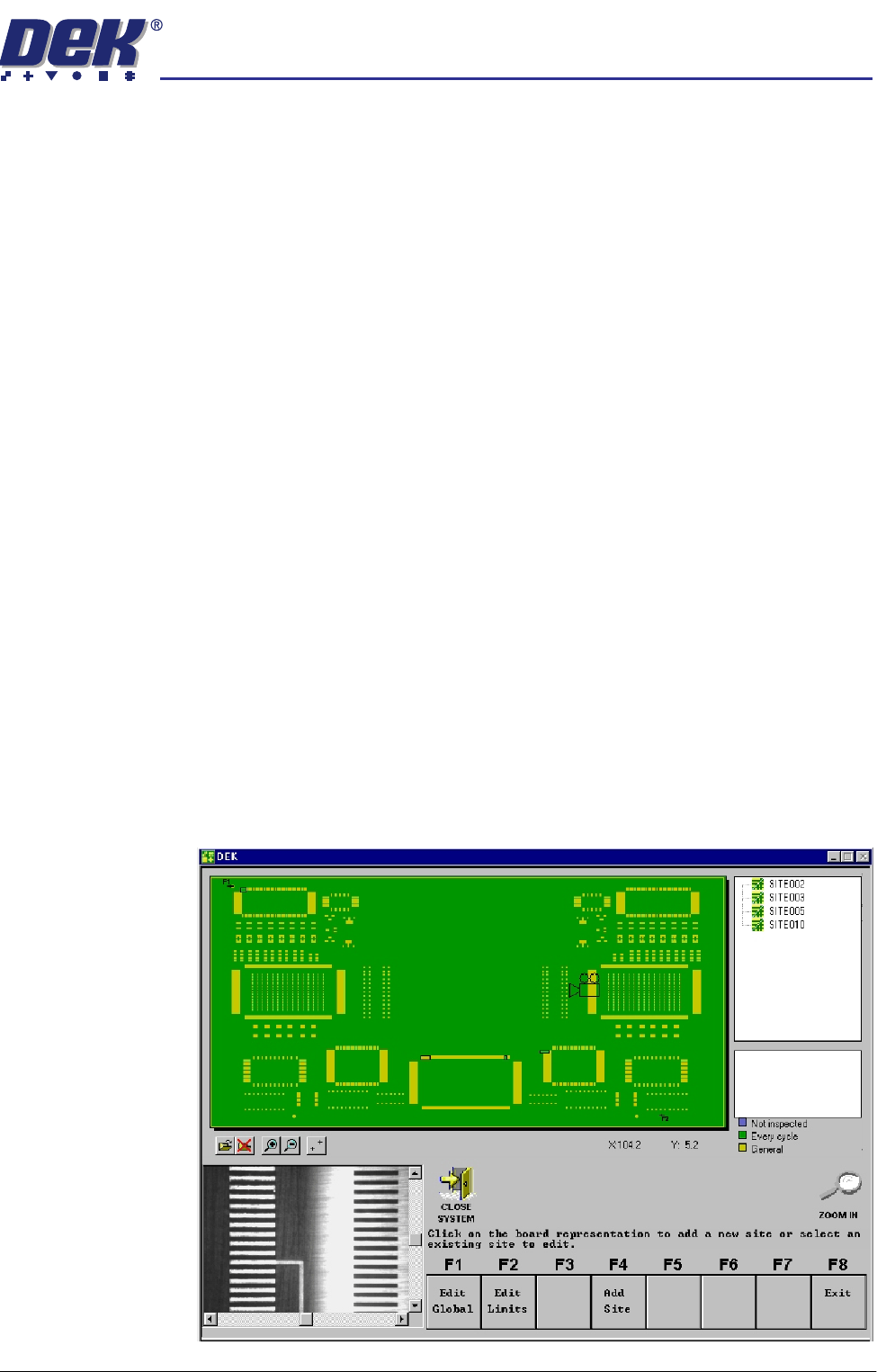
The 2Di GUI screen is displayed when Inspect Setup is selected on the menu
bar. The GUI provides the user with the following functions:
• A graphical representation of the board to be set up.
• Site Priority colour coding.
• Operations Buttons.
• List of inspection devices and sites.
• List of programmed site parameters.
• Current X and Y mouse coordinates.
• Vision window of board and stencil.
• Camera view adjustable using vision window scroll bars (when available).
NOTE
Refer to GUI 2Di Interface figure and table further in this section.
Representation of
Board
Two types of board image files are available for displaying the product on the
GUI board representation screen:
• Bitmap file (.bmp)
• Extended Gerber file data (.gbx)
To display the board representation in bitmap or gerber file format, the relevant
.bmp/.gbx information must be pre-loaded into the machine PC. The image is
scaled to fit the representation of the board on display, (example of gerber file
import shown below).
semi automatic
',163(&7,21
02'8/(29(59,(:
7.8 User Manual Software Version 07SP02
If no image files are available, the display defaults to a standard board size
representation of the product file being printed.
By utilizing the mouse control, any area of the board representation selected by
the user roughly positions the camera to this area. Fine positioning is then
carried out by adjusting the X and Y scroll bars in the vision window. Existing
sites can easily be selected and adjusted using the mouse control.
NOTE
The vision window X and Y scroll bars are displayed only when movement of
the camera is allowed within GUI.
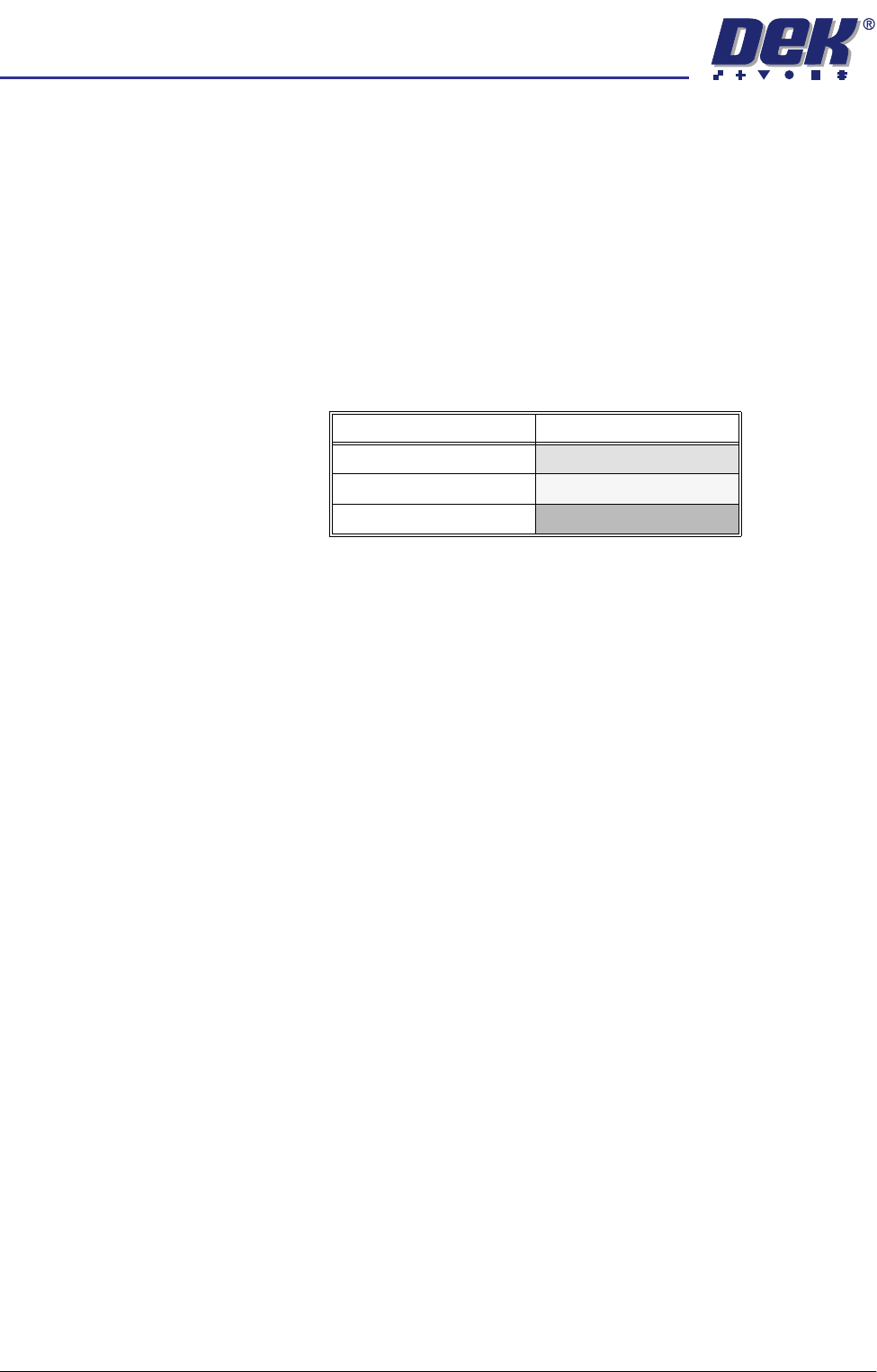
Site Colour Coding Sites displayed on the board representation are coloured according to their site
priority parameter setting, as detailed in the following table.
NOTE
The current selected site is displayed in black.
Operations Buttons The five operations buttons are sited underneath the representation of the
board and are used to perform functions on the board. These are:
• Load Image File - allows user to browse and select .bmp/.gbx image file.
• Unload Image File - allows user to unload the current .bmp/.gbx image file.
• Zoom In - zooms in to sites on the board representation.
• Zoom Out - zooms out from sites on the board representation.
• Fiducial Positions - show/hides board fiducial positions.
List of Devices and
Sites
The list of devices and sites created are displayed in an expandable and
collapsible form.
By selecting a site in the list, the camera moves to that site position and the
board representation site is highlighted with a camera position icon.
By selecting a device in the list, the device list automatically expands to show
all sites within that device. The first site within the list is selected and the camera
moves to that site position, the board representation site is highlighted with a
camera position icon.
NOTE
In this instance a device itself can never be selected.
Site Parameters The site parameters window enables the user to view the editable parameters
for the current site selected.
NOTE
The parameters in this display are view only.
X and Y Site
Coordinates
The X and Y site coordinates display is the current position of the mouse pointer
on the board representation.
Site Priority Display Colour
Every Cycle
Green
General
Yellow
Not Inspected
Blue