182050 User manual.pdf - 第196页
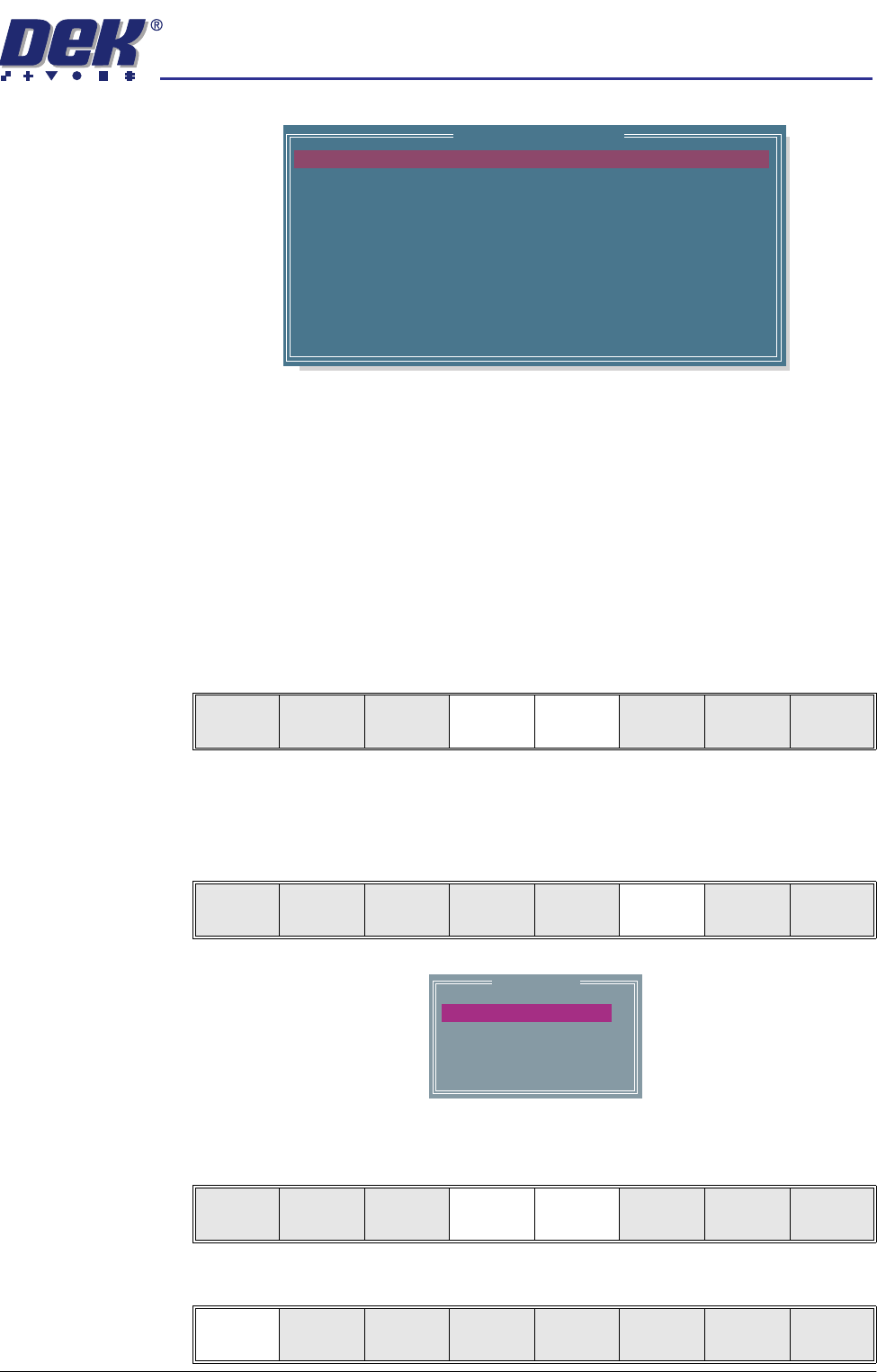
semi automatic ',163(&7,21 ',163(&7,21 6(78 3 7.22 User Manual Software Ve rsion 07SP02 Lighting Setup 1. Select Light Setup . Figure 7-6 Grey Camera Lighting Paramet ers 2. Using the Next , Previo…
semi automatic
',163(&7,21
',163(&7,216(783
Software Version 07SP02 User Manual 7.21
NOTE
The message ‘Use the mouse in the stencil view window to position and
size the site or edit the parameters’ is displayed in the message prompt
bar.
5. Adjust the following edit site parameters to suit the required application:
• Site Priority
• Board Inspect Type
• Site Limit ID
6. Highlight Site Limit ID using the Next and Previous keys.
NOTE
If new inspection file, only default limit is set.
7. Select Incr.
8. Using Next Limit or Previous Limit keys, highlight the limit set required
that was created in either add limits or edit limits.
9. Select Use Limit.
SITE NAME
SITE PRIORITY
SITE BOARD TYPE
SITE LIMIT ID
PASTE SCALING
SITE X COORD
SITE Y COORD
SITE WIDTH
SITE HEIGHT
SCREEN GRAPHIC X
SCREEN GRAPHIC Y
SITE001
EVERY CYCLE
BASIC
DEFAULT
1.00
75.9
111.7
2.00
2.00
0.00
0.00
mm
mm
mm
mm
mm
mm
Edit Site Parameters
Learn
Screen
Light
Setup
Next Previous Incr. Decr. Exit
Learn
Screen
Light
Setup
Next Previous Incr. Decr. Exit
Limit Sets
DEFAULT
COARSE
BGA
QFP
Use
Limit
Next
Limit
Previous
Limit
Exit
Use
Limit
Next
Limit
Previous
Limit
Exit
semi automatic
',163(&7,21
',163(&7,216(783
7.22 User Manual Software Version 07SP02
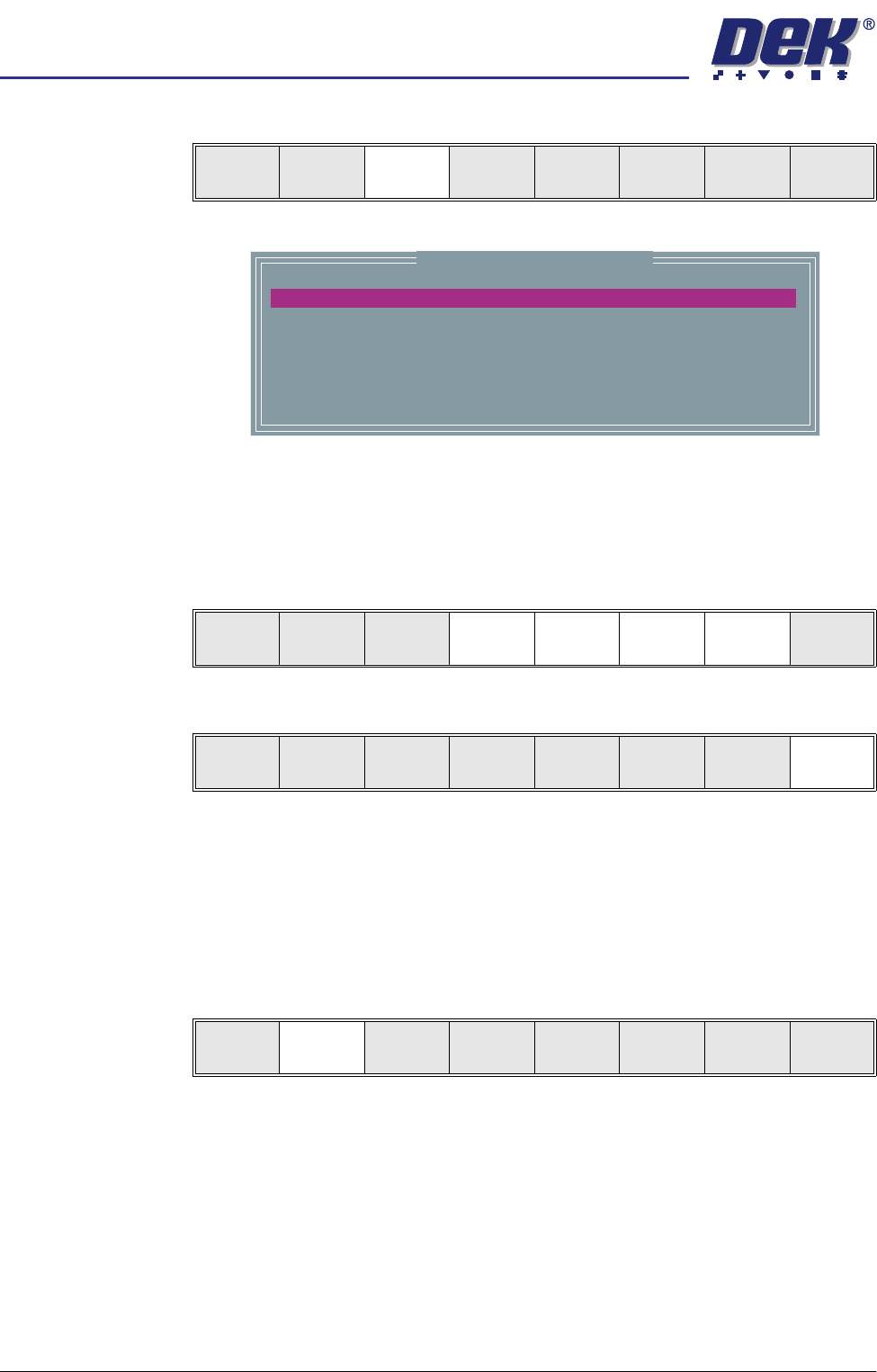
Lighting Setup 1. Select Light Setup.
Figure 7-6 Grey Camera Lighting Parameters
2. Using the Next, Previous, Incr. and Decr. keys, adjust the lighting param-
eters to a level whereby the stencil and board pads are just whiting out,
without blooming, default level 8 is usually adequate for the majority of
setups.
3. Select Exit.
Site Setup 4. Using one of the controls listed, carry out the following:
a. Mouse - Drag and drop the red Region Of Interest box (ROI) to the desired
position.
b. Manual Function Buttons - Next, Previous, Incr. and Decr. keys adjust
the ROI position via the parameters menu.
5. Select Learn Screen.
The message ‘Stencil Learnt. Use the mouse in the board view to align
the board graphic or edit the parameters’ is displayed in the message
prompt bar.
Learn
Screen
Light
Setup
Next Previous Incr. Decr. Exit
Inspection Lighting Parameters
SCREEN VERTICAL
BOARD VERTICAL
WINDOW LEFT
WINDOW TOP
WINDOW WIDTH
WINDOW HEIGHT
8
8
-1.0
-1.5
2.0
2.0
mm
mm
mm
mm
Next Previous Incr. Decr. Exit
Next Previous Incr. Decr. Exit
Add
Site
Learn
Screen
Light
Setup
Next Previous Incr. Decr. Exit
semi automatic
',163(&7,21
',163(&7,216(783
Software Version 07SP02 User Manual 7.23
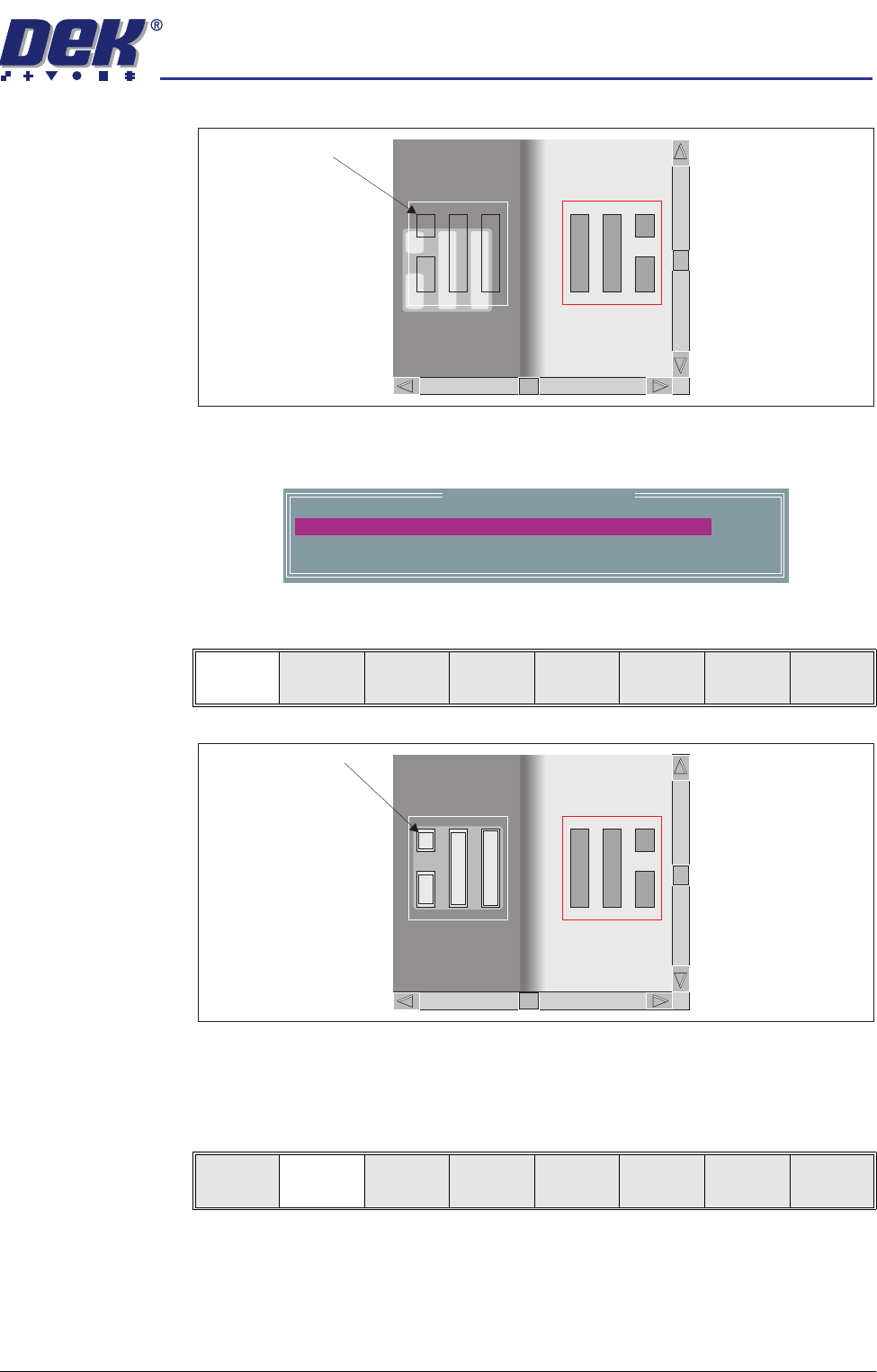
If the graphics on the board side requires adjusting, use the Incr. Decr. to
adjust the X and Y offsets to align the overlay onto the pads.
6. Select Learn Board.
The message ‘Board Learnt’ is displayed in the message prompt bar.
7. If ‘...Board Not Learnt’ is displayed, select Adjust Screen and return to
Step 4.
8. Select Exit.
9. Select Exit.
Image on board does
not coincide with
board pads
Learn Site Parameters
0.0
0.0
mm
mm
BOARD GRAPHIC X
BOARD GRAPHIC Y
Learn
Board
Adjust
Screen
Next Previous Incr. Decr. Exit
Outline of pads are
superimposed on the
board display
Learn
Board
Adjust
Screen
Next Previous Incr. Decr. Exit