00197902-03_UM_X-Serie-S_EN.pdf - 第270页
5 Working with the machine User manual SIPLACE X-Series 5.5 The user interface From software version 710.0 Edition 12/2016 270 5.5.6 Application-oriented opera tion via color-coding markings Icons, buttons and views can …
User manual SIPLACE X-Series 5 Working with the machine
From software version 710.0 Edition 12/2016 5.5 The user interface
269
5.5.5 Settings
The "Settings" view allows you to change the various user settings, software options and machine
options.
Click on "Settings" in the toolbar .
The right-hand side shows an additional toolbar. The following table briefly describes the icons
and settings.
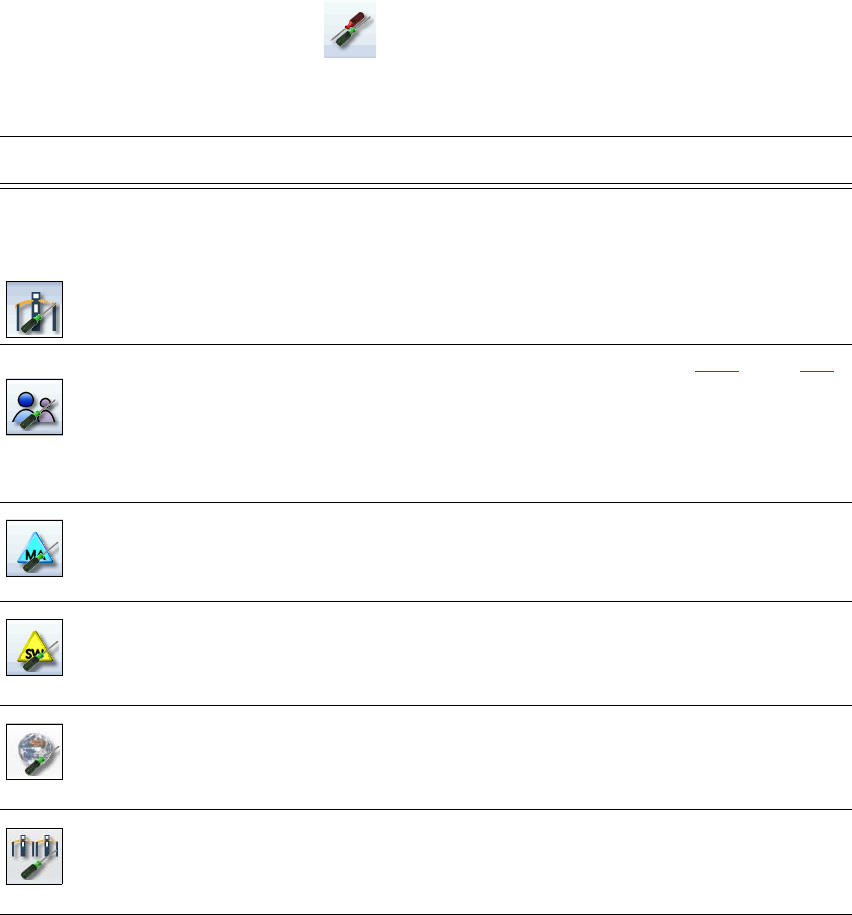
Icon Settings Description
Machine settings Only for "Advanced production", "Service customer" or "Service
SIPLACE".
Allows you to set the operating mode and options (e.g. running
options).
Allows you to shut down the machine
Allows you to change over to the operating system.
User settings Allows you to set the operator level (see section 5.3.3
, page 258).
Allows you to set the language. As a default, English or German
can be selected. A language CD is provided for installation of other
languages.
Further options can be set from the "Advanced production" operator
level.
Machine options No options can be changed in the "Production" level.
Configuration of machine options.
Software options Only for "Advanced production", "Service customer" or "Service
SIPLACE".
Allows you to activate various test functions.
Overview of con-
nected external
systems
Shows all connected external systems (e.g. OIS, SetupCenter).
Shows the connection status and the memory used or deletes the
connected systems.
Adjacent ma-
chines
Display of adjacent machines.

5 Working with the machine User manual SIPLACE X-Series
5.5 The user interface From software version 710.0 Edition 12/2016
270
5.5.6 Application-oriented operation via color-coding markings
Icons, buttons and views can be highlighted in color. These color-coded highlights give you a clear
overview of when operator action is required or when warnings have been issued.
The station software uses the following color coded highlights:
5
Color State Meaning
Red Alert Operator action required.
Only available in the "Feeder module, components and noz-
zles" view.
Orange Warning Operator notification is present.
Immediate operator action is not required.
Only available in the "Feeder module, components and noz-
zles" view.
Green In progress Icon or button has machine under control and state is OK.
Only available in the "Production", "Feeder modules, compo-
nents and nozzles", "Boards", "Check sensors and functions"
and "Service" views.
Flashes green Waiting for board Replaces the "Busy" state if the machine is ready in production
operations but unable to process because there is no board
present.
Insert a board.
Only in the "Production" view.
User manual SIPLACE X-Series 5 Working with the machine
From software version 710.0 Edition 12/2016 5.6 Alert information and online help
271
5.6 Alert information and online help
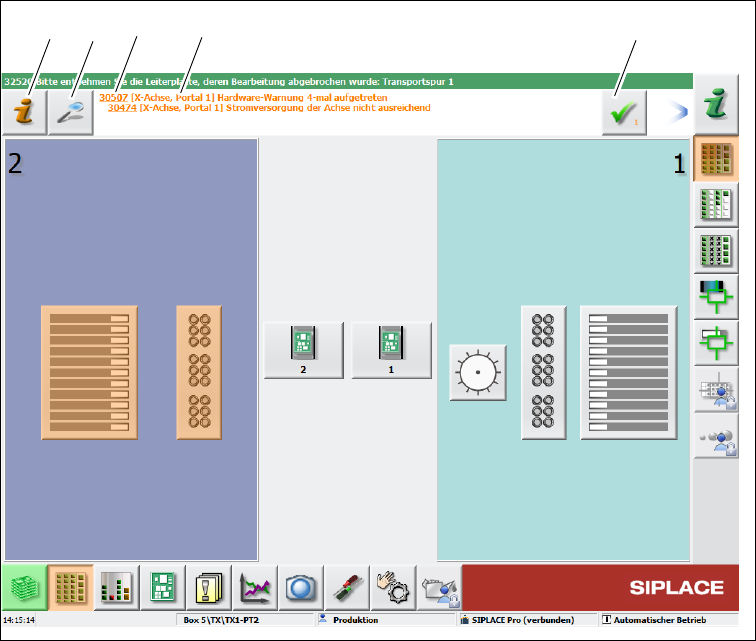
If alerts occur during placement machine operations, the alert message in the status field of the
user interface will be shown in red. The icon for alert information will be active.
The button highlighted in red in the toolbar indicates that operator action is required.
5
Fig. 5.6 - 1 "Production" view with alert message (example of SIPLACE SX2 shown)
Legend for fig. 5.6 - 1
(1) Alert number
(2) Alert message: brief information about the alert
(3) "Details" icon: for opening detailed information (e.g. error source, time of occurrence)
(4) "Acknowledge alert" icon: for deleting the alert display
(5) "Alert information" icon: for opening the help function for the current alert
(1)
(2) (3)
(4)
(5)