Xg系列调整手册.pdf - 第19页
2 Before beginning adjustments 2- 13 2. Prepar atory w ork 3 Select the language. Select the English option button so that the menu will appear in English. 4 Press the [OK] button to start the adjustment utility. The adj…
2
Before beginning adjustments
2-12
2. Preparatory work
2.4 How to start the adjustment utility.
To perform various adjustments, you must start the adjustment utility. You will be
required to enter the password for security.
1
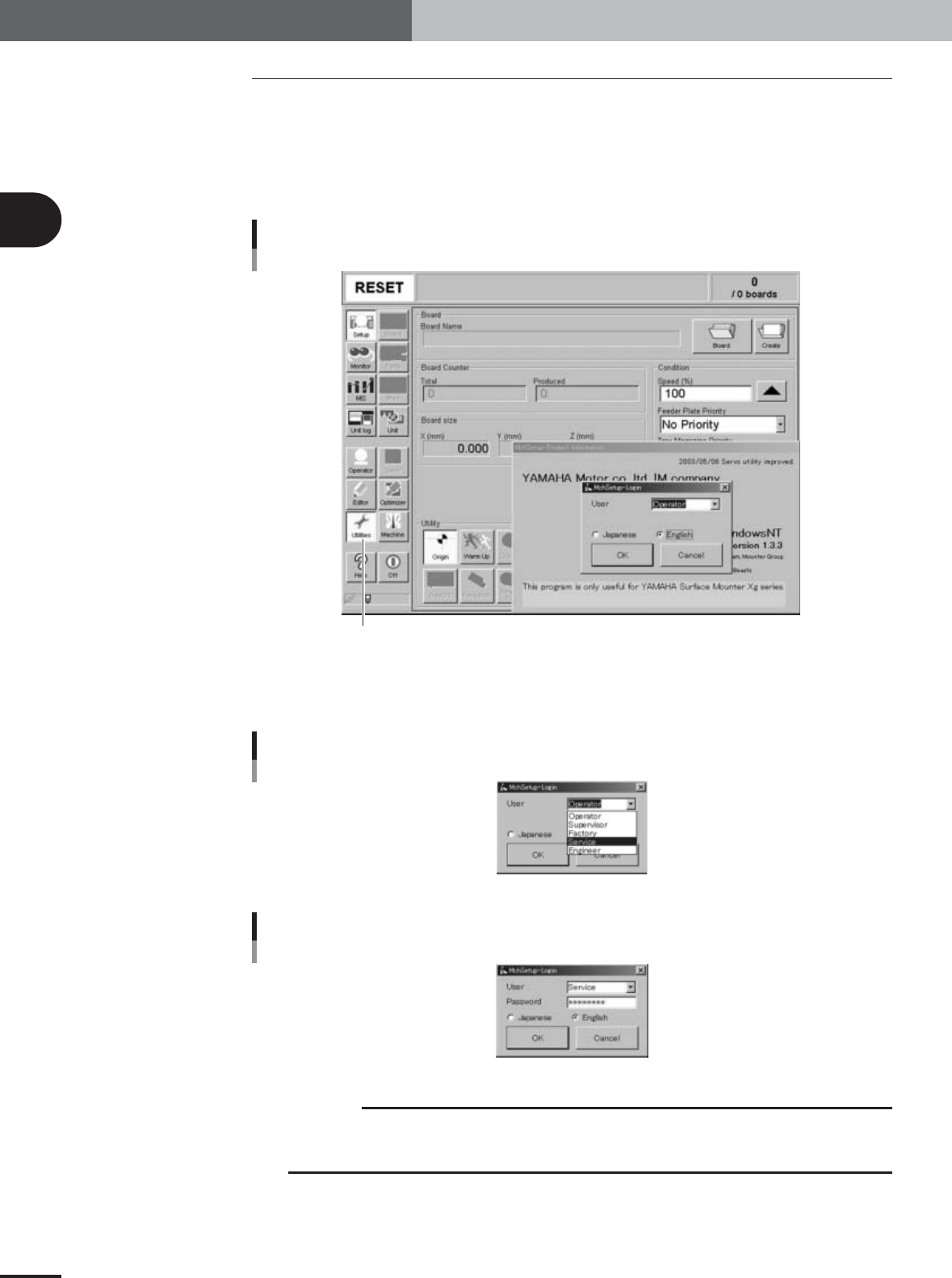
Press the [Utilities] button in the main menu button area of the
operation display.
The login dialog box appears as shown below.
Adjustment utility login dialog box
[Utilities] button
27018-X9-00
2
Select "Service" from the User drop-down list and enter the
password.
Selecting the user
27019-X9-00
Entering the password
27020-X9-00
c
CAUTION
Any work carried out with the adjustment utility will affect the machine performance and
operating accuracy. Keep the password carefully and do not share it with any person other than
supervisors.
2
Before beginning adjustments
2-13
2. Preparatory work
3
Select the language.
Select the English option button so that the menu will appear in English.
4
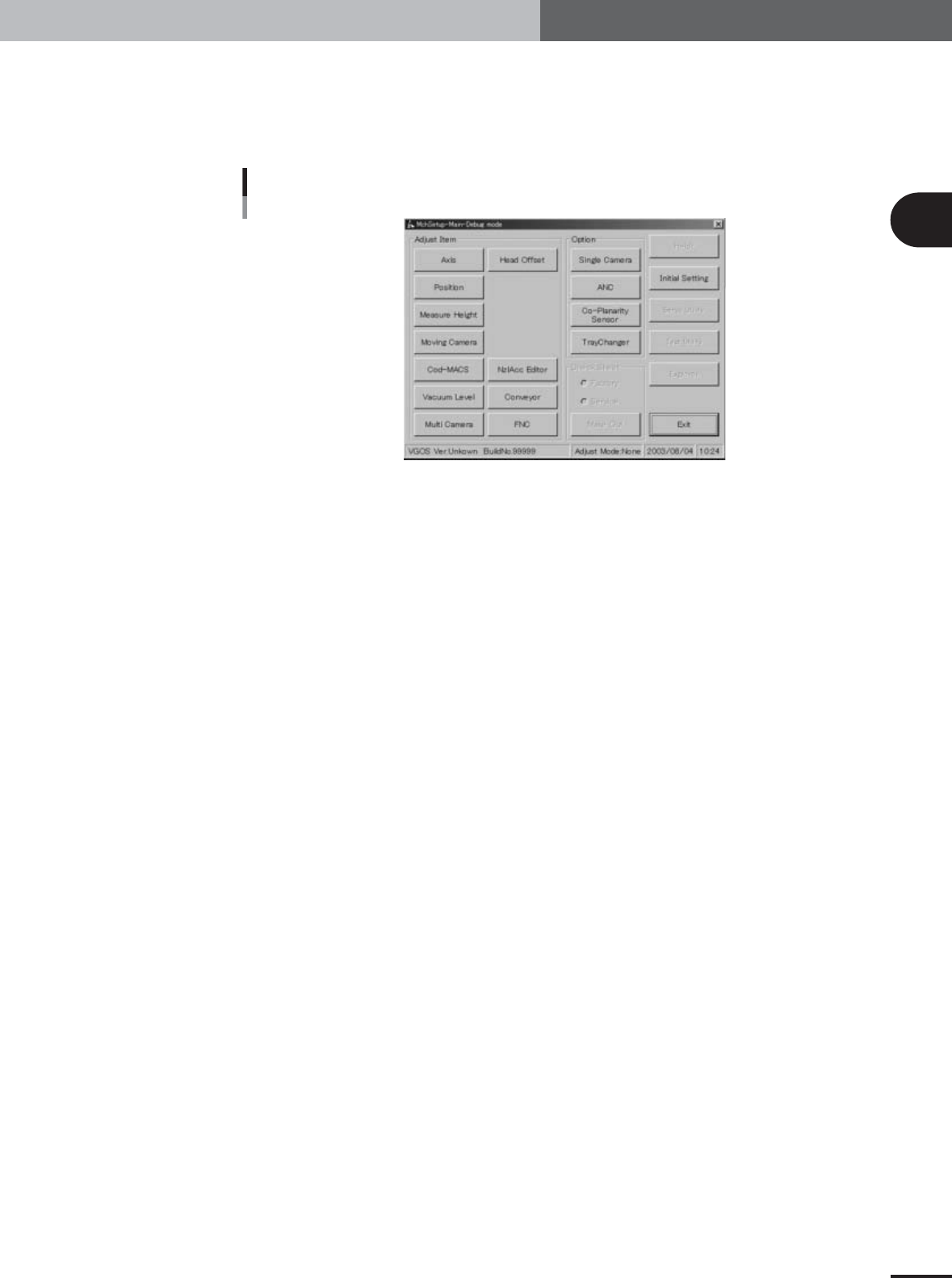
Press the [OK] button to start the adjustment utility.
The adjustment utility menu window appears as shown below.
Adjustment utility menu window
27021-X9-00
2
Before beginning adjustments
2-14
2. Preparatory work
2.5 Changing the machine setting
To perform FAMF adjustments and other basic adjustments explained in this manual, the
"Adjust Mode" parameter of the machine setting must be changed according to the
adjustment work.
c
CAUTION
After adjustments are complete, always return the machine setting to the original state and then
load PCB data.
If you start PCB production without doing this returning the machine setting to the original
state before loading PCB data, the adjusted data will not be applied to the machine data and
might be overwritten inadvertently.
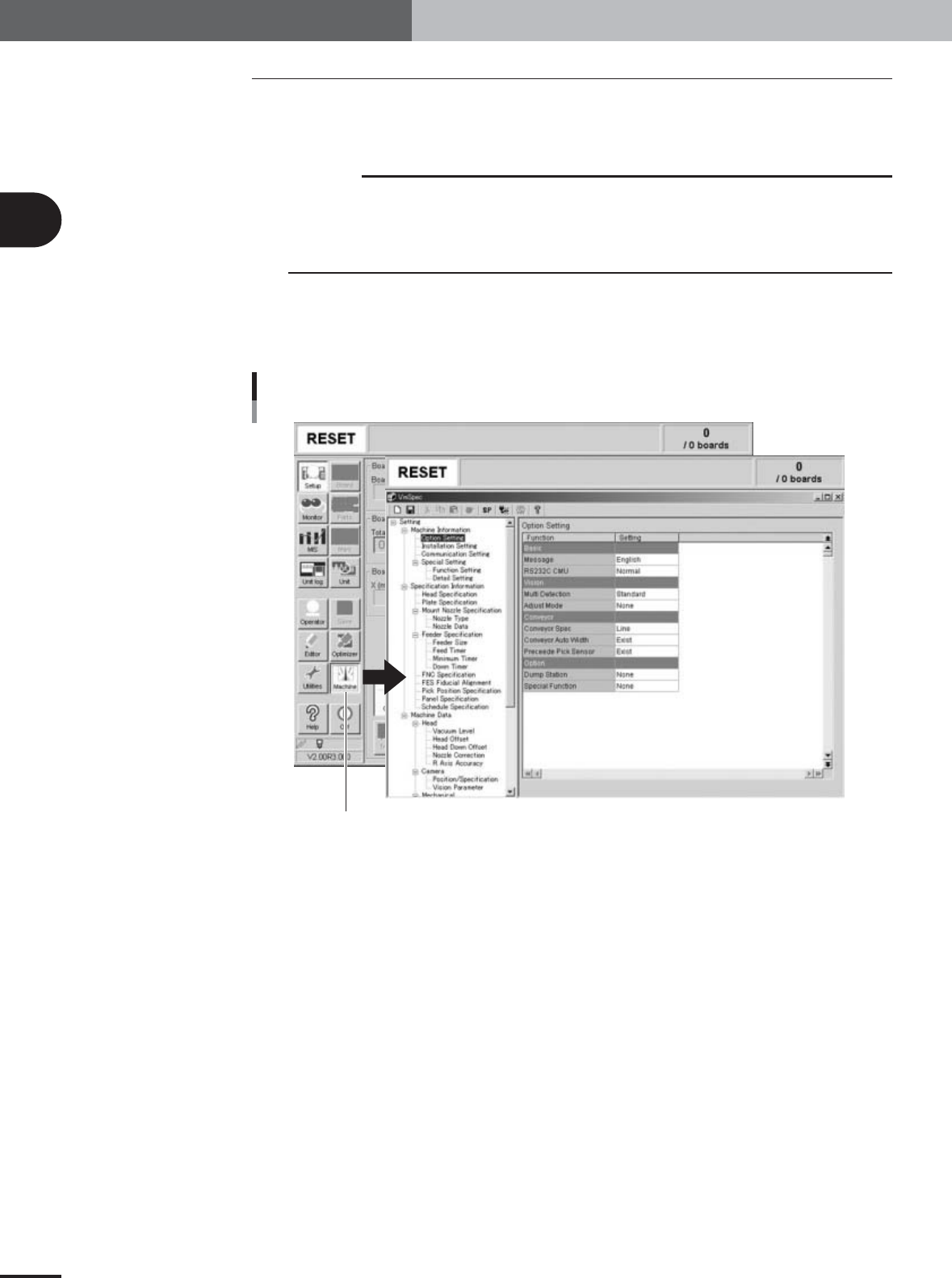
1
Press the [Machine] button in the main menu button area of the
operation display.
The machine setting screen (VmSpec screen) appears as shown below.
Machine data setting window (VmSpec window)
[Machine] button
27222-X9-00