Xg系列调整手册.pdf - 第21页
2 Before beginning adjustments 2- 15 2. Prepar atory w ork 2 On the "Option Setting" screen, change the "Adjust Mode" parameter as needed. 1. Check that "Option Setting" under "Machine …
2
Before beginning adjustments
2-14
2. Preparatory work
2.5 Changing the machine setting
To perform FAMF adjustments and other basic adjustments explained in this manual, the
"Adjust Mode" parameter of the machine setting must be changed according to the
adjustment work.
c
CAUTION
After adjustments are complete, always return the machine setting to the original state and then
load PCB data.
If you start PCB production without doing this returning the machine setting to the original
state before loading PCB data, the adjusted data will not be applied to the machine data and
might be overwritten inadvertently.
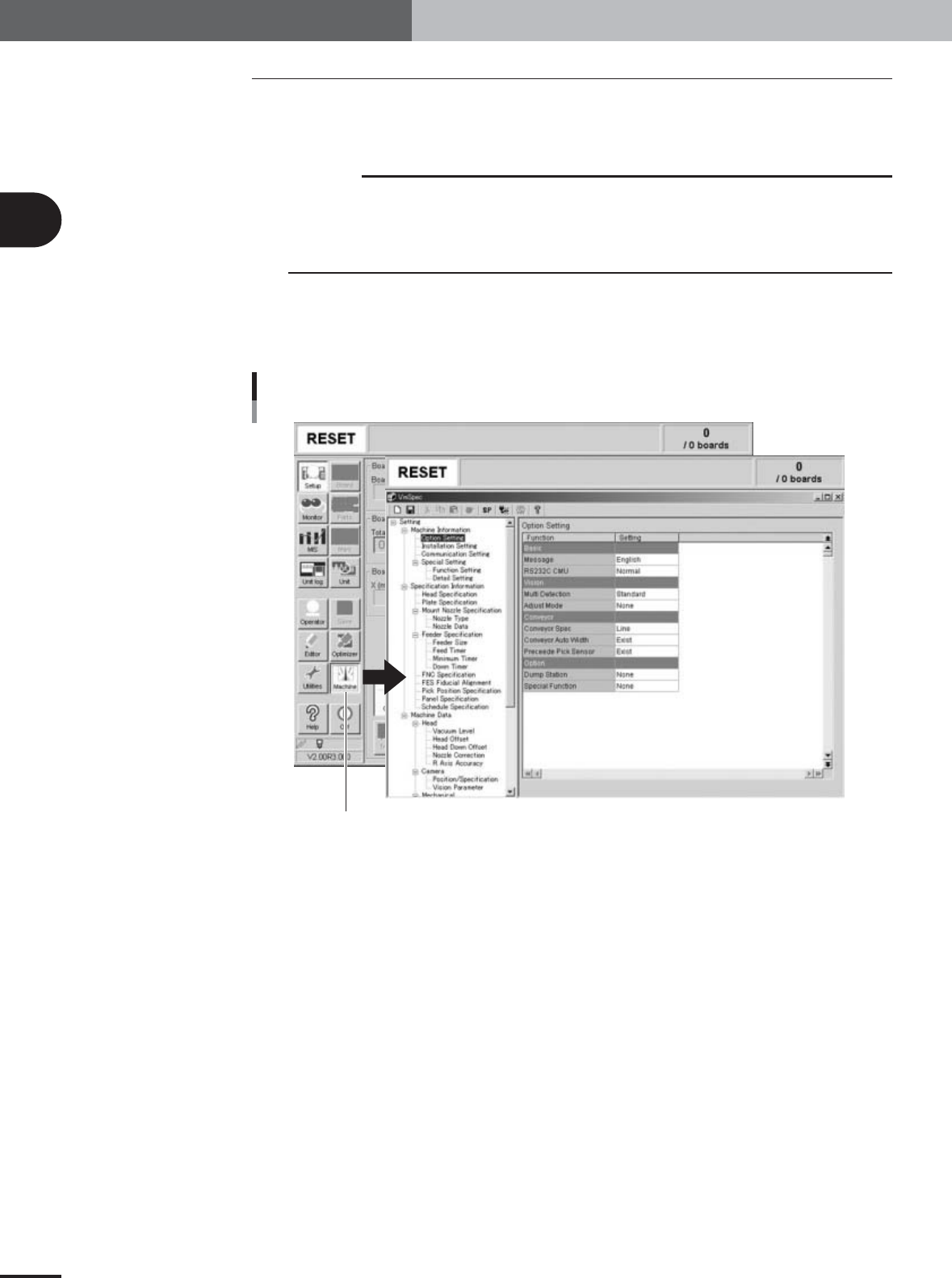
1
Press the [Machine] button in the main menu button area of the
operation display.
The machine setting screen (VmSpec screen) appears as shown below.
Machine data setting window (VmSpec window)
[Machine] button
27222-X9-00
2
Before beginning adjustments
2-15
2. Preparatory work
2
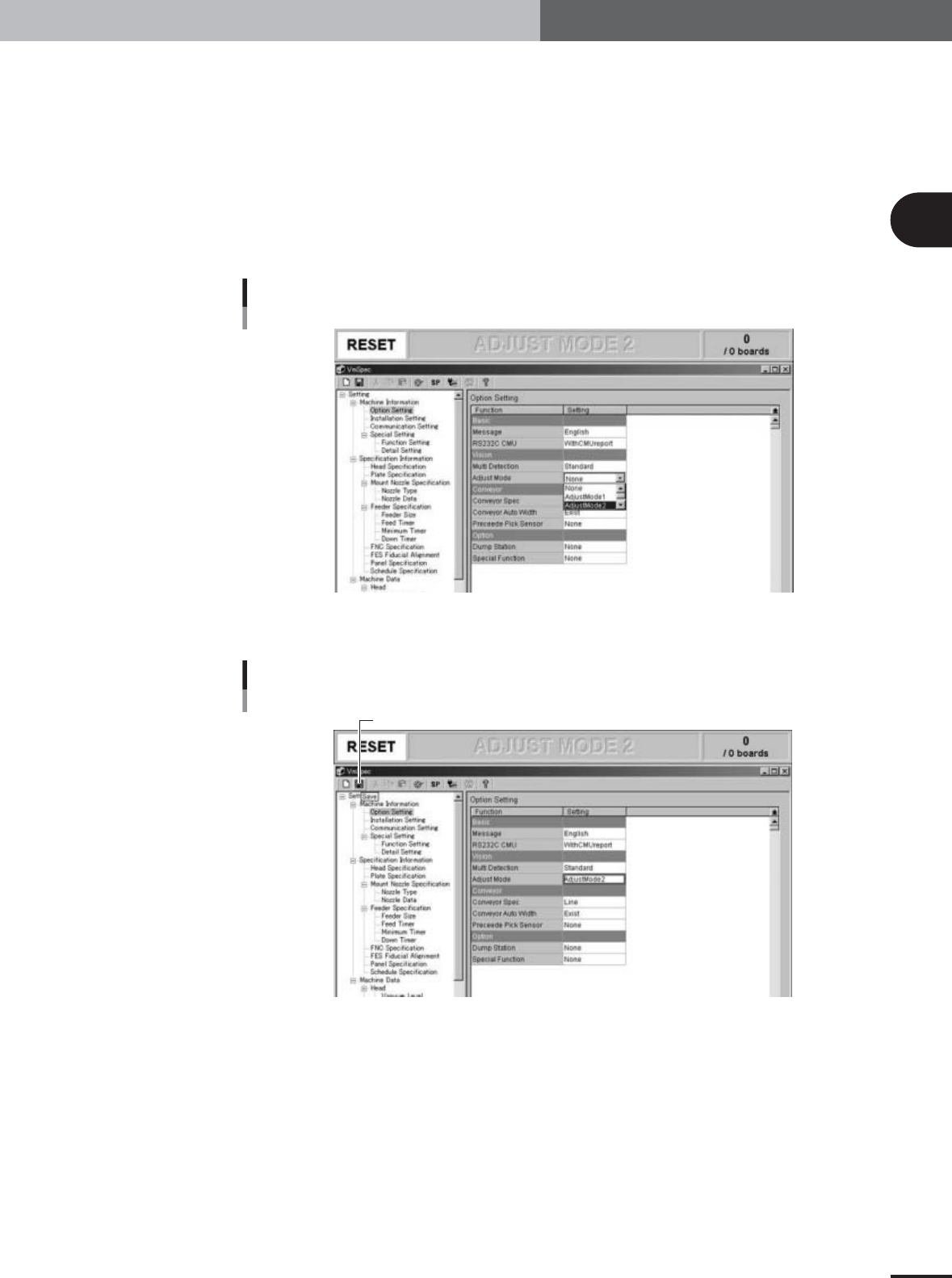
On the "Option Setting" screen, change the "Adjust Mode"
parameter as needed.
1.Check that "Option Setting" under "Machine Information" is selected in the left-
hand tree view and the "Option Setting" screen is displayed in the right-hand main
view.
2.Set the "Adjust Mode" parameter under "Vision" to match the adjustment work as
follows.
When using glass QFP: Set to "Adjust Mode2".
When using ceramic chip components: Set to "Adjust Mode1".
When using SOP: Set to "None".
Adjust Mode parameter
27022-X9-A0
3
Press the [Save] button on the toolbar to save the change.
[Save] button
[Save] button
27023-X9-00
2
Before beginning adjustments
2-16
2. Preparatory work
2.6 Changing the machine setting (when needed during
adjustment)
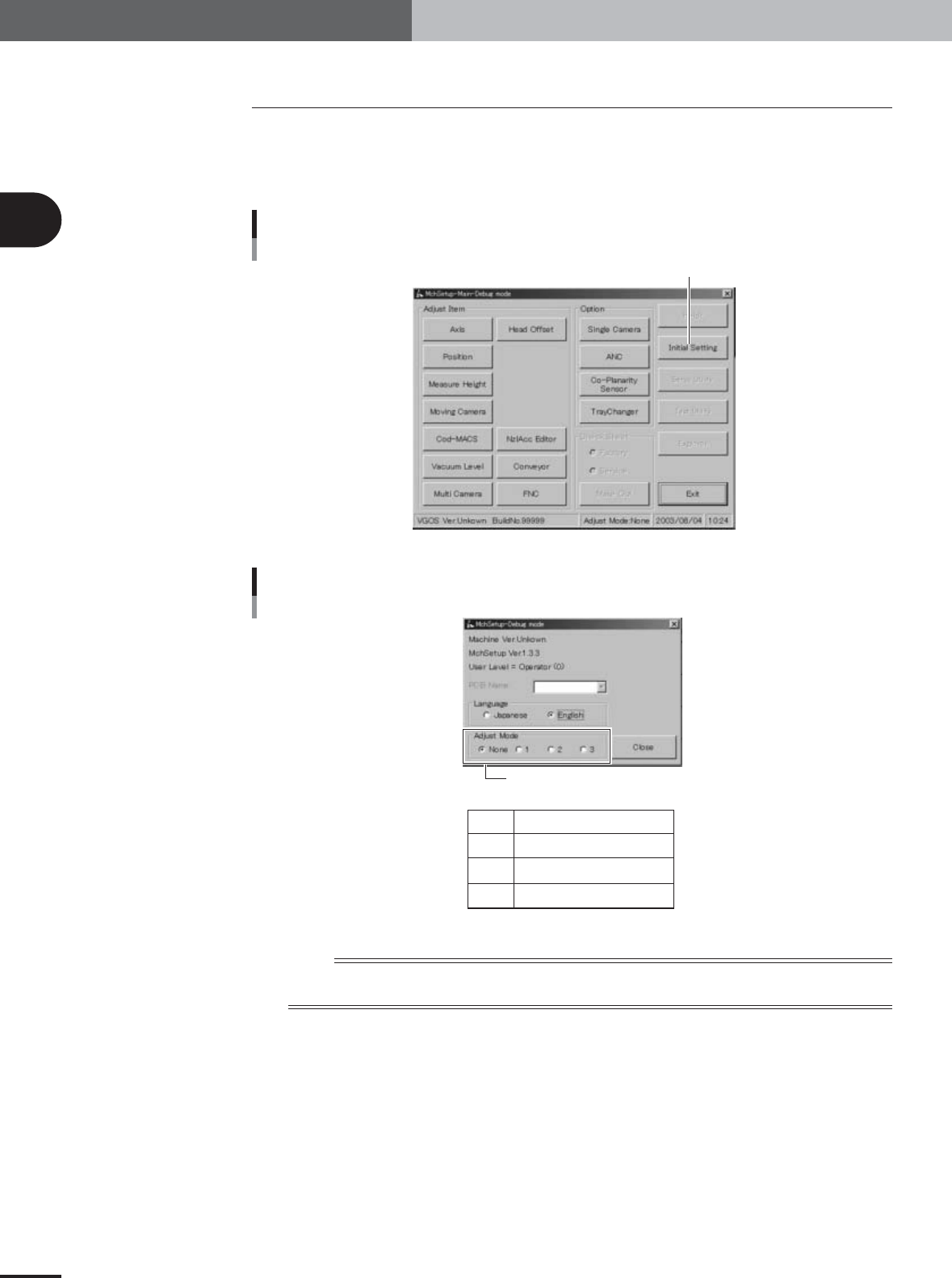
When the machine setting needs to be changed during adjustments, you must exit the
adjustment utility. However, only the "Adjust Mode" parameter can be changed while
you are still in the adjustment utility. To do this, press the [Initial Setting] button in the
adjustment utility menu window and select the "Adjust Mode" option buttons as needed.
Adjustment utility menu window
Press the [Initial Setting] button.
27021-X9-A0
Initial setting dialog box
None
1
2
3
Adjust Mode is not used.
Adjust Mode1
Adjust Mode2
Adjust Mode3
Select "Adjust Mode".
27200-X9-00
n
NOTE
The [Initial Setting] button in the adjustment utility menu window allows you to easily change the "Adjust Mode"
parameter without exiting the adjustment utility.