Dual Simultaneous Programmable Pitch Rev 02.pdf - 第40页
Dual-Simultaneous Pr ogrammable Pitch Owner ’s Manual Operation 36 © 2024 Nordson Corporation 24. Whe n asked to replace the existin g Variables.tx t file, cli ck Yes (Figure 4-28). Figure 4-28 Rep lace Existing F ile 25…
Dual-Simultaneous Programmable Pitch Owner’s Manual Operation
© 2024 Nordson Corporation 35
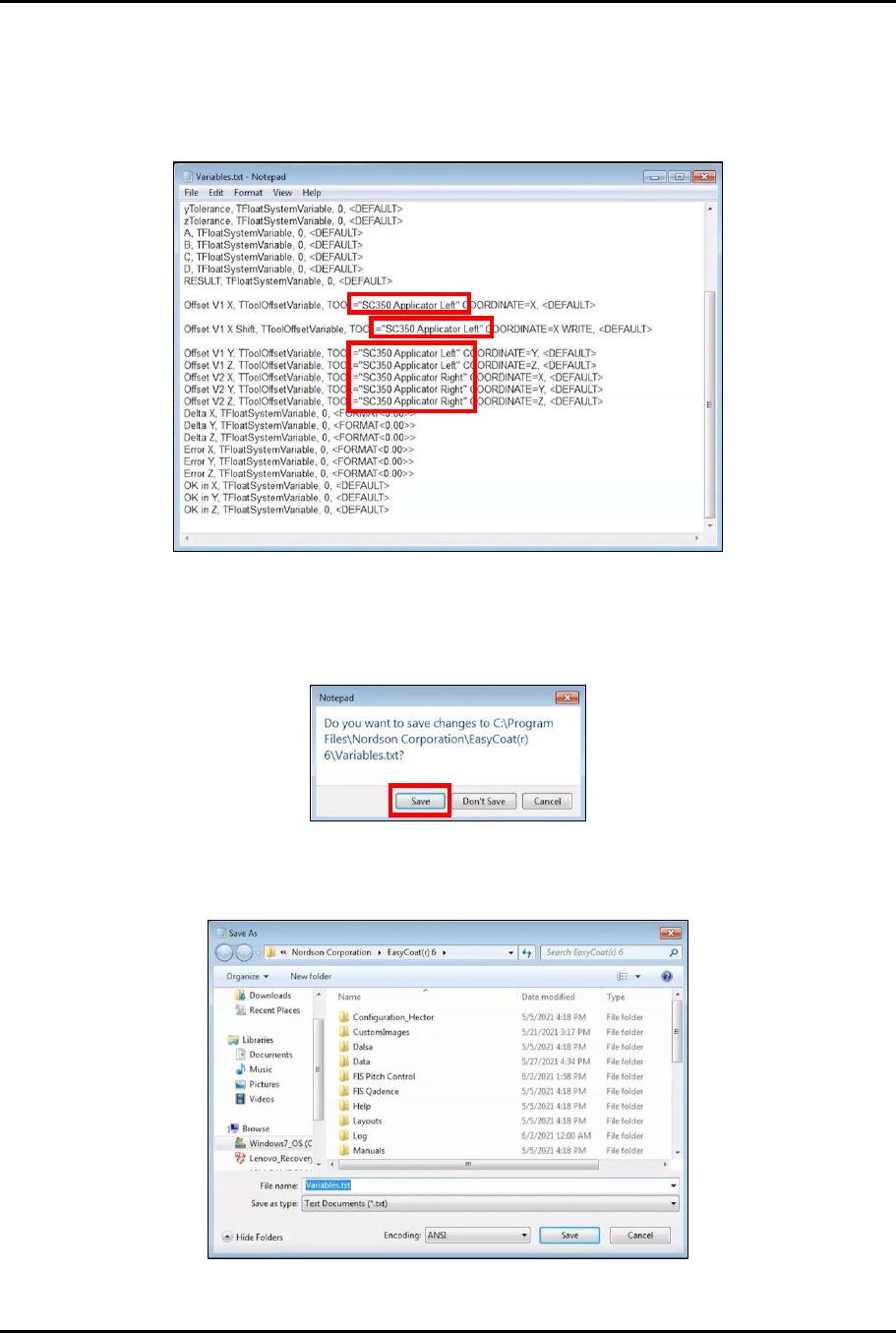
20. Manually change the applicator names in the Variables.txt file to match the applicator
names established in the Cal & Verify and System Check Only procedures (Figure 4-25).
?
NOTE
The applicator names in the Variables.txt file and the applicator names in the Cal
& Verify and System Check Only procedures MUST ALL MATCH EXACTLY.
Figure 4-25 Change Applicator Names
21. Close the Variables.txt file.
22. When asked to save changes, click Save (Figure 4-26).
Figure 4-26 Save Changes
23. In the Save As window, click Save (Figure 4-27).
Figure 4-27 Save Variables.txt File
Dual-Simultaneous Programmable Pitch Owner’s Manual Operation
36 © 2024 Nordson Corporation
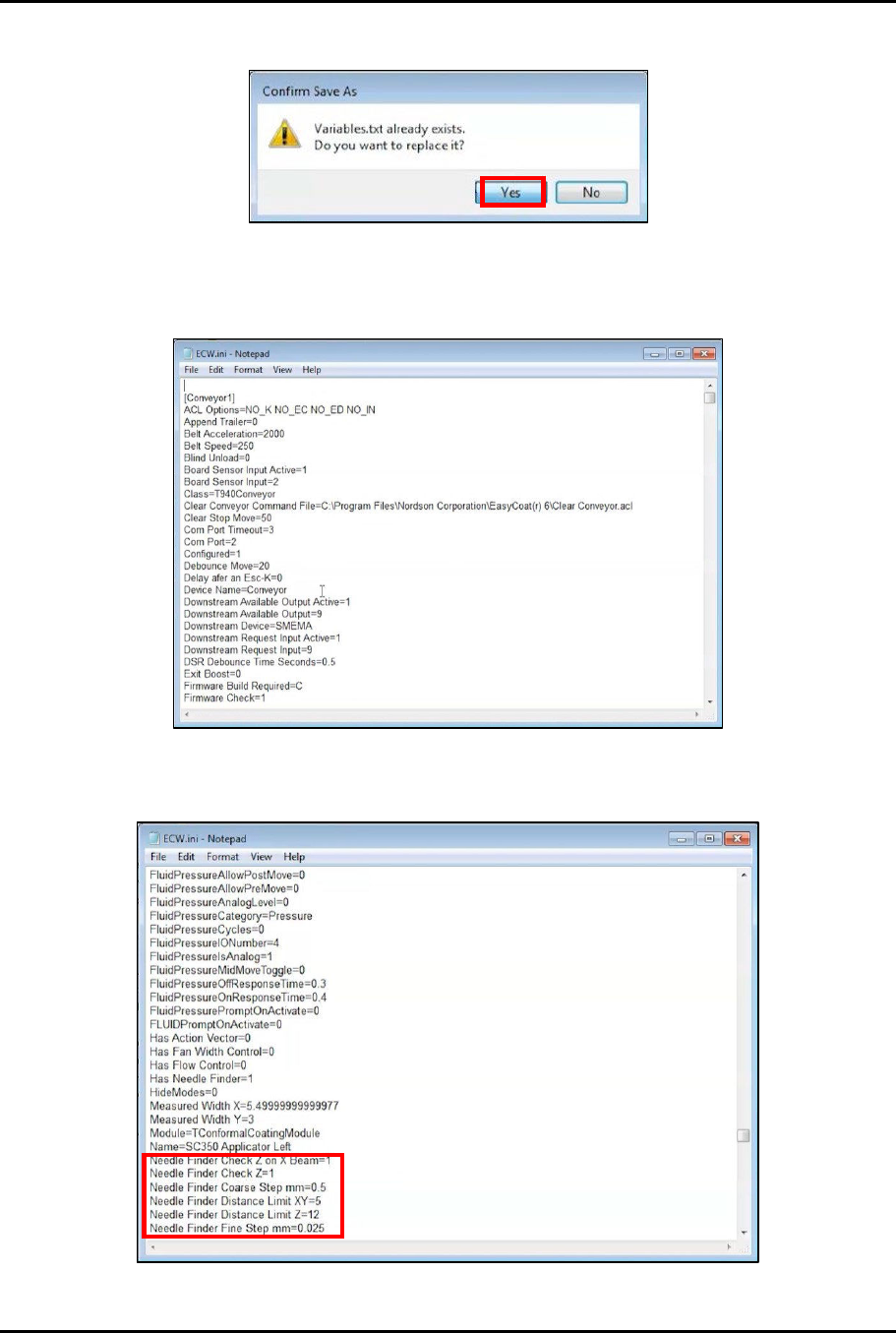
24. When asked to replace the existing Variables.txt file, click Yes (Figure 4-28).
Figure 4-28 Replace Existing File
25. In the EasyCoat folder in File Explorer search for the ECW.ini file and open it in Notepad
(Figure 4-29).
Figure 4-29 Open ECW.ini File
26. In the ECW.ini file, locate the Needle Finder parameters (Figure 4-30).
Figure 4-30 Locate Needle Finder Parameters
Dual-Simultaneous Programmable Pitch Owner’s Manual Operation
© 2024 Nordson Corporation 37
27. Change the following parameters in the ECW.ini file to match the values listed below:
a. Needle Finder Distance Limit XY = 15
b. Needle Finder Measure Width From Tip mm = 2
c. Needle Finder Search Depth mm = 9
d. Needle Finder Tolerance XY = 1
28. Close and save the ECW.ini file.
29. Start the EasyCoat software.
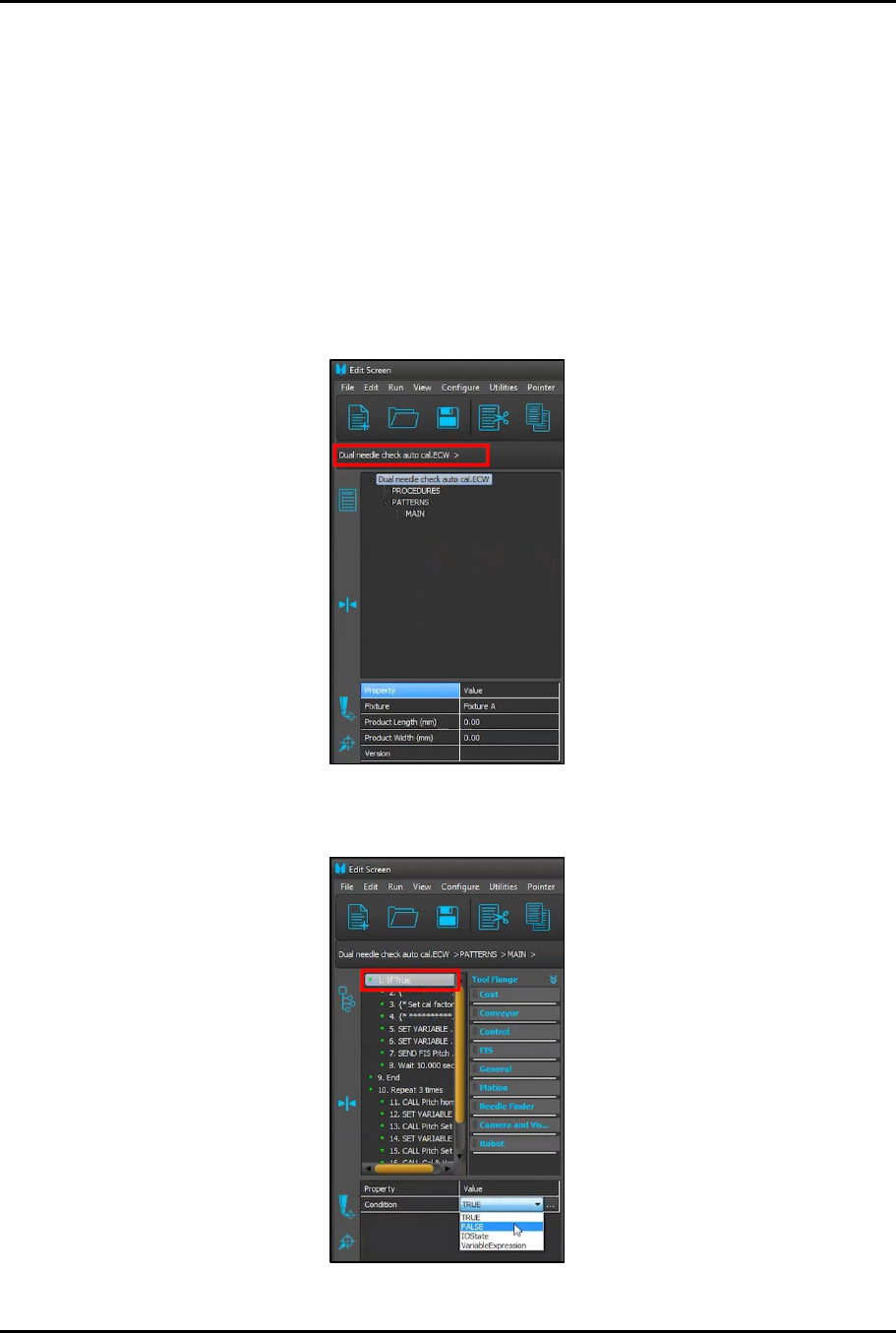
30. In the Operator Screen, click on Edit > Edit Mode to enter the Edit Screen.
31. In the Edit Screen, load the Dual needle check auto cal.ECW procedure (Figure 4-31).
Figure 4-31 Load Dual Needle Check Auto Cal.ECW Procedure
32. Click on MAIN and change the If True condition to FALSE (Figure 4-32).
Figure 4-32 Change to FALSE