M3plus_OperationManual_e.pdf - 第152页
4 - 17 5. Edit Assistant function 4 Using the adv anced functions 5.2 Selecting a range of rows To select a range of rows on the data grid display, use the [Select 1 Row] or [Select All Rows] button. The selected rows wi…
4-16
4
Using the advanced functions
5. Edit Assistant function
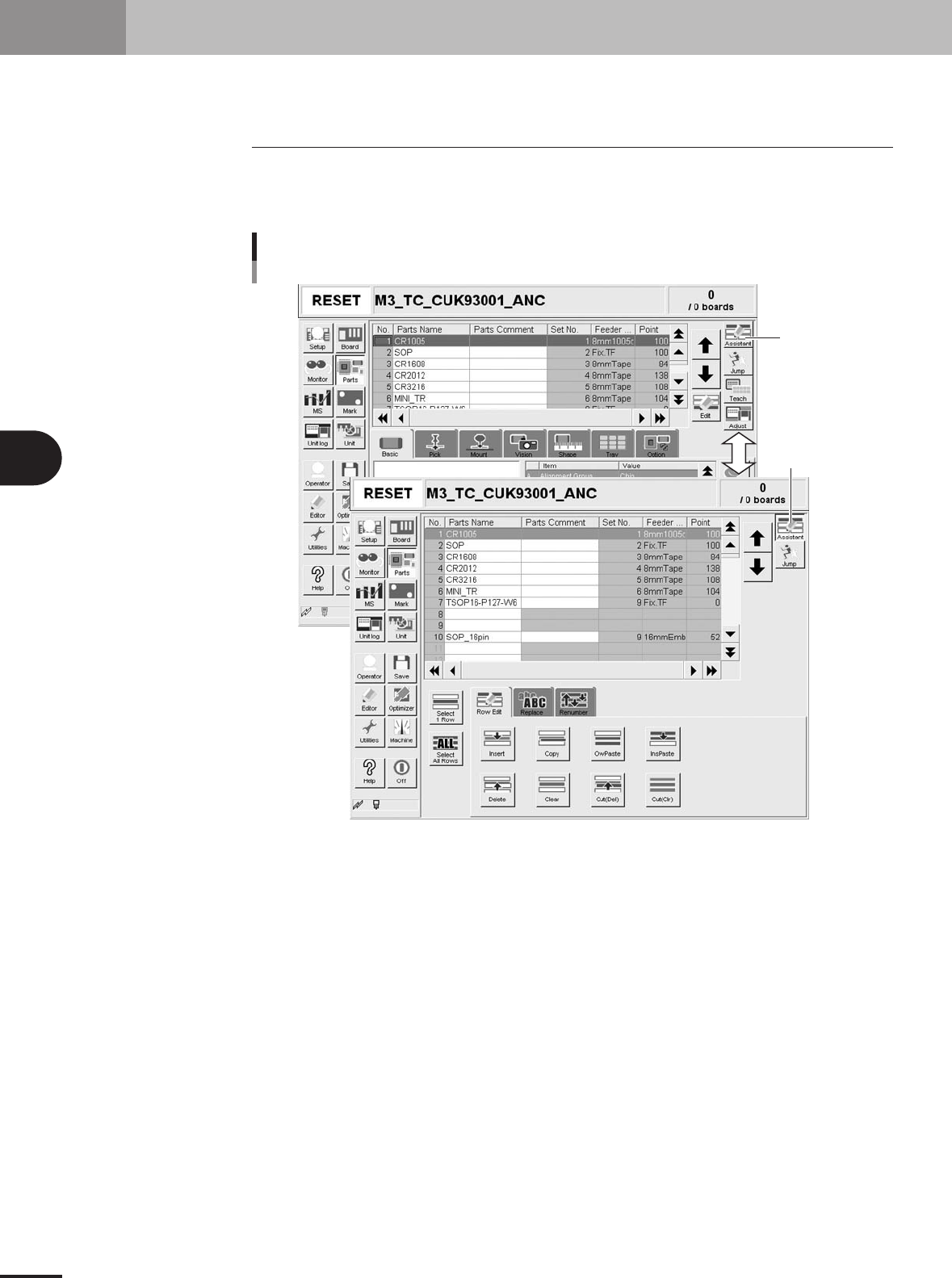
The Adjust Assistant function allows you to edit, search and replace within the selected row range.
5.1 Switching to the Edit Assistant screen
When you press the [Assistant] button on the top right of the screen, the Edit Assistant
screen appears in the lower part, showing the [Row Edit] and [Replace] tabs. To return to
the previous screen, press the [Assistant] button again.
[Assistant] button
Button is depressed
when selected.
Switching to the Edit Assistant screen
27479-5E-20
4 -17
5. Edit Assistant function
4
Using the advanced functions
5.2 Selecting a range of rows
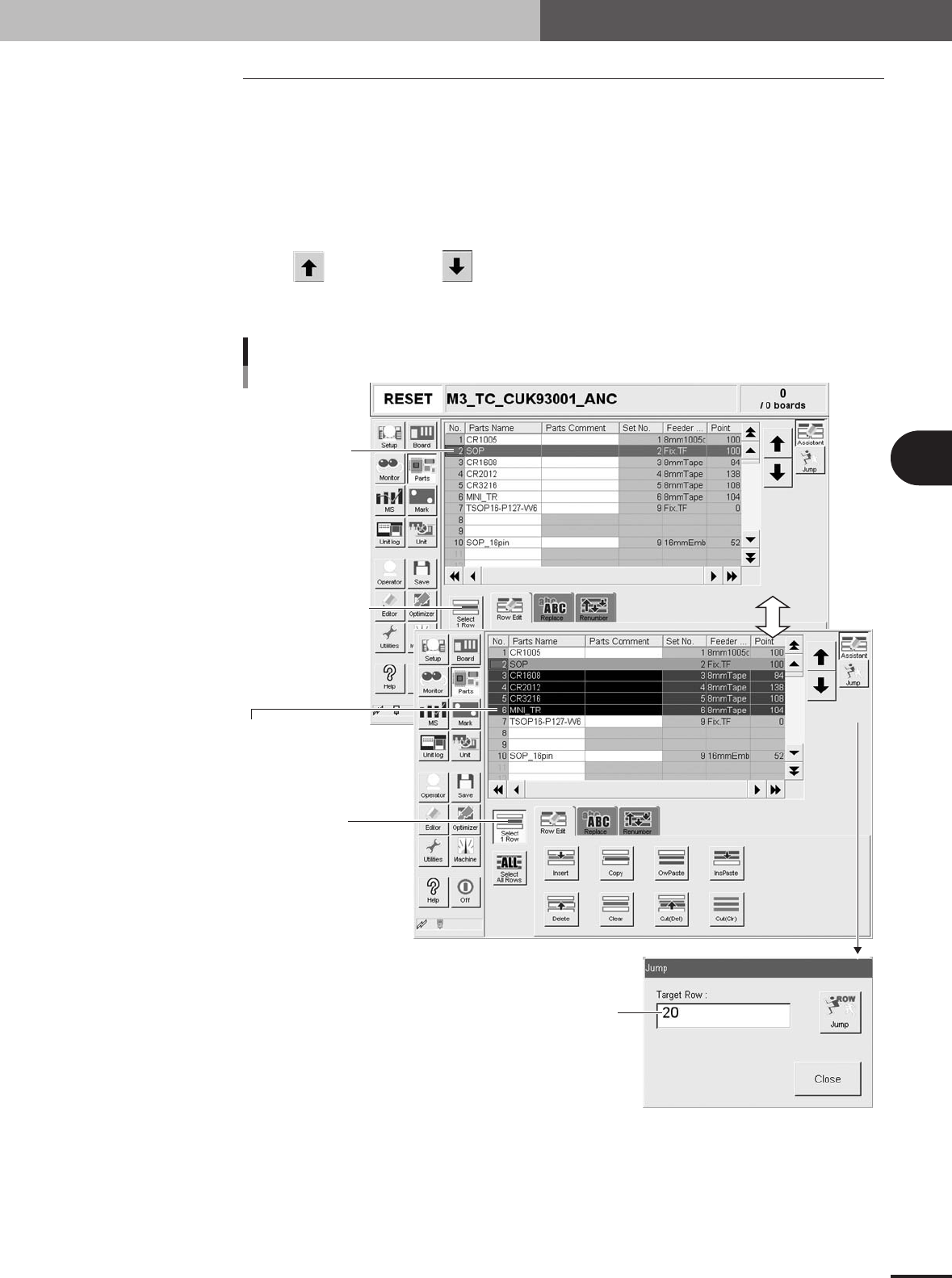
To select a range of rows on the data grid display, use the [Select 1 Row] or [Select All
Rows] button. The selected rows will be highlighted.
■ To select a range of rows
• Click the start row of the range you want to select while the [Select 1 Row] button is still not
depressed.
• Next, press the [Select 1 Row] button and then click the last row of the range you want to select.
You can also use the [Jump] button to specify the row number in the "Jump" dialog box that
appears. The range of the selected rows can be changed by pressing the cursor up/down keys, or
the
[Move row up] or [Move row down] button under the [Assistant] button.
•To cancel the selected range, click any point in the selected range while the [Select 1 Row] button
is depressed.
[Select 1 Row]
button should not yet
be selected
(not depressed).
[Select 1 Row]
button is depressed.
Start row for
selecting row range.
Click the last row in
the range you want to select.
Enter the last row number
in the range you want to select.
Selecting a range of rows
27480-5E-20
■ To select all rows
Pressing the [Select All Rows] button selects all rows on the grid display and also allows
editing rows.
4 -18
5. Edit Assistant function
4
Using the advanced functions
5.3 Editing rows
c
CAUTION
Rows on the data grid display cannot be edited if sorted by a column other than the "No."
column. To edit rows, the data grid display must be sorted in an ascending order by the "No."
column.
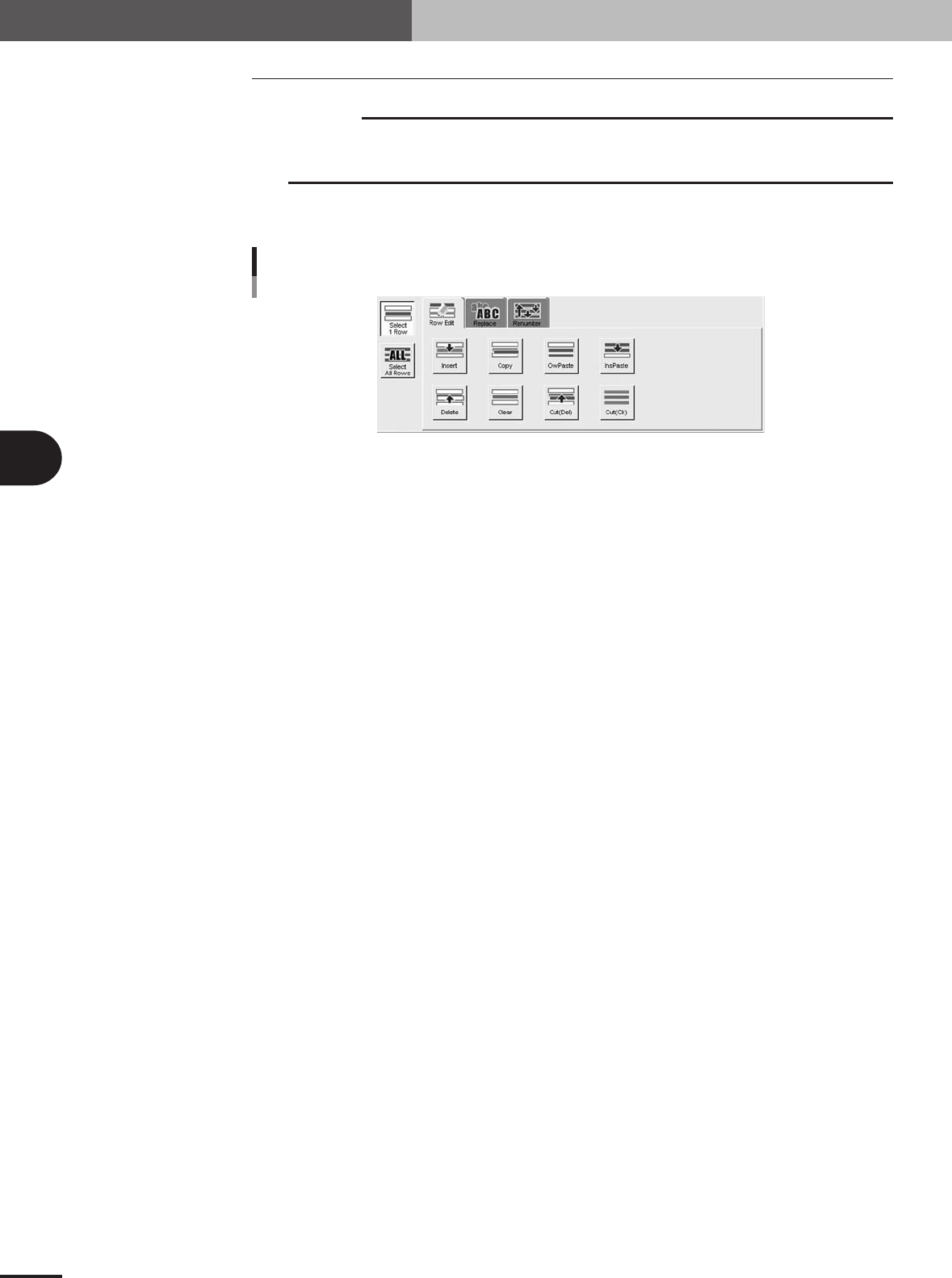
The various buttons on the [Row Edit] tab are for editing rows selected on the grid
display.
Editing buttons arranged on the [Row Edit] tab
27481-5E-20
■ [Insert] button
Inserts blank rows into a position just above the selected range. The inserted blank rows
equal the number of rows in the selected range.
■ [Copy] button
Copies the rows in the selected range into the Clipboard.
■ [OvrPaste] button
Pastes the Clipboard data over the selected range. The previous data that were overwrit-
ten will be lost. Nothing is pasted if there is no data in the Clipboard.
■ [InsPaste] button
Inserts the Clipboard data into a position just above the selected range. Nothing is pasted
if there is no data in the Clipboard.
■ [Delete] button
Deletes the rows in the selected range. The rows below the deleted range shift upwards.
■ [Clear] button
Clears the rows in the selected range. The cleared rows are left blank.
■ [Cut(Del)] button
Cuts (deletes) the rows in the selected range and copies them into the Clipboard. The
rows below the deleted range shift upwards.
■ [Cut(Clr)] button
Clears the rows in the selected range and copies them into the Clipboard. The cleared
rows are left blank.