M3plus_OperationManual_e.pdf - 第185页
5 Editing the PCB data 5- 20 3. Optimizing the data The production PCB data can be automatically rewritten into more efficient data by carrying out optimization. The methods for optimizing the "feeder set position&q…
5 -19
5
Editing the PCB data
2. Block offset
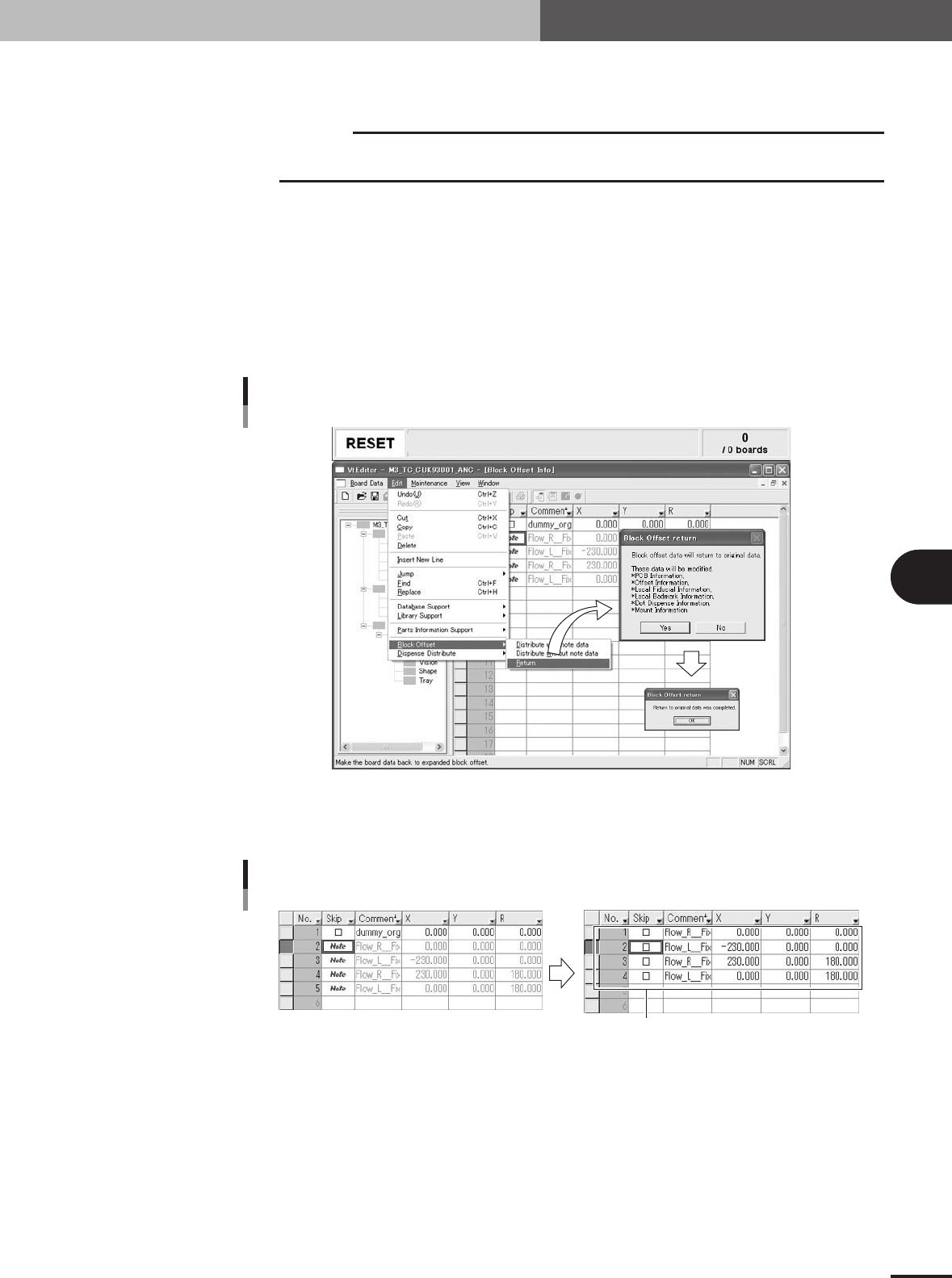
2.2.2 Reconverting to the multi-block data
To return the converted data back to the original multi-block data, follow these steps.
c
CAUTION
This reconversion is possible only when the block offset conversion was executed with the
"Distribute(with note data)" command.
1
Select the "Block Offset" - "Return" command from Edit menu.
2
Check the items to be reconverted and start reconversion.
When the Block Offset Return dialog appears, check the items to be reconverted and
click the [Yes] button to start block offset reconversion.
3
Click the [OK] button to finish reconversion.
When a dialog box appears after reconversion is complete, click the [OK] button to
finish block offset reconversion.
Block offset reconversion
27528-5E-20
4
Check the reconversion result.
Check that the original multi-block data that was kept as "Note" data is now restored.
Block offset conversion
Example of reconversion
Original data is restored.
27529-5E-20
5
Save the PCB data.
5
Editing the PCB data
5-20
3. Optimizing the data
The production PCB data can be automatically rewritten into more efficient data by carrying out
optimization. The methods for optimizing the "feeder set position", "head No." and "mounting order"
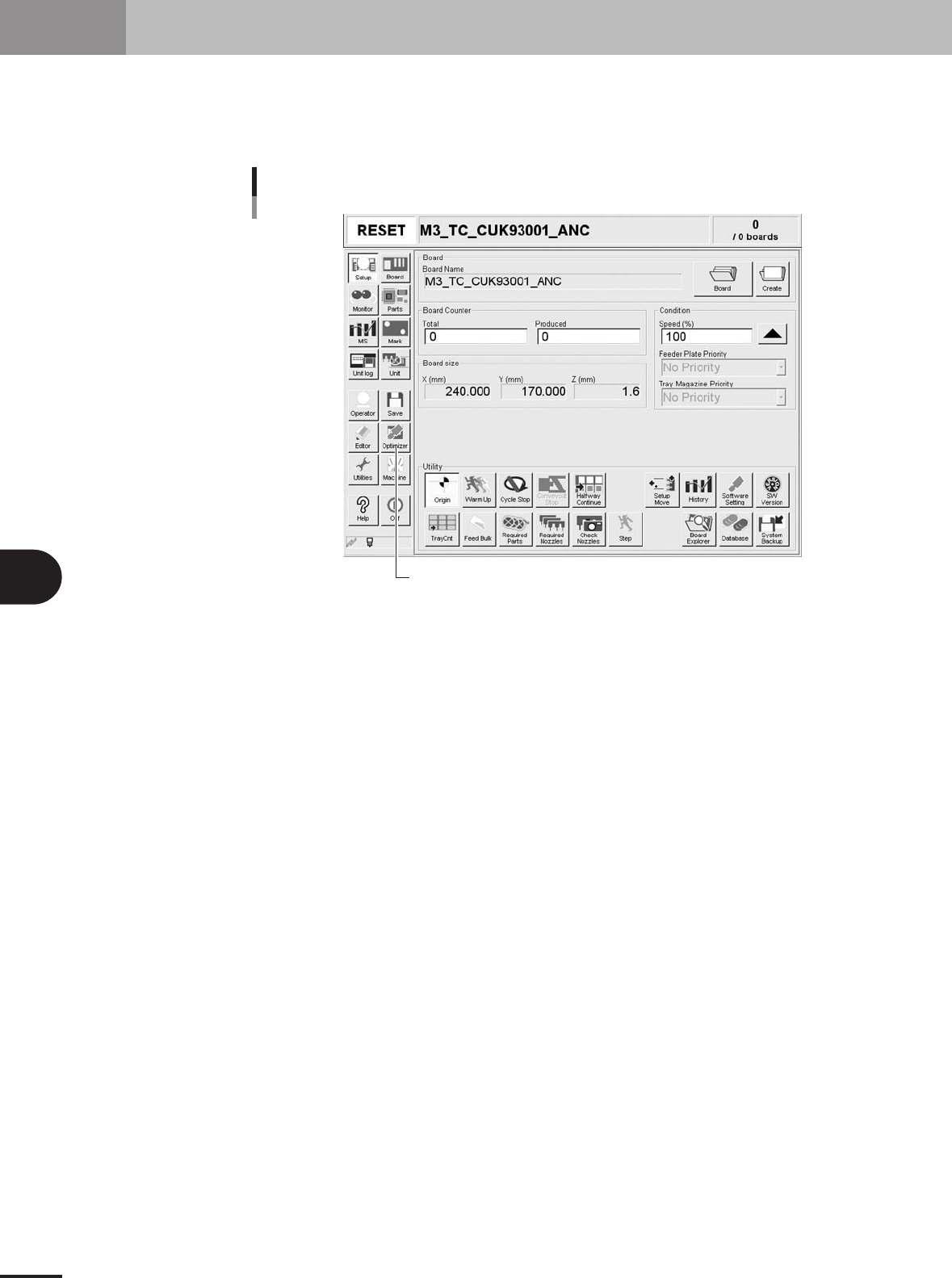
are explained in this section. Press the [Optimizer] button in the main menu button area to carry out
optimization.
[Optimizer] button
[Optimizer] button
27201-5E-2E
5 -21
5
Editing the PCB data
3. Optimizing the data
3.1 Setting the optimizing conditions
This section explains the methods for setting the conditions to optimize the PCB data.
1
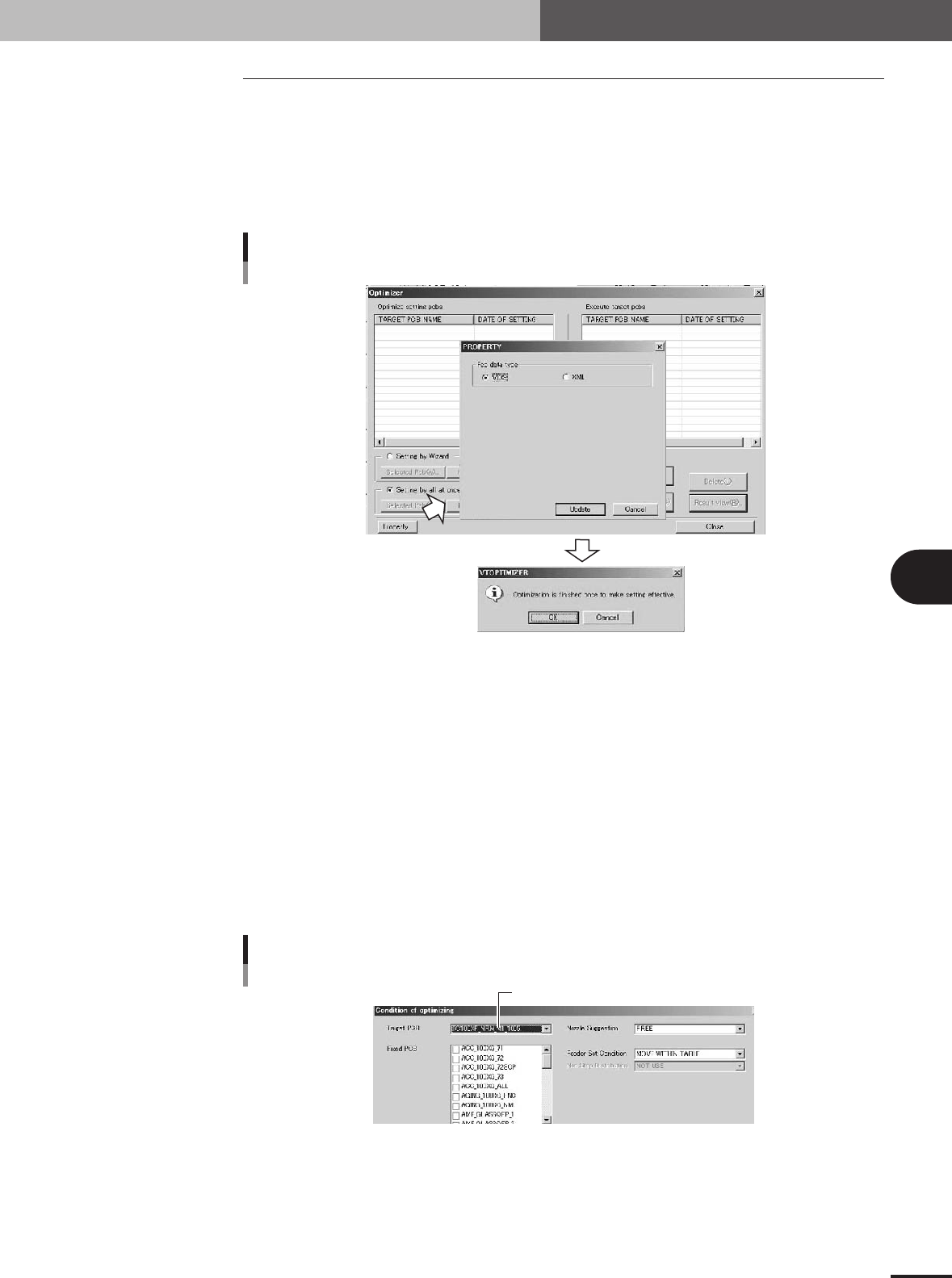
Press the [Optimizer] button.
The Optimizer window appears as shown below.
2
Press the [Property] button.
The Property dialog box appears for selecting “VIOS" or "XML".
Selecting the data to be optimized
27456-5E-20
3
Select "VIOS" or "XML" and press the [Update] button.
When a check dialog box appears, press the [OK] button.
You will then exit Optimizer mode to enable the setting.
4
Press the [Optimizer] button again.
The Optimizer window appears again.
5
Select the PCB to be optimized.
When "VIOS" was selected in step 3:
1. Press the [New Pcb] button.
The optimizer condition setting screen for "VIOS" will open.
2. Select the PCB from the "Target PCB" dropdown list.
Select the PCB data.
Selecting VIOS PCB data
27459-5E-20