M3plus_OperationManual_e.pdf - 第192页
5 - 27 5 Editing the PCB data 4. PCB file format conversion 4.2 Converting XML into VIOS 1 Select the XML PCB data. Click the [Editor] button to open the XML PCB list. Select the XML PCB data to convert into VIOS data an…
5 -26
5
Editing the PCB data
4. PCB file format conversion
2
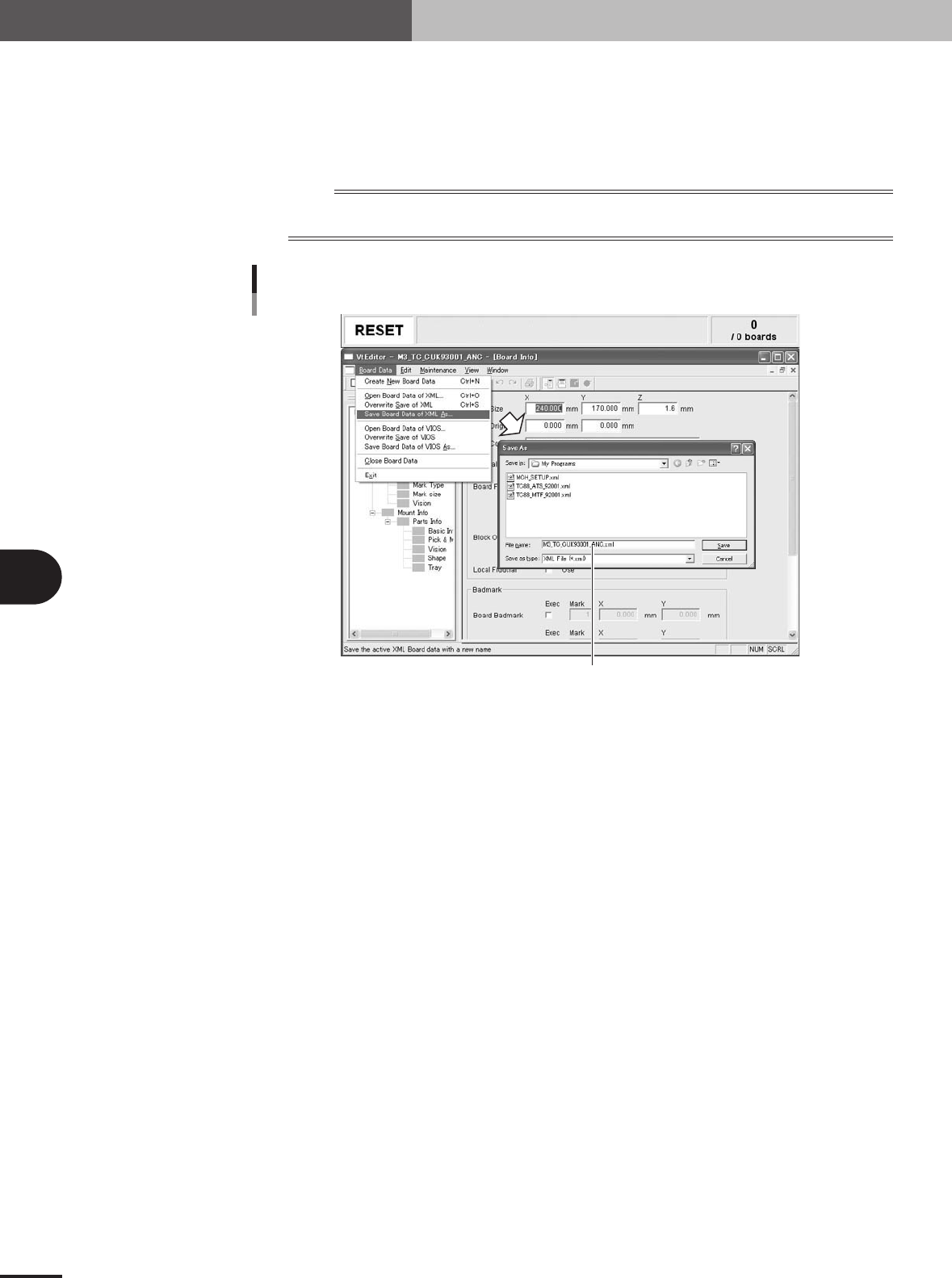
Save the PCB data in an XML format.
1.Select "Save Board Data of XML As" from the PCB Data menu.
2.Designate the folder to store the PCB data and enter the file name in the "File
Name" box.
The extension ".xml" is automatically attached to the file name.
n
NOTE
XML data can be stored in any folder unless write-protected. A folder named "My Programs" is provided to store
XML data in the machine.
Enter a file name for XML PCB data.
Entering a file name for XML PCB data
27531-5E-20
VIOS PCB data now has been converted into XML PCB data.
5 -27
5
Editing the PCB data
4. PCB file format conversion
4.2 Converting XML into VIOS
1
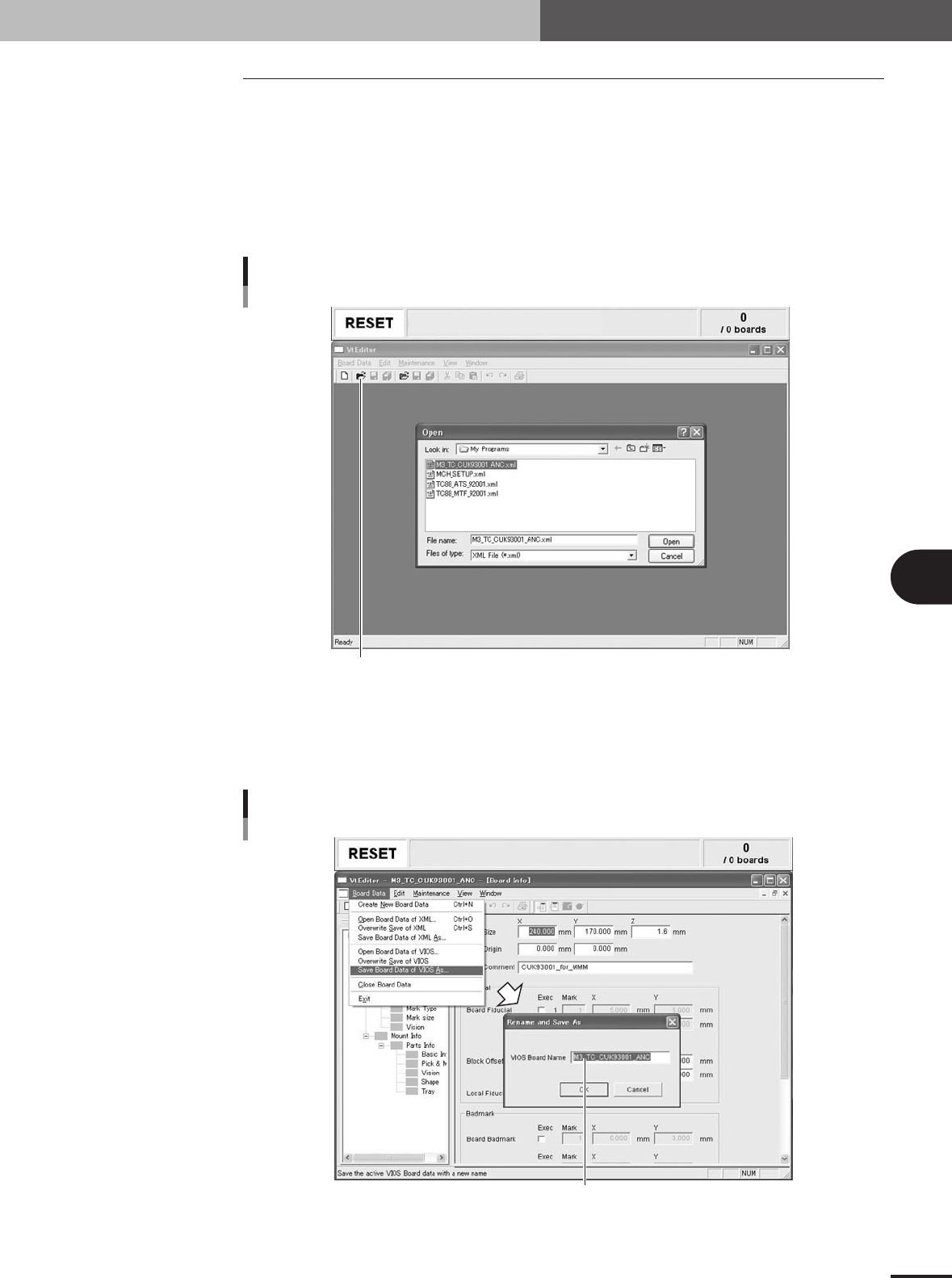
Select the XML PCB data.
Click the [Editor] button to open the XML PCB list. Select the XML PCB data to
convert into VIOS data and click the [Open] button.
If the XML PCB data does not appear automatically, select "Open Board Data of
XML" from the PCB Data menu or click the [Open] button (yellow) on the Editor
toolbar.
Entering a file name for VIOS PCB data
Opening XML data list
27532-5E-20
2
Save the PCB data in a VIOS format.
1.Select "Save Board Data of VIOS As" from the PCB Data menu.
The "Rename and Save As" dialog box appears.
Enter a file name for VIOS PCB data.
Enter a file name for VIOS PCB data
27533-5E-20

5 -28
5
Editing the PCB data
4. PCB file format conversion
2.Enter the file name in the "VIOS Board Name" box.
The folder (No1) in which XML format files are stored are determined, so you do
not have to designate the folder. Unlike XML files, no extension is attached to the
file name.
3.Click the [OK] button.
The XML PCB data has now been saved as VIOS PCB data.