M3plus_OperationManual_e.pdf - 第154页
4 - 19 5. Edit Assistant function 4 Using the adv anced functions 5.4 Find and replace Drop-down lists under the [Replace] tab allow you to find or replace the desired data. n NOTE When no specific range is selected in t…
4 -18
5. Edit Assistant function
4
Using the advanced functions
5.3 Editing rows
c
CAUTION
Rows on the data grid display cannot be edited if sorted by a column other than the "No."
column. To edit rows, the data grid display must be sorted in an ascending order by the "No."
column.
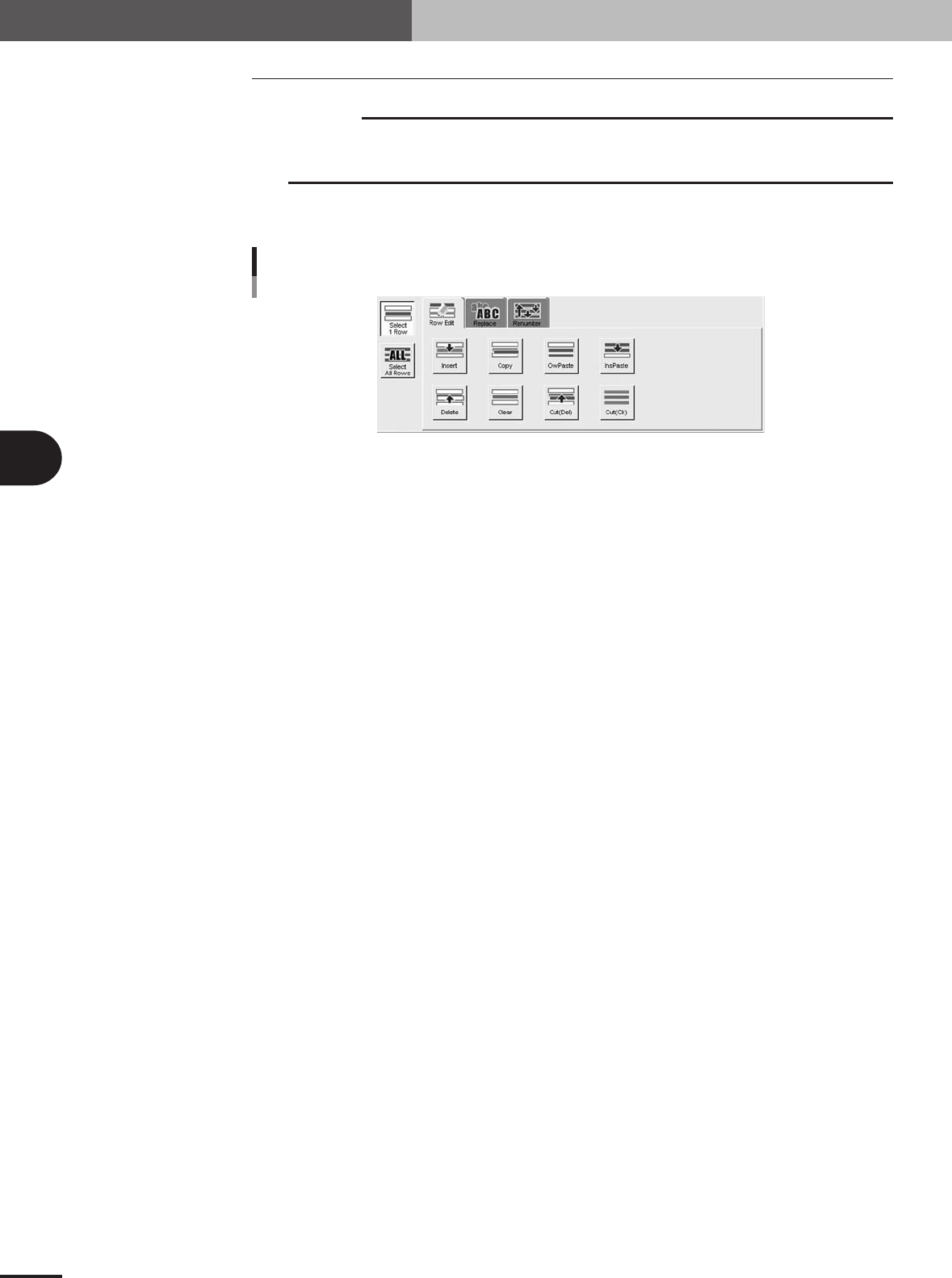
The various buttons on the [Row Edit] tab are for editing rows selected on the grid
display.
Editing buttons arranged on the [Row Edit] tab
27481-5E-20
■ [Insert] button
Inserts blank rows into a position just above the selected range. The inserted blank rows
equal the number of rows in the selected range.
■ [Copy] button
Copies the rows in the selected range into the Clipboard.
■ [OvrPaste] button
Pastes the Clipboard data over the selected range. The previous data that were overwrit-
ten will be lost. Nothing is pasted if there is no data in the Clipboard.
■ [InsPaste] button
Inserts the Clipboard data into a position just above the selected range. Nothing is pasted
if there is no data in the Clipboard.
■ [Delete] button
Deletes the rows in the selected range. The rows below the deleted range shift upwards.
■ [Clear] button
Clears the rows in the selected range. The cleared rows are left blank.
■ [Cut(Del)] button
Cuts (deletes) the rows in the selected range and copies them into the Clipboard. The
rows below the deleted range shift upwards.
■ [Cut(Clr)] button
Clears the rows in the selected range and copies them into the Clipboard. The cleared
rows are left blank.
4 -19
5. Edit Assistant function
4
Using the advanced functions
5.4 Find and replace
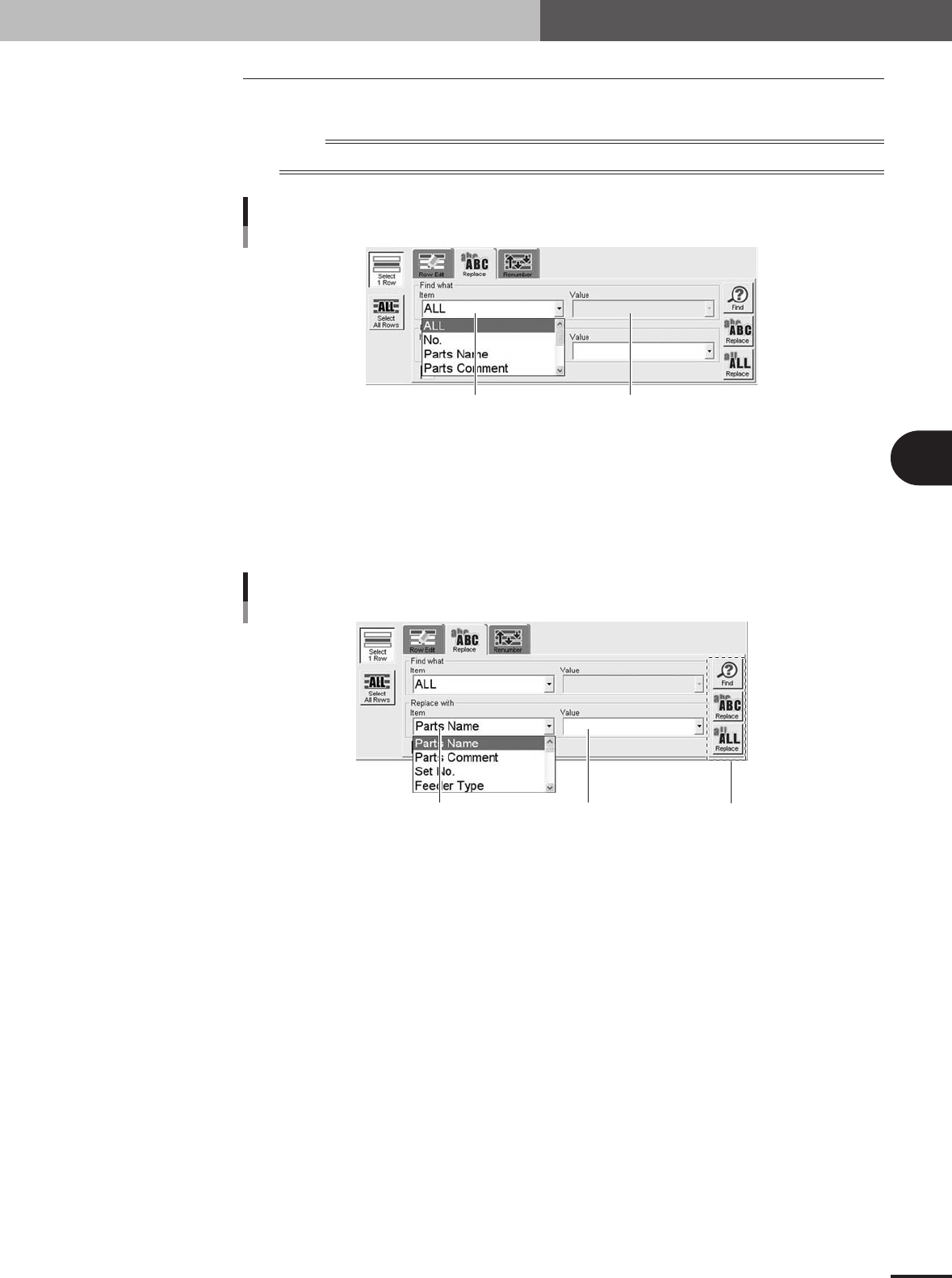
Drop-down lists under the [Replace] tab allow you to find or replace the desired data.
n
NOTE
When no specific range is selected in the data grid display, search and replace will be performed on all rows.
Item you want to find Value you want to find
Selecting the item to find (Drop-down list box)
27482-5E-20
■ Find what – Item (Drop-down list box)
Specify the item you want to find. When you want to find from among all items, specify
"ALL".
■ Find what – Value (Drop-down list box)
Specify the value or setting you want to find.
Item whose value or
setting you want to replace
Value or setting to use
for replacing the item
Selecting the item to be replaced (Drop-down list box)
Command buttons
27483-5E-20
■ Replace with – Item (Drop-down list box)
Specify the item whose value or setting you want to replace.
■ Replace with – Value (Drop-down list box)
Specify the value or setting you want to use to replace. When the item to be replaced is
an "Offset" parameter, specify the offset value that you want to add to the current value.
■ Match Case
Mark this check box when you want to perform case-sensitive search.
■ Command buttons
• [Find] button
Finds data that matches the search conditions. Each time you press the [Find] button, the cursor
moves to the next data that matches the search conditions.
• [Replace] button
Replaces the data that matches the search conditions, with the specified value or setting.
• [ALL Replace] button
Replaces all the data that match the search conditions, with the specified value or setting.
4 -20
5. Edit Assistant function
4
Using the advanced functions
5.5 Renumber
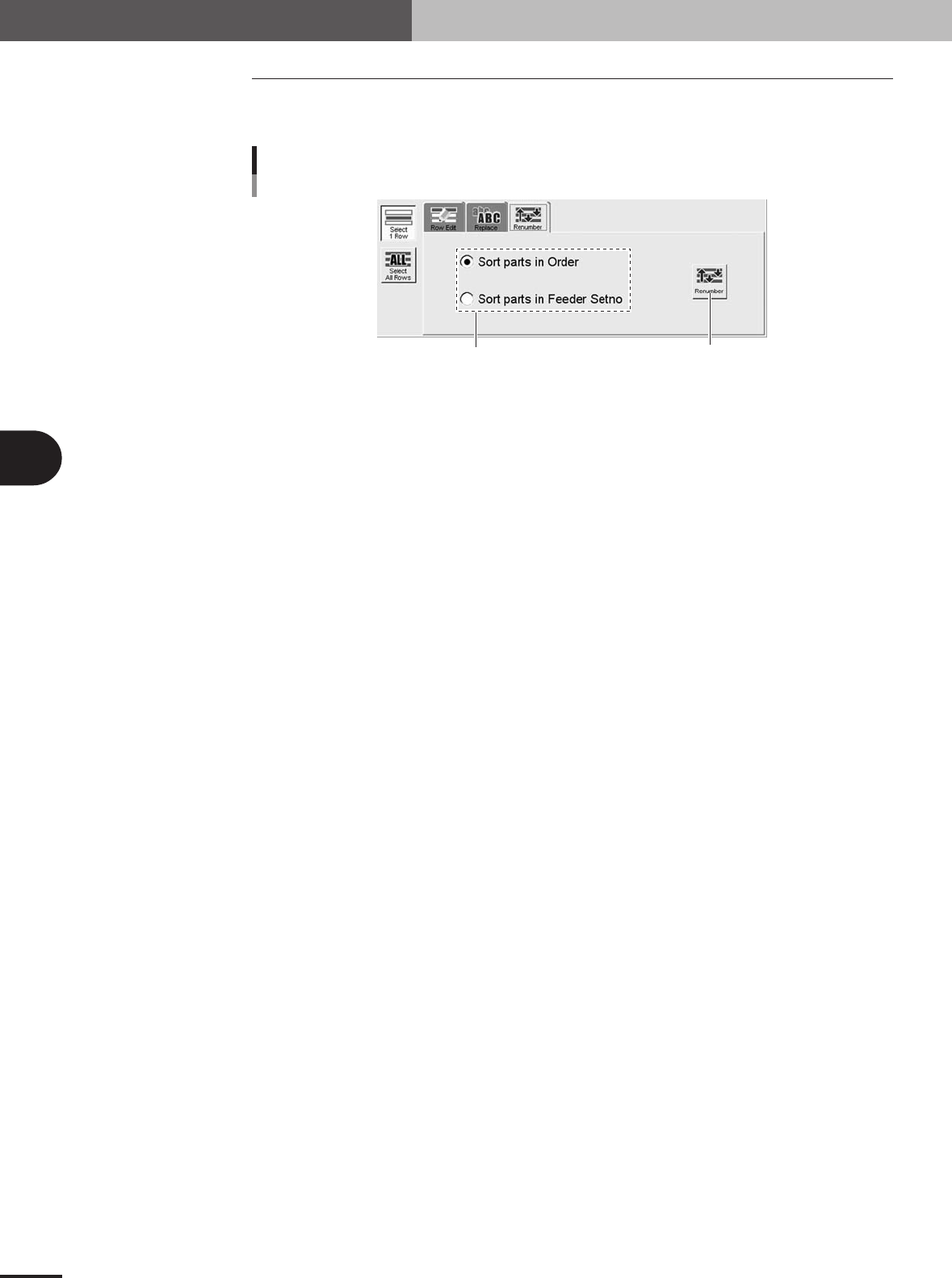
The [Renumber] button on the Renumber tab sorts the data according to the conditions
selected with the option button.
Select the sort conditions.
[Renumber] button
[Renumber] button
27484-5E-20
■ Sort parts in order
Renumbers all rows while removing blank rows.
■ Sort parts in Feeder Set No.
Rearranges the data into the rows with the same number as feeder set No.