M3plus_OperationManual_e.pdf - 第208页
6 - 13 6 Managing the data 3. Creating XML library 3.3 Saving the library data When the library data created with the Editor has been changed in the Parts Adjust mode (or Mark Adjust mode) while operating the machine, th…

6 -12
6
Managing the data
3. Creating XML library
4
Check that library matching is complete.
A message appears when library matching for all parts or marks is complete. Press the
[OK] button.
n
NOTE
When setting mark library links individually, pressing the [Find] button displays the library if the name of that
library is identical with a component name in the folder. Select the displayed library and press the [Execute]
button to set the link automatically.
c
CAUTION
To enable library links, save the data and then reload it.
6 -13
6
Managing the data
3. Creating XML library
3.3 Saving the library data
When the library data created with the Editor has been changed in the Parts Adjust mode
(or Mark Adjust mode) while operating the machine, the changed library data cannot be
saved by the normal method of saving the PCB data. To maintain collective management
of the library data, you must separately save the changed data into the original library as
follows. Library data can be saved with either the VGOS or Editor.
n
NOTE
Normally, library data should be saved in a PC connected to LAN.
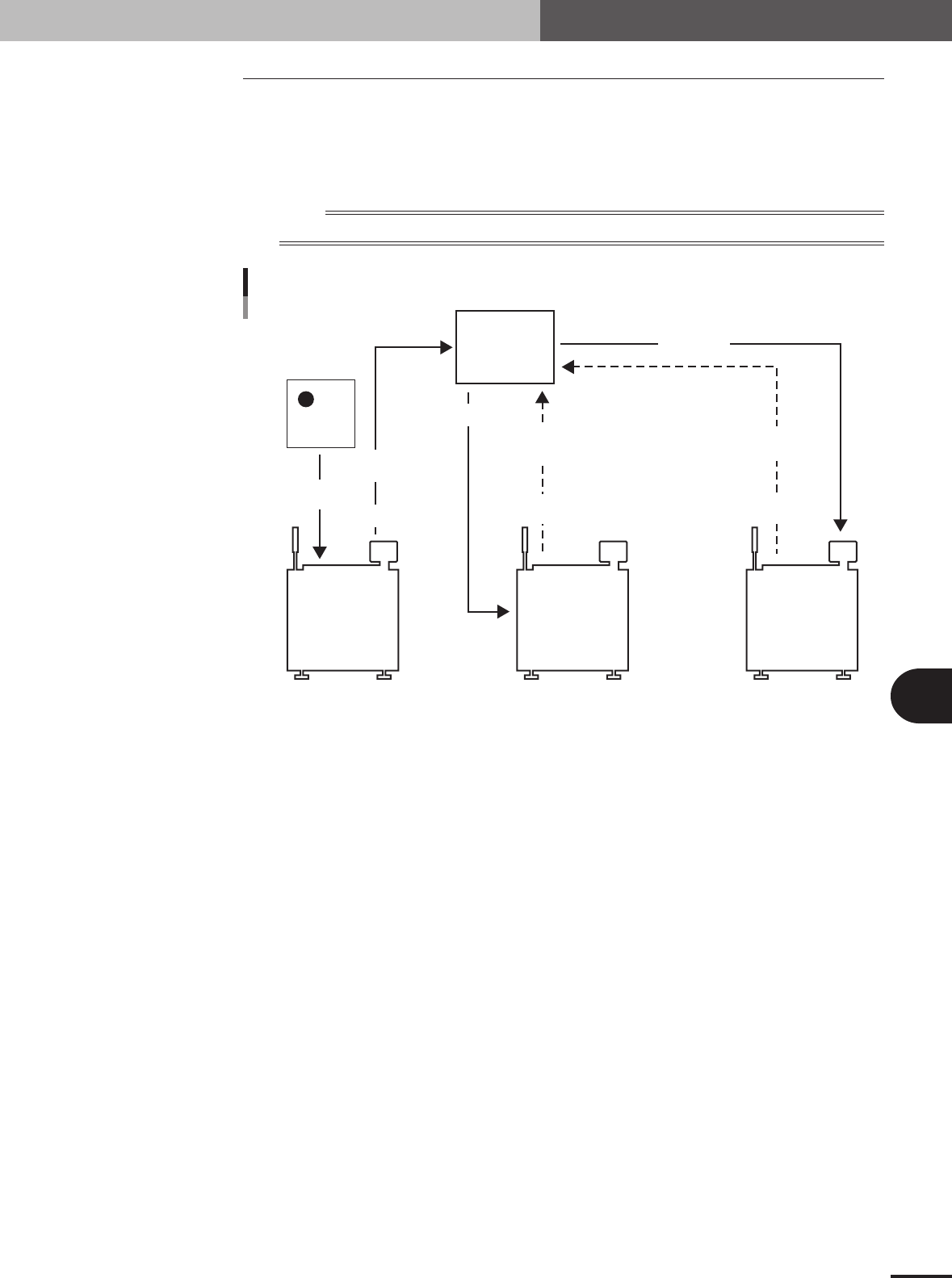
Machine 1 Machine 2 Machine 3
Mark threshold: 100 Mark threshold: 120
Mark threshold: 80
Mark_1
Mark_1.xml
Library storage
location
Saved as
common data
Call-up
Registration
Saves as
machine difference
Saves as
machine difference
Data check
in Adjust mode
Data check
in Adjust mode
Data check
in Adjust mode
Call-up
Saving the library data
23601-5E-20
Machine difference information
XML PCB data has "common information" and "machine difference information", while the library
data has "common information", "machine difference information" and "series information".
Common information
Parameters that can be shared between machines on a production line.
Machine difference information
Parameters specifically set for machines using common information. These parameters can be set
separately according to the parameter group such as "Vision" and "Shape", but cannot be set for one
parameter.
6 -14
6
Managing the data
3. Creating XML library
When using the Editor:
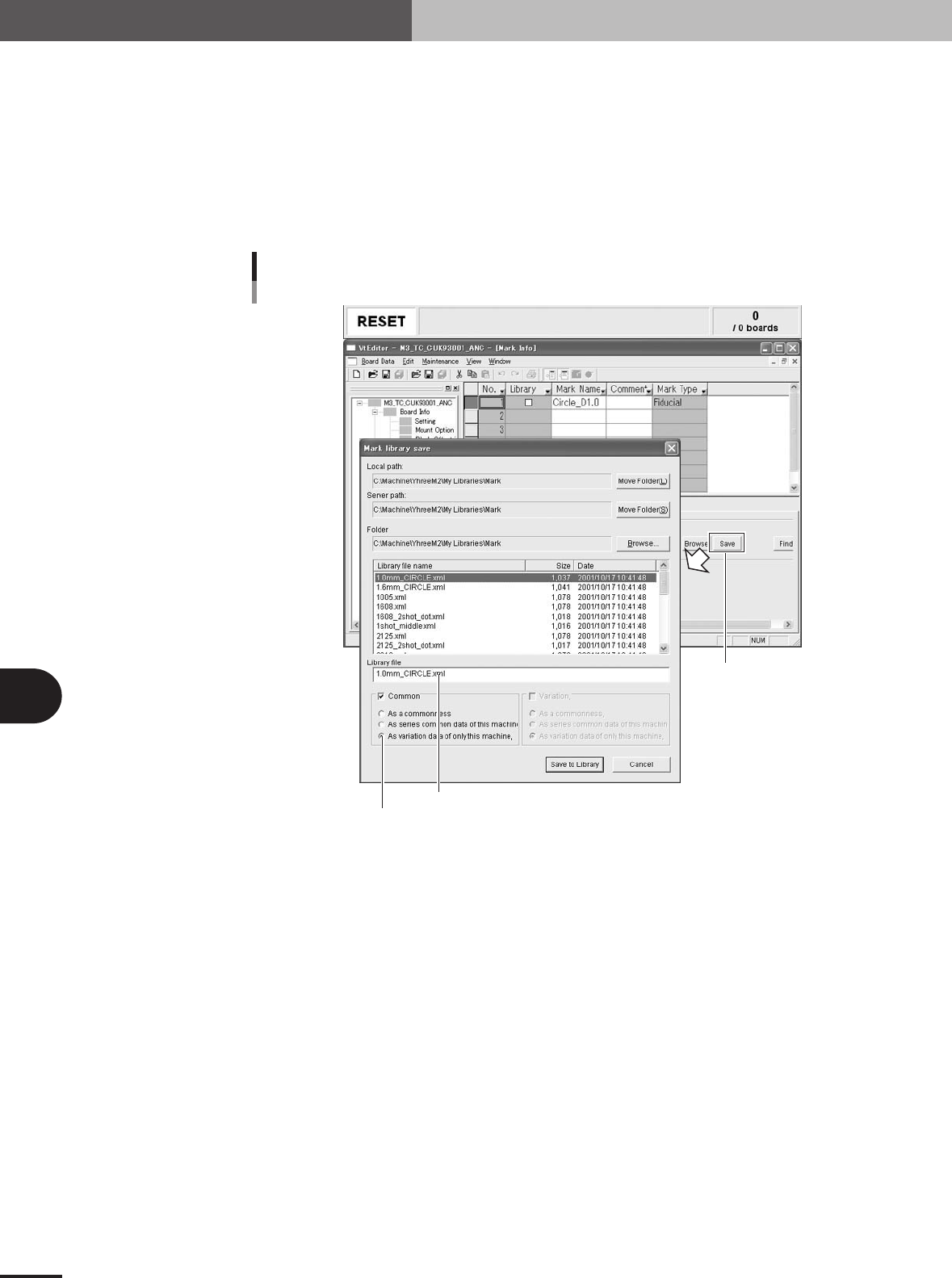
After checking and adjusting the library data in the Adjust mode, save the library data as
explained below.
1
Click the [Save] button.
After selecting the library data, press the [Save] button.
2
Enter the library file name.
3
Select the machine difference information.
[Save] button
Enter the library file name.
Saving the library
Editor
Select the machine difference.
27606-5E-20
4
Press the [Save to Library] button.
The selected library data has now been saved.