M3plus_OperationManual_e.pdf - 第189页
5 - 24 5 Editing the PCB data 3. Optimizing the data 3.2 Executing Optimize the PCB data after setting the optimization conditions. 1 Load the PCB data to be optimized. The "List of boards for which optimization con…

5 -23
5
Editing the PCB data
3. Optimizing the data
8
Designate the "Feeder Set Condition" conditions.
Feeder Set Condition
27463-5E-20
NO
The data is not optimized.
ALL FEEDERS FIXED
Only the component mounting order and mounting head are optimized. The feeder
set positions are not optimized.
NO SET POS. FEEDER MOVE
The component mounting order and mounting head are optimized, and the opti-
mum feeder set No. is assigned to data for which the "Feeder Set No." in the
component information is set to "0".
MOVE WITHIN TABLE
The component mounting order and mounting head are optimized, and the feeder
set position in each feeder plate is optimized.
ALL FEEDERS MOVE
The component mounting order and mounting head are optimized, and all feeder
set positions other than the fixed components are optimized.
MOVE + FIXED DATA MATCH
The fixed component matching is performed. After that, the mounting order,
mounting head and feeder set positions other than the fixed components are
optimized.
9
Designate the priority feeder plate.
When the front/back or left/right priority feeder plate is designated, more feeders will
be arranged on that feeder plate when the feeder position is optimized.
0
Save the settings.
Press the [Setting Save] button.
q
Repeat the above steps to optimize other PCB data.
5 -24
5
Editing the PCB data
3. Optimizing the data
3.2 Executing
Optimize the PCB data after setting the optimization conditions.
1
Load the PCB data to be optimized.
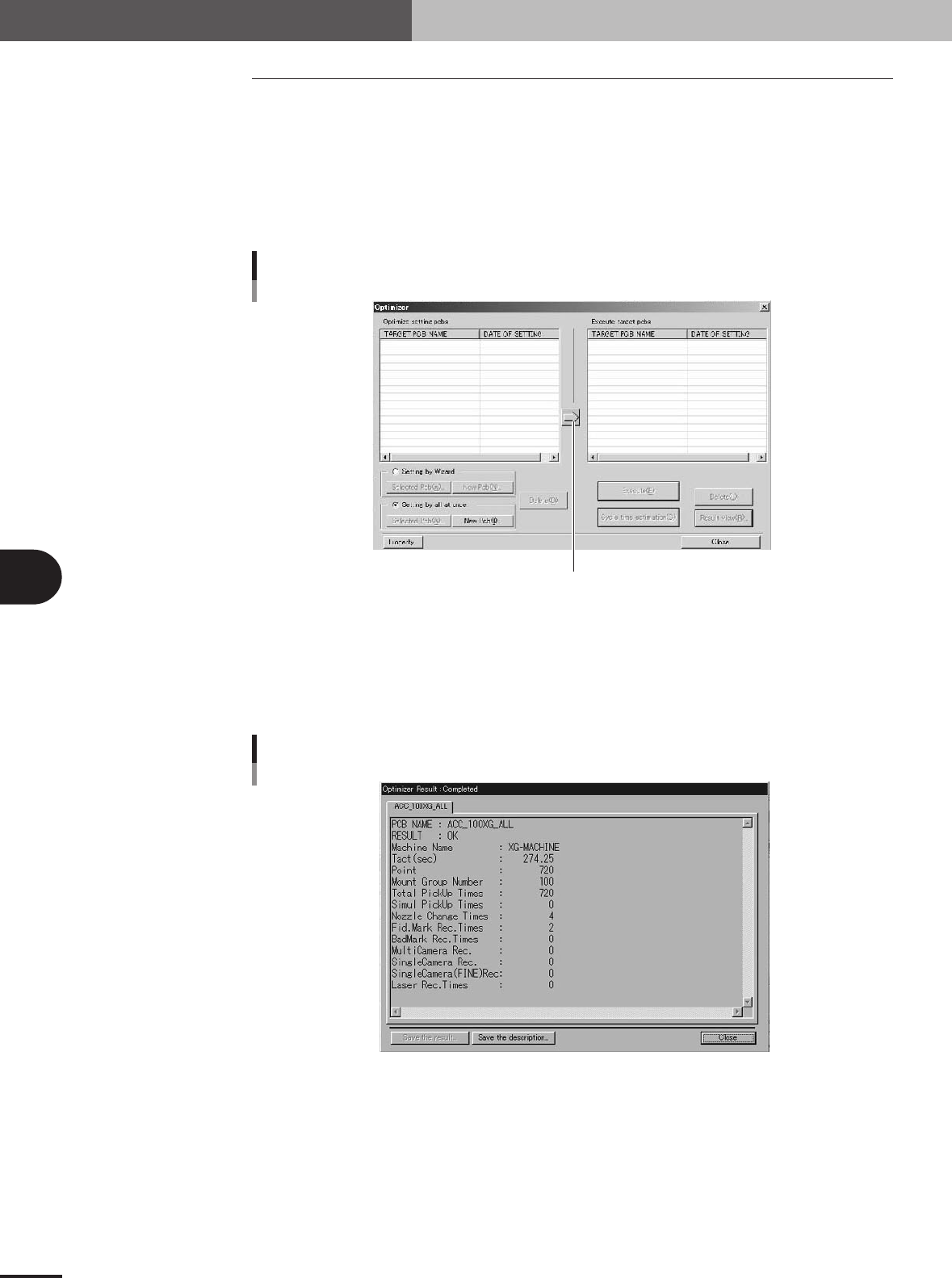
The "List of boards for which optimization conditions are set" will appear at the left
of the screen. Set the cursor to the PCB to be optimized, and press the [Right arrow]
button. The PCB data will be loaded in, and the PCB name will appear in the "List of
optimization boards" on the right side. When the [Cycle Time Estimation] button is
pressed, the estimated time cycle after optimization can be confirmed.
Press this button to load the PCB data from the left list into the right list.
Selecting the PCB data to be optimized
27457-5E-20
2
Press the [Execute] button and start optimization.
All of the selected board data will be optimized, and the results will be displayed.
3
Check the results.
Press the [Result View] button, and check the results.
Optimization result display
27465-5E-20
4
Save the data.
Press the [Save the result] button, and save the data. If the data is not to be saved,
press the [Close] button and quit optimization.
5
Editing the PCB data
5 -25
4. PCB file format conversion
Follow the procedure explained below to perform data conversion between VIOS format PCB data
into XML format PCB data.
4.1 Converting VIOS into XML
1
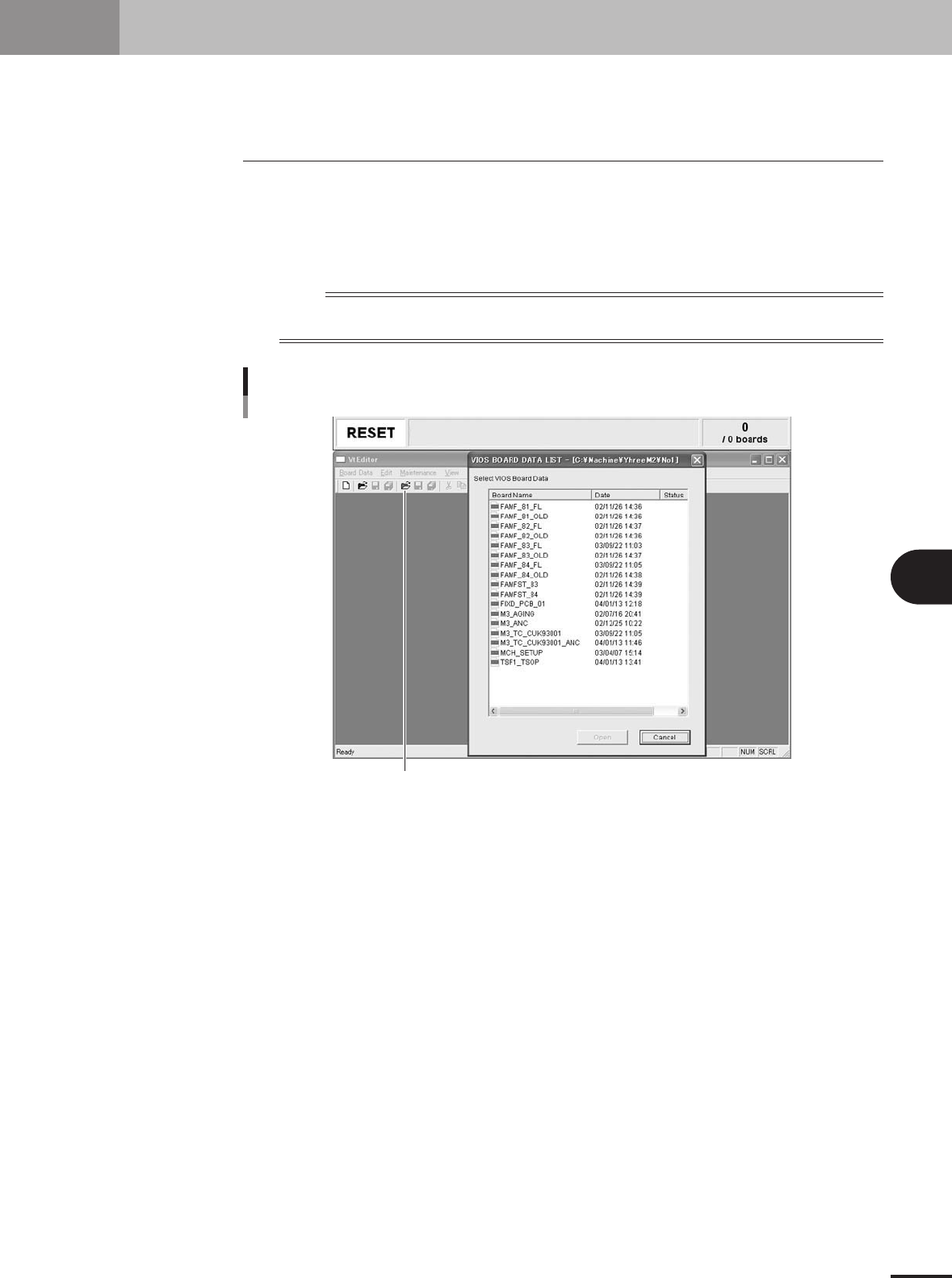
Select the VIOS PCB data.
1.Click the [Editor] button.
2.A list of VIOS PCB data appears. Select the VIOS PCB data to convert into XML data
and click the [Open] button.
n
NOTE
When a list of XML PCB data appears, close this list and then select "Open PCB Data of VIOS" from the PCB
Data menu or click the [Open] button (green) on the Editor toolbar.
Click this button to open the VIOS PCB data list.
Opening VIOS data list
27530-5E-20