M3plus_OperationManual_e.pdf - 第157页
4 - 22 4 Using the adv anced functions 6. Recognition image check and save function 3 Save the image. 1. Press the [Image Save/Open] button in the "Vision Check & Save" dialog box. 2. Select the folder and …
4 -21
4
Using the advanced functions
6. Recognition image check and save function
This function allows you to check and save the image that was recognized immediately before the
machine stopped during automatic operation. You can use the saved image data to analyze recogni-
tion errors that stopped the machine.
■ How to use
1
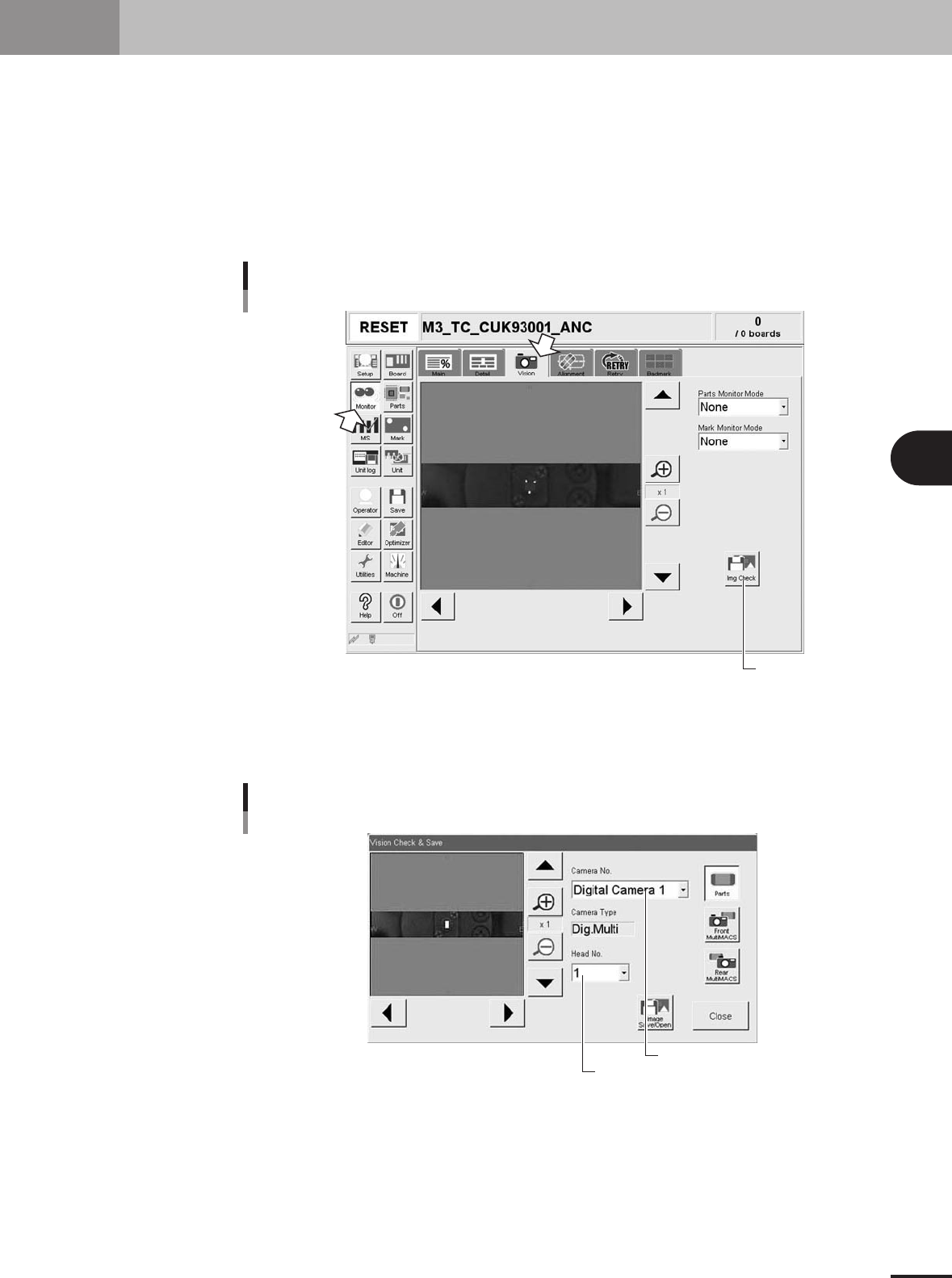
Press the [Img Check] button.
On the [Vision] tab of the [Monitor] screen, press the [Img Check] button. The "Vision
Check & Save" dialog box appears.
Press this button.
[Img Check] button
27485-5E-20
2
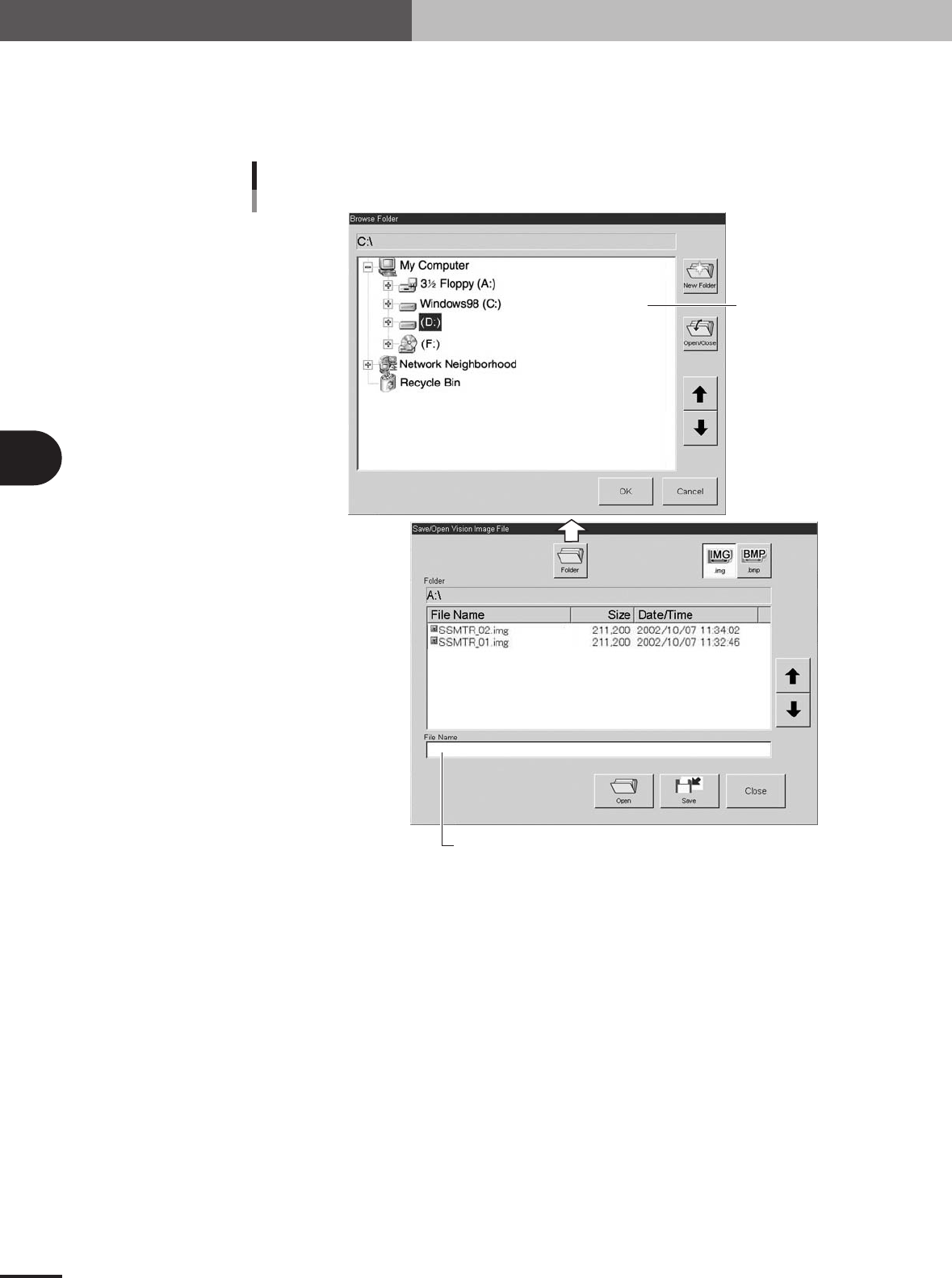
Select the image.
Select the image you want to check or save, by specifying the camera No. from the
"Camera No." drop-down list and the head No. from the "Head No." drop-down list.
Select the camera.
Select the head.
Selecting the image
27486-5E-20
4 -22
4
Using the advanced functions
6. Recognition image check and save function
3
Save the image.
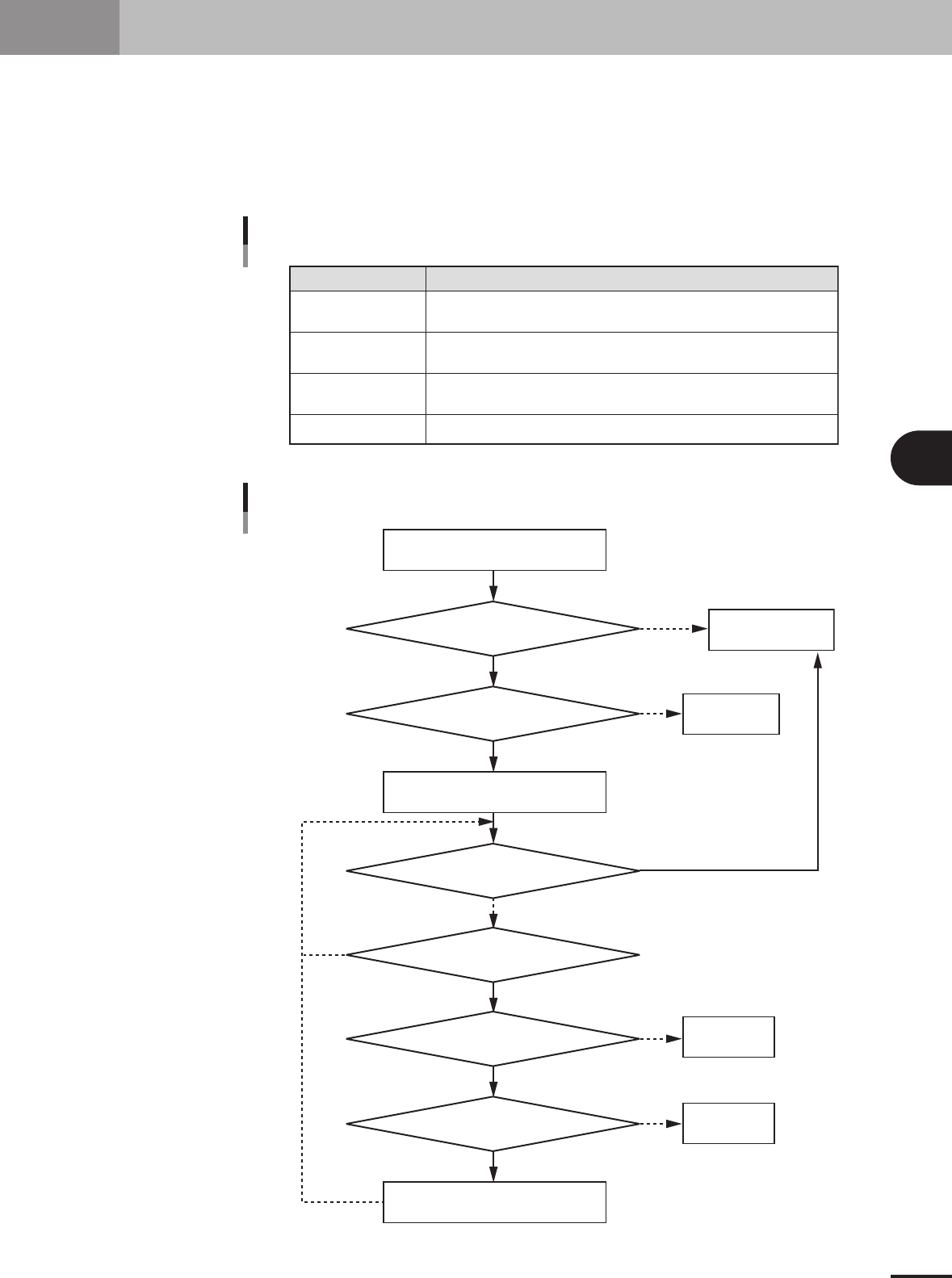
1.Press the [Image Save/Open] button in the "Vision Check & Save" dialog box.
2.Select the folder and enter the file name.
3.Press the [Save] button.
Enter the file name to save the image.
Select the folder.
Saving the image
27487-5E-20
4 -23
4
Using the advanced functions
7. Fixed board matching
When you select PCB data to load it while the "fixed board matching" function is enabled, a search is
performed for all component information in the PCB data being loaded to check whether there are
components with the same name registered in fixed board data. When components with the same
name are found, their information is automatically copied into the PCB data being loaded. So for
example if using components that are always set on the feeder plate, there is no need to create such
component data for each PCB data. Fixed board matching can also be used just to copy component
information having the same name which helps shorten the time you need to create PCB data.
Maximum registerable
fixed board data
Matching timing
Matching condition
Data format
A maximum of 5 types of PCB data can be registered as fixed board data.
When this function is enabled, fixed board matching is automatically executed
each time the target PCB data is loaded.
Component data is copied only when the "Parts Name" and "Feeder Type"
match the fixed board data.
Only VIOX data is usable. XML and text format PCB data are unusable.
Item Description
Specifications for fixed board matching function
25420-5E-20
Yes
No
Yes
No
Yes
No
Yes
No
Yes
No
Yes
No
Load board data A
Load the fixed board B data
Copy component data from B to A
Was a fixed board specified?
Is there a fixed board B?
Is matching for all component data finished?
Is component name the same?
Is there valid data?
Is the feeder type the same?
End the board
data loading
Error processing
Ea721
Error processing
Ea723
Error processing
Ea725
Operation flow for fixed board matching
23450-5E-20