00197199-04_IM_WLAN-Infrastructure.pdf - 第10页
Components Motorola AP6521 Access Point 3.1.2 Installation 10 Installation Manual WLAN Infrastructure for SIPLACE 3.1.2 3 . 1 . 2 I n s t a lla t io n Installation An AP-6521 Series access point can be attached to a wall…
Components
3.1.1 Features Motorola AP6521 Access Point
Installation Manual WLAN Infrastructure for SIPLACE 9
3
3 Components
Components
3.1
3.1 Motorola AP6521 Access Point
Motorola AP6521 Access Point
Information
The AP6521 and AP6522 access points can use use WiNG software as its onboard operating system.
The AP6522 is the successor of AP652. The unique WiNG software enables the access point to function
as a Standalone “thick” access point, or a Virtual Controller AP capable of adopting and managing up to
24 access points of the same model.
For Installation, please refer to the WiNG 5.8 ACCESS POINT SYSTEM REFERENCE GUIDE
https://atgsupportcentral.motorolasolutions.com/content/emb/docs/manuals/MN002229A01.pdf
3.1.1
3.1.1 Features
Features
▪ Operating temperature range: 0 to 40°C
▪ Power over Ethernet (PoE in accordance with 802.3af)
▪ WEP encryption
▪ 802.11b/g – up to 54 Mbit/s in 2.4GHz band
▪ 802.11a – up to 54 Mbit/s in 5GHz band
▪ 802.11n - MCS 0-15 up to 300Mbps
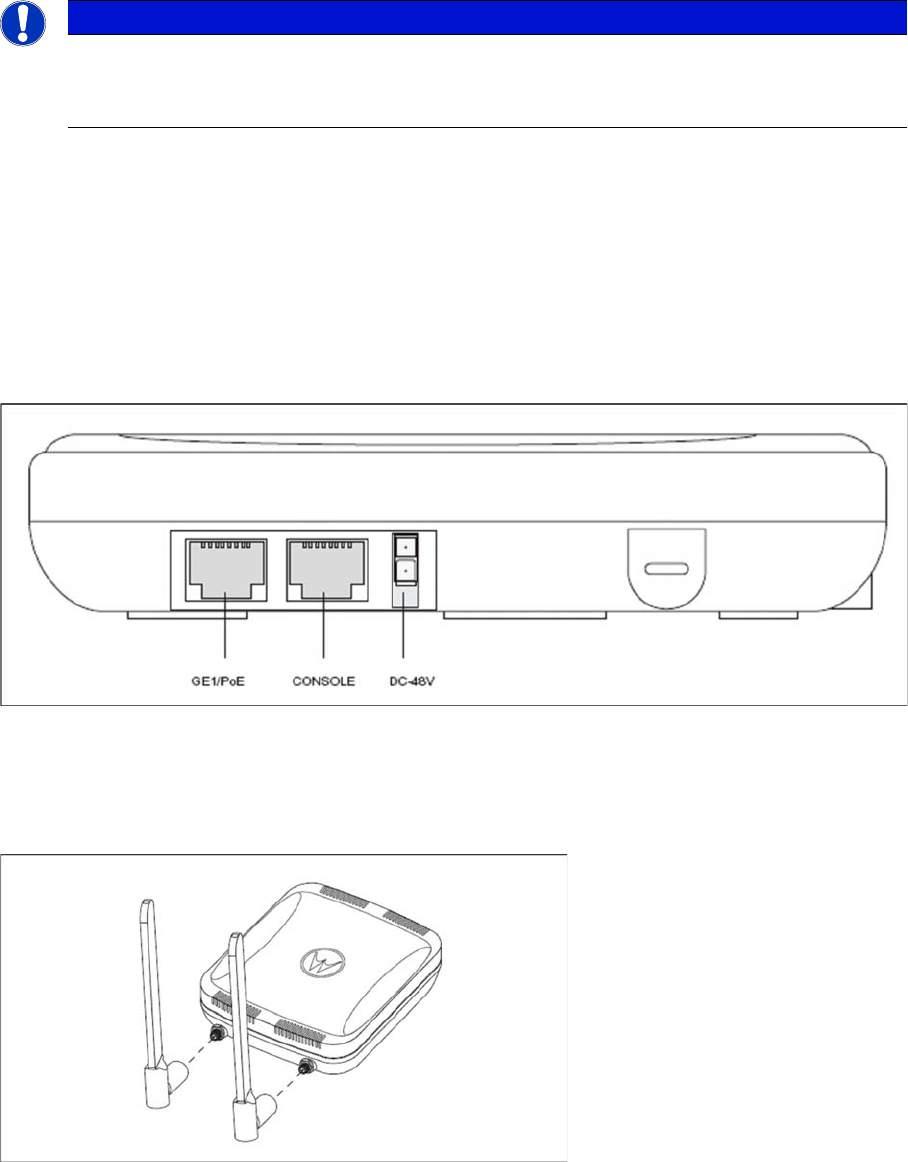
An AP-6521 Series access point has one RJ-45 connector supporting an 10/100/1000 Ethernet port con
-
nection and requires 802.3af compliant power from an external source.
The access point contains runtime firmware which enables the unit to boot after either a power up or a
watchdog reset. The runtime firmware on the access point can be updated via the Ethernet interface.
Components
Motorola AP6521 Access Point 3.1.2 Installation
10 Installation Manual WLAN Infrastructure for SIPLACE
3.1.2
3.1.2 Installation
Installation
An AP-6521 Series access point can be attached to a wall, mounted under a suspended T-Bar or above
a ceiling.
To prepare for an installation, perform the following:
► Verify that the contents of the box includes the intended access point and accessory hardware.
► Review site survey and network analysis reports to determine the location and mounting position for
the access point.
► Connect a CAT-5e or better Ethernet cable to a PoE compatible device and run the cable to the in
-
stallation site. Ensure there is sufficient cable slack to perform the installation steps.
► Determine whether the access point is powered using a Power Injector system, combining data and
power to the access point’s GE1/PoE port or will be powered from a conventional power adapter pro
-
viding power only to the access point’s DC-48V connector.
Place the access point using the following guidelines:
► Install the access point at an ideal height of 3 meter from the ground.
► Orient the access point antennas vertically for best reception.
► Point the access point antennas downward if attaching to the ceiling.
For further information about installation, please refer to the access point documentation
NOTICE
Mounting location
Select a mounting option based on the physical environment of the coverage area.
Do not mount the access point in a location that has not been approved in a site survey.
Components
3.1.3 Configuration Motorola AP6521 Access Point
Installation Manual WLAN Infrastructure for SIPLACE 11
3.1.3
3.1.3 Configuration
Configuration
Once the AP-6521 is installed and powered on, complete the following steps to get the access point up
and running and access management functions.
3.1.3.1
3.1.3.1 Primary Setup
Primary Setup
The access point’s IP address is optimally provided using DHCP. A zero config IP address can also be
derived if DHCP resources are unavailable. Using zero config, the last two octets in the IP address are
the decimal equivalent of the last two bytes in the access point’s hardcoded MAC address.
For example:
MAC address - 00:C0:23:00:F0:0A
Zero-config IP address - 169.254.240.10
To derive the access point’s IP address using its MAC address:
► Open the Windows calculator be selecting Start > All Programs > Accessories > Calculator. This
menu path may vary slightly depending on your version of Windows.
► With the Calculator displayed, select View > Scientific. Select the Hex radio button.
► Enter a hex byte of the access point’s MAC address. For example, F0.
► Select the Dec radio button. The calculator converts F0 into 240. Repeat this process for the last
access point MAC address octet.
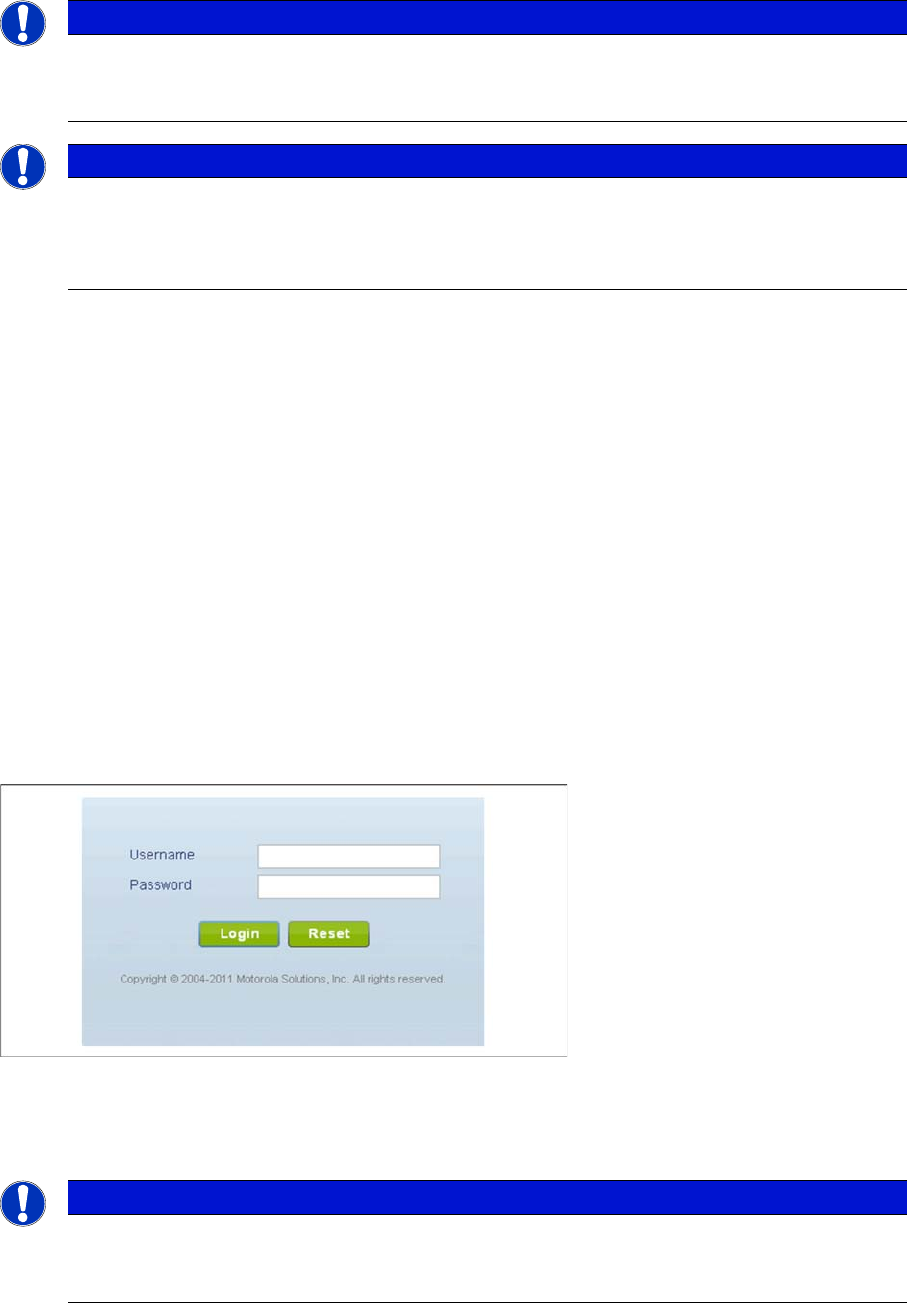
► Point the web browser to the access point’s IP address, using the secure hypertext transfer protocol
(e.g. https:// 169.254.240.10). The following login screen displays:
► In the Username field, enter admin as default username.
► In the Password field, enter motorola as default password.
► Click the Login button to load the management interface.
NOTICE
Access point configuration
To access the access point configuration, you need a web browser with an update version. De
-
pending on your infrastructure use Mozilla Firefox or Microsoft Internet Explorer.
NOTICE
Shockwave Flash required
The web pages of the access point requires the “Shockwave Flash” Add-on of Adobe Systems
Incorporated for the web browser to be displayed. Ensure that the update version of the Adobe
Systems Add-on „Shockwave Flash“ is installed.
NOTICE
Password change required
When logging in for the first time, you will be prompted to change the password to enhance de
-
vice security in subsequent logins.