00197199-04_IM_WLAN-Infrastructure.pdf - 第21页
Components 3.3.3 Configuration Siemens SCALANCE W788-1Pro Access Point Installation Manual WLAN Infrastructure for SIPLACE 21 ► Start the browser configuration via Module → INC Browser or by u sing the start i con for th…
Components
Siemens SCALANCE W788-1Pro Access Point 3.3.3 Configuration
20 Installation Manual WLAN Infrastructure for SIPLACE
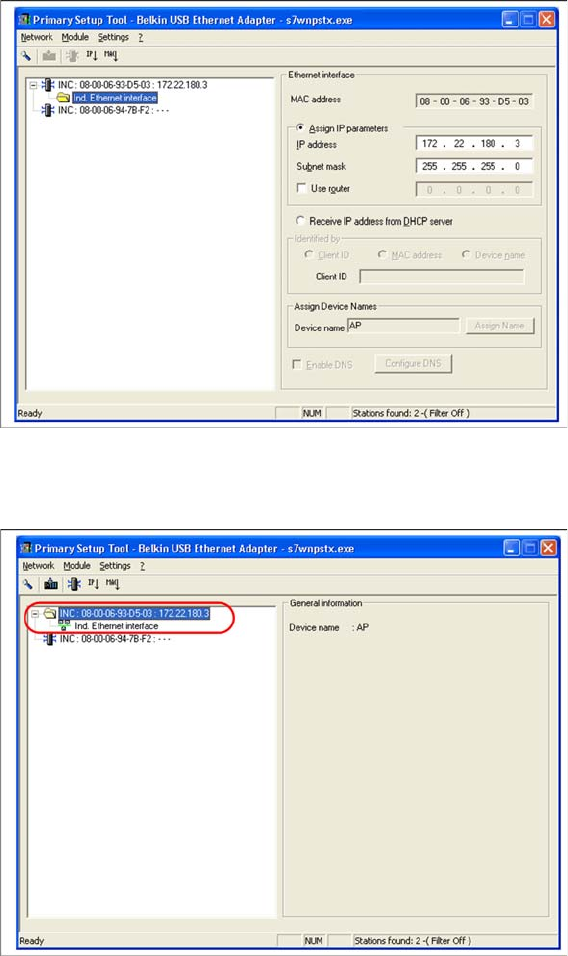
► Select the required station and enter the network parameters of the access point or client module.
Please note that all components - Scalance W788, W744, MC70/MC75 and USB LAN adapter need
to be in the same subnet in the end.
► Select the station again and then select Module → Download or the load icon from the menu bar.
Components
3.3.3 Configuration Siemens SCALANCE W788-1Pro Access Point
Installation Manual WLAN Infrastructure for SIPLACE 21
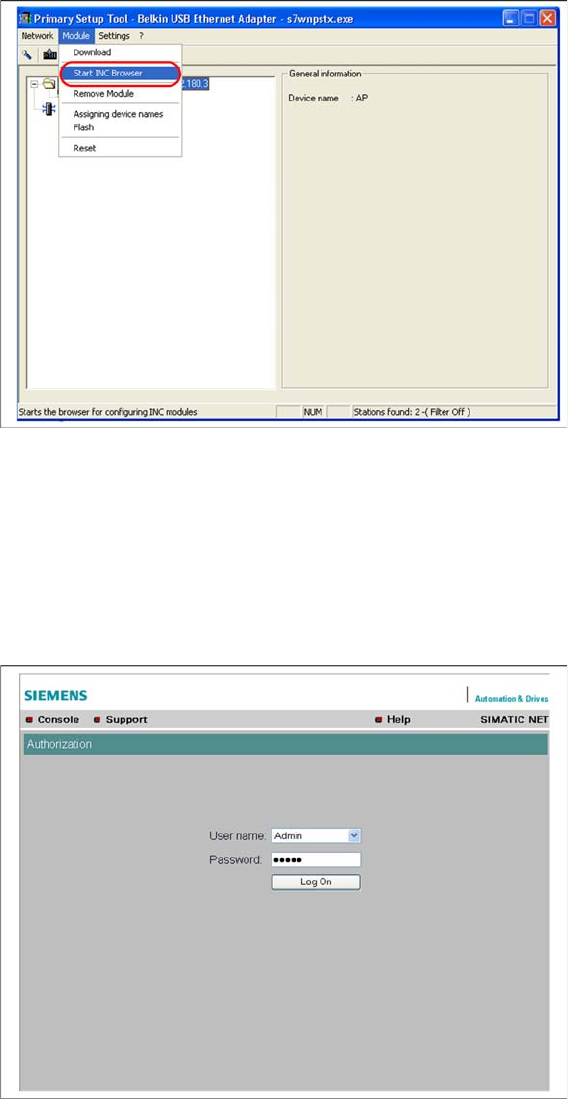
► Start the browser configuration via Module → INC Browser or by using the start icon for the browser.
3.3.3.2
3.3.3.2 Wizard Setup of Access Point
Wizard Setup of Access Point
When performing primary setup, we recommend that you use the Wizard function to define the neces
-
sary settings. This guides you through the parameterization process, step-by-step and ensures that no
key setup steps are overseen.
► Log into the setup interface with the standard administrator account. This is factory set to "Admin" /
"admin" or warehouse set (Siemens) to "Admin" / "Access4(SmartScan)!".
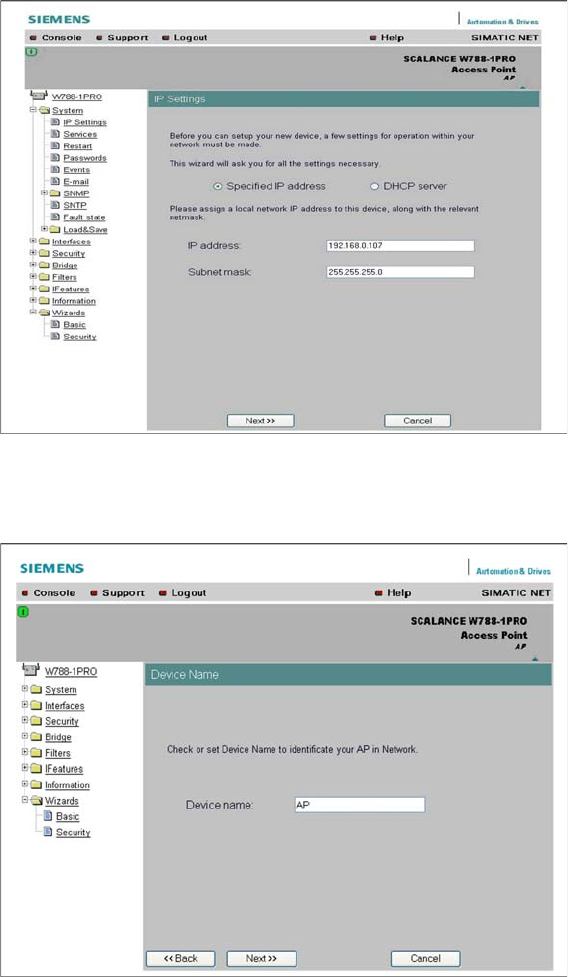
► Start the Basic Wizard. You will see the input mask for the IP parameters which you have already
specified with the PST tool.
Components
Siemens SCALANCE W788-1Pro Access Point 3.3.3 Configuration
22 Installation Manual WLAN Infrastructure for SIPLACE
► You can either assign a static or dynamic IP address to the access point. Simply enable Specified
IP address or DHCP server.
► Change or confirm the settings and click on Next. You will see the next input mask.
► Assign a name to the access point in the Device Name field.
► After specifying the name, click on Next. You will see the next input mask.