00197199-04_IM_WLAN-Infrastructure.pdf - 第29页
Components 3.3.3 Configuration Siemens SCALANCE W788-1Pro Access Point Installation Manual WLAN Infrastructure for SIPLACE 29 ► At the end of the Security Wiz ards process, you will see a summ ary of your settings. ► Cli…
Components
Siemens SCALANCE W788-1Pro Access Point 3.3.3 Configuration
28 Installation Manual WLAN Infrastructure for SIPLACE
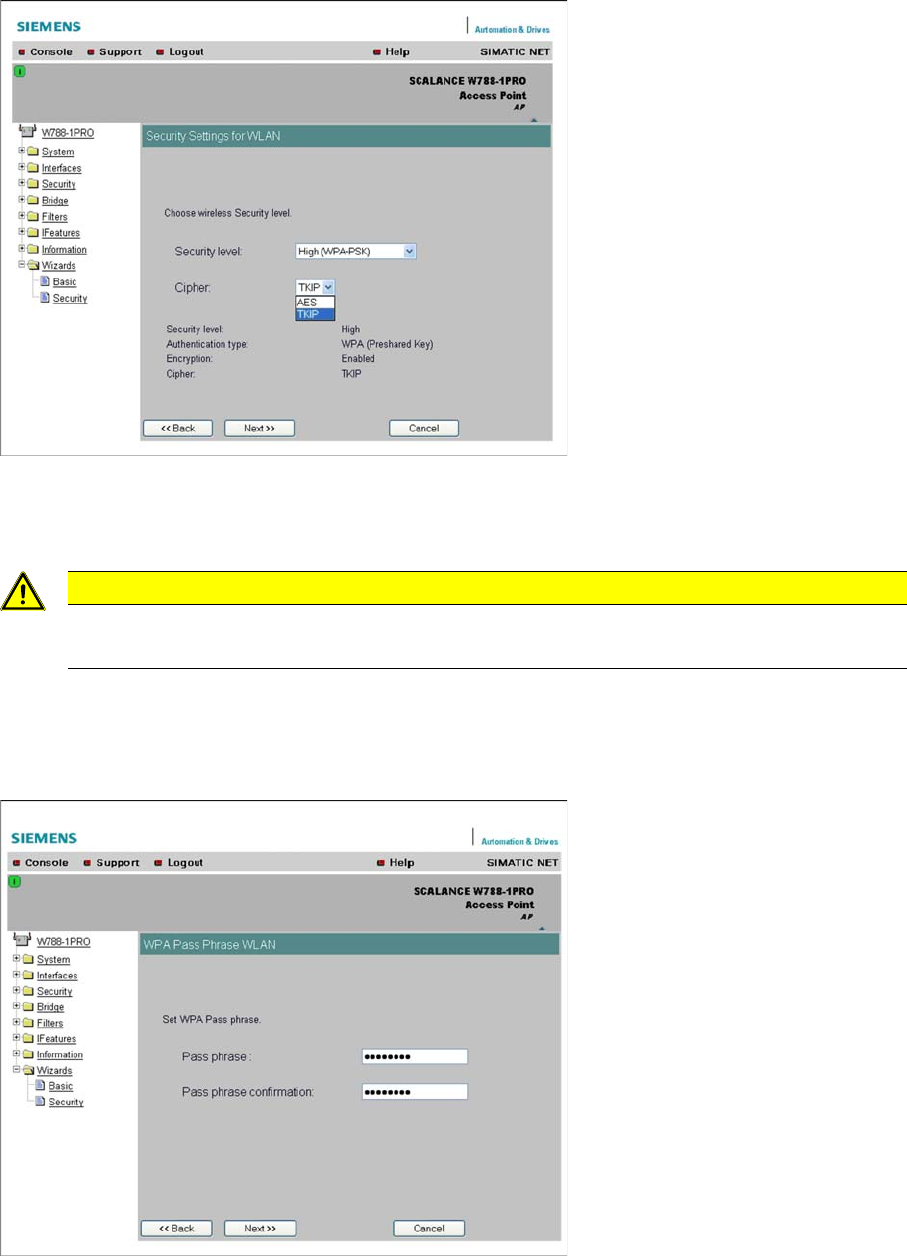
► Define the WLAN security settings.
► For the SIPLACE applications, select Security Level and the entry High (WPA-PSK) from the drop-
down list. Then select the encryption option Cipher and the entry TKIP from the drop-down list.
► Click on Next. You will see the next input mask.
► Further settings are now necessary, depending on the security mode you have chosen. WPA-PSK
requires the entry of a communication password, which is then cyclically changed during communi
-
cation, to prevent unauthorized decoding.
► Enter a character string with at least 8 characters in the Pass phrase field. The more complex the
character string is, the more secure data encryption will be.
► Repeat your entry in the Pass phrase confirmation field.
► Click on Next. You will see the next input mask.
CAUTION
WPA-PSK
If WPA-PSK is not available, configure the setting.
Components
3.3.3 Configuration Siemens SCALANCE W788-1Pro Access Point
Installation Manual WLAN Infrastructure for SIPLACE 29
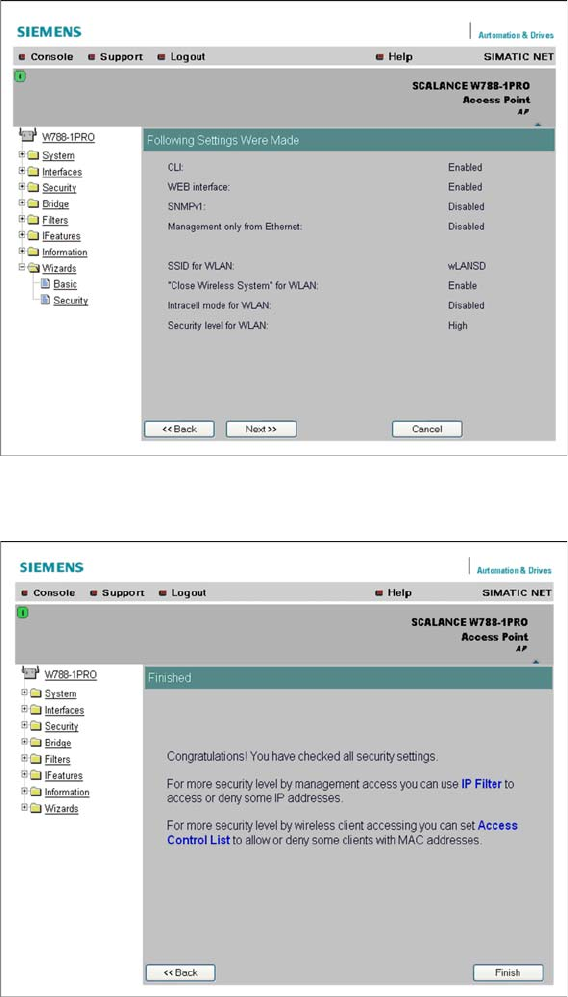
► At the end of the Security Wizards process, you will see a summary of your settings.
► Click on Next. You will see the next input mask.
► Click on the Finish button. Once again, you need to restart the access point to activate your new set
-
tings. This can be performed at System → Restart.
Components
Siemens SCALANCE W788-1Pro Access Point 3.3.3 Configuration
30 Installation Manual WLAN Infrastructure for SIPLACE
3.3.3.3
3.3.3.3 Manual Setup of Access Point
Manual Setup of Access Point
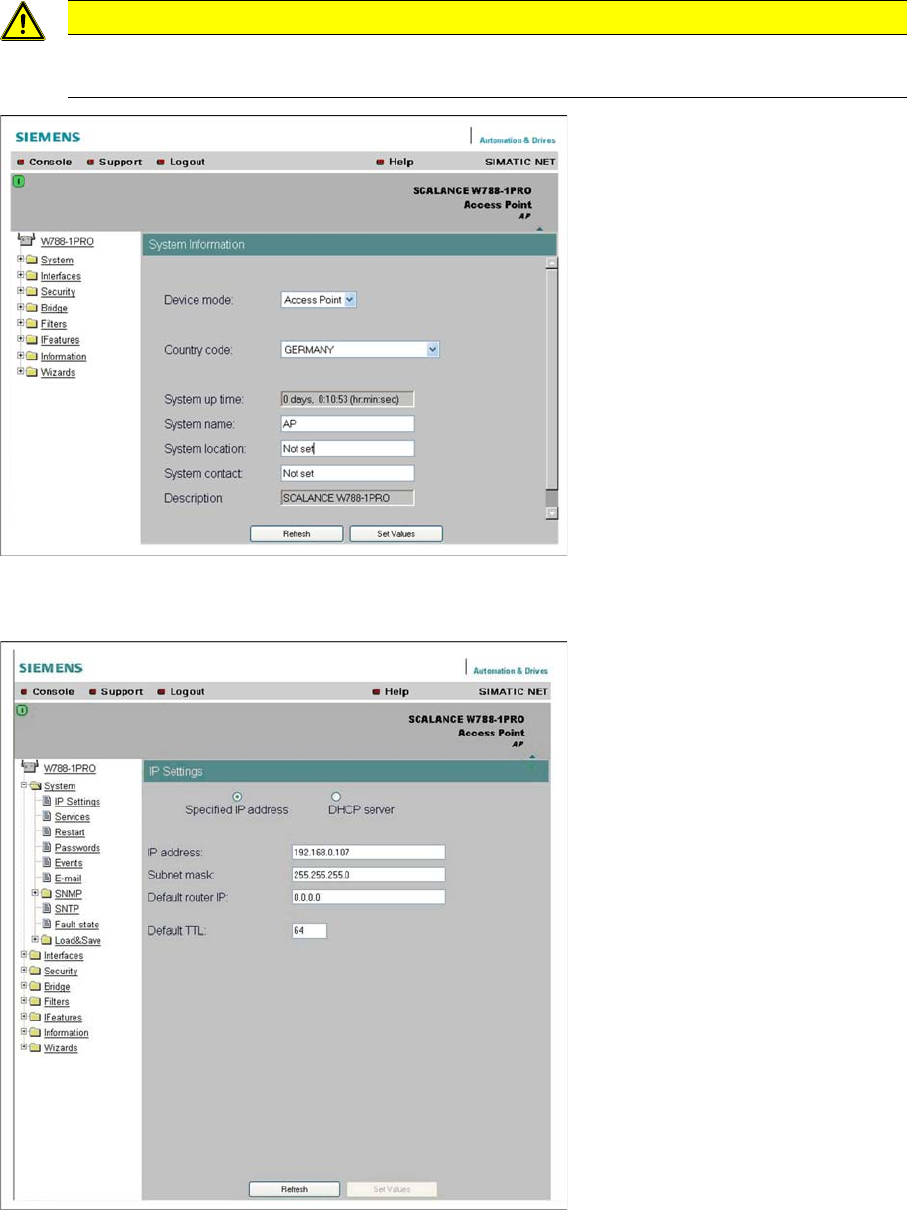
The settings can be configured with the wizards or manually via the menus.
► Select the country of use and enter the access point name in the System name field.
► Click on the Set Values button, to confirm your entries.
► Set the IP parameters at System → IP Settings.
► Click on the Set Values button, to confirm your entries.
CAUTION
After completing all entries and changes
After completing all entries and changes, click on the Set Values button to save your changes.