00197199-04_IM_WLAN-Infrastructure.pdf - 第48页
Components Motorola MC70 PDA 3.5.2 Configuration 48 Installation Manual WLAN Infrastructure for SIPLACE ► Select the entry Band Selection from the drop down list. ► In the next scree n sele ct the band of u se. The selec…
Components
3.5.2 Configuration Motorola MC70 PDA
Installation Manual WLAN Infrastructure for SIPLACE 47
3.5.1.1
3.5.1.1 Safety Instructions
Safety Instructions
The Pocket PC conforms to laser class 2.
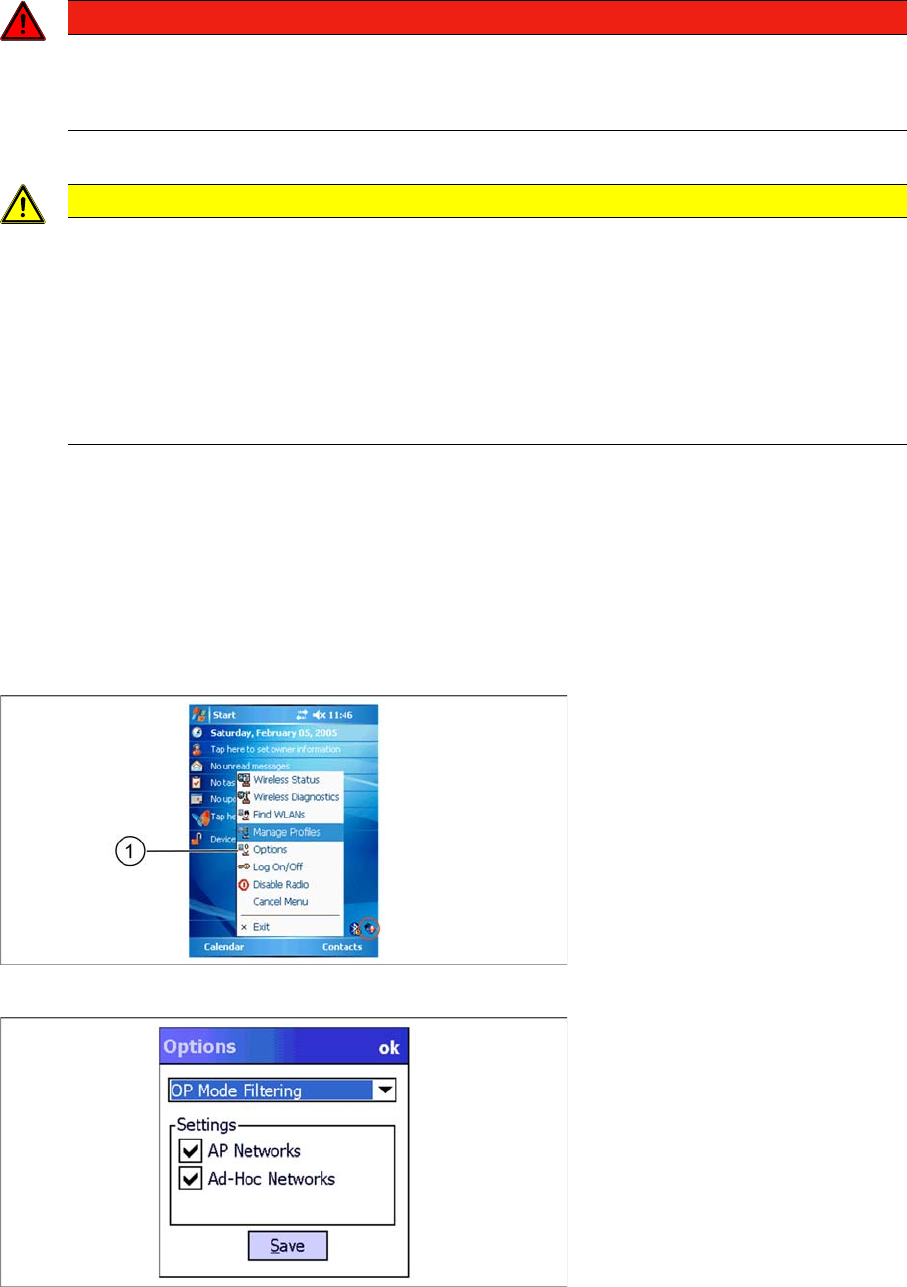
Warning label W216 (shown above) is displayed on the Pocket PC.
3.5.2
3.5.2 Configuration
Configuration
Motorola PDAs of the MC70 series can be used as wireless clients (pocket PC). The current firmware
for these supports WPA-TKIP with preshared keys, which forms the basis for a secure application on
SIPLACE placement machines.
We recommend that you perform PDA parameterization within the range of an active WLAN infrastruc
-
ture radio cell. To configure and connect the PDA to the WLAN infrastructure, proceed as follows:
3.5.2.1
3.5.2.1 Manage Profiles
Manage Profiles
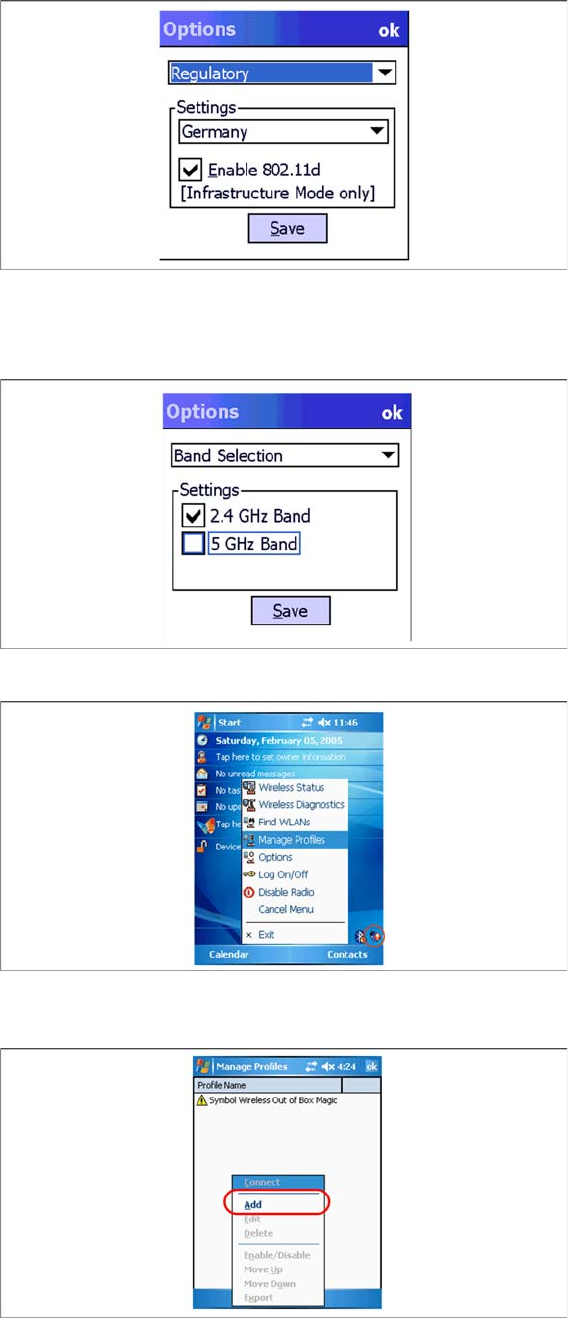
► Select the WLAN icon from the task bar and the select the entry Options (1) from the context menu.
► Select the entry Regulatory from the drop down list.
► In the next screen select the country of use. The selected country must be identical with the setting
of the appropriate Access Point.
DANGER
LASER RADIATION!
Laser Class 2
► Do not look into the beam!
CAUTION
Laser regulations
Before operating the pocket PC, inform all operating personnel about the laser regulations.
While operating the Pocket PC, observe the respective regulations in line with VDE 0837 "Pro
-
tection from radiation emitted by laser devices" and the "Laser radiation" accident prevention
regulations (VBG93), applicable in Germany.
Also observe the accident prevention regulations applicable in your country.
Despite the low laser power, avoid looking directly at the laser beam. The natural closure reflex
of your eyelids will protect your eyes from the visible beam.
Components
Motorola MC70 PDA 3.5.2 Configuration
48 Installation Manual WLAN Infrastructure for SIPLACE
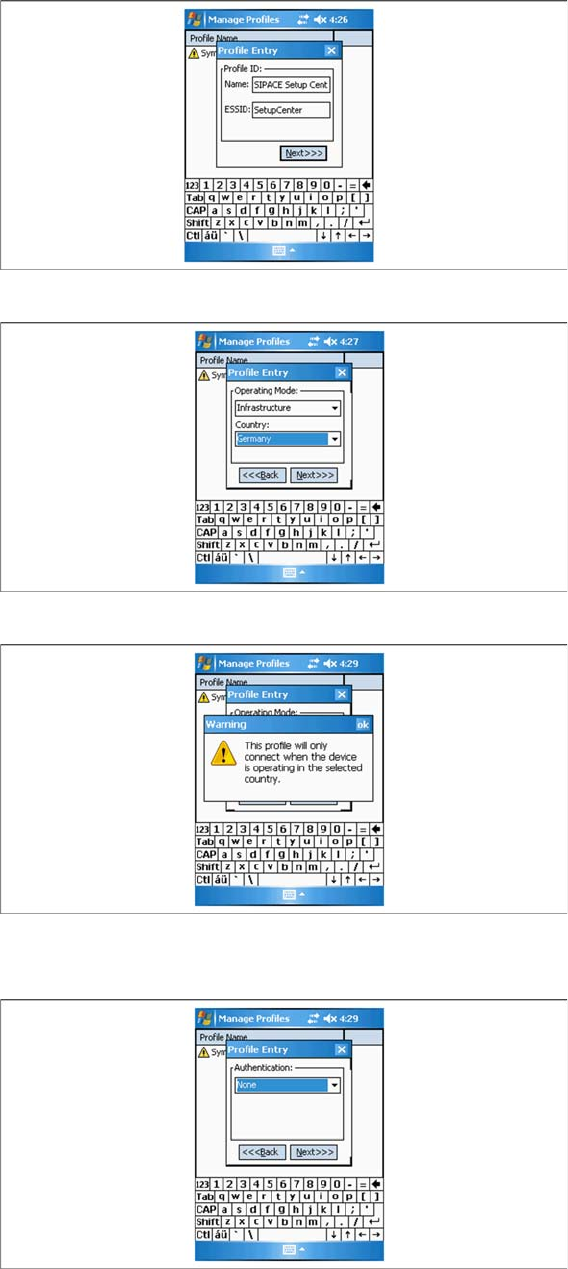
► Select the entry Band Selection from the drop down list.
► In the next screen select the band of use. The selected band must be identical with the setting of the
appropriate Access Point.
► Click on Save.
► Select the WLAN icon from the task bar and the select the entry Manage Profiles from the context
menu.
► Click on Add to add a new profile.
► In the next screen, select a profile name and enter the SSID (network name) set in the access point.
Components
3.5.2 Configuration Motorola MC70 PDA
Installation Manual WLAN Infrastructure for SIPLACE 49
► Select Next to continue.
► Select your country.
► If you change the country, acknowledge the warning issued with OK.
► Select Next to continue.
► You do not need to define any settings in the Authentication tab, since all security settings will be
specified in the next tab, Encryption.