00197199-04_IM_WLAN-Infrastructure.pdf - 第35页
Components 3.3.3 Configuration Siemens SCALANCE W788-1Pro Access Point Installation Manual WLAN Infrastructure for SIPLACE 35 3.3.3.5 3 . 3 . 3 . 5 L in k C h e c k Link Check One of the client m onitoring opt ions is th…
Components
Siemens SCALANCE W788-1Pro Access Point 3.3.3 Configuration
34 Installation Manual WLAN Infrastructure for SIPLACE
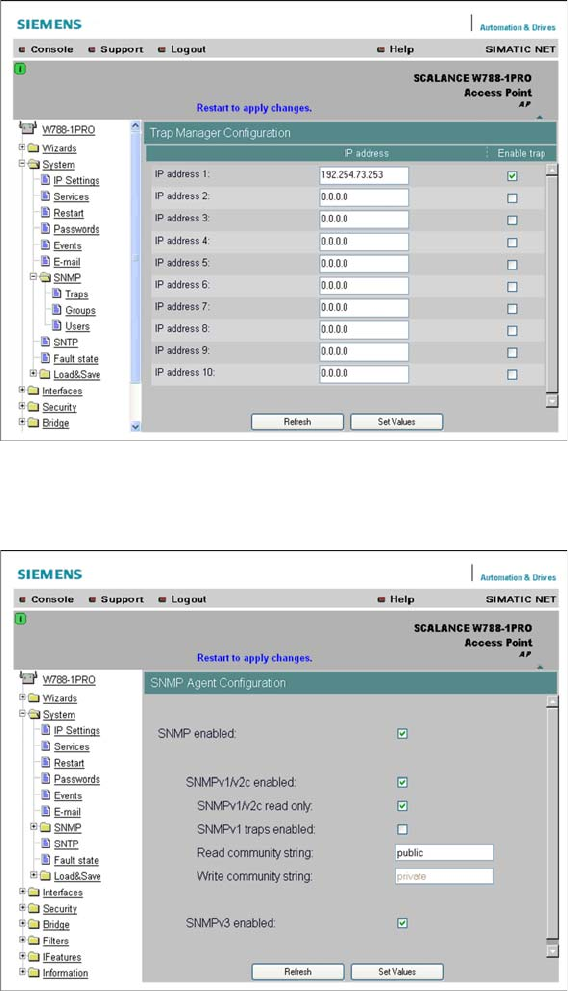
► To use the notification option via SNMP Trap, specify the IP address of the station which will receive
these traps. Go to System → SNMP → Traps and enter the IP address of the station concerned.
► Click on the Set Values button, to confirm your entries.
► Go to System → SNMP and enable the option SNMPv1 Traps enabled.
► Click on the Set Values button, to confirm your entries.
► The SNMP trap function can be enabled at System → Events.
Components
3.3.3 Configuration Siemens SCALANCE W788-1Pro Access Point
Installation Manual WLAN Infrastructure for SIPLACE 35
3.3.3.5
3.3.3.5 Link Check
Link Check
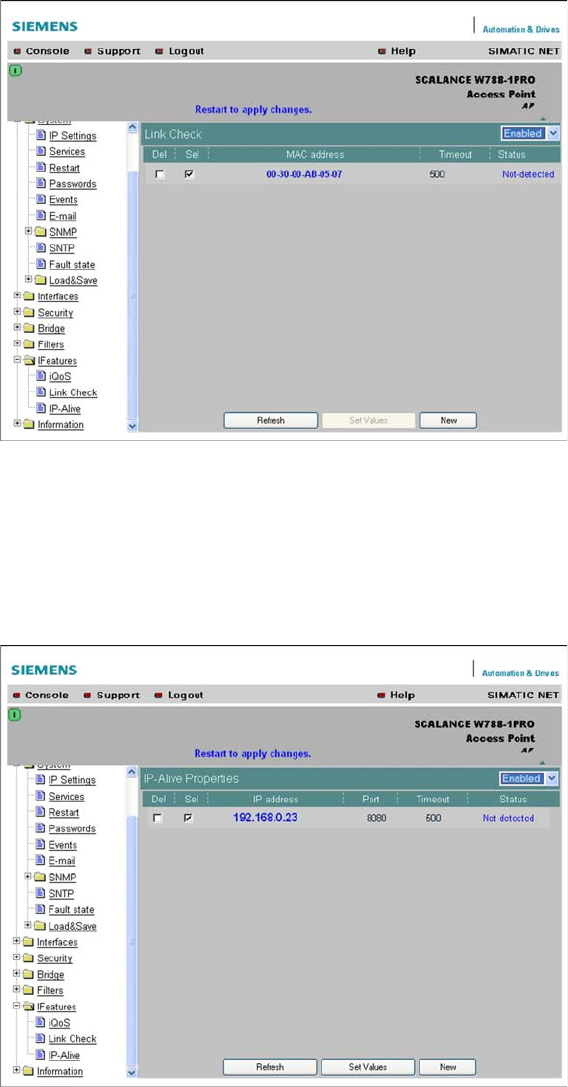
One of the client monitoring options is the so-called Link Check.
► To use this function, enable it at IFeatures → Link-Check and enter the MAXC addresses to be mon
-
itored for the client and the maximum timeout for the polling interval.
► The SNMP trap function can be enabled at System → Events.
3.3.3.6
3.3.3.6 IP Alive
IP Alive
The IPAlive option function is similar to that of Link Check. However, this monitoring option uses the IP
address of the client, which is difficult to realize with dynamic addresses. Once again, you need to enter
the IP address for the client, the IPPort to be addressed and the maximum timeout here. Then, enable
the function.
► The SNMP trap function can be enabled at System → Events.
Components
Siemens SCALANCE W788-1Pro Access Point 3.3.3 Configuration
36 Installation Manual WLAN Infrastructure for SIPLACE
3.3.3.7
3.3.3.7 Firmware Update
Firmware Update
To ensure the correct working, it is strongly recommended to import the recent firmware update to the
device!
► Open the folder System and click the button Load&Save.
► In the line Firmware you can now import the file: <CDroot>\3rdparty installer\Scalance\Firm
-
ware\V3.1.26\SCALANCE_W700_V3126.LAD by pressing the button Load.
► After the upload of the firmware to the SCALANCE W product has been completed, you must per
-
form a restart.
Information on how to load new firmware is provided in manuals within the folder:
<CDroot>\3rdparty installer\Scalance\Documentation\...