00197199-04_IM_WLAN-Infrastructure.pdf - 第22页
Components Siemens SCALANCE W788-1Pro Access Point 3.3.3 Configuration 22 Installation Manual WLAN Infrastructure for SIPLACE ► You can either assign a static o r dynamic IP a ddress to the acc ess point. Simp ly enable …
Components
3.3.3 Configuration Siemens SCALANCE W788-1Pro Access Point
Installation Manual WLAN Infrastructure for SIPLACE 21
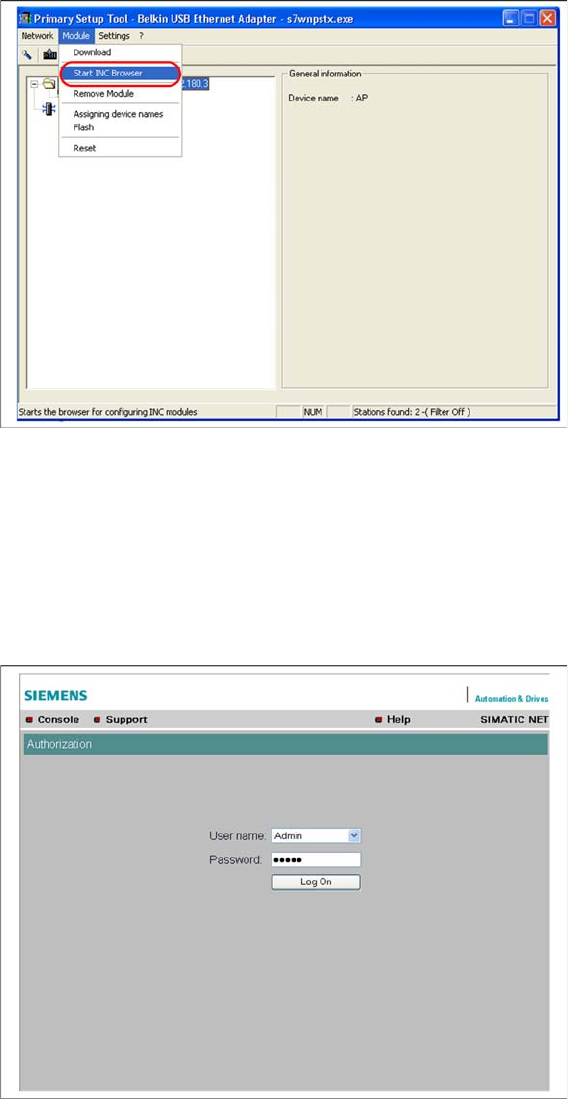
► Start the browser configuration via Module → INC Browser or by using the start icon for the browser.
3.3.3.2
3.3.3.2 Wizard Setup of Access Point
Wizard Setup of Access Point
When performing primary setup, we recommend that you use the Wizard function to define the neces
-
sary settings. This guides you through the parameterization process, step-by-step and ensures that no
key setup steps are overseen.
► Log into the setup interface with the standard administrator account. This is factory set to "Admin" /
"admin" or warehouse set (Siemens) to "Admin" / "Access4(SmartScan)!".
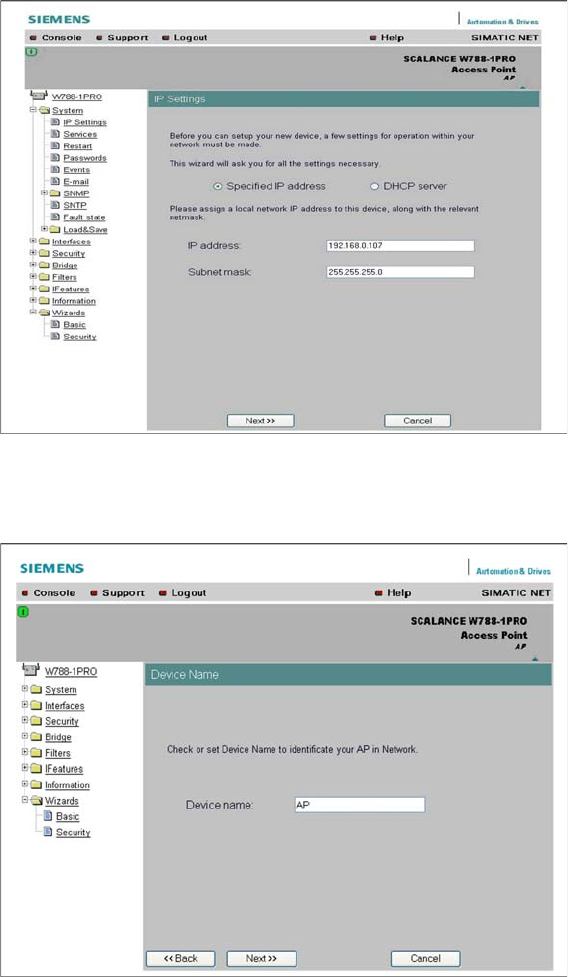
► Start the Basic Wizard. You will see the input mask for the IP parameters which you have already
specified with the PST tool.
Components
Siemens SCALANCE W788-1Pro Access Point 3.3.3 Configuration
22 Installation Manual WLAN Infrastructure for SIPLACE
► You can either assign a static or dynamic IP address to the access point. Simply enable Specified
IP address or DHCP server.
► Change or confirm the settings and click on Next. You will see the next input mask.
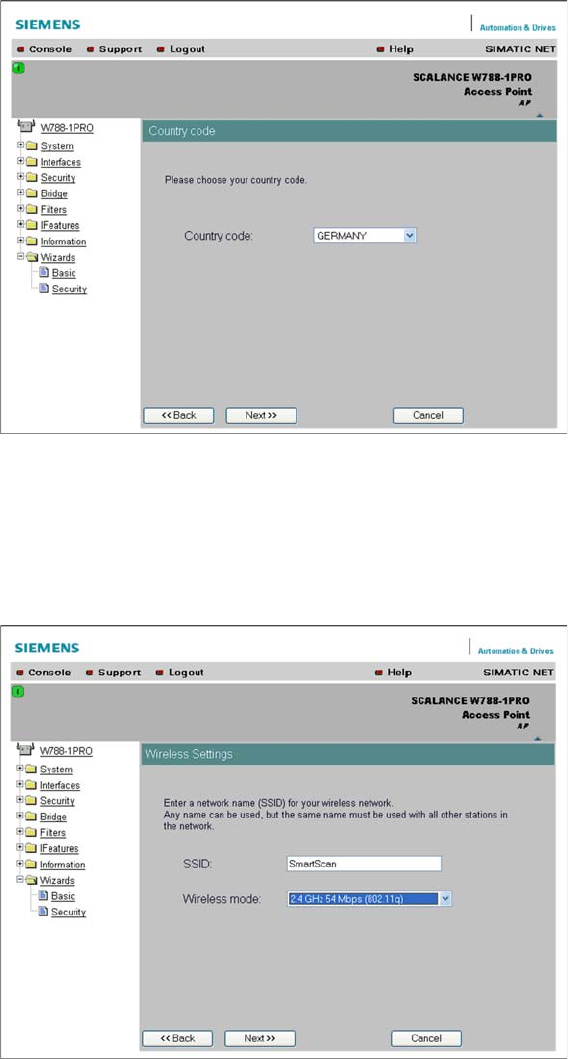
► Assign a name to the access point in the Device Name field.
► After specifying the name, click on Next. You will see the next input mask.
Components
3.3.3 Configuration Siemens SCALANCE W788-1Pro Access Point
Installation Manual WLAN Infrastructure for SIPLACE 23
► Select the relevant country of use for the access point. The different regulations for license-free fre
-
quencies mean that the channels approved for WLAN vary between countries. This setting config
-
ures the available channels to be used by the access point.
► For details about the released frequencies and channels, please refer to the manufacturer's docu
-
mentation or internet site.
► After selecting the country of use, click on Next. You will see the next input mask.
► Enter the network name of your radio cell in the SSID field. The SSID presents the first hurdle to log
-
ging a client in with the radio cell. The client must know the correct SSID in order to log itself in. This
SSID can also be hidden, so that the access point does not send it to all clients in the available range.
► Enter the transmission standard in the Wireless mode field. Selection of the transmission mode de
-
pends on the client used. 802.11g has downwards compatibility with 802.11b but not to 802.11a! The
so-called turbo mode is a special procedure which has not been standardized and which only func
-
tions between the SCALANCE components. Please use 802.11g for this Setup Center case.
► Click on Next. You will see the next input mask.