00197199-04_IM_WLAN-Infrastructure.pdf - 第68页
Components Motorola MC67 / MC75 PDA 3.6.2 Configuration 68 Installation Manual WLAN Infrastructure for SIPLACE ► You will see the number of package s sent and a cknowledged, plus the errors which occurred during transmis…
Components
3.6.2 Configuration Motorola MC67 / MC75 PDA
Installation Manual WLAN Infrastructure for SIPLACE 67
3.6.2.3
3.6.2.3 Wireless Diagnostics
Wireless Diagnostics
Sending Ping Test Packages
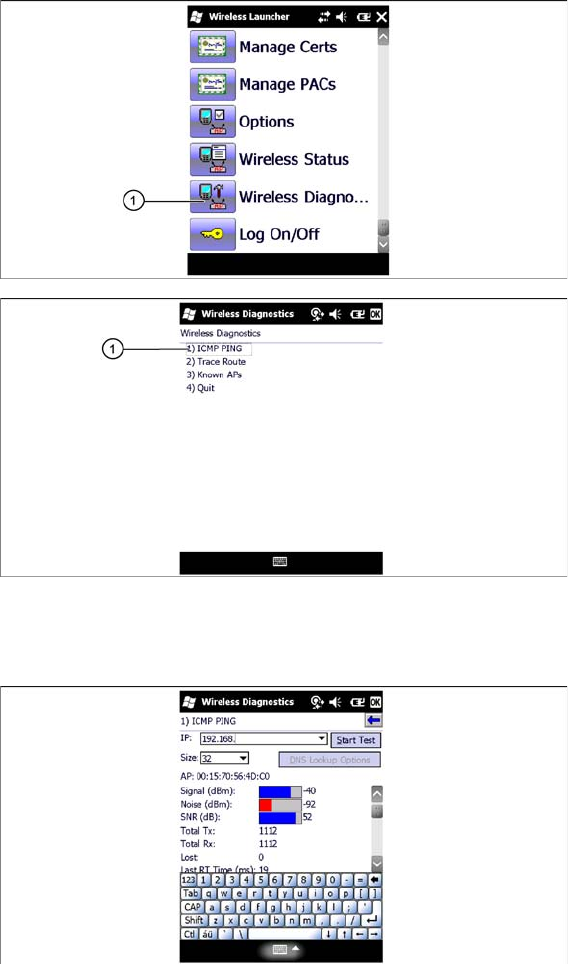
► Click on the Wireless Diagnostics icon (1).
► To test the connection to the Setup Center Computer, click on the ICMP Ping (1) tab and send test
packages to the relevant IP address of the USB LAN adapter.
► Select ICMP Ping to continue.
► Enter a valid IP address (same subnet), which you want to reach, and select Start Test.
Components
Motorola MC67 / MC75 PDA 3.6.2 Configuration
68 Installation Manual WLAN Infrastructure for SIPLACE
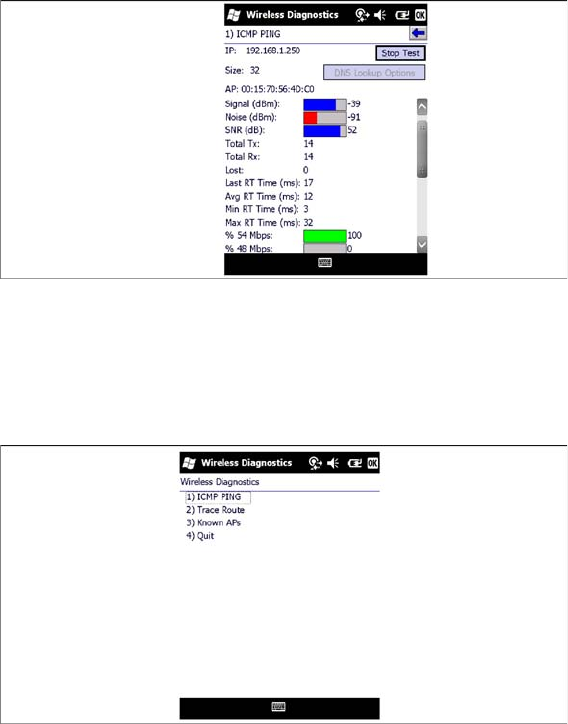
► You will see the number of packages sent and acknowledged, plus the errors which occurred during
transmission. A diagram will display the transmission rate, which indicates the quality of the connec
-
tion. You can also view the signal strength (Signal Level).
► Select Stop Test to stop sending the test packages.
► Select OK to return to the Wireless Diagnostics menu.
► Close the Wireless Diagnostics menu with OK.
► Setup of the PDA is now complete. After switching on, the client uses the stored WLAN profile to
automatically log into the next available radio cell with the same name. The static IP address allows
the client to immediately establish an IP-based network connection to any of the network partici
-
pants, including the line server.
Components
3.6.2 Configuration Motorola MC67 / MC75 PDA
Installation Manual WLAN Infrastructure for SIPLACE 69
3.6.2.4
3.6.2.4 Switching Off the Standby Mode (Optional)
Switching Off the Standby Mode (Optional)
Due to the hardware design of the MC67 / MC75 the power of the wireless device is disconnected when
the MC67 / MC75 switches to the standby mode. As a result, reestablishing the wireless connection
takes 5 - 8 seconds after waking up from standby.
To work around this behavior, we recommend to disable the standby mode, proceed as follows.
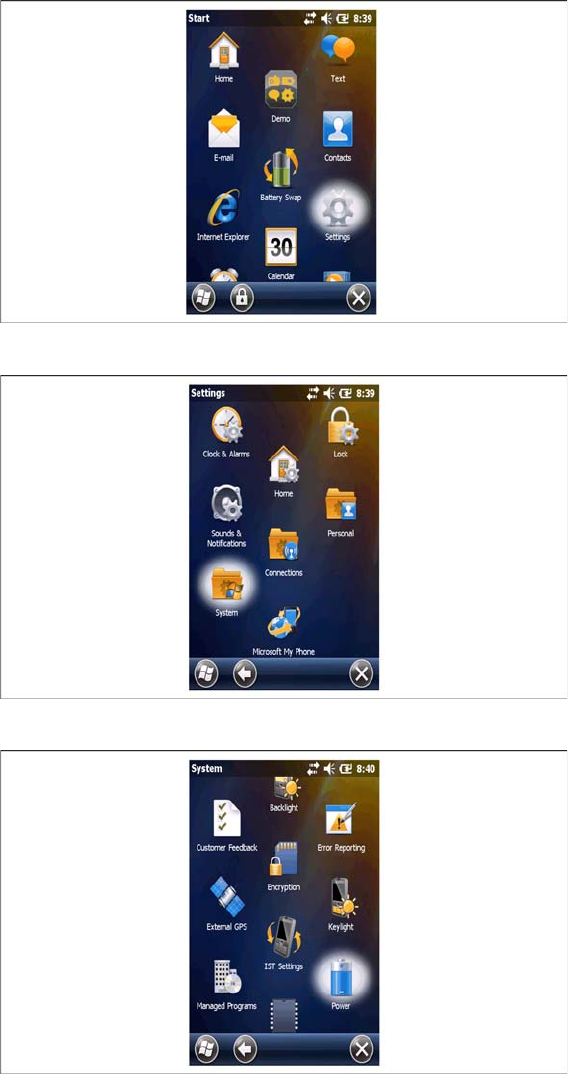
► Select the Settings icon from the Start menu.
► Select the System icon in the Settings menu.
► Select the Power icon in the System menu.