00197199-04_IM_WLAN-Infrastructure.pdf - 第65页
Components 3.6.2 Configuration Motorola MC67 / MC75 PDA Installation Manual WLAN Infrastructure for SIPLACE 65 3.6.2.2 3 . 6 . 2 . 2 W ir e le s s S t a t u s Wireless Status ► Click on the Wireless Status icon. ► Select…
Components
Motorola MC67 / MC75 PDA 3.6.2 Configuration
64 Installation Manual WLAN Infrastructure for SIPLACE
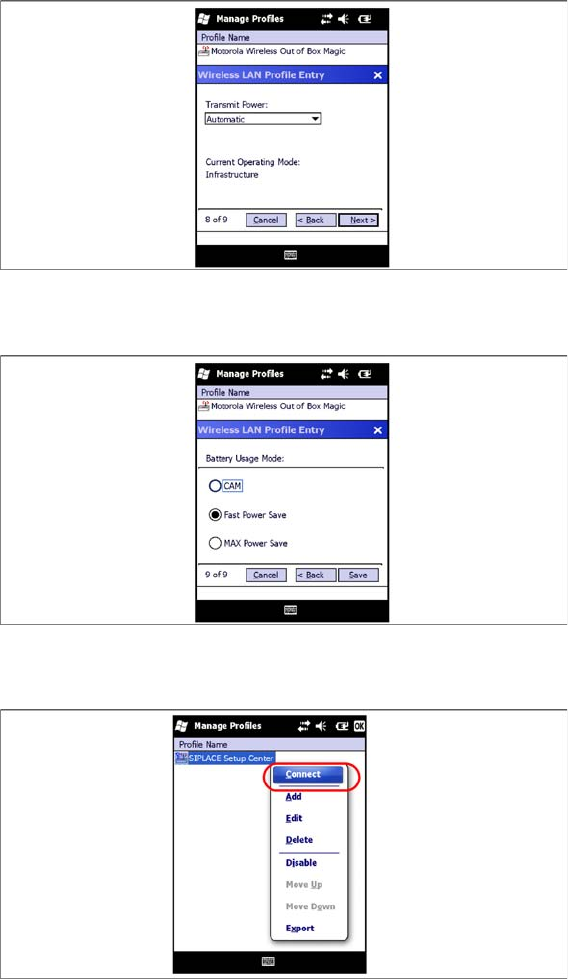
► Select Automatic for the power supply settings for the card.
► Select Next to continue.
► Select Fast Power Save.
► Select Save to continue.
► You will now see the WLAN profile for the PDA. Select the profile you have just parameterized and
named and click on Connect.
► Close the menu with OK.
Components
3.6.2 Configuration Motorola MC67 / MC75 PDA
Installation Manual WLAN Infrastructure for SIPLACE 65
3.6.2.2
3.6.2.2 Wireless Status
Wireless Status
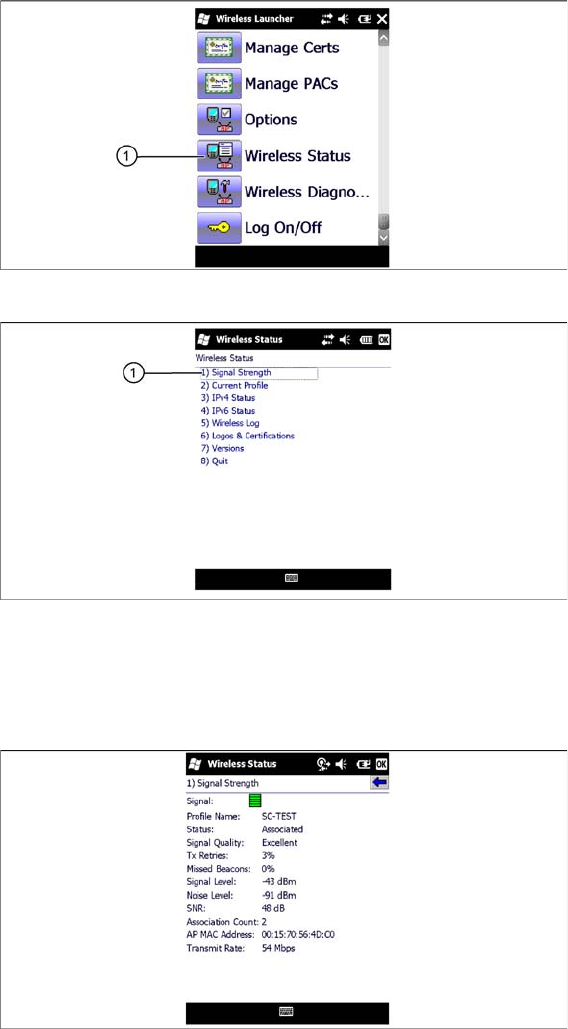
► Click on the Wireless Status icon.
► Select Signal Strength to view the connection status of the PDA to the radio cell.
► Select Current Profile to view the current connection profile.
► Select IPv4 Status to view the TCP/IP settings for the MC67 / MC75.
► Select Wireless Log to check the connection status in detail.
► This shows the current connection status of the PDA to radio cell.
► Select OK to return to the Wireless Status menu.
Components
Motorola MC67 / MC75 PDA 3.6.2 Configuration
66 Installation Manual WLAN Infrastructure for SIPLACE
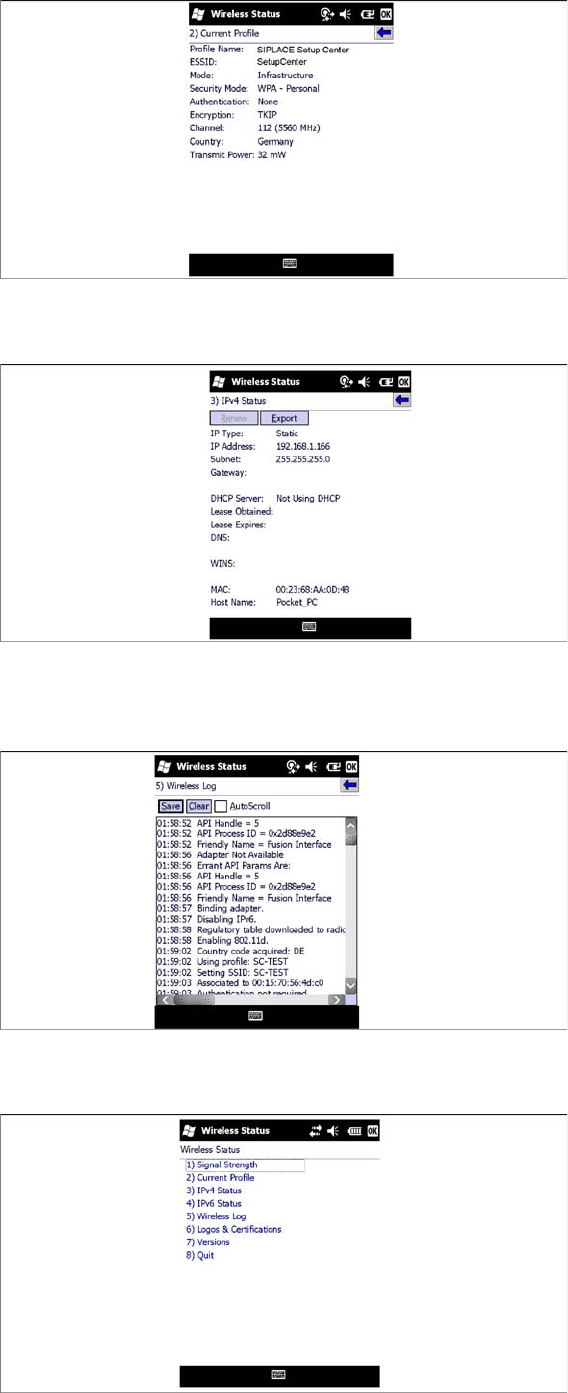
► This shows the current WLAN connection profile for the MC67 / MC75.
► Select OK to return to the Wireless Status menu.
► To view the current status of your IP-based network connection, select IPv4 Status. Since a static IP
address has been set, you should not experience any connection problems here.
► Select OK to return to the Wireless Status menu.
► To check the connection in detail, select Wireless Log.
► Select OK to return to the Wireless Status menu.
► Close the Wireless Status menu with OK.