00197199-04_IM_WLAN-Infrastructure.pdf - 第38页
Components Siemens SCALANCE W744-1Pro Client Module 3.4.1 Features 38 Installation Manual WLAN Infrastructure for SIPLACE 3.4.1 3 . 4 . 1 F e a t u r e s Features ▪ Metal cas ing ▪I P 6 5 ▪ Temperature range: -20 to +60°…
Components
3.3.3 Configuration Siemens SCALANCE W744-1Pro Client Module
Installation Manual WLAN Infrastructure for SIPLACE 37
3.4
3.4 Siemens SCALANCE W744-1Pro Client Module
Siemens SCALANCE W744-1Pro Client Module
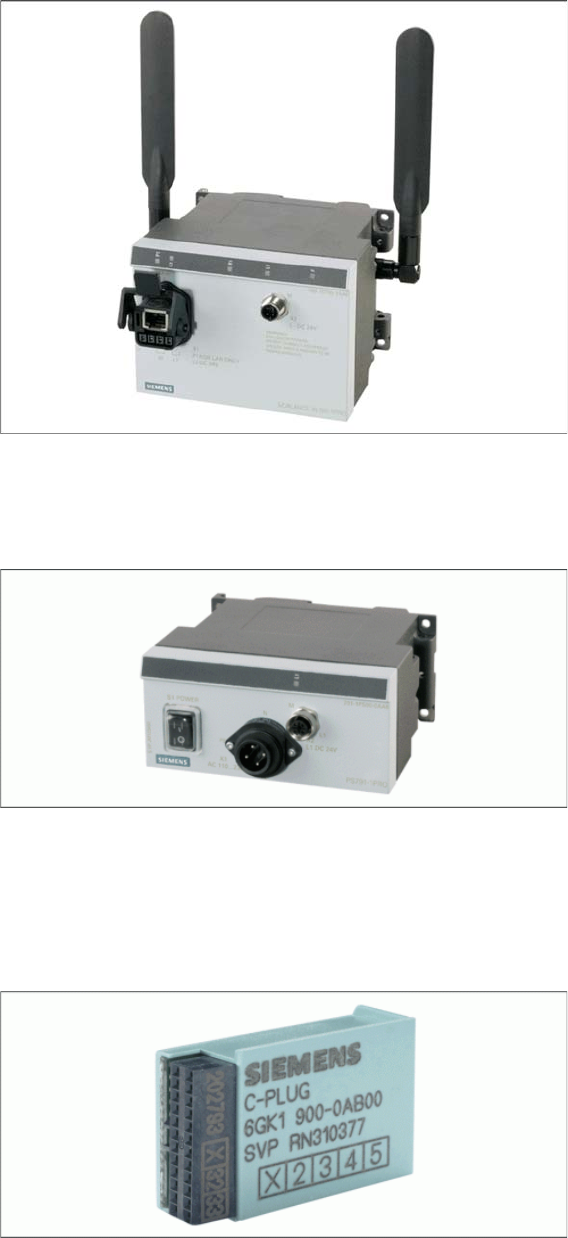
In the Legacy Concept, the line server is connected via a SCALANCE W744-1Pro client module, where
-
by the W744-1Pro is linked to a USB Ethernet network card.
This client module possesses the same hardware properties as the access points W788-1Pro, although
it does not function as an access point. However, a W788-1Pro access point could be configured (pa
-
rameterized) and used as client modules.
Use the PS791-1PRO power supply to feed the client module.
Use the Siemens C-Plug as an external memory for storing the configuration of the client module.
PS791-1PRO Power Supply
Power supply, suitable for industrial application, in accordance with IP65, suitable for worldwide applica
-
tion, low heat emission.
Siemens C-Plug
If an access point or client module fails, this memory unit can be removed and connected to the spare
part. The original setup configuration will be adopted.

Components
Siemens SCALANCE W744-1Pro Client Module 3.4.1 Features
38 Installation Manual WLAN Infrastructure for SIPLACE
3.4.1
3.4.1 Features
Features
▪ Metal casing
▪IP65
▪ Temperature range: -20 to +60°C
▪ Cyclical data transmission
▪ Power over Ethernet (PoE in accordance with 802.3af)
▪ WEP encryption
▪ 802.11i support (WPA & TKIP, WPA & AES)
▪ RADIUS support (802.1x with EAP-TLS)
▪ 802.11b/g - to 108 Mbit/s in 2.4GHz band
▪ 802.11a - to 54 Mbit/s in 5GHz band
3.4.2
3.4.2 Installation
Installation
Complete the following preparatory steps before installing and using the client module:
► Connect the C-Plug to the rear of the client module, by removing the cover and plugging the flash
memory into the duct below.
► Screw the two aerials supplied into the correct sockets at the side of the client module.
► Use the M12 cable to connect the client module to the PS791-1Pro power supply and switch on.
► After configuring the access point, unplug the patch cable and reconnect it to the client module, for
setup of the latter.
In principle, the client module has the same hardware parameters as the access point. However, there
are functional differences which prevent a client module from being used as an access point. The access
point, in contrast, can be operated as a client module.
3.4.3
3.4.3 Configuration
Configuration
The client module can be parameterized via a web-based setup interface, very similar to that of the ac
-
cess point. Since the standard settings of the access point and client module are virtually identical, you
will recognize many of them.
Primary setup with the PST tool follows the same procedure as that for the access point. Further settings
are then defined via the web interface.
CAUTION
Disconnected from the power supply
Make sure that the components are disconnected from the power supply.
Components
3.4.3 Configuration Siemens SCALANCE W744-1Pro Client Module
Installation Manual WLAN Infrastructure for SIPLACE 39
3.4.3.1
3.4.3.1 Primary Setup
Primary Setup
Before the access point or the client module can be configured via the integrated web interface, you must
define basic network settings for these components.
Starting the PST Tool
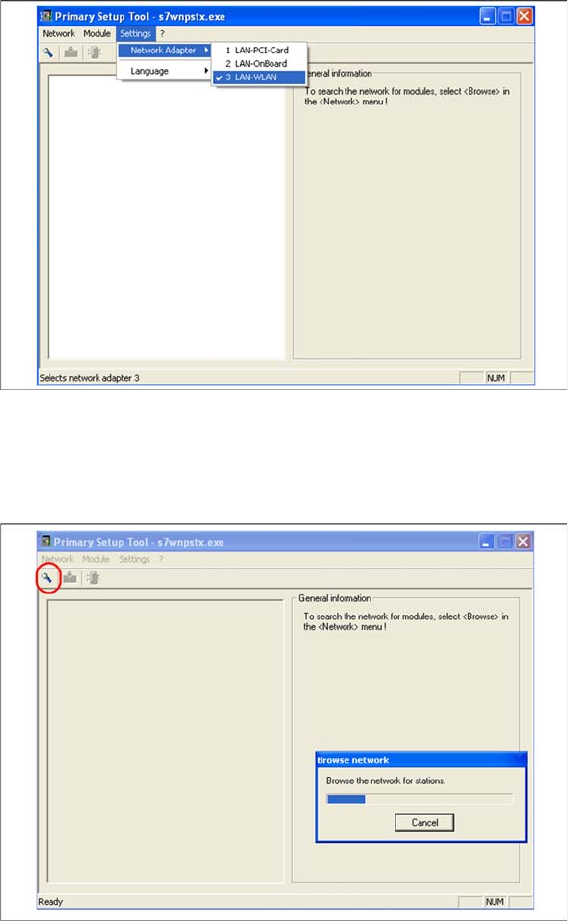
► After the USB LAN adapter has been configured, start the PST tool via Start → SIMATIC → Primary
Setup Tool → Primary Setup Tool. (For instructions on installing the PST Tool, please refer to "4.1
Primary Setup Tool" [ ➙ 73]).
► Now set your network card. Select Settings → Network Adapter.
► Select the USB LAN Adapter as network card and perform the following setup steps for the SCA
-
LANCE W788. Connect the modules one after the other to the USB LAN adapter, via a RJ45 patch
cable.
► Search the network for the connected access point or client module by selecting Network → Browse
or using the magnifying glass search icon: