00197199-04_IM_WLAN-Infrastructure.pdf - 第75页
Annex 4.1.3 Configuring the USB LAN Adapter Primary Setup Tool Installation Manual WLAN Infrastructure for SIPLACE 75 4.1.3 4 . 1 . 3 C o n f ig u r in g t h e U S B L A N A d a p t e r Configuring the USB LAN Adapter Th…
Annex
Primary Setup Tool 4.1.2 Installing the PST Tool (Primary Setup Tool)
74 Installation Manual WLAN Infrastructure for SIPLACE
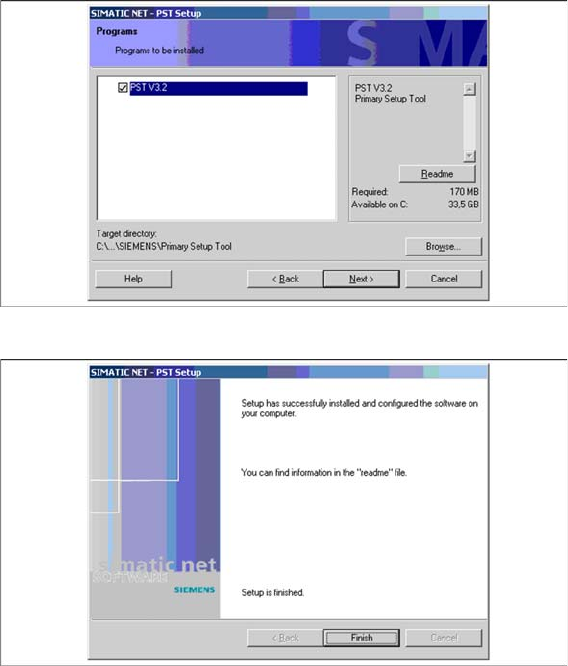
► Select the path at which the PST tool is to be installed. Select Next to continue.
► The installation is now complete and can be ended.
Annex
4.1.3 Configuring the USB LAN Adapter Primary Setup Tool
Installation Manual WLAN Infrastructure for SIPLACE 75
4.1.3
4.1.3 Configuring the USB LAN Adapter
Configuring the USB LAN Adapter
The network card must support the DLC protocol, to ensure that the PST tool is able to perform config
-
uration of the Scalance W788 and W744.
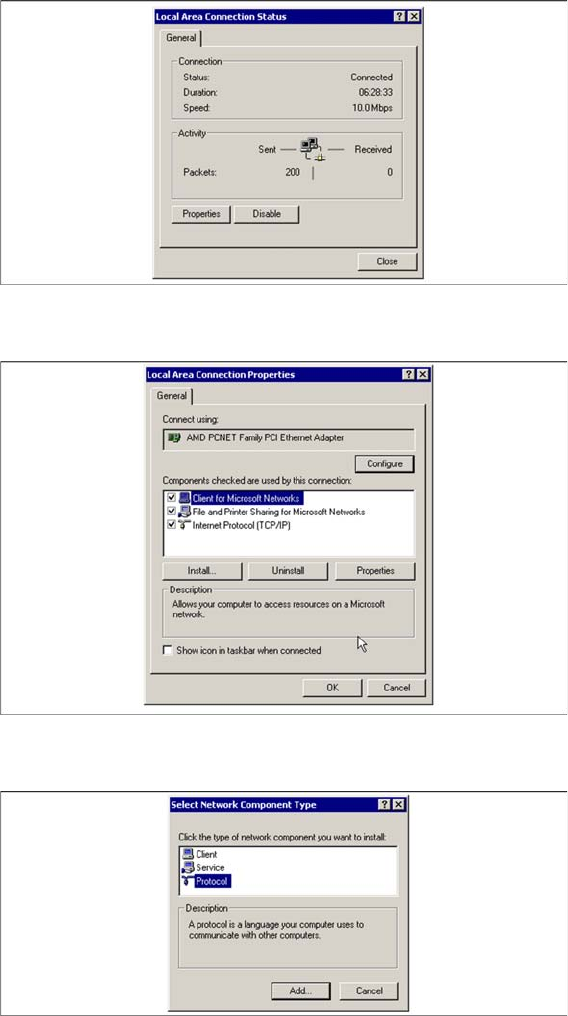
► Check whether the DLC protocol has been installed.
► From the Windows Start menu, select → Settings → Network and Dial Up Connections → Local
Area Connection Status.
The Local Area Connection Status dialog box will open:
► Click on the Properties button.
The Local Area Connection Properties dialog box will open:
► All installed protocols will be shown. If the DLC protocol is not installed, click on the Install button.
The Select Network Component Type dialog box will open:
► Click on Protocol and then on the Add button.
The Select Network Protocol dialog box will open:
Annex
Primary Setup Tool 4.1.3 Configuring the USB LAN Adapter
76 Installation Manual WLAN Infrastructure for SIPLACE
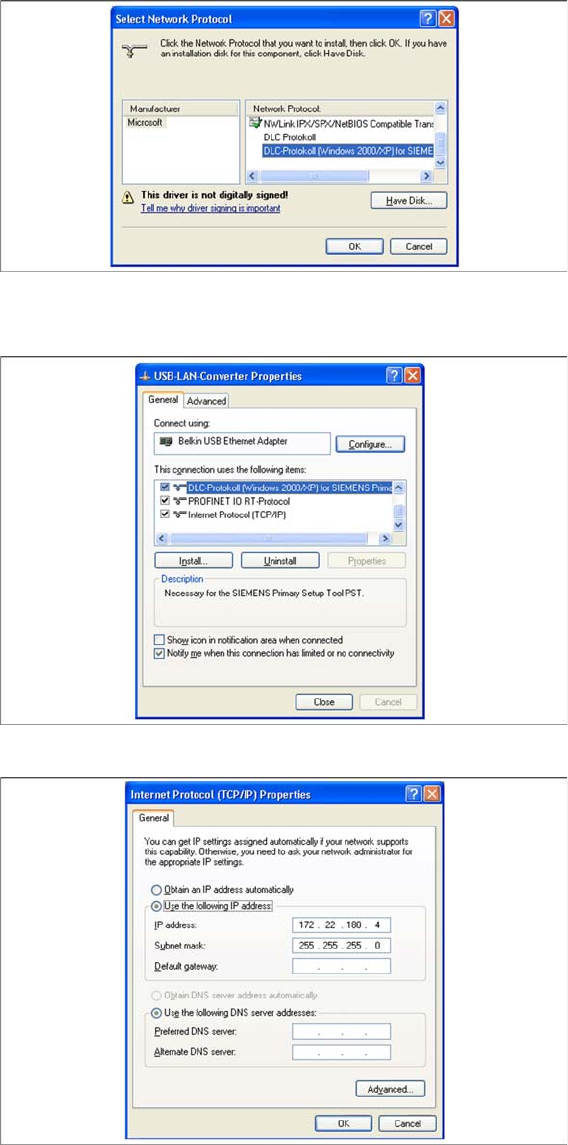
► Select DLC Protocol from the list and confirm your entry with OK.
► You will find the installed DLC protocol in the Properties of your LAN connection.
► Select Internet Protocol (TCP/IP) to configure the IP address for the USB LAN adapter.
► Configure the IP address for the adapter. Please note that all components - Scalance W788, W744,
MC70 and USB LAN adapter need to be in the same subnet in the end. Confirm your settings with
OK.