00197199-04_IM_WLAN-Infrastructure.pdf - 第20页
Components Siemens SCALANCE W788-1Pro Access Point 3.3.3 Configuration 20 Installation Manual WLAN Infrastructure for SIPLACE ► Select the required station and enter the network para meters of the a ccess poin t o r clie…
Components
3.3.3 Configuration Siemens SCALANCE W788-1Pro Access Point
Installation Manual WLAN Infrastructure for SIPLACE 19
3.3.3
3.3.3 Configuration
Configuration
3.3.3.1
3.3.3.1 Primary Setup
Primary Setup
Before the access point or the client module can be configured via the integrated web interface, you must
define basic network settings for these components.
Starting the PST Tool
► After the USB LAN adapter has been configured, start the PST tool via Start → SIMATIC → Primary
Setup Tool → Primary Setup Tool. (For instructions on installing the PST Tool, please refer to "4.1
Primary Setup Tool" [ ➙ 73]).
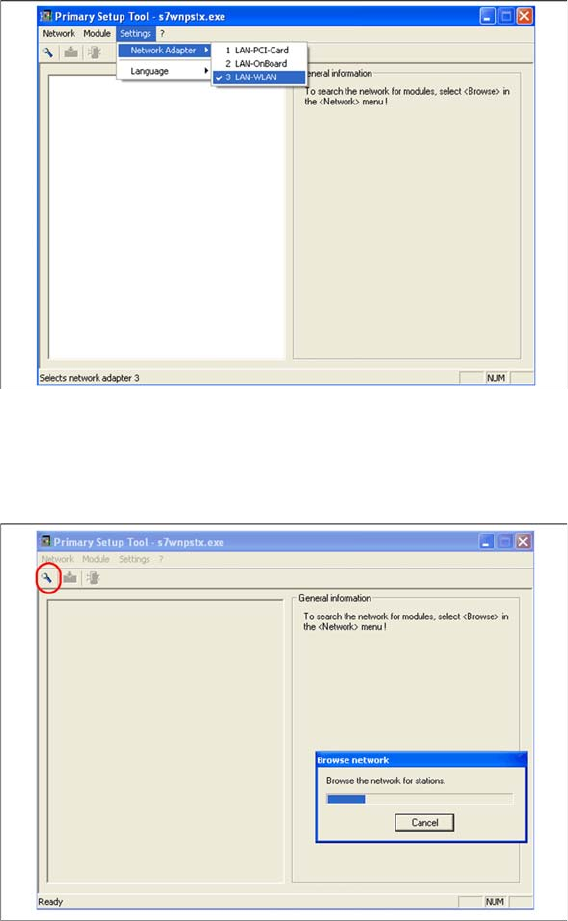
► Now set your network card. Select Settings → Network Adapter.
► Select the USB LAN Adapter as network card and perform the following setup steps for the SCA
-
LANCE W788. Connect the modules one after the other to the USB LAN adapter, via a RJ45 patch
cable.
► Search the network for the connected access point or client module by selecting Network → Browse
or using the magnifying glass search icon:
Components
Siemens SCALANCE W788-1Pro Access Point 3.3.3 Configuration
20 Installation Manual WLAN Infrastructure for SIPLACE
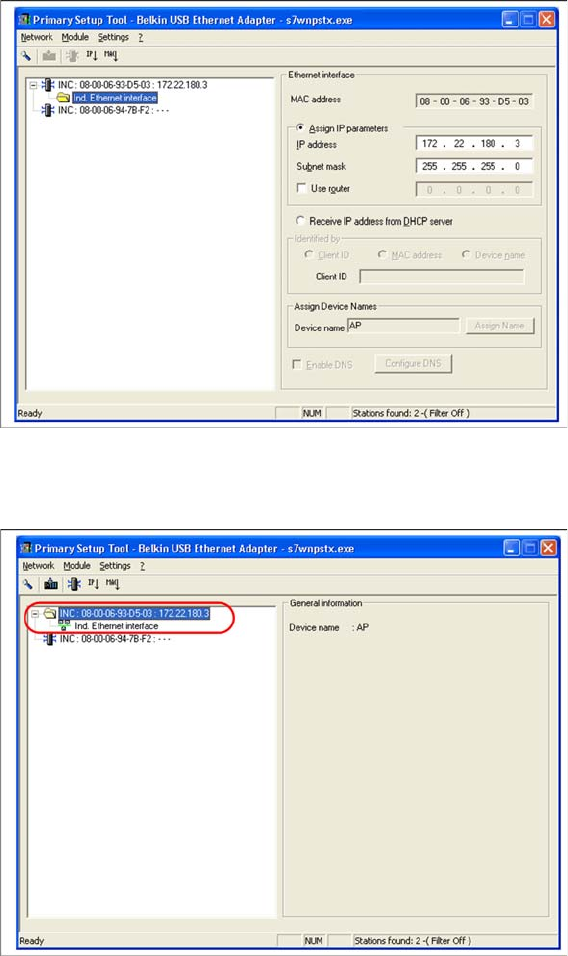
► Select the required station and enter the network parameters of the access point or client module.
Please note that all components - Scalance W788, W744, MC70/MC75 and USB LAN adapter need
to be in the same subnet in the end.
► Select the station again and then select Module → Download or the load icon from the menu bar.
Components
3.3.3 Configuration Siemens SCALANCE W788-1Pro Access Point
Installation Manual WLAN Infrastructure for SIPLACE 21
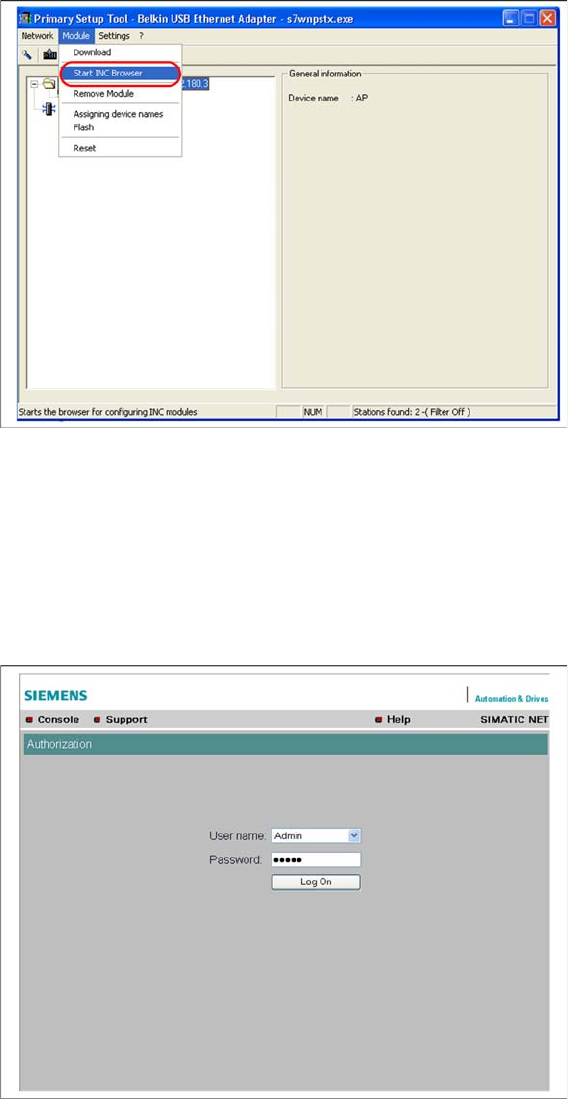
► Start the browser configuration via Module → INC Browser or by using the start icon for the browser.
3.3.3.2
3.3.3.2 Wizard Setup of Access Point
Wizard Setup of Access Point
When performing primary setup, we recommend that you use the Wizard function to define the neces
-
sary settings. This guides you through the parameterization process, step-by-step and ensures that no
key setup steps are overseen.
► Log into the setup interface with the standard administrator account. This is factory set to "Admin" /
"admin" or warehouse set (Siemens) to "Admin" / "Access4(SmartScan)!".
► Start the Basic Wizard. You will see the input mask for the IP parameters which you have already
specified with the PST tool.