00197199-04_IM_WLAN-Infrastructure.pdf - 第12页
Components Motorola AP6521 Access Point 3.1.3 Configuration 12 Installation Manual WLAN Infrastructure for SIPLACE 3.1.3.2 3 . 1 . 3 . 2 I n it ia l S e t u p W iz a r d Initial Setup Wizard ► Click the Start Wizard butt…
Components
3.1.3 Configuration Motorola AP6521 Access Point
Installation Manual WLAN Infrastructure for SIPLACE 11
3.1.3
3.1.3 Configuration
Configuration
Once the AP-6521 is installed and powered on, complete the following steps to get the access point up
and running and access management functions.
3.1.3.1
3.1.3.1 Primary Setup
Primary Setup
The access point’s IP address is optimally provided using DHCP. A zero config IP address can also be
derived if DHCP resources are unavailable. Using zero config, the last two octets in the IP address are
the decimal equivalent of the last two bytes in the access point’s hardcoded MAC address.
For example:
MAC address - 00:C0:23:00:F0:0A
Zero-config IP address - 169.254.240.10
To derive the access point’s IP address using its MAC address:
► Open the Windows calculator be selecting Start > All Programs > Accessories > Calculator. This
menu path may vary slightly depending on your version of Windows.
► With the Calculator displayed, select View > Scientific. Select the Hex radio button.
► Enter a hex byte of the access point’s MAC address. For example, F0.
► Select the Dec radio button. The calculator converts F0 into 240. Repeat this process for the last
access point MAC address octet.
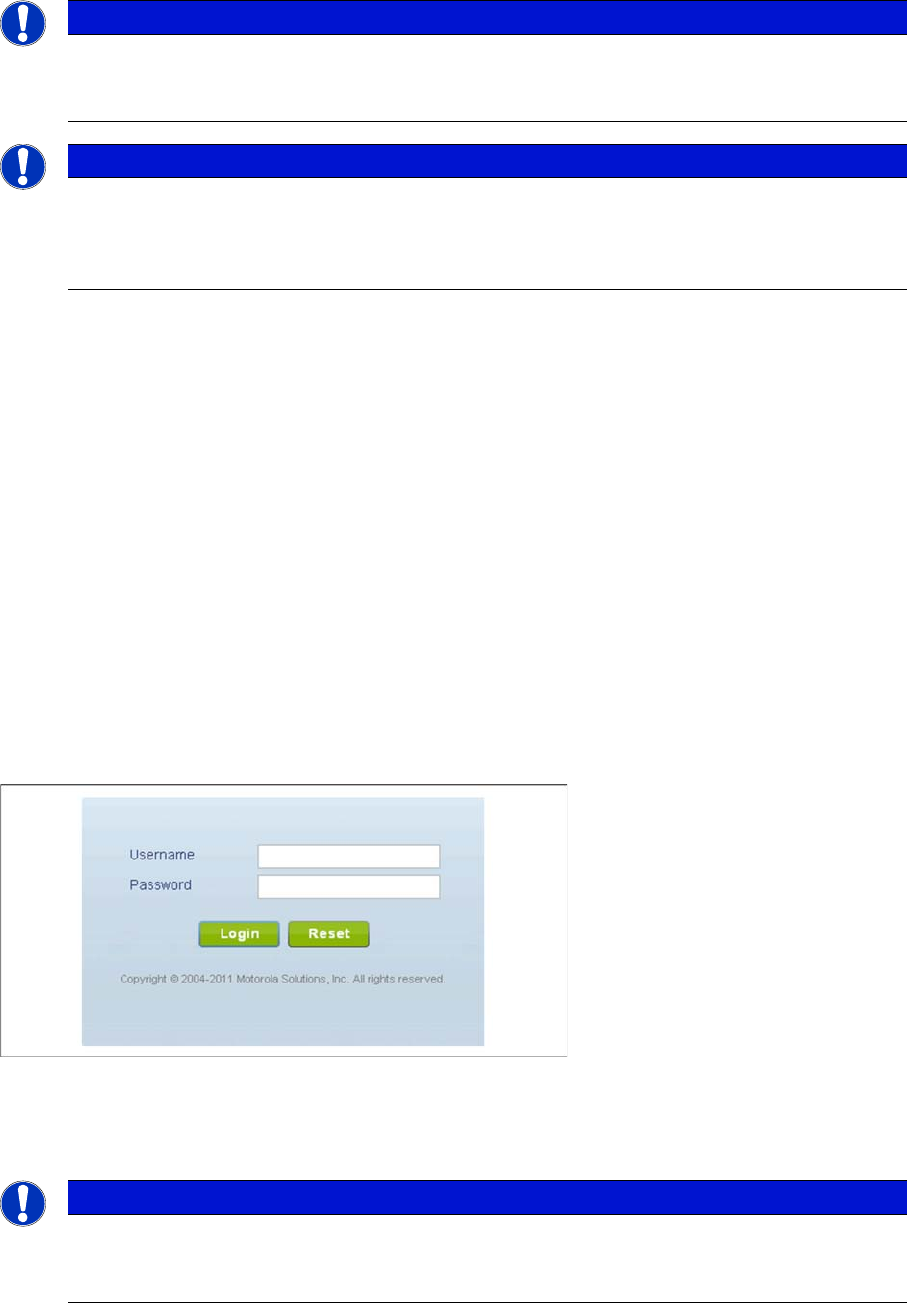
► Point the web browser to the access point’s IP address, using the secure hypertext transfer protocol
(e.g. https:// 169.254.240.10). The following login screen displays:
► In the Username field, enter admin as default username.
► In the Password field, enter motorola as default password.
► Click the Login button to load the management interface.
NOTICE
Access point configuration
To access the access point configuration, you need a web browser with an update version. De
-
pending on your infrastructure use Mozilla Firefox or Microsoft Internet Explorer.
NOTICE
Shockwave Flash required
The web pages of the access point requires the “Shockwave Flash” Add-on of Adobe Systems
Incorporated for the web browser to be displayed. Ensure that the update version of the Adobe
Systems Add-on „Shockwave Flash“ is installed.
NOTICE
Password change required
When logging in for the first time, you will be prompted to change the password to enhance de
-
vice security in subsequent logins.
Components
Motorola AP6521 Access Point 3.1.3 Configuration
12 Installation Manual WLAN Infrastructure for SIPLACE
3.1.3.2
3.1.3.2 Initial Setup Wizard
Initial Setup Wizard
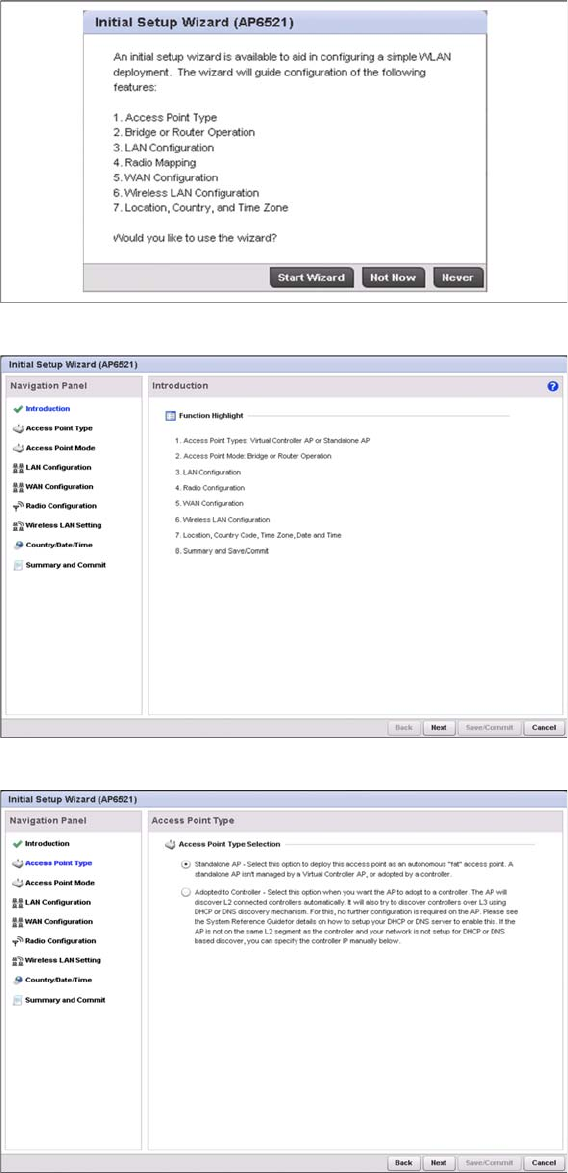
► Click the Start Wizard button to run the configuration wizard.
► Click the Next button to continue.
► Select Standalone AP and click the Next button to continue.
Components
3.1.3 Configuration Motorola AP6521 Access Point
Installation Manual WLAN Infrastructure for SIPLACE 13
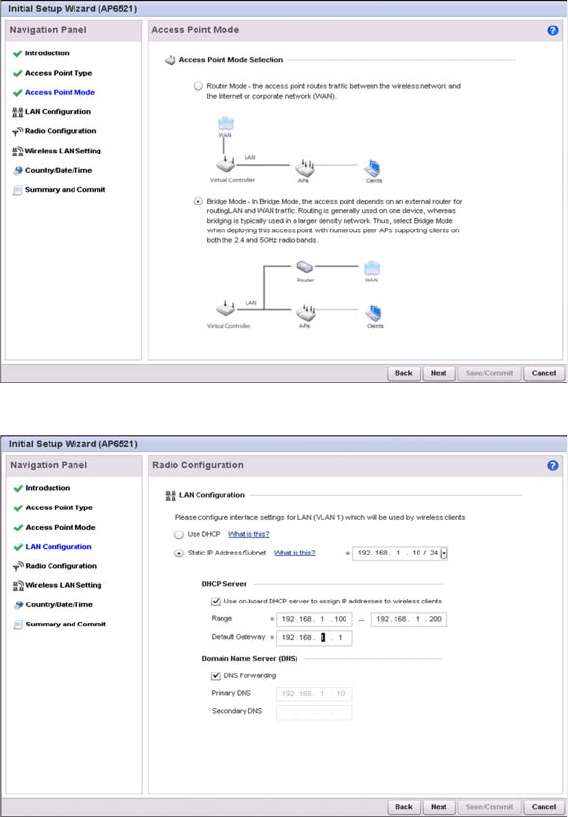
► Select Bridge Mode and click the Next button to continue.
You can either assign a static or dynamic IP address to the access point.
► Select Use DHCP to obtain a dynamic IP address from a DHCP server.
or
► Select Static IP Address/Subnet to assign the static IP address and subnet mask
⇨ Select Use on-board DHCP server to assign IP addresses to wireless clients to enable the on-
board DHCP server to provide IP and DNS information to wireless clients.
⇨ Range: Enter a starting and ending IP address range for client assignments.
⇨ Enter the Default Gateway address for use with the default gateway.
► Click the Next button to continue.