00197199-04_IM_WLAN-Infrastructure.pdf - 第14页
Components Motorola AP6521 Access Point 3.1.3 Configuration 14 Installation Manual WLAN Infrastructure for SIPLACE ► Select the Configure as a Date Radio option to d edicate this ra dio for WLAN client support in eithe r…
Components
3.1.3 Configuration Motorola AP6521 Access Point
Installation Manual WLAN Infrastructure for SIPLACE 13
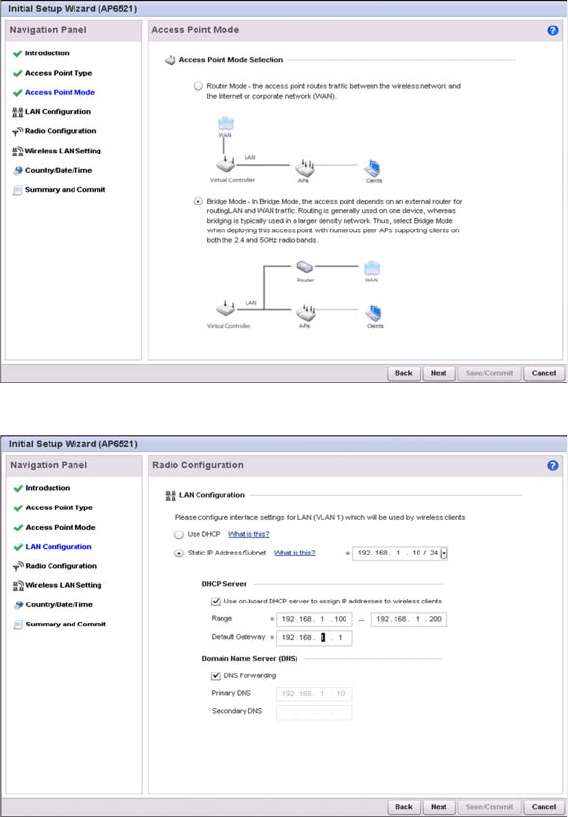
► Select Bridge Mode and click the Next button to continue.
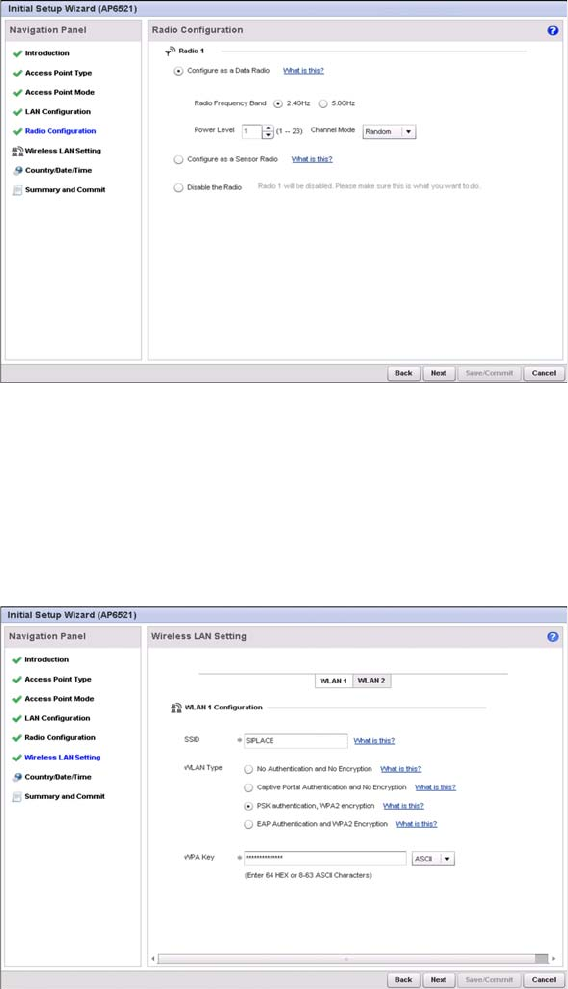
You can either assign a static or dynamic IP address to the access point.
► Select Use DHCP to obtain a dynamic IP address from a DHCP server.
or
► Select Static IP Address/Subnet to assign the static IP address and subnet mask
⇨ Select Use on-board DHCP server to assign IP addresses to wireless clients to enable the on-
board DHCP server to provide IP and DNS information to wireless clients.
⇨ Range: Enter a starting and ending IP address range for client assignments.
⇨ Enter the Default Gateway address for use with the default gateway.
► Click the Next button to continue.
Components
Motorola AP6521 Access Point 3.1.3 Configuration
14 Installation Manual WLAN Infrastructure for SIPLACE
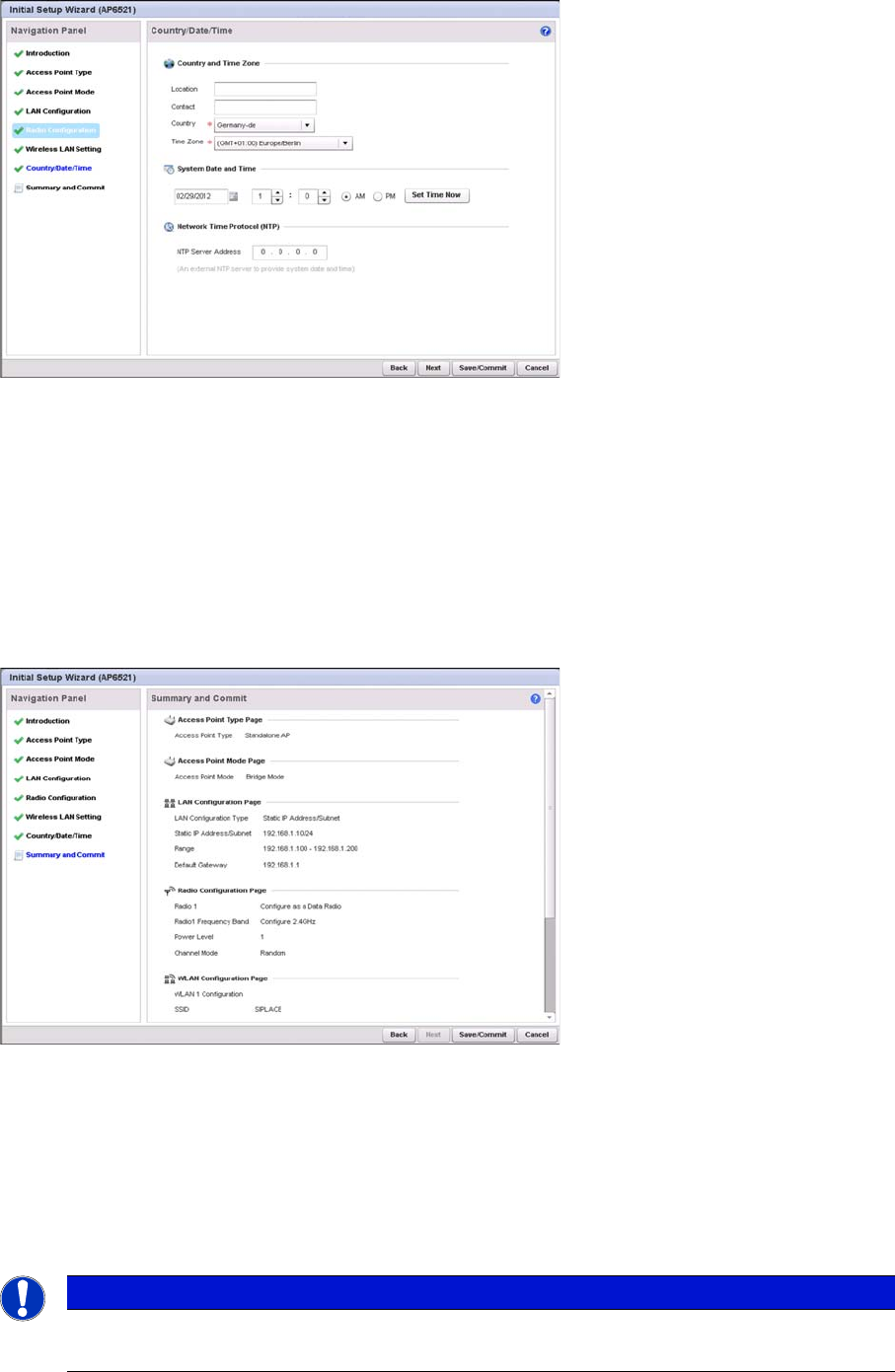
► Select the Configure as a Date Radio option to dedicate this radio for WLAN client support in either
the selected 2.4 or 5GHz radio band.
► Select either the 2.4GHz or 5.0GHz radio band to use with the radio, the selected band is used for
WLAN client support.
► Define the Channel Mode for the access point channel. You can either select Random, Best or Stat
-
ic. For the use with SIPLACE, we recommend to use Random.
► Click the Next button to continue.
► In the SSID field, enter the network name of your radio cell. The SSID presents the first hurdle to
logging a client in with the radio cell. The client must know the correct SSID in order to log itself in.
► For use with the SIPLACE applications, select PSK authentication, WPA2 encryption.
► In the WPA Key field, enter an alphanumeric string of 8 to 63 ASCII characters or 64 HEX characters
as the primary string both transmitting and receiving authenticators must share. The alphanumeric
string allows character spaces.
► Click the Next button to continue.
Components
3.1.3 Configuration Motorola AP6521 Access Point
Installation Manual WLAN Infrastructure for SIPLACE 15
► Select the Country where the access point is deployed. This is a required parameter. The access
point prompts for the correct country code on the first login. A warning message also displays stating
an incorrect country setting may result in illegal radio operation. Selecting the correct country is cen
-
tral to legal operation. Each country has its own regulatory restrictions concerning electromagnetic
emissions and the maximum RF signal strength that can be transmitted.
► Set the Time Zone where the access point is deployed. This is a required parameter. The setting
should be complimentary with the selected deployment country.
► Click the Next button.
⇨ The Initial AP Setup Wizard displays the Summary and Commit screen to summarize the screens
(pages) and settings updated using the Initial AP Setup Wizard.
This screen requires no user intervention or additional settings. It is an additional means of validating the
configuration before it is deployed. However, if a screen displays settings not intended as part of the in
-
itial configuration, the screen can be selected from within the Navigation Panel and its settings modified
accordingly.
► If the configuration displays as intended, select the Save/Commit button to implement these settings
to the access point’s configuration. If additional changes are warranted based on the summary, ei
-
ther select the target page from the Navigational Panel, or use the Back and Next buttons to scroll
to the target screen.
NOTICE
Boot-up time
Booting or rebooting the AP6521 can take up to 3 minutes.