00197199-04_IM_WLAN-Infrastructure.pdf - 第25页
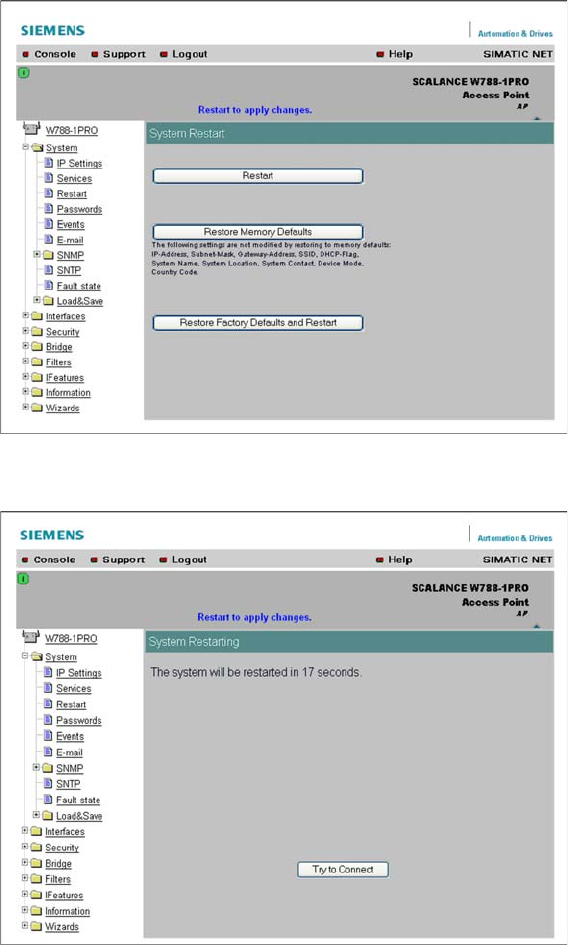
Components 3.3.3 Configuration Siemens SCALANCE W788-1Pro Access Point Installation Manual WLAN Infrastructure for SIPLACE 25 ► Click on the Re start button. Booting takes 20 seconds , after which you can log in a gain w…
Components
Siemens SCALANCE W788-1Pro Access Point 3.3.3 Configuration
24 Installation Manual WLAN Infrastructure for SIPLACE
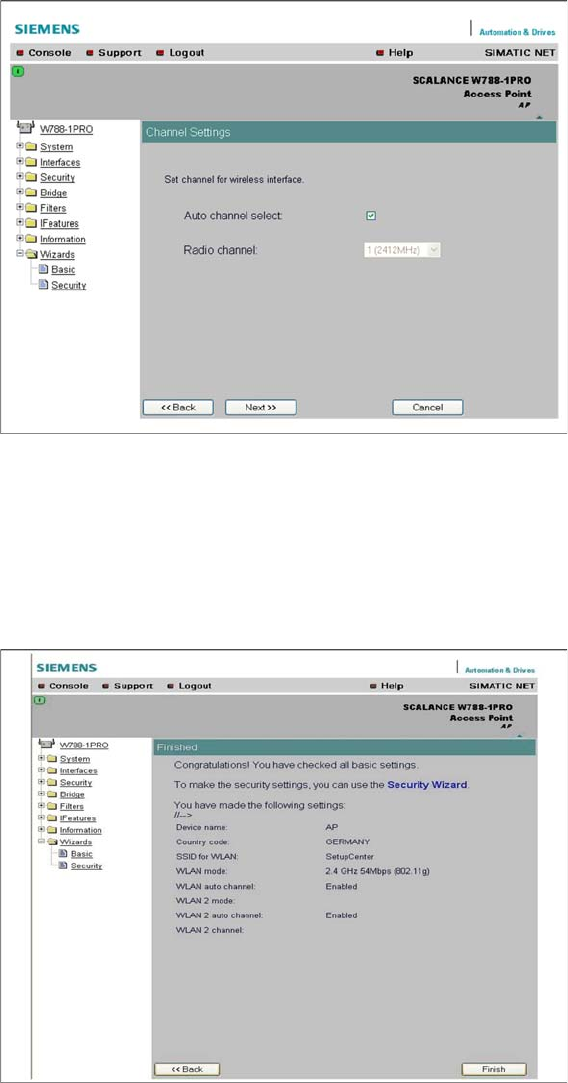
► Define the parameters for the access point channel. You can either select a preset static channel or
allow the access point to perform its own automatic selection.
► If you enable Auto channel select, the access point will scan all occupied channels and choose the
first free channel it finds. However, since the 2.4GHz channels can experience overlapping, the op
-
eration of multiple access points could result in interference, a fact which can be prevented by using
static preset channels. For Setup Center, enable Auto channel select.
► Click on Next. You will see the next input mask.
► At the end of the Basic Wizard process, you will see a summary of your settings. To activate these
settings, restart the access point . Follow the link Restart to apply changes.
► You will see the next input mask.
Components
3.3.3 Configuration Siemens SCALANCE W788-1Pro Access Point
Installation Manual WLAN Infrastructure for SIPLACE 25
► Click on the Restart button. Booting takes 20 seconds, after which you can log in again with your
administrator account.
► If the page is not loaded or if you receive an error message, refresh the whole page with View →
Refresh or by pressing F5!
► After you have logged in, start the Security Wizard.
Components
Siemens SCALANCE W788-1Pro Access Point 3.3.3 Configuration
26 Installation Manual WLAN Infrastructure for SIPLACE
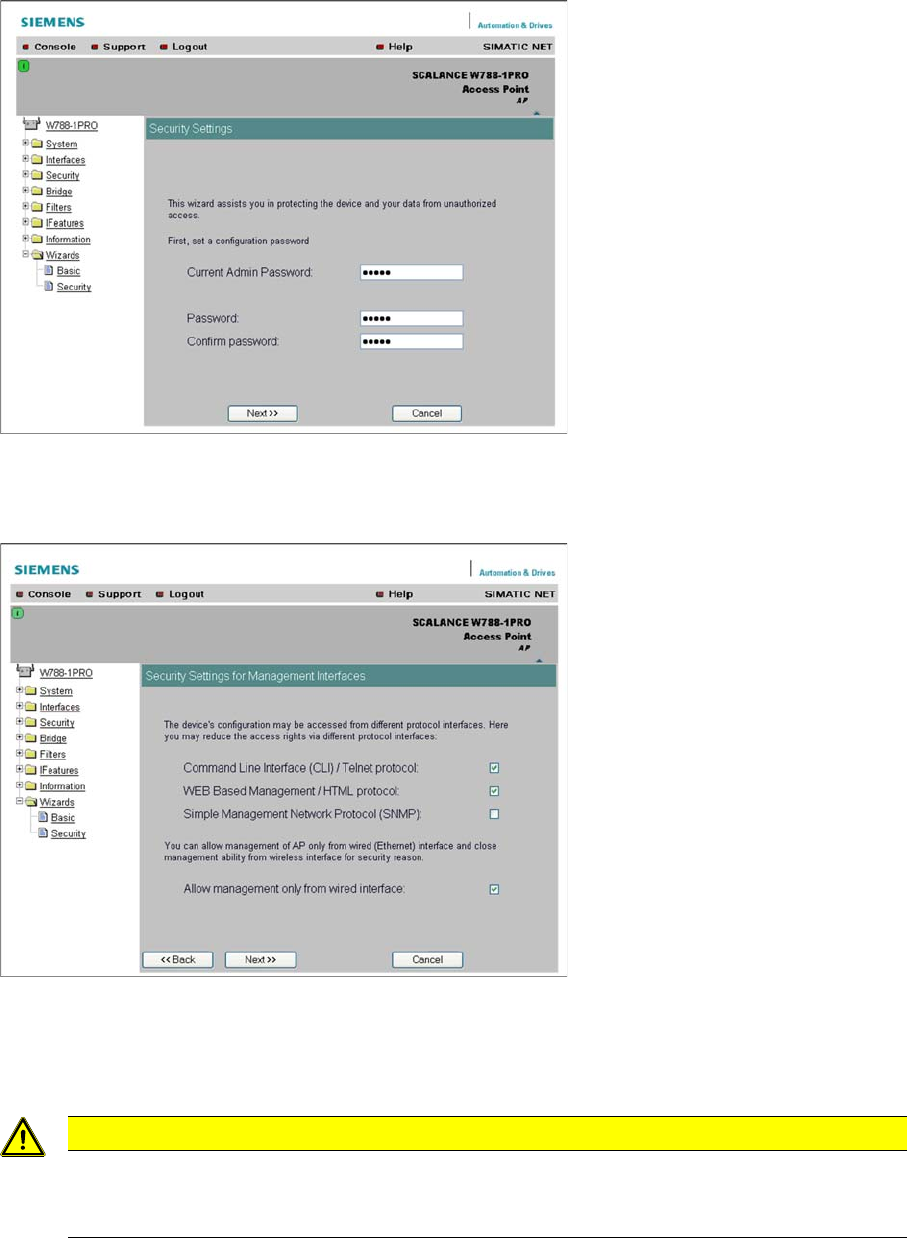
► Change the standard administrator password to prevent unauthorized access. Enter the old and new
passwords twice, as prompted.
► Click on Next. You will see the next input mask.
► This is where you select the setup type and can restrict setup to the Ethernet interface. The key setup
type is the web browser; the other two types should be treated as optional .
► We recommend limiting parameterization to the wired Ethernet interface, to prevent unauthorized
access to the setup process via a WLAN client.
► Click on Next. You will see the next input mask.
CAUTION
Configuration of the access point
Configuration of the access point will then only be possible in connection with the USB LAN
adapter or with another network card. It is not possible to configure this via a switch or HUB.