00196497-07_SM_SXDX12_en.pdf - 第286页
Settings Conveyor Settings 4.6.4 Setting the Parallelism of the Conveyor Sides 286 Service Manual SIPLACE SX1/SX2/DX1/DX2 FS02 ► Tighten the screws fastening the drive again and set the belt t ension to 2 0 +/ - 2 Hz. (s…
Settings
4.6.4 Setting the Parallelism of the Conveyor Sides Conveyor Settings
Service Manual SIPLACE SX1/SX2/DX1/DX2 FS02 285
4.6.4.2
4.6.4.2 Setting the Parallelism of the Dual Conveyor Sides
Setting the Parallelism of the Dual Conveyor Sides
Parts, equipment and tools
Setting
► If you unable to set the parallelism, contact your local SIPLACE Service team.
► Use the software to move the conveyor sides into the position which allows you best access. Alter-
natively, you can also loosen the conveyor side clamps on the dual conveyor (see "3.6.1 Loosening
the Conveyor Side Clamps" [ ➙ 143]).
► Switch off the machine, disconnect it from the power supply and secure it to prevent unauthorized
reactivation. Observe the instructions in section "1.2 Preparatory Work..." [ ➙ 13].
► Loosen the screws fastening the width adjustment drive. The toothed belt of the width adjustment
should then have enough play so that you can move the adjustment units independently of one an-
other. You may need to loosen the toothed belt from the deflection pulleys.
► Place the toothed belt over the two upper deflection pulleys so that the adjustment units move ex-
actly parallel to one another. Check the parallelism as follows:
► If you have loosened the toothed belt from the deflection pulleys, insert this again now.
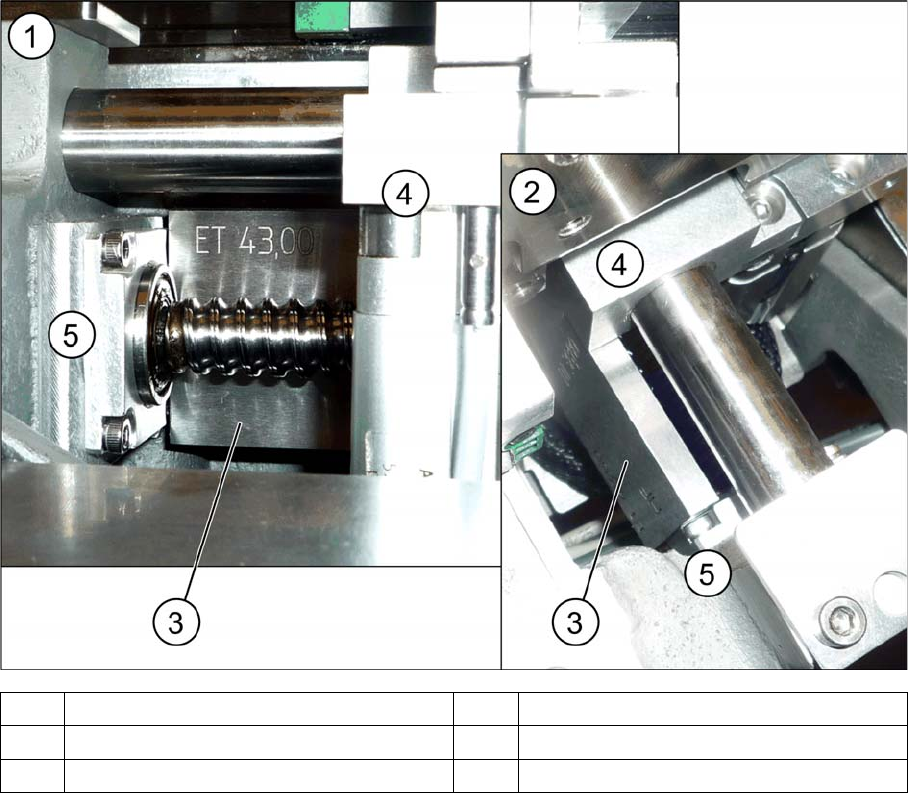
► Push the adjustment units by hand outwards, to one side of the conveyor. Insert a spacer piece in
each case. This helps you to check the distance to the frame more easily. Make sure that the lifting
table plate guides are only lying against the adjustment unit base structures and not against the
threads.
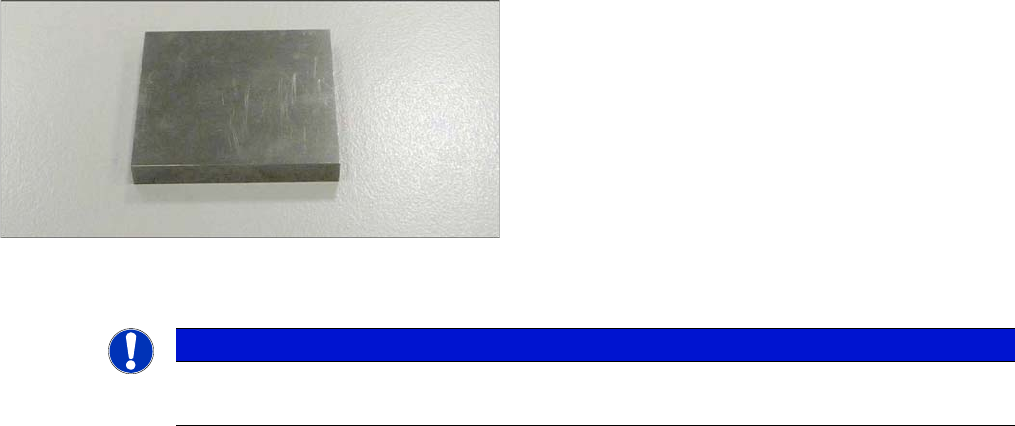
▪ To check the adjustment unit stoppers, you need two
suitably sized and identical pieces of metal (see be-
low).
You could also use two lifting table plate guides if
needed.
NOTICE
Adjustment units
The parallelism of the conveyor sides depends on the parallelism of the adjustment units.
Settings
Conveyor Settings 4.6.4 Setting the Parallelism of the Conveyor Sides
286 Service Manual SIPLACE SX1/SX2/DX1/DX2 FS02
► Tighten the screws fastening the drive again and set the belt tension to 20 +/-2 Hz. (see "4.6.1.3 Set-
ting the Tension of the Width Adjustment Toothed Belt" [ ➙ 276]).
► If the conveyor side clamps have loosened, fix these again.
Check
Check the parallelism of the conveyor sides.
► Measure and compare the distance of the adjustment units to the stops. The distance must be the
same at both adjustment units.
► Pull the toothed belt to move the adjustment units manually as far as the edge. The adjustment units
must touch the two stops at the same time.
► Calibrate the width adjustment motor (see "4.6.5 Calibrating the Motors in the Conveyor" [ ➙ 287]).
► Displace the fixed conveyor side wall. This ensures that the fixed conveyor side is parallel to the flex-
ible sides. Readjust the fixed conveyor side to its original value after that.
► Calibrate the conveyor width (see "4.6.6 Conveyor Width Calibration" [ ➙ 288]).
See also
4.6.5 Calibrating the Motors in the Conveyor [ ➙ 287]
1 View from the side 2 View from above
3 Spacer piece (here: metal platelet) 4 Adjustment unit
5Frame 6Bearing
Settings
4.6.5 Calibrating the Motors in the Conveyor Conveyor Settings
Service Manual SIPLACE SX1/SX2/DX1/DX2 FS02 287
4.6.5
4.6.5 Calibrating the Motors in the Conveyor
Calibrating the Motors in the Conveyor
If the motors for the automatic width adjustment or for the lifting tables are replaced, they need to be
calibrated via the software afterwards. This is necessary since each motor has a different zero point and
calibration is the only way to enter the correct zero point into the machine data.
Calibration
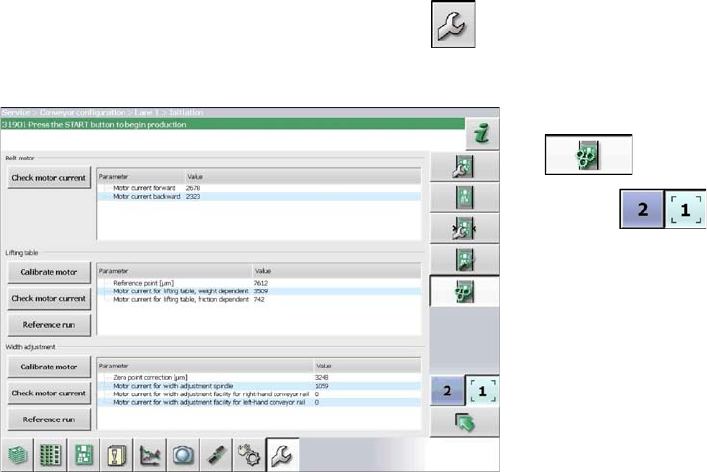
► Start up the station.
► Switch over to the activity level Service (Customer) (or better still)
► Switch over to the service menu .
► Select the Conveyor configuration button.
► Select the Initiate conveyor parameters
button.
► Use the button to select the required con-
veyor lane.
► Calibrate the relevant motor by either clicking the Mo-
tor calibrationorWidth adjustment button in the Lifting
table section.