80S-2080F480F5.pdf - 第318页
5 Vision Functions SIP LACE 80S-20/F4/F5 Us er Manual 5.6 Test Component 05/99 Issue from Software V ersion SR.405.xx 5 - 86 Line en gineer NOTE Buttons are active when the text on the butt on is black (rather tha n gray…
SIPLACE 80S-20/F4/F5 User Manual 5 Vision Functions
05/99 Issue from Software Version SR.405.xx 5.6 Test Component
Line engineer 5 - 85
5.6.3.3
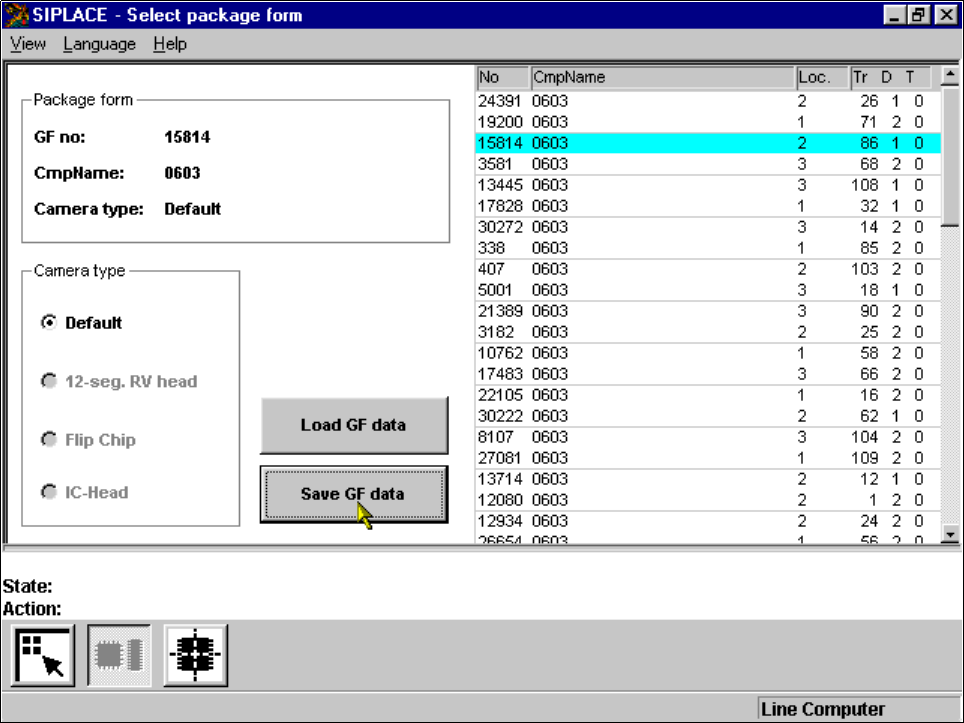
Save GF data
Option
With this option you can save package forms together with their changed parameters. The button will only be
active after you have modified the package form data.
Fig. 5.6.13
Select package form
menu,
Save GF data
option
5.6.4
Test Component
Menu
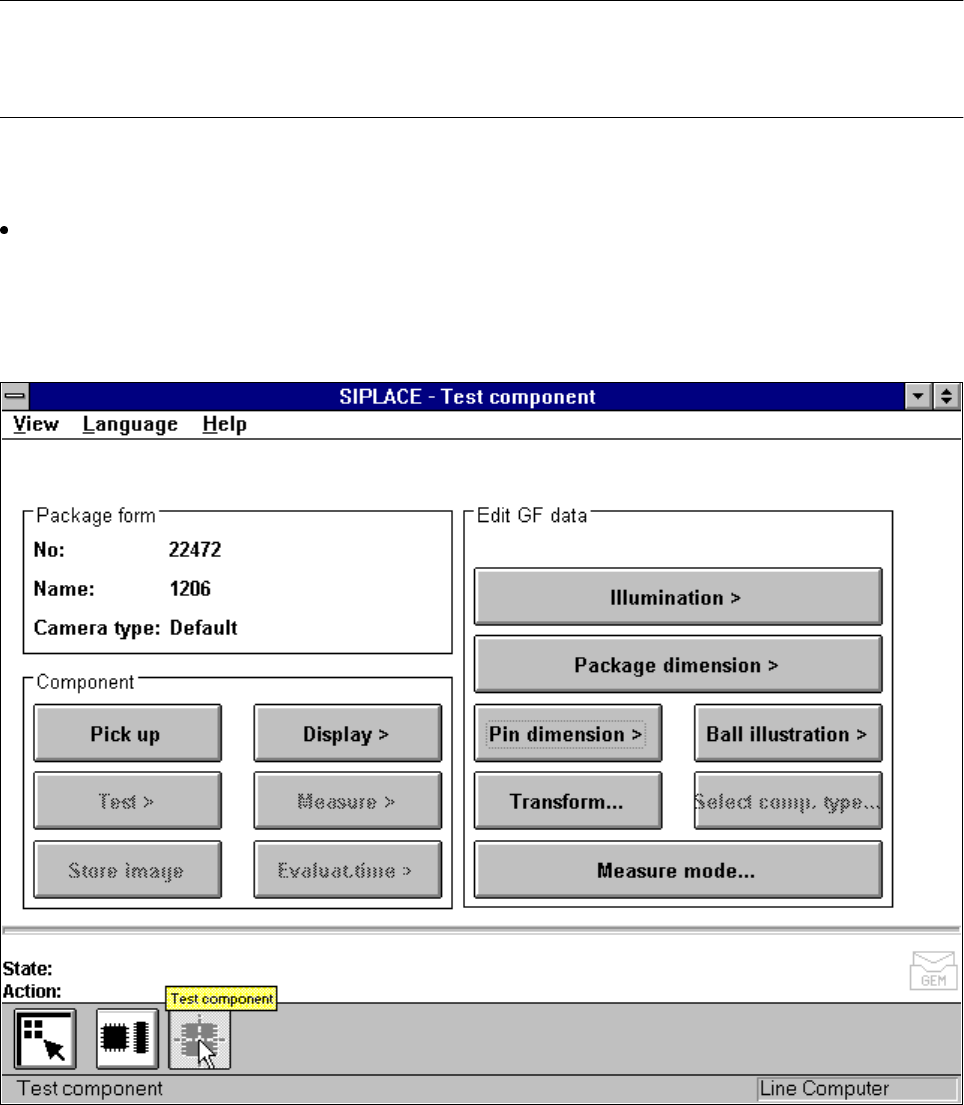
If you click on the
Test component
icon the corresponding menu will drop down. As the diagram shows, the
following options, organized by group, are available to you:
Component Edit GF data
– Pick up – Illumination
– Display – Package dimension
– Test – Pin dimension
– Measure – Ball illustration
– Store image – Tab le
– Evaluat. time – Select component type (80 F
4
machine only, see Section 5.10 from Page 5 - 163)
– Measure mode
5 Vision Functions SIPLACE 80S-20/F4/F5 User Manual
5.6 Test Component 05/99 Issue from Software Version SR.405.xx
5 - 86 Line engineer
NOTE
Buttons are active when the text on the button is black (rather than gray). This means that you can launch the
associated function by clicking on the button with the mouse.
If you have not yet loaded a package form all options will be inactive.
From the
Select package form
menu load a package form (see Section 5.6.3 from Page 5 - 81). The
loaded package form will be displayed in the
Package form
display field with package form number, pack-
age form name and camera type. All options are accessible with the exception of
Test, Measure,
Store
image
and
Evaluat. time
. The
Component type
option is reserved for the 80F
4
or 80F
5
machine and only
available there.
Fig. 5.6.14
Test component
menu, options
SIPLACE 80S-20/F4/F5 User Manual 5 Vision Functions
05/99 Issue from Software Version SR.405.xx 5.6 Test Component
Line engineer 5 - 87
5.6.4.1
Pick Up Component
Option
NOTE
Before you can activate this option you must have already loaded a package form number. If this is not the
case, the button will remain inactive.
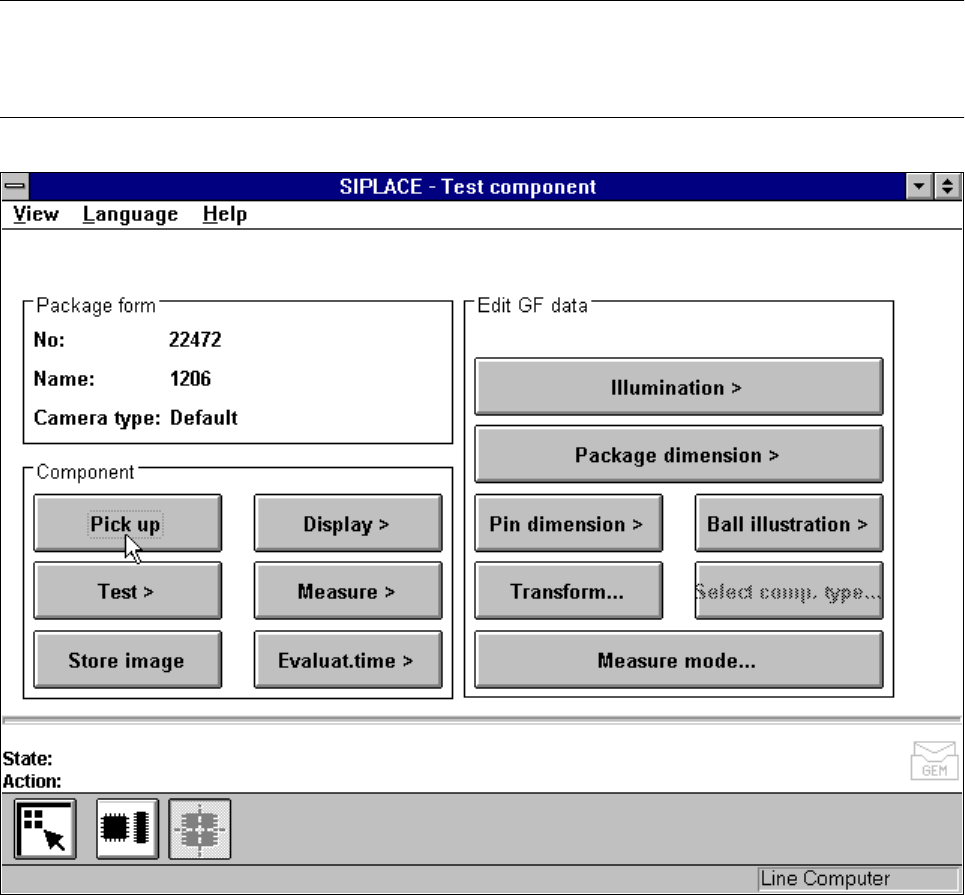
Fig. 5.6.15
Test component
menu,
Pick up component
option
When this option is activated the following actions are started:
– A component is picked up from a specific track.
– If there already is a component beneath the component camera it will be discarded.
– The options Test and Measure can be clicked on.