80S-2080F480F5.pdf - 第688页
11 Station Extensions/Options SIPLACE 80S-20/F4/F5 User Manual 11.9 GEM Interface 05/99 Is sue from Software Version SR.405.xx 11 - 72 l Op erator message In this i nput window y ou can write a message t o the host. The …
SIPLACE 80S-20/F4/F5 User Manual 11 Station Extensions/Options
05/99 Issue from Software Version SR.405.xx 11.9 GEM Interface
11 - 71
l Upload / Download
Click on the corresponding button when you want to download a placement program to the station or
upload a placement program to the host.
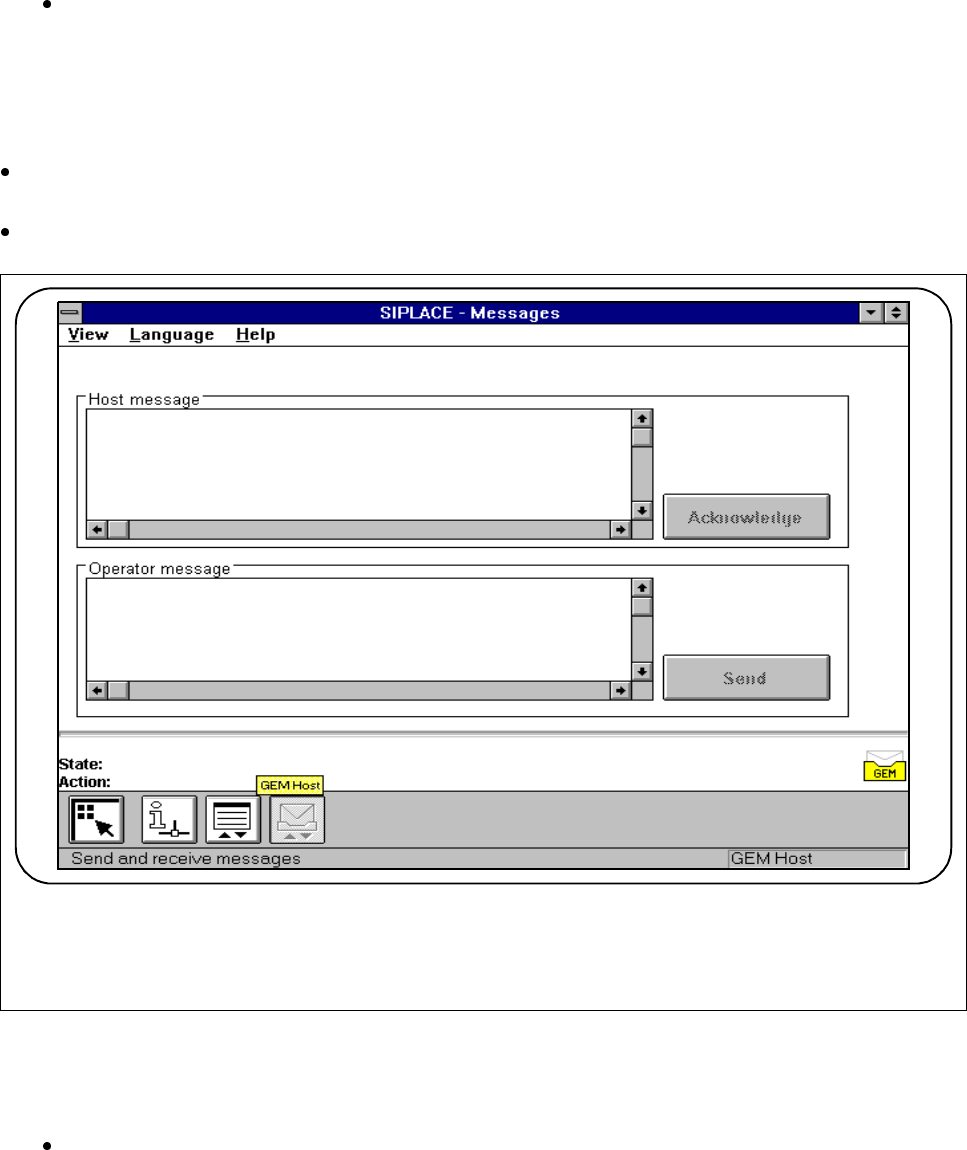
11.9.2.8 Messages
In the main view click on the icon for
GEM
(see Fig. 11.9.2). You can pick any one of three different menus
(see Fig. 11.9.7).
Click on the
Messages
icon. You can send messages to the host and receive messages from the host.
Fig. 11.9.9 Load placement program
l Host message
In this display window you can read the message which was received from the host.
Once you have read the message, click on the Acknowledge button. Confirmation is then sent to the
host that the message has arrived and been read.
The message last received appears at the bottom.
F

11 Station Extensions/Options SIPLACE 80S-20/F4/F5 User Manual
11.9 GEM Interface 05/99 Issue from Software Version SR.405.xx
11 - 72
l Operator message
In this input window you can write a message to the host. The last message to have been written remains
displayed in the input window.
Click on the
Send
button. The message is now sent to the host.
NOTE
A message may not be longer than 160 characters.

SIPLACE 80S-20/F4/F5 User Manual 11 Station Extensions/Options
05/99 Issue from Software Version SR.405.xx 11.10 Twin Conveyor
11 - 73
11.10 Twin Conveyor
11.10.1 General
In the double transport version, the Siplace is equipped with two tracks that are electrically and mechanically
isolated from one another. There are two variants, one with a fixed right side and the other with a fixed left
side.
Two different transport types can be set: „twin conveyor synchronous“ and „twin conveyor asynchronous“. To
do this, the correct transport type must be entered into the machine data (real.ma). It is also possible to enter
various transport modes and ceramic substrate centering methods in the twin conveyor.
11.10.1.1 Switching Between Transport Type, Transport Mode and Ceramic Sub-
strate Centering
11.10.2 Overview (fixed right side)
The right transport track in the transport direction is designated „Transport 1“ and the left track is designated
„Transport 2“ (see Fig. 11.10.1).
Transport type Input in real.ma
Single transport 0
Twin conveyor synchronous 1
Twin conveyor asynchronous 2
Transport mode Input in real.ma
Normal mode PCB <= 460 mm 0
460 mm< PCB <= 508 mm 1
Ceramic substrate centering Input in real.ma
No ceramic substrate centering 0
Ceramic substrate centering, mechanical 1
Ceramic substrate centering, optical
(Illumination with oblique lighting)
2
Ceramic substrate centering, both 3