80S-2080F480F5.pdf - 第438页
7 Erro r Information & Diagnostics SIPLACE 80 S-20/F4/F5 User Manual 7.1 Error Information 05/99 Is sue from Software Version SR.405.xx 7 - 6 Fig. 7.1.4 Instructions text
SIPLACE 80S-20/F4/F5 User Manual 7 Error Information & Diagnostics
05/99 Issue from Software Version SR.405.xx 7.1 Error Information
7 - 5
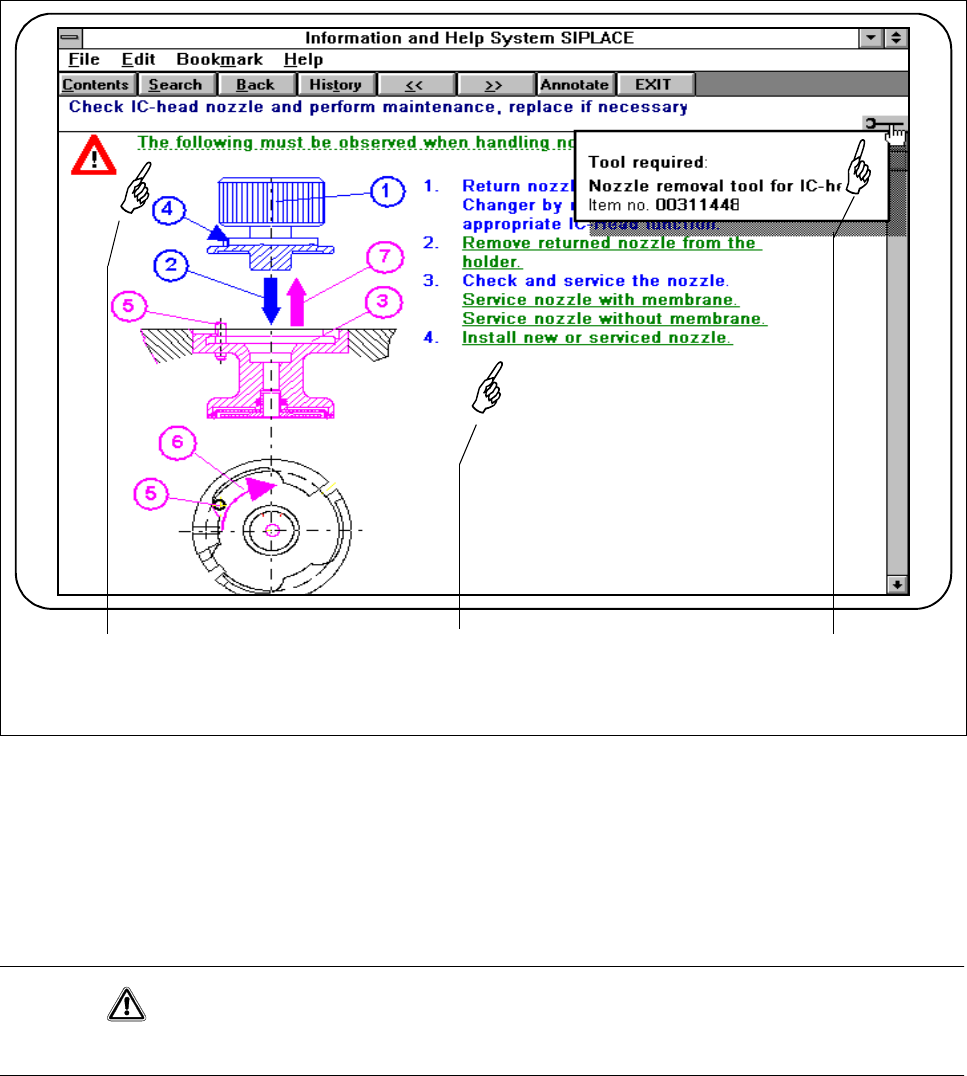
Fig. 7.1.3 Example of additional information on fault correction
- Key to Fig. 7.1.3
1 Instructions text accessible by clicking. Do not fail to observe these instructions. (Red triangle with the text
underlined with green).
2 Additional information accessible by clicking (text in green).
3 By clicking on this symbol, help on the corresponding topic will be displayed.
CAUTION
Do not fail to observe these instructions which are identified by red triangles.
● Click on the symbol for help in order to obtain information on the corresponding aid (see Fig. 7.1.3).
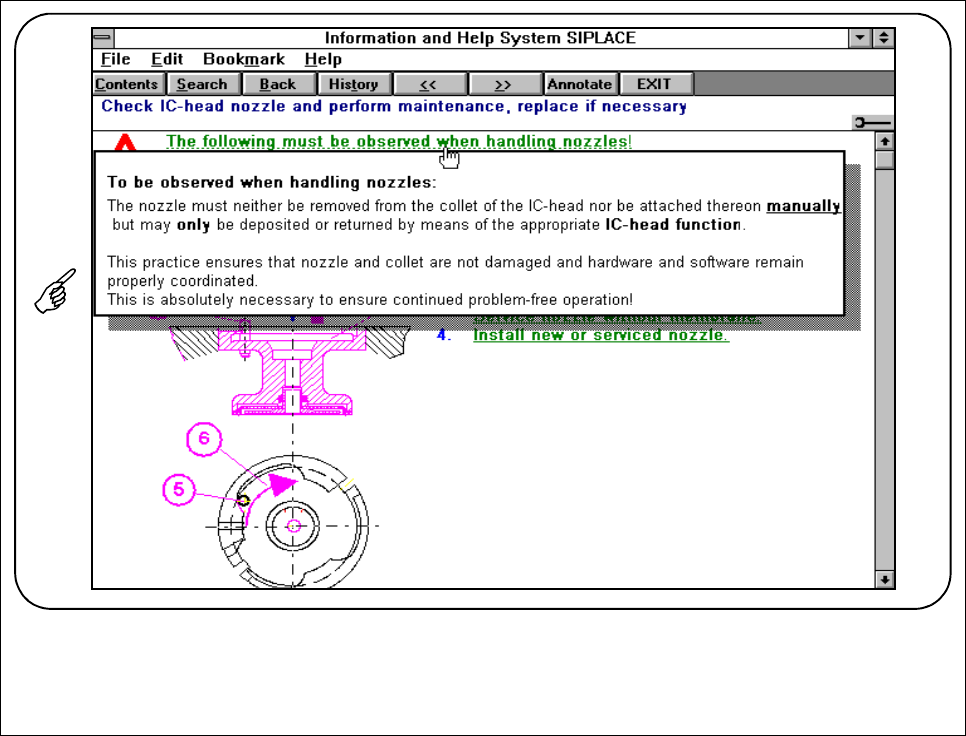
● Click on the text beside the red triangle and carry out the instructions provided (see Fig. 7.1.4).
321
7 Error Information & Diagnostics SIPLACE 80S-20/F4/F5 User Manual
7.1 Error Information 05/99 Issue from Software Version SR.405.xx
7 - 6
Fig. 7.1.4 Instructions text
SIPLACE 80S-20/F4/F5 User Manual 7 Error Information & Diagnostics
05/99 Issue from Software Version SR.405.xx 7.1 Error Information
7 - 7
7.1.1.1 Leaving and Editing
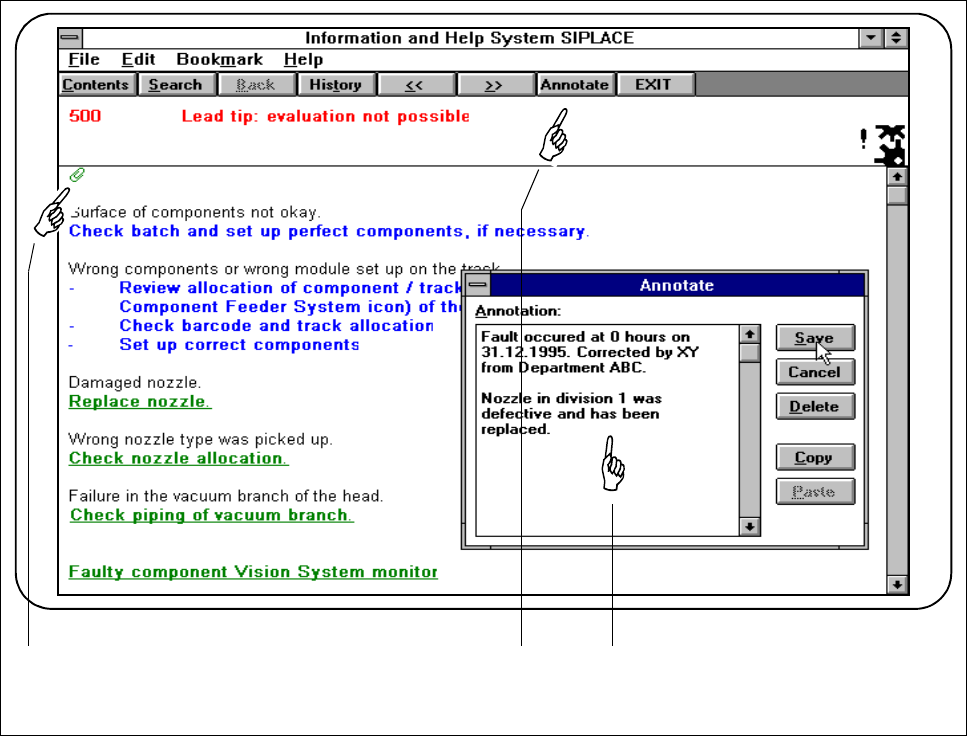
Within any view you can leave or edit comments. In this way you can make a record of work you have carried
out, instructions and so on. If a comment has been added to a view this will be indicated by a paper clip.
● Click on the
Annotate
button. An input window will be displayed. In this window you can enter and edit
your comments.
Fig. 7.1.5 Adding comments
- Key to Fig. 7.1.5
1 Indicates whether a comment on this information has been added (paper-clip symbol)
2
Annotate
button
3 Input window
● The paperclip indicates that a comment has been added. Click on the symbol and the corresponding com-
ment will be displayed.
1 2 3