Forte Max Manual.pdf - 第32页
ForteMAXDispensingSystemAddendum Recipe Creation 28 © 2023 Nordson Corpo ration 4.4.1.2 Creating the Pattern In this section, we will create a pattern t hat will dispense four (4) lines around each cell. To create a …
ForteMAXDispensingSystemAddendum Recipe Creation
© 2023 Nordson Corporation 27
4.4.1.1 Creating the Recipe
To create the recipe:
1. Make sure the Canvas dispensing software is configured for dual applicators. Both
applicators must be the same.
2. Select the Recipe button to access the Recipe Editor.
3. Place the substrate on the conveyor.
4. Click on the Load button on the toolbar.
> The substrate will be lifted off the conveyor and clamped into place. The substrate
should be evenly clamped and level so that the board does not move when
programming.
5. Adjust the clamping mechanism as necessary to achieve a level dispensing plane.
?
NOTE
The dispensing sequence MUST be taught with the part raised and clamped as
necessary. Failing to load the substrate in this manner results in the camera
being out of focus.
6. Select Recipe > New from the menu bar.
7. Enter the recipe name and click on OK.
8. When prompted, teach the workpiece origin.
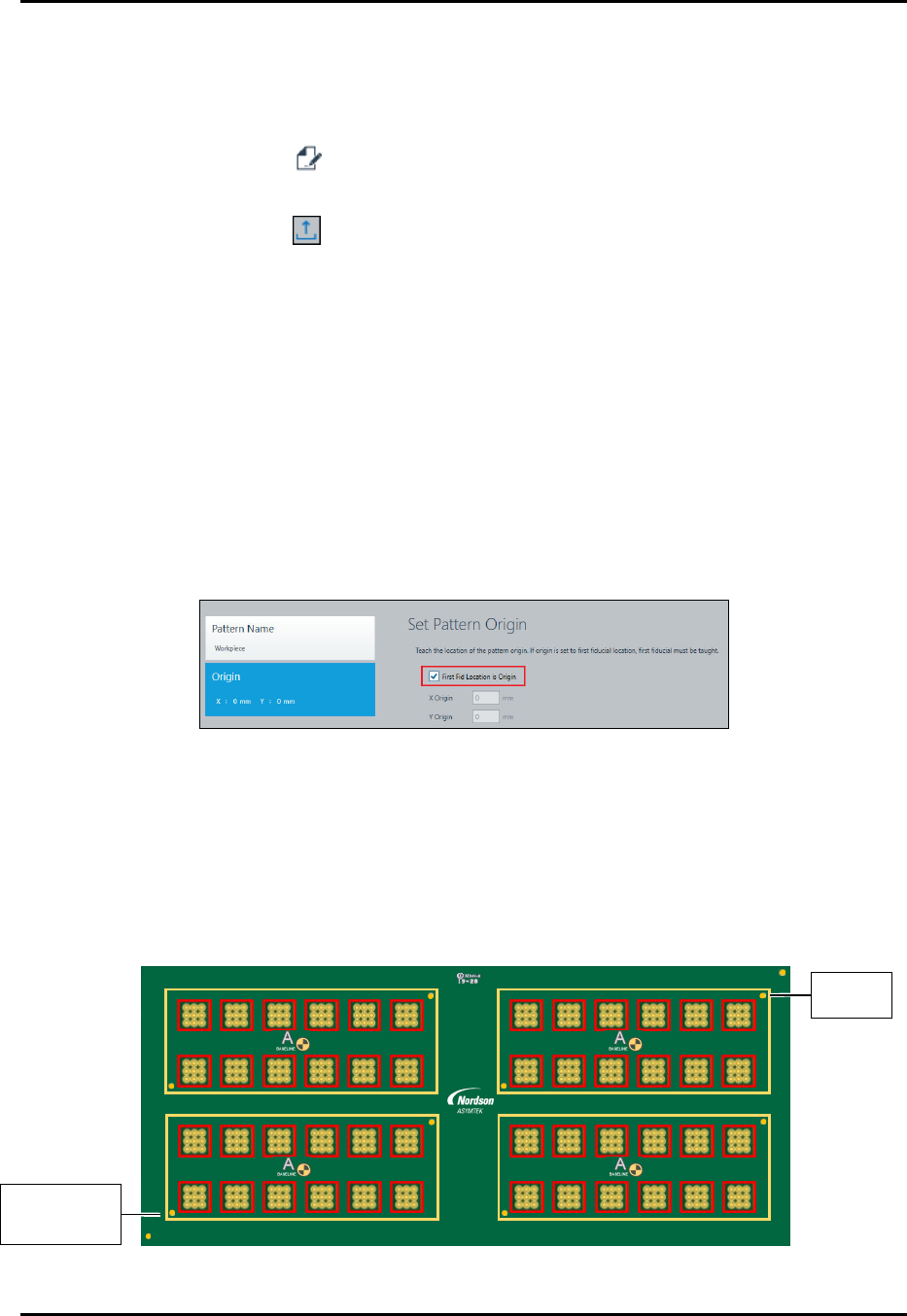
9. Select First Fid Location is origin (Figure 4-3).
Figure 4-3 Set Workpiece Origin
10. Click on Next.
> You will be prompted to set the fiducial properties and teach fiducials.
> In this example, two fiducials will be used (Figure 4-4).
11. Follow the prompts to define two circle finder fiducials. Refer to the Canvas Dispensing
Software User Guide if necessary.
12. Click on Done when finished.
1 2 3 4 5 6 7 8 9 10 11 12
2
1
6130139 REV 1
STRAIGHT
B,1
B,2
2,1 2,2 2,3 2,4 2,5 2,6
1,1 1,2 1,3 1,4 1,5 1,6
4,1 4,2 4,3 4,4 4,5 4,6
A2
A1
3,1 3,2 3,3 3,4 3,5 3,6
A2
A1
4
3
4,1 4,2 4,3 4,4 4,5 4,6
A2
A1
3,1 3,2 3,3 3,4 3,5 3,6
A2
A1
2,1 2,2 2,3 2,4 2,5 2,6
1,1 1,2 1,3 1,4 1,5 1,6
Figure 4-4 Workpiece Origin and Workpiece Fiducials
W
o
r
k
p
i
e
c
e
O
r
i
g
i
n
and Workpiece
F
i
d
u
c
i
a
l
1
W
o
r
k
p
i
e
c
e
F
i
d
u
c
i
a
l
2
ForteMAXDispensingSystemAddendum Recipe Creation
28 © 2023 Nordson Corporation
4.4.1.2 Creating the Pattern
In this section, we will create a pattern that will dispense four (4) lines around each cell.
To create a pattern:
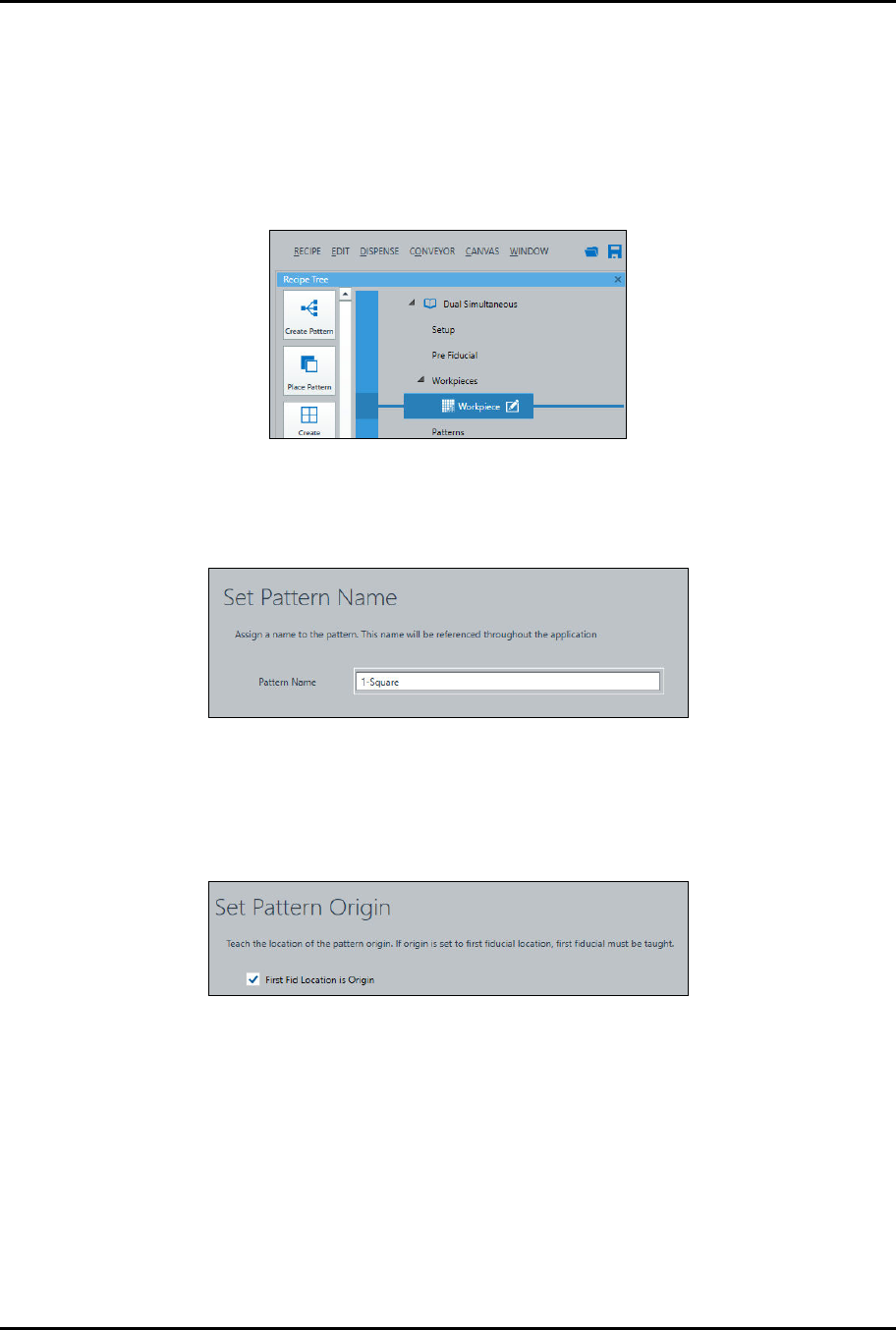
1. Select the Workpiece pattern in the Recipe Tree and click on Create Pattern in the
Instruction Panel (Figure 4-5).
> You will be prompted to enter a pattern name.
Figure 4-5 Create a Pattern
2. Enter a Pattern Name and click on Next (Figure 4-6).
> In this example, the pattern name will be "1-Square."
Figure 4-6 Set Pattern Name
3. Click on Next.
> You will be prompted to teach the pattern origin.
4. Select First Fid Location is Origin (Figure 4-7).
Figure 4-7 Set Pattern Origin
5. Click on Next.
> You will be prompted to define the fiducials.
ForteMAXDispensingSystemAddendum Recipe Creation
© 2023 Nordson Corporation 29
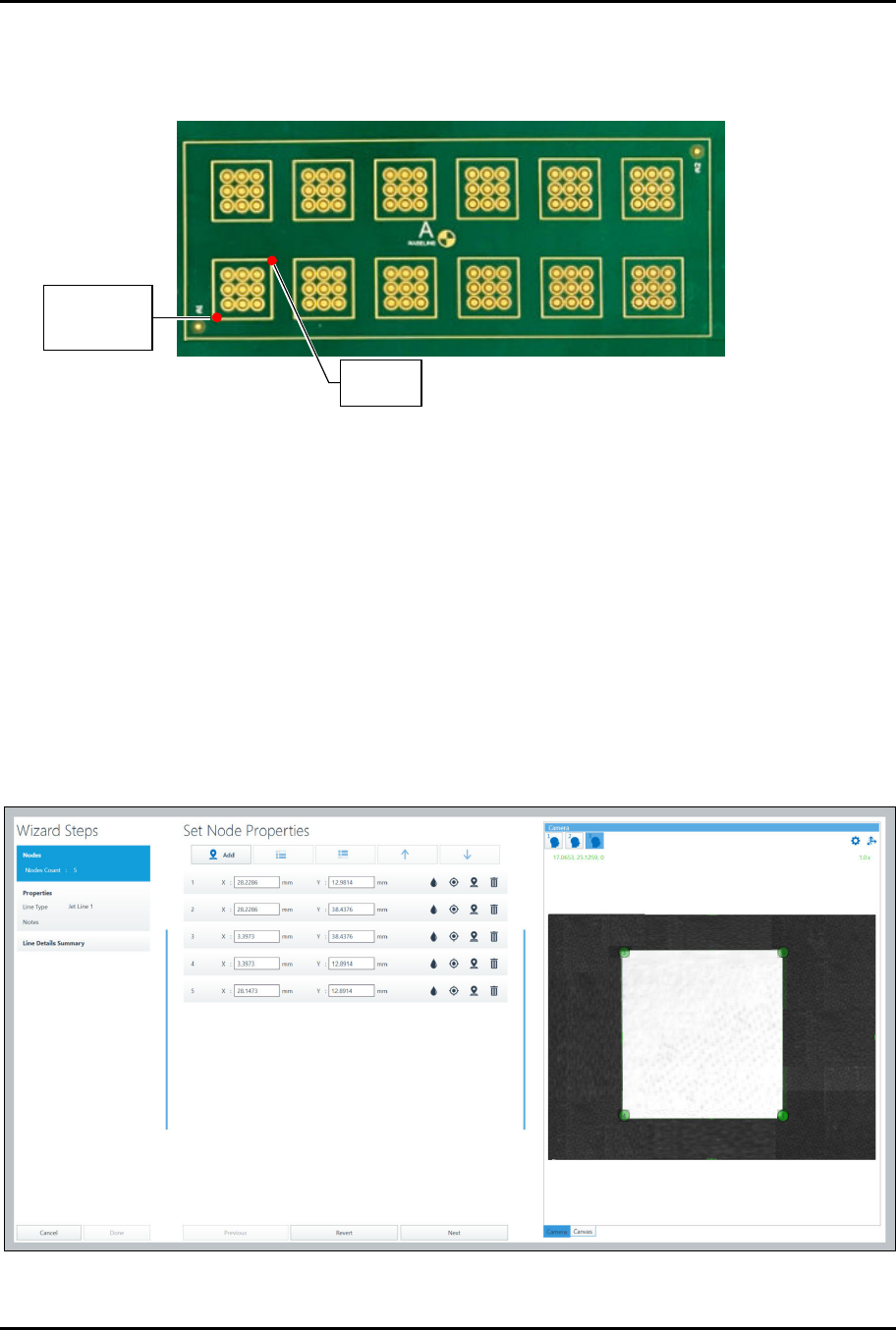
6. Define the pattern fiducials. In this example, it is recommended to use two corner fiducials
(Figure 4-8). Refer to the Canvas Dispensing Software User Guide if necessary.
7. Click on Done when finished.
1,1 1,2 1,3 1.4 1.5 1,6
2,1 2,2 2,3 2.4 2.5 2,6
Figure 4-8 Pattern Origin and Fiducial Locations
4.4.1.3 Adding Dispense Instructions
In this example, we will define five (5) line nodes to surround one box.
To add dispensing instructions:
1. Make sure the pattern you created is selected in the Recipe Tree.
2. Select Line from the Instruction Panel.
> The Pattern Wizard opens (Figure 4-9).
3. Jog the camera crosshairs to the first line point and click Add.
4. Repeat Step 3 until all the nodes have been defined.
5. Click on Next.
Figure 4-9 Pattern Wizard – Set Node Properties
P
a
t
t
e
r
n
O
r
i
g
i
n
and Pattern
F
i
d
u
c
i
a
l
1
P
a
t
t
e
r
n
F
i
d
u
c
i
a
l
2