Forte Max Manual.pdf - 第34页
ForteMAXDispensingSystemAddendum Recipe Creation 30 © 2023 Nordson Corpo ration 6. Set the line properties. > Refer to the Canvas Dispensing Software User Guide if necessary. 7. Click on Done when finished. 8. The…
ForteMAXDispensingSystemAddendum Recipe Creation
© 2023 Nordson Corporation 29
6. Define the pattern fiducials. In this example, it is recommended to use two corner fiducials
(Figure 4-8). Refer to the Canvas Dispensing Software User Guide if necessary.
7. Click on Done when finished.
1,1 1,2 1,3 1.4 1.5 1,6
2,1 2,2 2,3 2.4 2.5 2,6
Figure 4-8 Pattern Origin and Fiducial Locations
4.4.1.3 Adding Dispense Instructions
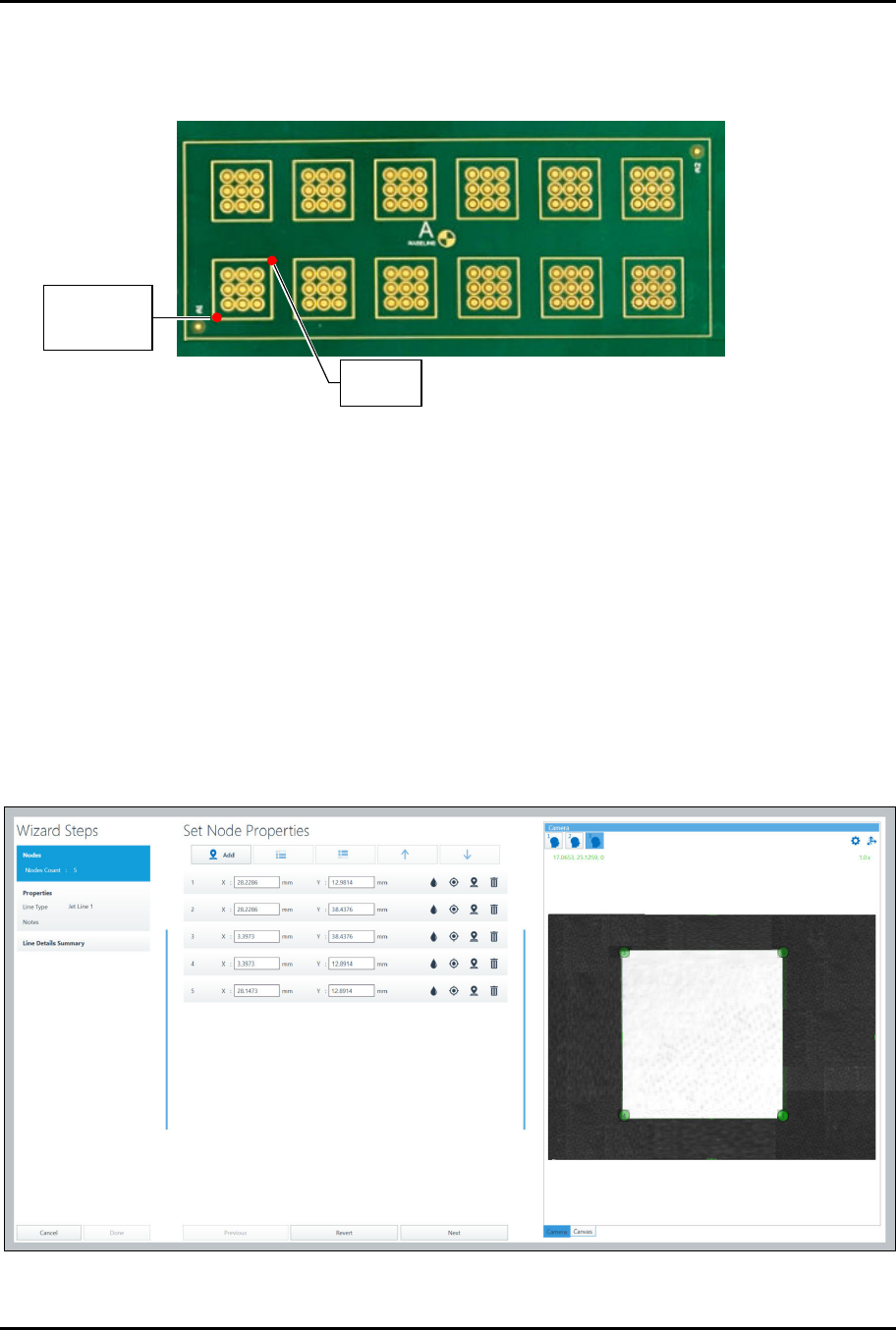
In this example, we will define five (5) line nodes to surround one box.
To add dispensing instructions:
1. Make sure the pattern you created is selected in the Recipe Tree.
2. Select Line from the Instruction Panel.
> The Pattern Wizard opens (Figure 4-9).
3. Jog the camera crosshairs to the first line point and click Add.
4. Repeat Step 3 until all the nodes have been defined.
5. Click on Next.
Figure 4-9 Pattern Wizard – Set Node Properties
P
a
t
t
e
r
n
O
r
i
g
i
n
and Pattern
F
i
d
u
c
i
a
l
1
P
a
t
t
e
r
n
F
i
d
u
c
i
a
l
2
ForteMAXDispensingSystemAddendum Recipe Creation
30 © 2023 Nordson Corporation
6. Set the line properties.
> Refer to the Canvas Dispensing Software User Guide if necessary.
7. Click on Done when finished.
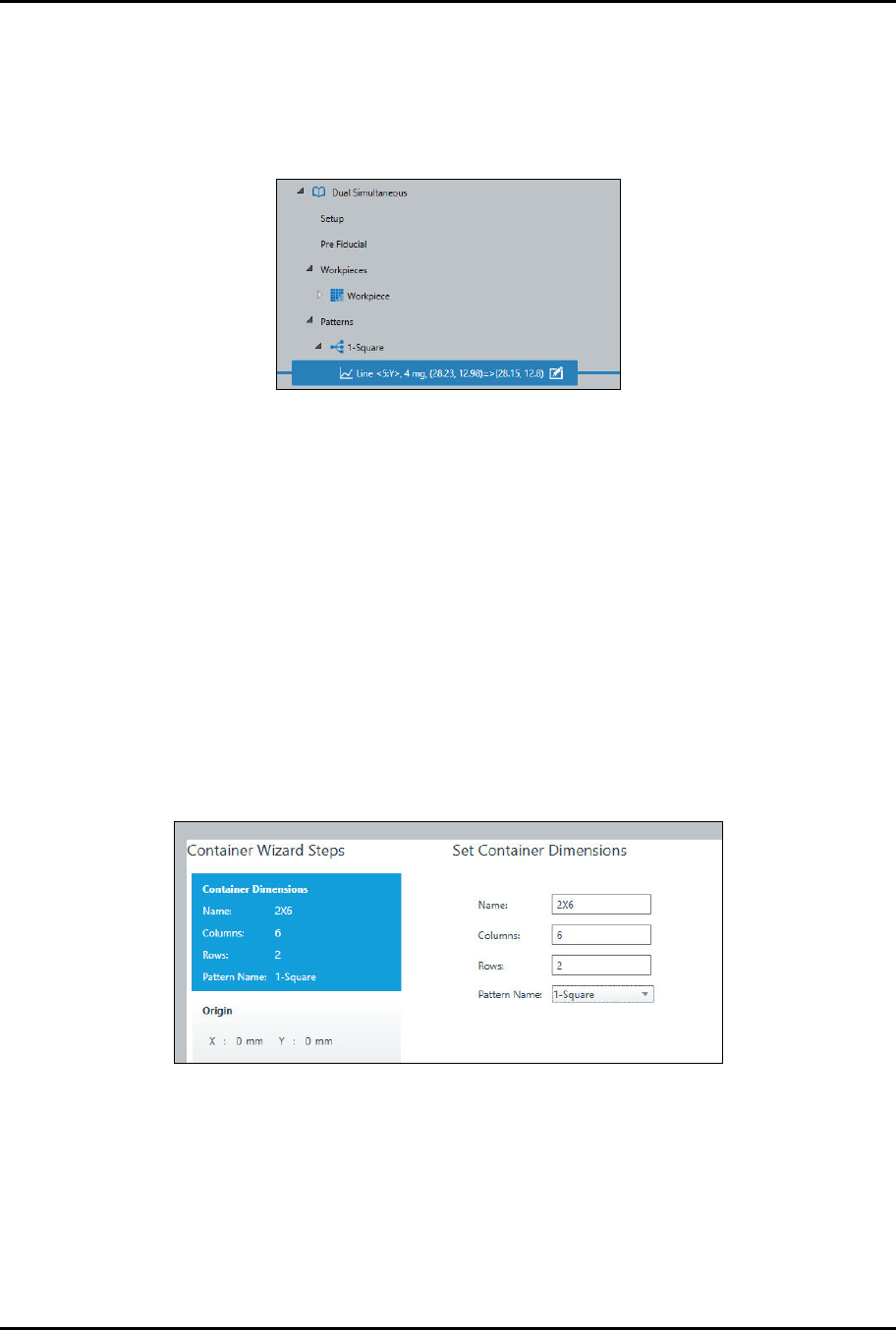
8. The line instruction will appear in the recipe tree (Figure 4-10).
Figure 4-10 Recipe Tree
4.4.1.4 Creating the Container
After the dispensing instructions have been defined, create a container to define the number of columns
and rows in the array. You must use the container feature for dual simultaneous dispensing.
?
NOTE
In this example, the container origin will be the same as the pattern origin. Move to the
pattern origin before you create the container.
To create a container:
1. Select Create Container from the Instruction Panel.
> The Container Wizard opens.
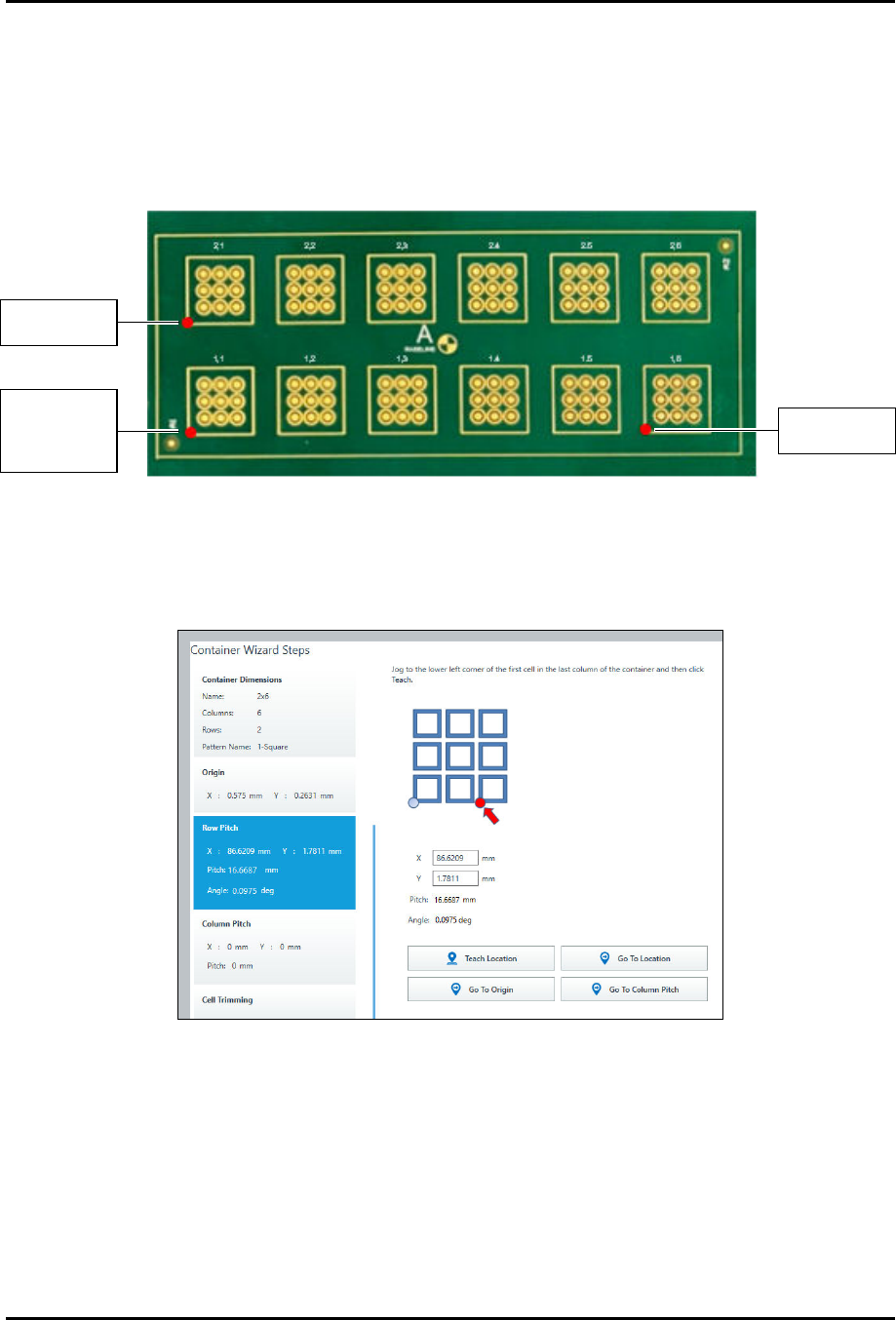
> You will be prompted to set container dimensions (Figure 4-11).
> For the sample workpiece shown in Figure 3-4, you need to create a 2 x 6 container
and place it four times.
Figure 4-11 Set Container Dimensions
ForteMAXDispensingSystemAddendum Recipe Creation
© 2023 Nordson Corporation 31
2. Enter the container name, number of columns and rows, and the pattern name.
3. Click on Next.
> You will be prompted to teach the container origin.
> The container origin will be the same as the pattern origin (Figure 4-12).
4. If you have already moved to the pattern origin, click on Teach Location.
Figure 4-12 Container and Pattern Origins and Fiducial and Teach Locations
> You will be prompted to teach the row pitch (Figure 4-13).
5. To teach the row pitch, jog to the lower left corner of the first cell in the last column of the
container and click on Teach Location (Figure 4-12).
Figure 4-13 Teach Row Pitch
P
a
t
t
e
r
n
O
r
i
g
i
n
Pattern Fiducial 1
and Container
O
r
i
g
i
n
C
o
l
u
m
n
P
i
t
c
h
T
e
a
c
h
L
o
c
a
t
i
o
n
R
o
w
P
i
t
c
h
T
e
a
c
h
L
o
c
a
t
i
o
n