Forte Max Manual.pdf - 第36页
ForteMAXDispensingSystemAddendum Recipe Creation 32 © 2023 Nordson Corpo ration 6. Click on Next . > You will be prompted to teach the column pitch (Figu re 4-14). 7. To teach the column pitch, jog to the lower le…
ForteMAXDispensingSystemAddendum Recipe Creation
© 2023 Nordson Corporation 31
2. Enter the container name, number of columns and rows, and the pattern name.
3. Click on Next.
> You will be prompted to teach the container origin.
> The container origin will be the same as the pattern origin (Figure 4-12).
4. If you have already moved to the pattern origin, click on Teach Location.
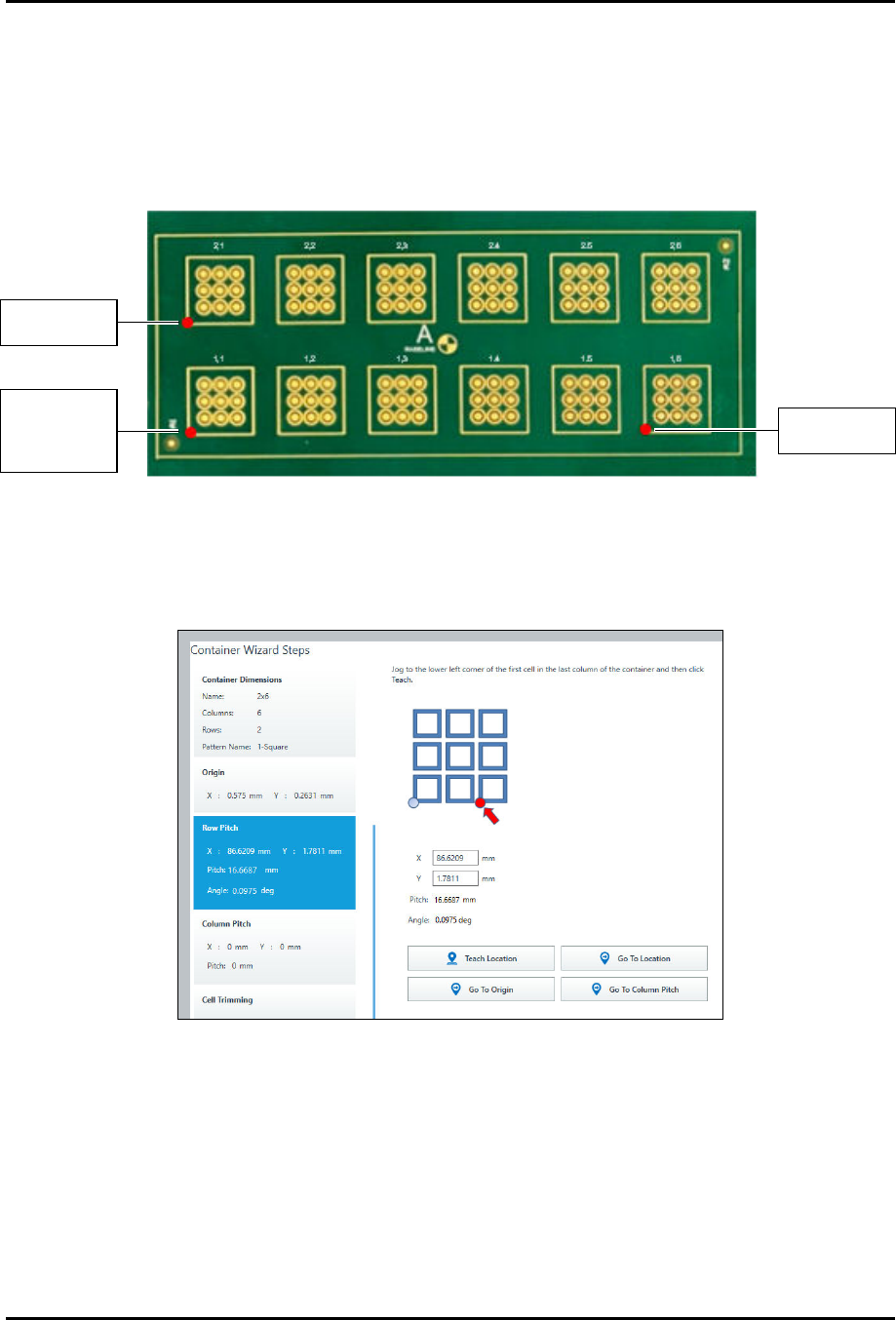
Figure 4-12 Container and Pattern Origins and Fiducial and Teach Locations
> You will be prompted to teach the row pitch (Figure 4-13).
5. To teach the row pitch, jog to the lower left corner of the first cell in the last column of the
container and click on Teach Location (Figure 4-12).
Figure 4-13 Teach Row Pitch
P
a
t
t
e
r
n
O
r
i
g
i
n
Pattern Fiducial 1
and Container
O
r
i
g
i
n
C
o
l
u
m
n
P
i
t
c
h
T
e
a
c
h
L
o
c
a
t
i
o
n
R
o
w
P
i
t
c
h
T
e
a
c
h
L
o
c
a
t
i
o
n
ForteMAXDispensingSystemAddendum Recipe Creation
32 © 2023 Nordson Corporation
6. Click on Next.
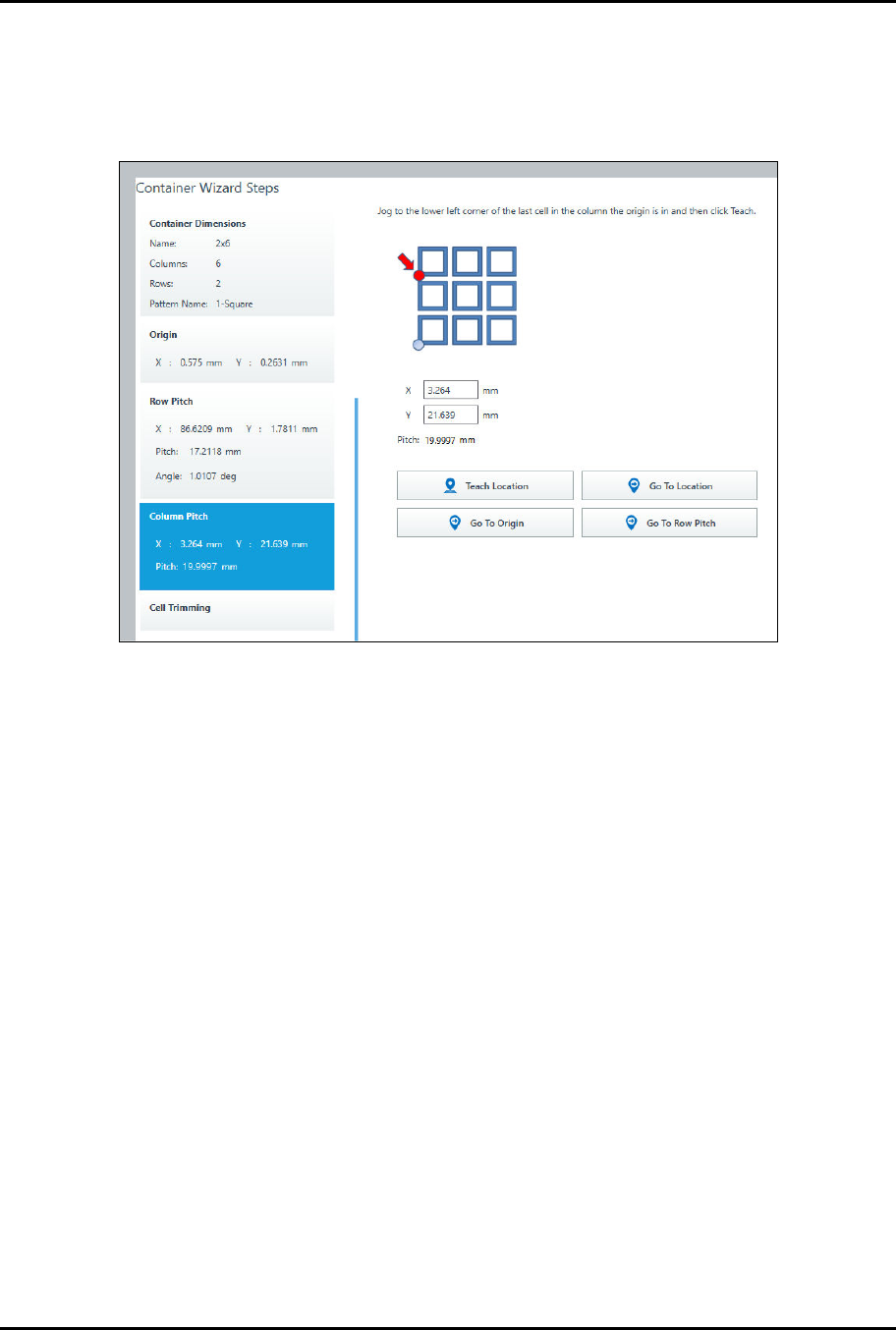
> You will be prompted to teach the column pitch (Figure 4-14).
7. To teach the column pitch, jog to the lower left corner of the last cell in the column the
container origin is in and click on Teach Location (Figure 4-12).
Figure 4-14 Teach Column Pitch
8. Click on Next to trim cells, otherwise click on Done.
> Cell trimming allows you to include or exclude specific cells.
> In this example, we will not trim cells.
ForteMAXDispensingSystemAddendum Recipe Creation
© 2023 Nordson Corporation 33
4.4.1.5 Placing the Container
In this section, we are going to place the container four (4) times to cover the board.
To place the container:
1. Select the Workpiece pattern in the Recipe Tree.
2. Select Place Container .
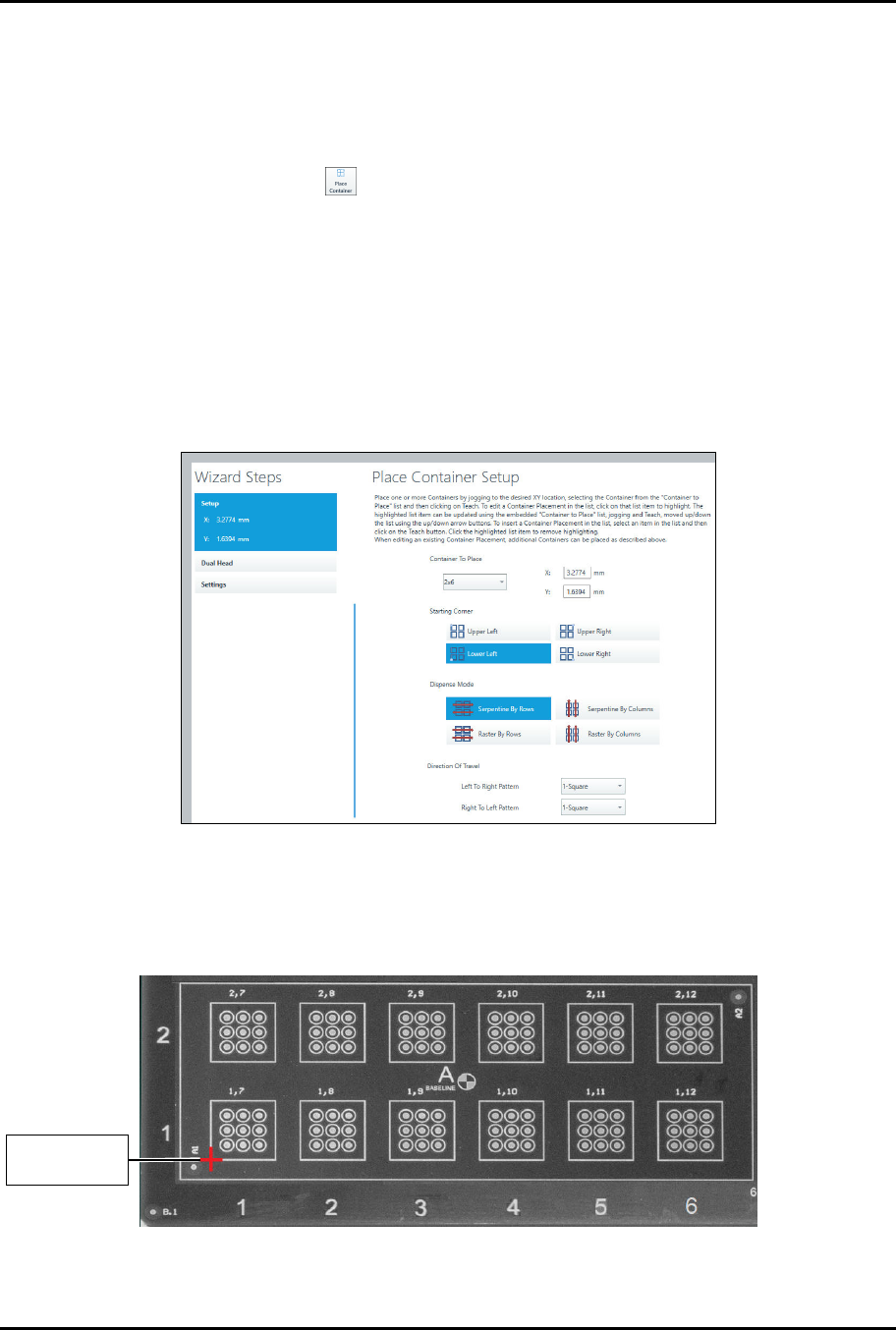
> The Place Container Instruction Wizard opens (Figure 4-15).
3. Select the container to place, starting corner, and dispense mode.
> To reduce total travel distance and cycle time, it is suggested that if the number of
columns is greater than the number of rows, select "Serpentine by Rows." If the number
of rows is greater than the number of columns, select "Serpentine by Columns."
Serpentine modes are typically faster than raster modes.
4. Select Serpentine by Rows and the left-to-right and right-to-left patterns.
> In this example, we have only defined one pattern, so both patterns will be the same.
Figure 4-15 Place Container – Setup
5. Move the camera crosshairs to the container starting corner and click on Teach.
> Since we have selected lower left, the starting corner will be the lower left corner of the
rectangle (Figure 4-16).
Figure 4-16 Container Starting Point
C
o
n
t
a
i
n
e
r
S
t
a
r
t
i
n
g
Corner