Forte Max Manual.pdf - 第50页
ForteMAXDispensingSystemAddendum Recipe Creation 46 © 2023 Nordson Corpo ration 4.5.1.3 Creating the Container After the dispensing instructions have been defin ed, create a container to define the number of columns …
ForteMAXDispensingSystemAddendum Recipe Creation
© 2023 Nordson Corporation 45
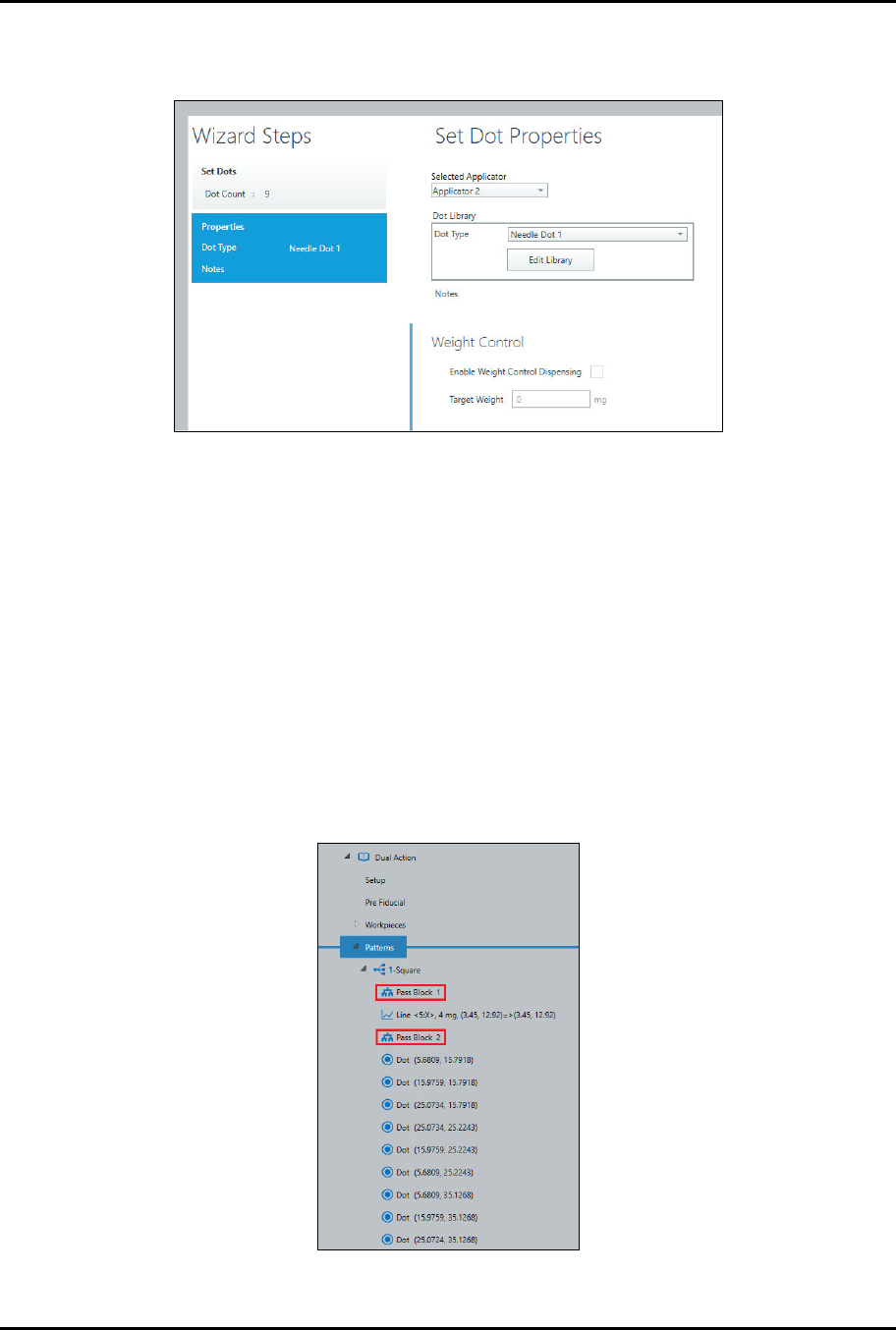
5. Select Applicator 2 and the dot type (Figure 4-42).
> In this example, we are not using weight control dots.
Figure 4-42 Dot Instruction Wizard – Set Dot Properties
6. Select Done when finished.
?
NOTE
Adding pass blocks eliminate the repetitive switching between Valve 1 and Valve 2
dispensing. All IntelliJet dispensing (lines) will dispense on Pass 1. All DV-8000 (dots)
dispensing will dispense on Pass 2.
To add pass blocks:
1. Select the pattern name in the Recipe Tree and click on Pass Block.
> A Pass Block 1 instruction will be added to the recipe (Figure 4-43).
> When an instruction is added, the instruction is inserted below the selected item.
2. Select the line instruction in the Recipe Tree and click on Pass Block.
> A Pass Block 2 instruction will be added to the recipe.
Figure 4-43 Recipe Tree – Pass Blocks
ForteMAXDispensingSystemAddendum Recipe Creation
46 © 2023 Nordson Corporation
4.5.1.3 Creating the Container
After the dispensing instructions have been defined, create a container to define the number of columns
and rows in the array. The container feature must be used for dual-action dispensing.
?
NOTE
In this example, the container origin will be the same as the pattern origin. Move to the
pattern origin before you create the container.
To create a container:
1. Select Create Container from the Instruction Panel.
> The Container Wizard opens.
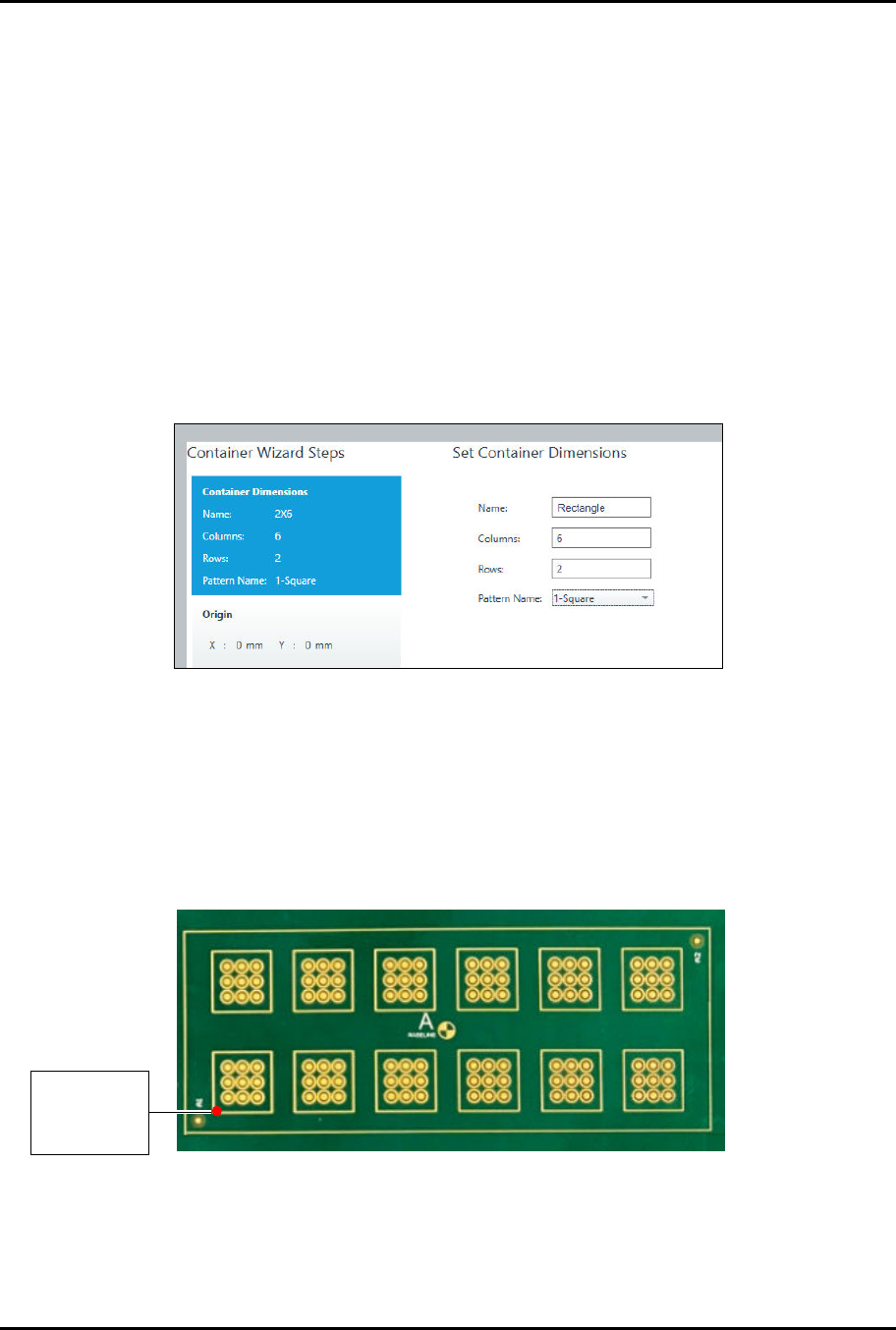
> You will be prompted to set container dimensions (Figure 4-44).
> For the sample workpiece shown in Figure 3-4, you need to create a 2 x 6 container
and place it four (4) times. This is necessary because the distance between each set of
boxes is not the same.
Figure 4-44 Set Container Dimensions
2. Enter the container name, number of columns and rows, and the pattern name.
3. Click on Next.
> You will be prompted to teach the container origin (Figure 4-45).
> The container origin will be the same as the pattern origin.
4. If you have already moved to the pattern origin, click on Teach Location.
1,1 1,2 1,3 1.4 1.5 1,6
2,1 2,2 2,3 2.4 2.5 2,6
Figure 4-45 Pattern Origin, Pattern Fiducial 1, and Container Origin
P
a
t
t
e
r
n
O
r
i
g
i
n
Pattern Fiducial 1
and Container
O
r
i
g
i
n
ForteMAXDispensingSystemAddendum Recipe Creation
© 2023 Nordson Corporation 47
5. Click on Next.
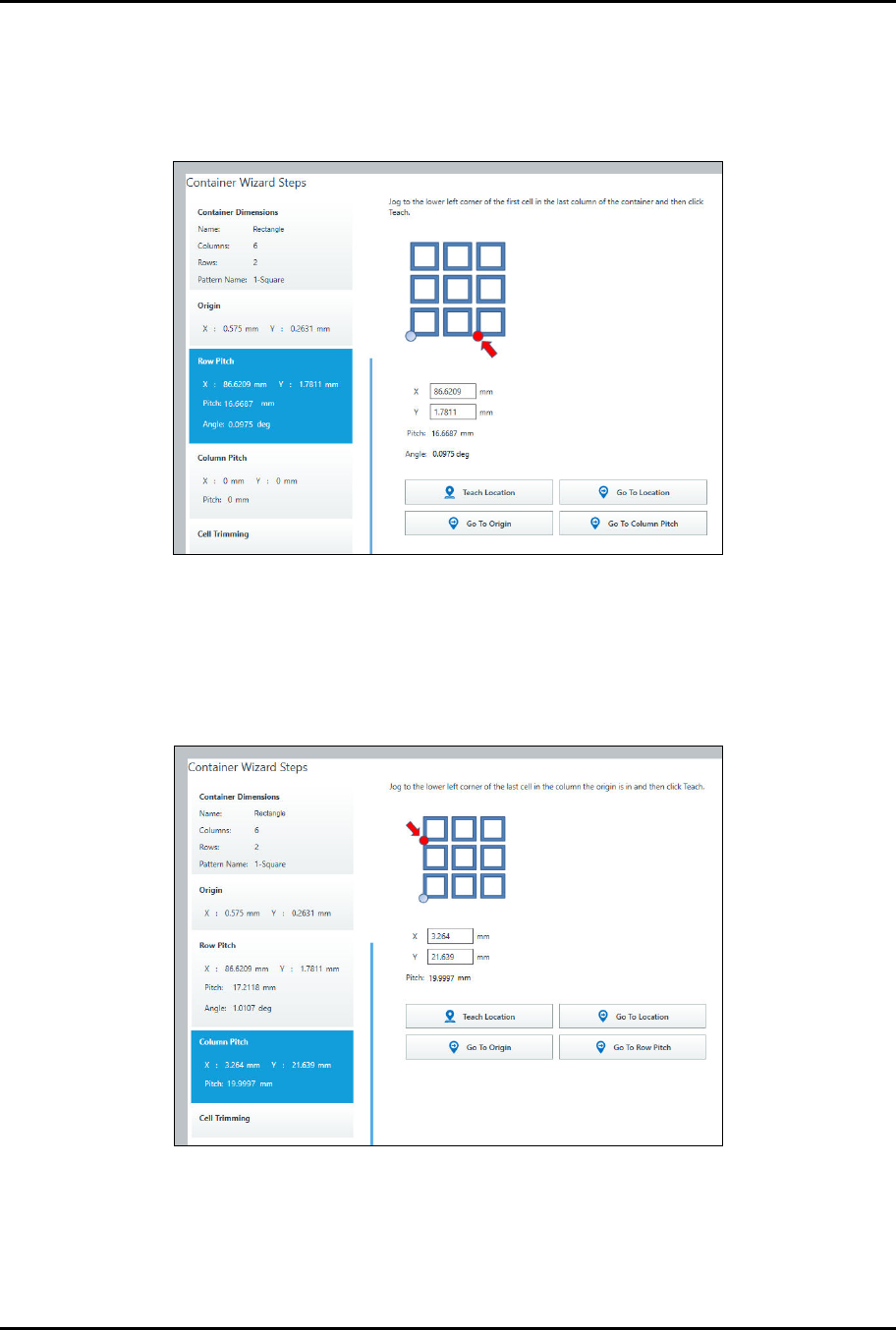
> You will be prompted to teach the row pitch (Figure 4-46).
6. Jog to the lower left corner of the first cell in the last column of the container and click on
Teach Location.
Figure 4-46 Teach Row Pitch
7. Click on Next.
> You will be prompted to teach the column pitch (Figure 4-47).
8. Jog to the lower left corner of the last cell in the column the origin is in and click on Teach
Location.
Figure 4-47 Teach Column Pitch
9. Click on Next to trim cells, otherwise click on Done.
> Cell trimming allows you to include or exclude specific cells. In this example, we will not
trim cells.