Forte Max Manual.pdf - 第39页
ForteMAXDispensingSystemAddendum Recipe Creation © 2023 Nordson Corporation 35 12. If desired, duplicate the container by performing the following steps: a. Right click on the "Do Rectangle" instruction and…
ForteMAXDispensingSystemAddendum Recipe Creation
34 © 2023 Nordson Corporation
6. Click on Next.
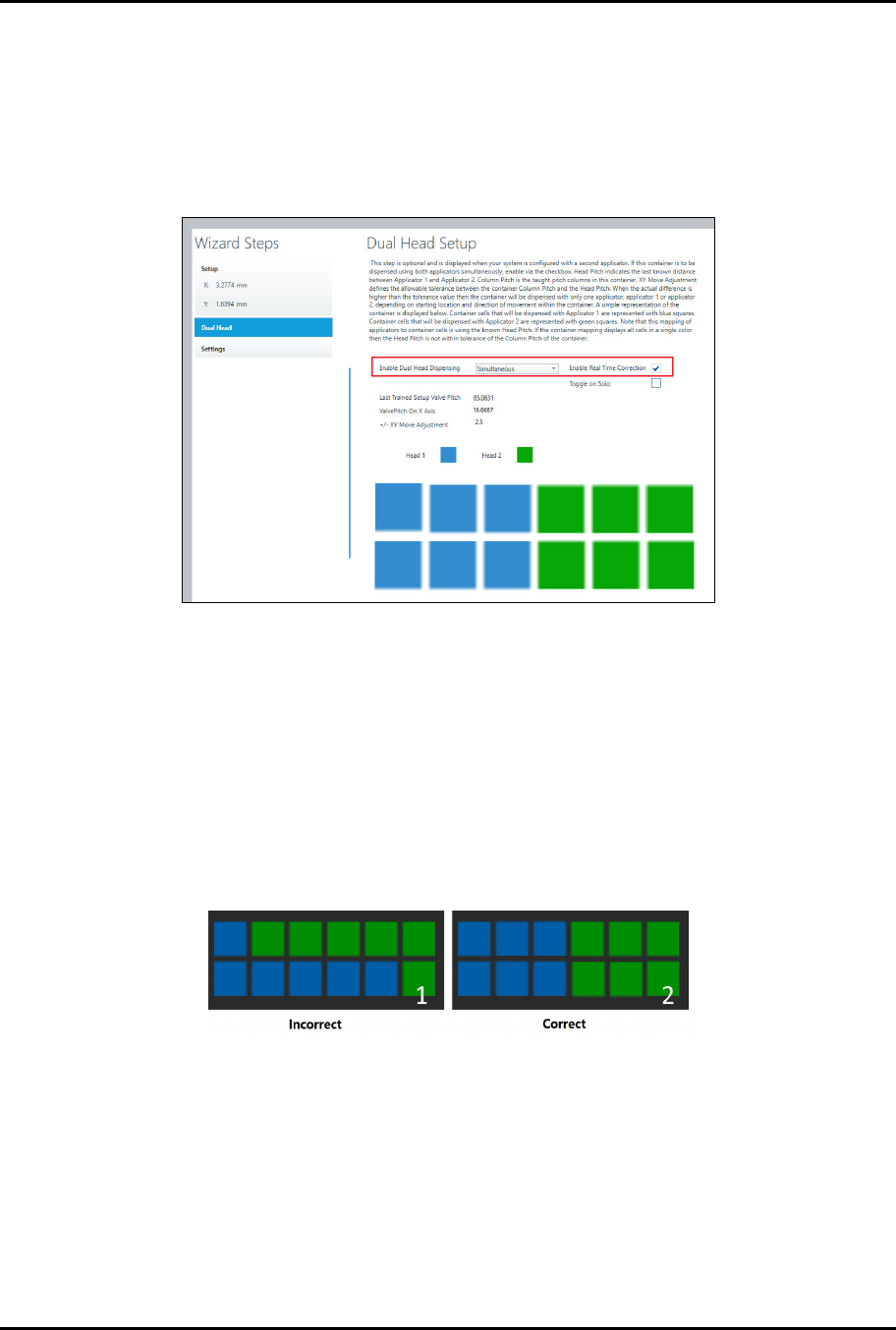
> You will be prompted to enter the dual head settings (Figure 4-17).
7. Select Simultaneous from the drop-down list and Enable Real Time Correction
(Figure 4-17).
> Real-time correction automatically adjusts skewed parts and component height
variation in the x, y, and z-axis.
Figure 4-17 Place Container – Dual Head
8. The Head 1 (blue) and Head 2 (green) boxes indicate Valve 1 and Valve 2 dispensing
locations and should appear as shown in Figure 4-17.
> The blue boxes indicate Valve 1 dispensing locations and the green boxes indicate
Valve 2 dispensing locations.
> If the valve dispensing assignments are different from those shown in Figure 4-17,
verify the pattern again after running a dry valve offsets procedure.
> If the valve dispensing locations are still incorrect, check the container row pitch end to
make sure the pitch end is accurate. Figure 4-18 shows an example of incorrect and
correct valve dispensing locations.
Figure 4-18 Valve Dispensing Locations
9. If desired, select Next to enable multipass, purge, and strip mapping.
10. Click on Done when finished.
> You will return to the Recipe Editor.
> A Do Container instruction appears in the Recipe Tree.
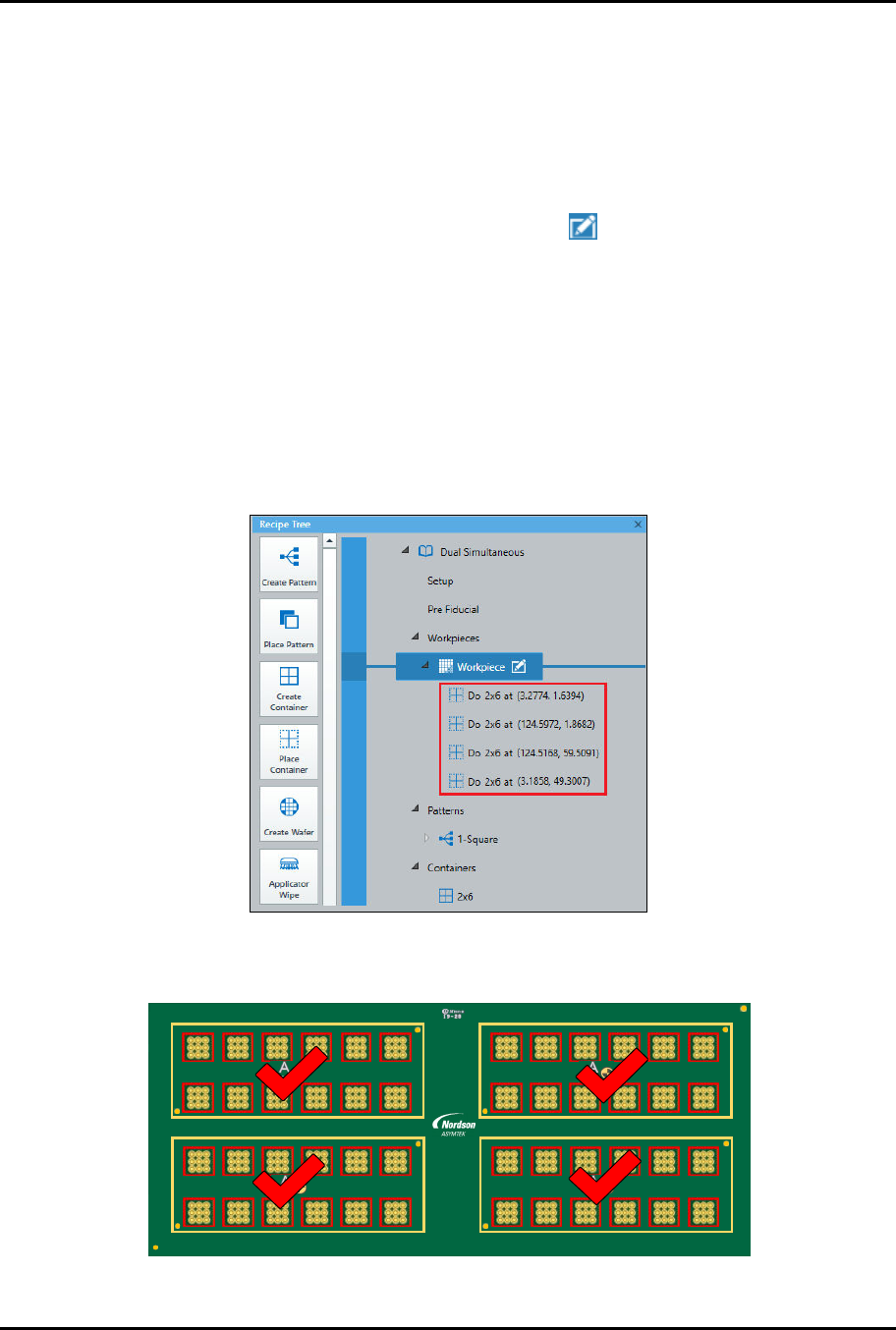
11. Repeat Step 1 through Step 10 for the remaining containers (Figure 4-19).
> To save time, you may also duplicate the container, see Step 12 below.
ForteMAXDispensingSystemAddendum Recipe Creation
© 2023 Nordson Corporation 35
12. If desired, duplicate the container by performing the following steps:
a.
Right click on the "Do Rectangle" instruction and select Copy.
b.
Right click on the "Do Rectangle" instruction again and select Paste.
c.
Repeat Step 12b two more times until there are four "Do Rectangle" instructions.
> After you have pasted the instructions, you need to edit the starting point for the
additional containers.
d.
Select the first duplicated instruction and click on .
> The Place Container Setup window opens (Figure 4-15).
e.
Move the camera crosshairs to the container starting point and click on Teach.
f.
Click on Done when finished.
g.
Repeat Step 12d through Step 12f for the remaining containers.
> Make sure to add a height sense instruction prior to the dispense instructions. This
can be done in the Workpiece pattern or the dispense pattern.
13. When finished, there will be four "Do (Container Name)" instructions in the Recipe Tree
(Figure 4-19).
Figure 4-19 Do Container Instructions
> All four containers have been placed (Figure 4-20).
1 2 3 4 5 6 7 8 9 10 11 12
2
1
6130139 REV 1
STRAIGHT
B,1
B,2
2,1 2,2 2,3 2,4 2,5 2,6
1,1 1,2 1,3 1,4 1,5 1,6
4,1 4,2 4,3 4,4 4,5 4,6
A2
A1
3,1 3,2 3,3 3,4 3,5 3,6
A2
A1
4
3
4,1 4,2 4,3 4,4 4,5 4,6
A2
A1
3,1 3,2 3,3 3,4 3,5 3,6
A2
A1
2,1 2,2 2,3 2,4 2,5 2,6
1,1 1,2 1,3 1,4 1,5 1,6
Figure 4-20 Containers Placed
ForteMAXDispensingSystemAddendum Recipe Creation
36 © 2023 Nordson Corporation
4.4.2 Creating a Recipe for a Panel with an Odd Number of Columns
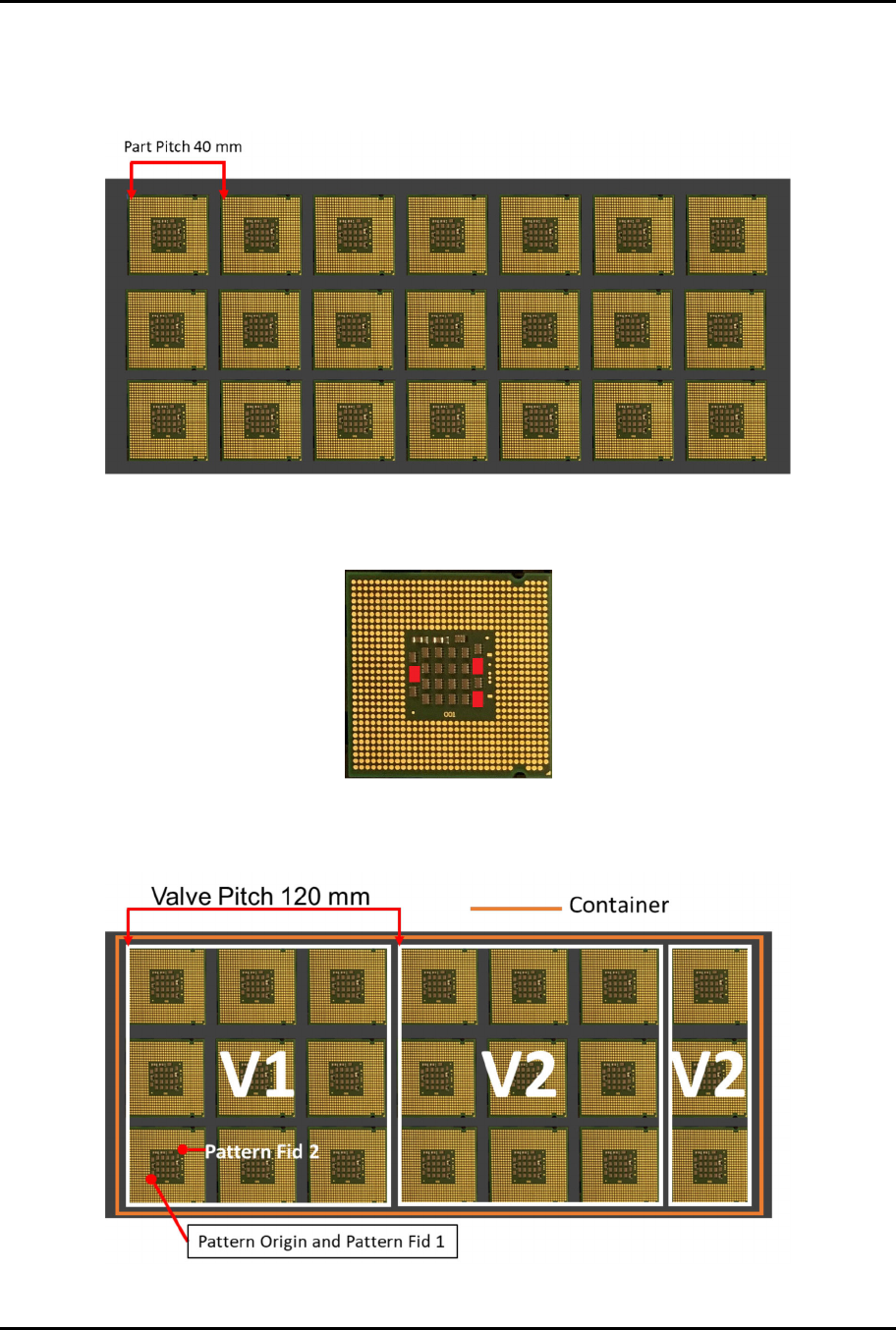
The following panel board (Figure 4-21) is used as an example in the following instructions: 3 x 7 carrier
with 40 mm part pitch.
Figure 4-21 Board with an Odd Number of Columns
The application requirement is to cover the red components on each part (Figure 4-22).
Figure 4-22 Application Requirement
There are three dispensing options (Figure 4-23 through Figure 4-25):
Figure 4-23 Dispensing Option 1