00192662-01.pdf - 第168页
4 Placement Functions User Manual SIPLACE F 5/F5 HM 4.3 Feeders Software version SR .407.xx 01/2001 US Edition 168 – CO-BC This col umn di splays whet her or n ot a co mponent barcode is spec ified for the cor respond in…
User Manual SIPLACE F5/F5 HM 4 Placement Functions
Software version SR.407.xx 01/2001 US Edition 4.3 Feeders
167
4
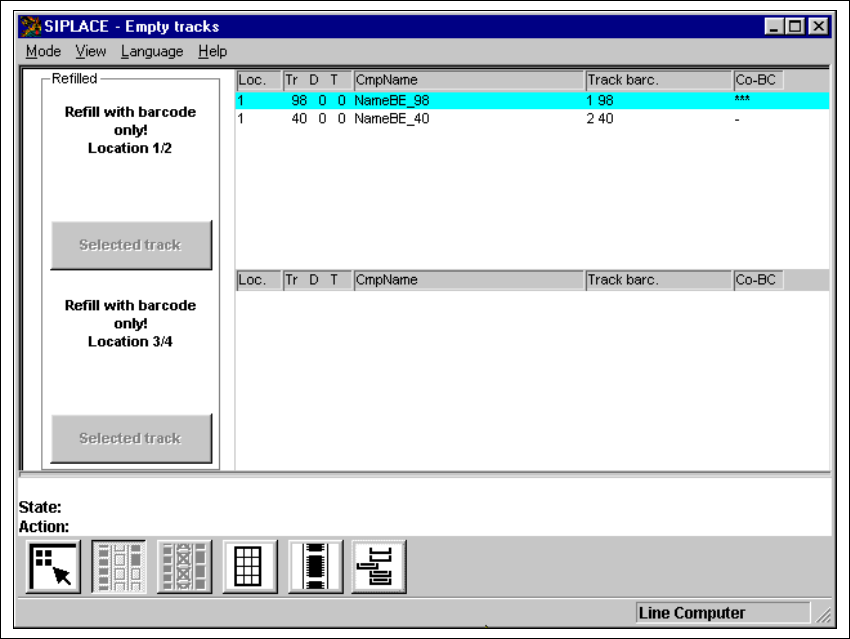
Fig. 4.3 - 2 "Empty tracks" view when the "Component verification with barcode" option is active
4
4.3.1.1 Meaning of the Entries in the Table "Empty tracks"
– Loc.
Number of the location whose track is "empty".
– Tr D T
Number of the "empty" track and of the feeder division or number of the waffle pack tray com-
partment and the level in the waffle pack changer for the corresponding component
– CmpName
Name of the corresponding component.
– Track barc.
The track barcode assigned to the corresponding track is entered in this column.

4 Placement Functions User Manual SIPLACE F5/F5 HM
4.3 Feeders Software version SR.407.xx 01/2001 US Edition
168
– CO-BC
This column displays whether or not a component barcode is specified for the corresponding
component in the setup using the "***" or "-" symbol.
NOTE
If the "-" character is entered in this column, then this means that no barcode is specified for
the corresponding component. You can therefore manually refill the corresponding track us-
ing "Refill tracks" even if the "Component verification with barcode" option is active (see Sec-
tion 4.3.1.5). 4
4
4.3.1.2 Functions in the "Empty Tracks" View
4
Location 1 4
Confirms that all tracks for location 1 are full. 4
Location 2 4
Confirms that all tracks for location 2 are full. 4
Selected track 4
Confirms that the feeder or waffle pack tray on the selected track for location 1 or 2 is full. 4
Location 3 4
Confirms that all tracks for location 3 are full. 4
Location 4 4
Confirms that all tracks for location 4 are full. 4
Selected track 4
Confirms that the feeder on the selected track for location 3 or 4 is full. 4
4

User Manual SIPLACE F5/F5 HM 4 Placement Functions
Software version SR.407.xx 01/2001 US Edition 4.3 Feeders
169
4.3.1.3 "Refilling" Empty Tracks
Å Select the entry in the table or the track that is to be confirmed as being "refilled". The line se-
lected is highlighted in light blue in the table and the "Selected track" button is active.
Å Click on the Selected track button when the feeder or waffle pack tray in this track has been
refilled with components.
The track is then considered full and the entry is deleted from the list of empty tracks.
The "Selected track" button is not active thereafter.
4.3.1.4 Refilling All Empty Tracks of a Location
Å Click on the button for the location that is to be confirmed as being "refilled", e.g. Location 1.
All tracks of this location are then considered refilled and the corresponding entries for the
empty tracks in this location are deleted from the list of empty tracks.
The button for the location is not active thereafter.
4.3.1.5 Refilling Empty Track When the "Component Verification With Barcode" Option
is Active
When the "Component verification with barcode" option is active, then empty tracks can normally
only be confirmed as having been "refilled" in the manner described in Section 4.3.1.5
.
The tracks containing components without
component barcodes are an exception. You can man-
ually "refill" here even if the "Component verification with barcode" option is active. 4
Å Select the entry in the table (see Fig. 4.3 - 2) for an empty track that contains components with-
out barcodes (see the note on page 168).
The "Selected track" button is active.
Å Click on the Selected track button when the feeder or waffle pack tray in this track has been
refilled.
The "Selected track" button is not active thereafter.