00192662-01.pdf - 第248页
6 Vision functions User Manua l SIPLACE F5/F5 HM 6.3 Component v ision systems Software version SR. 407.xx 01/2001 US E dition 248 6 Fig. 6.3 - 2 Example of irregular components Pitch deviati on 6 The pitch d eviat ion (…
User Manual SIPLACE F5/F5 HM 6 Vision functions
Software version SR.407.xx 01/2001 US Edition 6.3 Component vision systems
247
6
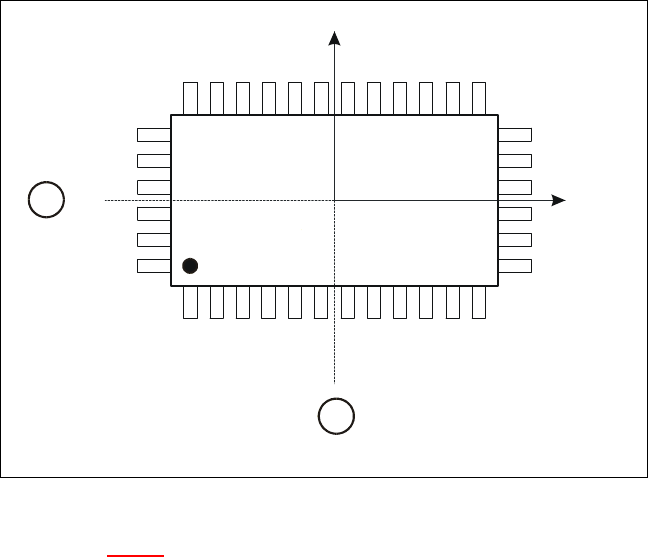
Fig. 6.3 - 1 Regular component
Key to Fig. 6.3 - 1
(1) Axis of symmetry
6
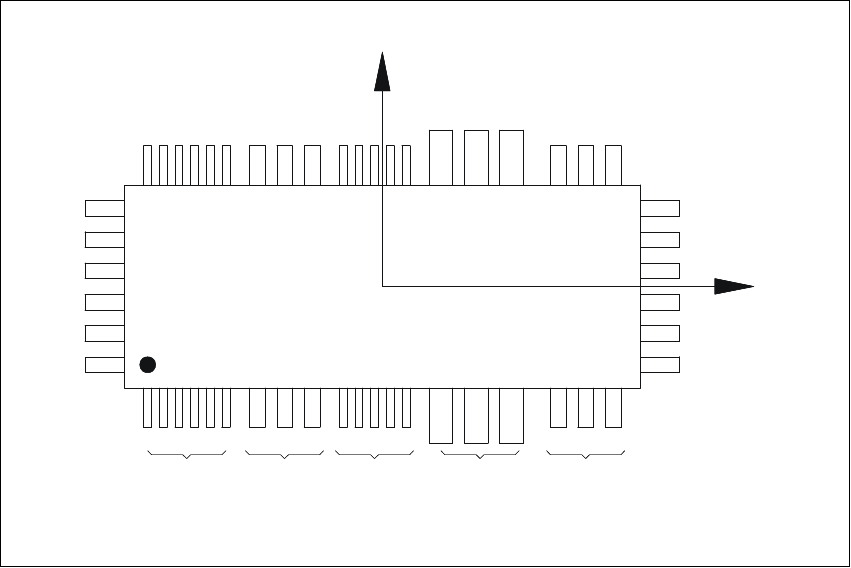
Criteria for irregular components 6
Definition:
A component is deemed to be irregular when it does not satisfy the conditions for regular compo-
nents. 6
Additional conditions for centering with the component vision module: 6
– In any one row up to 3 different lead types are permitted.
– In any one row up to 15 groups are permitted.
6
Y
X
Pin 1
1
1
6 Vision functions User Manual SIPLACE F5/F5 HM
6.3 Component vision systems Software version SR.407.xx 01/2001 US Edition
248
6
Fig. 6.3 - 2 Example of irregular components
Pitch deviation 6
The pitch deviation (which is the distance from the center of one lead to the center of the next) can
be edited separately for each component in the GF editor. If this value is exceeded during the vi-
sion inspection, the component will not be centered and therefore not placed. 6
Limit values for quality measurement 6
Components exceeding the limit values for quality measurement will be rejected and, therefore,
not placed: 6
– Difference in the number of leads between the original and the model.
– Pitch deviation larger than the value in the GF file.
– Larger orthogonality error than specified in the GF file.
– Larger deviations of the external dimensions.
– Deviation of the central point greater than the permitted positional tolerance for pick-up.
X
Pin 1
Y
X
Pin 1
Type 1
Group 1
Type 2
Group 1
Type 1
Group 2
Type 3
Group 1
Type 2
Group 2
User Manual SIPLACE F5/F5 HM 6 Vision functions
Software version SR.407.xx 01/2001 US Edition 6.4 Access to the ’Teach Fiducial’ and ’Test Component’ Options
249
6.4 Access to the ’Teach Fiducial’ and ’Test Compo-
nent’ Options
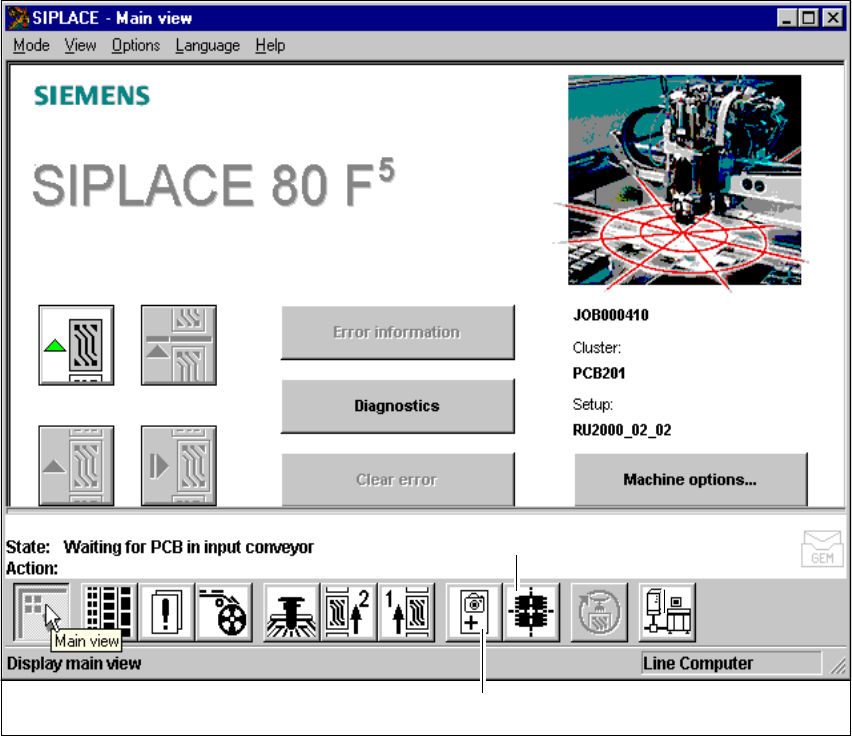
Access to the ’Teach fiducial’ and ’Test component’ options is only available to user class Line en-
gineer and higher. The ’Teach fiducial’ and ’Test component’ icons will remain grayed out until user
classes ’Line engineer’ or ’Service engineer’ have been selected. The grayed-out icons will be ac-
tivated and appear black, indicating that the options are available. 6
Selection of user classes: 6
Å In the menu bar of the Main view menu click on the Options pull-down menu.
Å Click on the Access level option. The user class option box will drop down.
Å Select the appropriate user class.
6
Fig. 6.4 - 1 Access to the options Teach fiducial and Test component
’Test component’ icon
’Teach fiducial’ icon