DFD6361-Maintenance.pdf - 第271页
C-59 Procedur es for cha nging v alues of dev ice data (C ontinued) Step No. Do This 9 Enter the new v alue at [4 ] for the item selected at [ 1]. - You can set a new v alue for more than one item. The background of the …
C-58
Procedures for changing values of device data (Continued)
Step No.
Do This
4
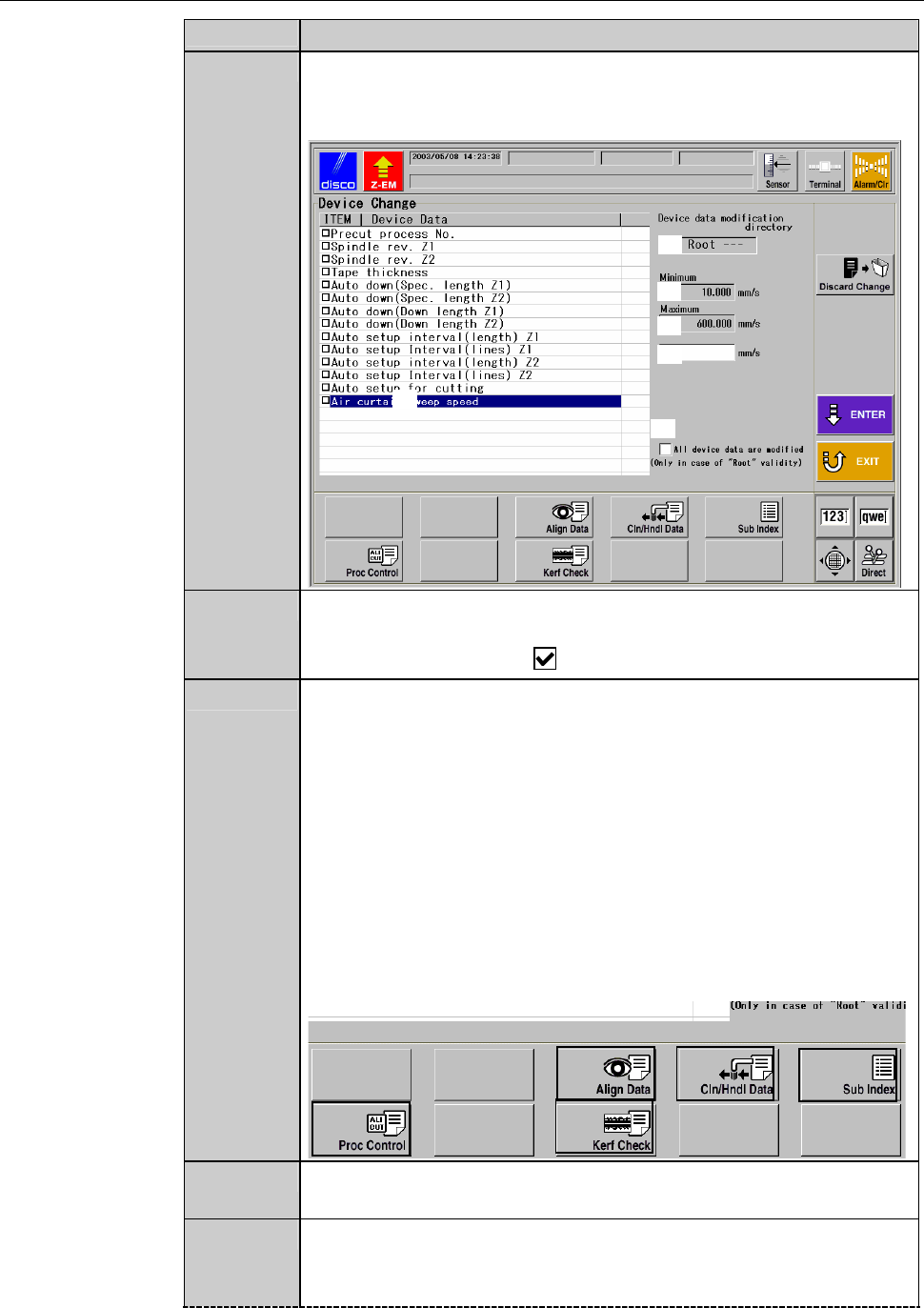
Enter a data password.
- When a correct password is input, the DEVICE DATA
CHANGE screen (for setting) is called up.
[1]
[2]
[3]
[4]
[5]
[3]
5
When the root directory is designated at [2] and when you want
to apply the change to all the device data stored in the machine's
memory, make a check ( ) at [5].
6
Select the type of device data you want to modify from those
buttons (see below) at the bottom of the DEVICE CHANGE
screen.
[Device data types that can be modified (buttons at the
bottom of the screen)]
- Alignment data
- Cleaning/Handling data
- Sub index data
- Process control table
- kerf check data
7
Items that can be modified according to the selected device data
type are displayed in [1].
8
Select the item to change from among the list of [1].
- If the item has a lower and/or upper limit of the value, they are
displayed at [3].
C-59
Procedures for changing values of device data (Continued)
Step No.
Do This
9
Enter the new value at [4] for the item selected at [1].
- You can set a new value for more than one item. The
background of the changed item becomes blue and the box on
the left side of the item is checked ( ).
- When the <Discard Change> button is pressed, all the entries
made on this screen will be cleared.
10
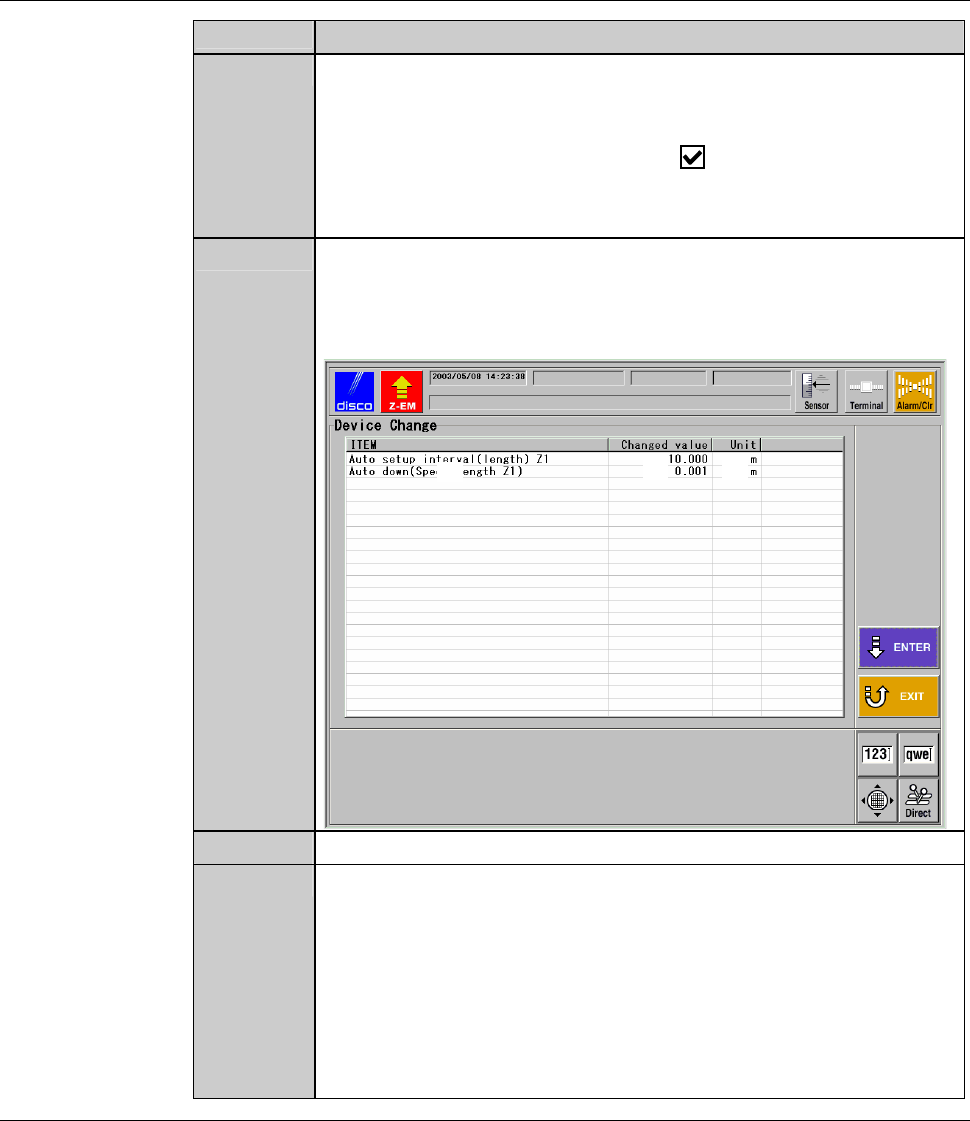
Press the <ENTER> button.
- All the items selected and their new values changed in the step
9 are displayed in the DEVICE DATA CHANGE screen (for
confirmation).
ÿ
[1]
[2] [3]
11
Check the item at [1] and the new value at [2].
12
Press the <ENTER> button.
- The change will be applied to all the device data stored in the
designated directory, and the screen display returns to the
DEVICE DATA MAITNENANCE screen.
- If you do not press the <ENTER> button but the <EXIT>
button, the screen display returns to the DEVICE DATA
CHANGE screen (for setting). In this case, the machine retains
what you changed in the previous screen.
C-60
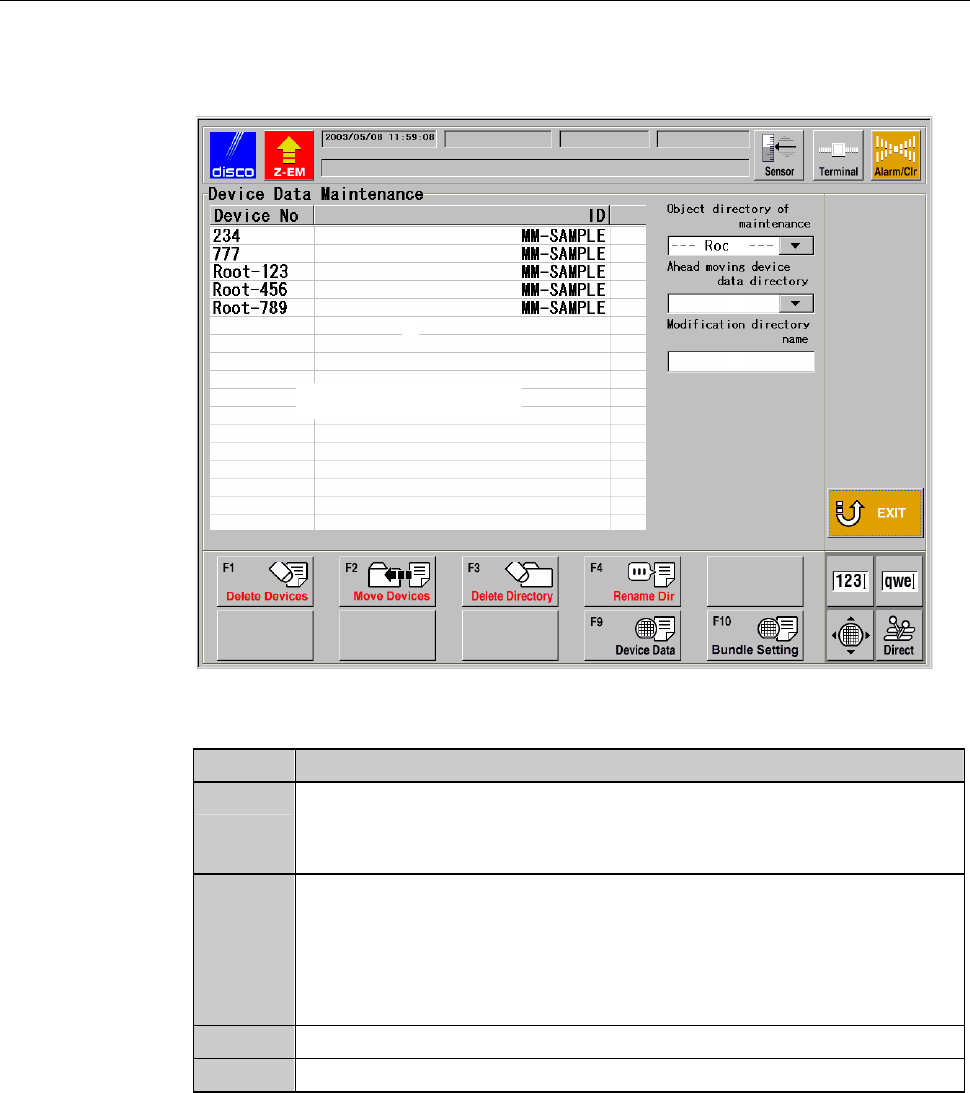
DEVICE DATA MAINTENANCE screen
The description of DEVICE DATA MAINTENANCE screen is as follows:
[Screen]
[3]
[4]
[2]
[1]
Device data list window
[Setting Item]
Item No. Descriptions
[1]
Indicates the directory subject to maintenance.
To select a directory, use the pull-down menu and touch the
directory name for selection.
[2]
Indicates device data contained in the directory subject to
maintenance, selected in [1].
- The currently selected device data is highlighted.
- Touching the same item twice cancels the selection and the
highlighted display returns to the normal display.
[3]
Specify the directory to which the selected device data is moved.
[4]
Enter a new name for the directory whose name is to be changed.