Infinity EX Transportation.pdf - 第53页
INFINITY EX TRANS PORTATION MACHI NE POWE R UP SEQUE NCE Chapter Issue 3 J an 04 Technical Reference Manual 31.53 Set Time & Loc ale 8. In orde r for the machi ne PC to log e vents correctl y , the system time , date…
INFINITY
EX
TRANSPORTATION
MACHINE POWER UP SEQUENCE
31.52 Technical Reference Manual Chapter Issue 3 Jan 04
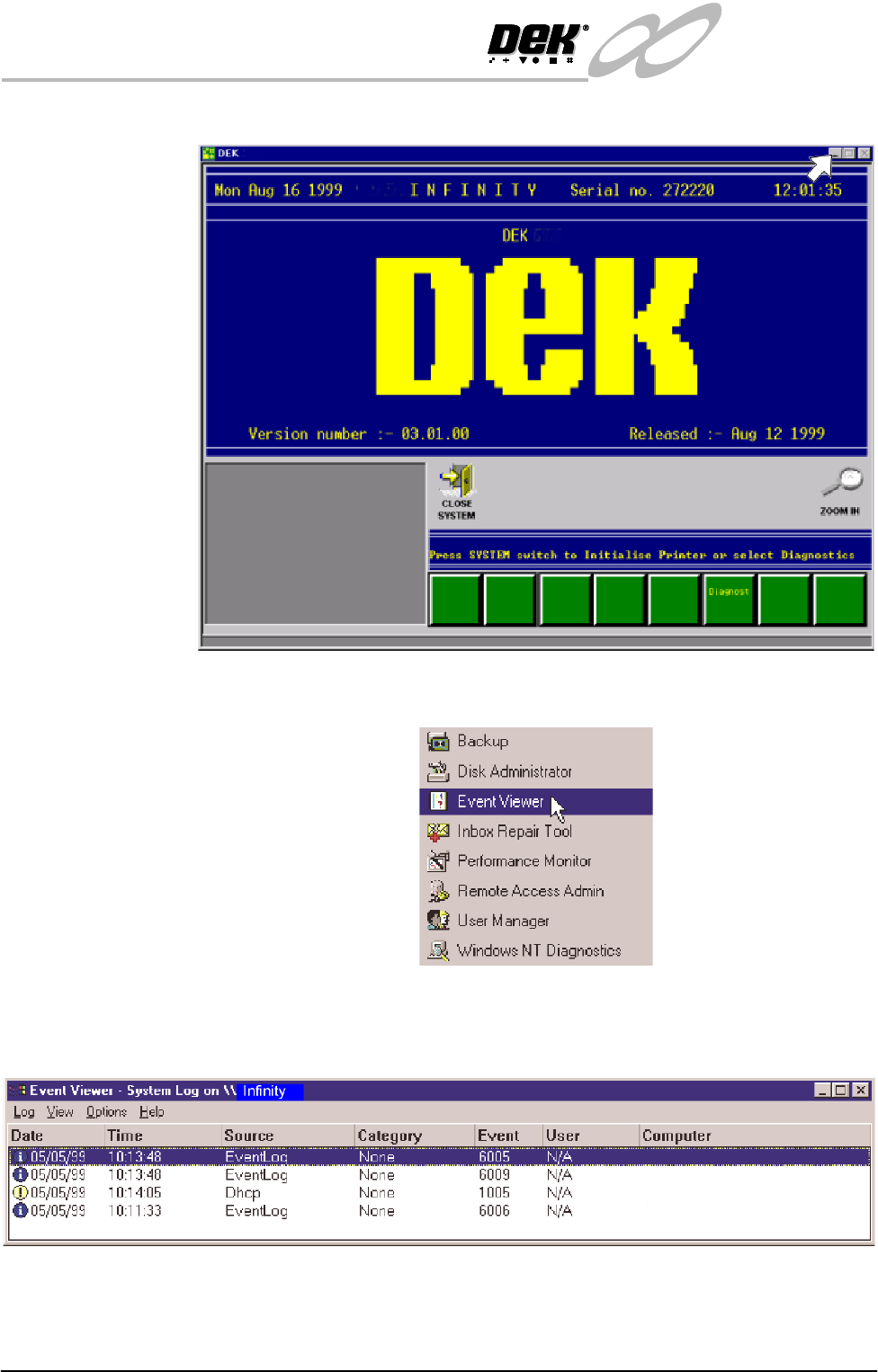
4. On completion of ‘auto login’, minimise the DEK 265 program.
5. Select Start on the taskbar, Programs, Administrative Tools and Event
Viewer
6. Examine the Event Log, looking for errors. Errors are indicated by a red icon
in the leftmost column. Any errors reported that display 'Disk' in the Source
column, indicate a problem has been found on the system hard disk.
When errors are found, the Event Log is to be forwarded to DEK CSG
Engineering, by e-mail, hardcopy or fax.
7. If no errors are found in the Event Viewer, close down Event Viewer.
INFINITY
EX
TRANSPORTATION
MACHINE POWER UP SEQUENCE
Chapter Issue 3 Jan 04 Technical Reference Manual 31.53
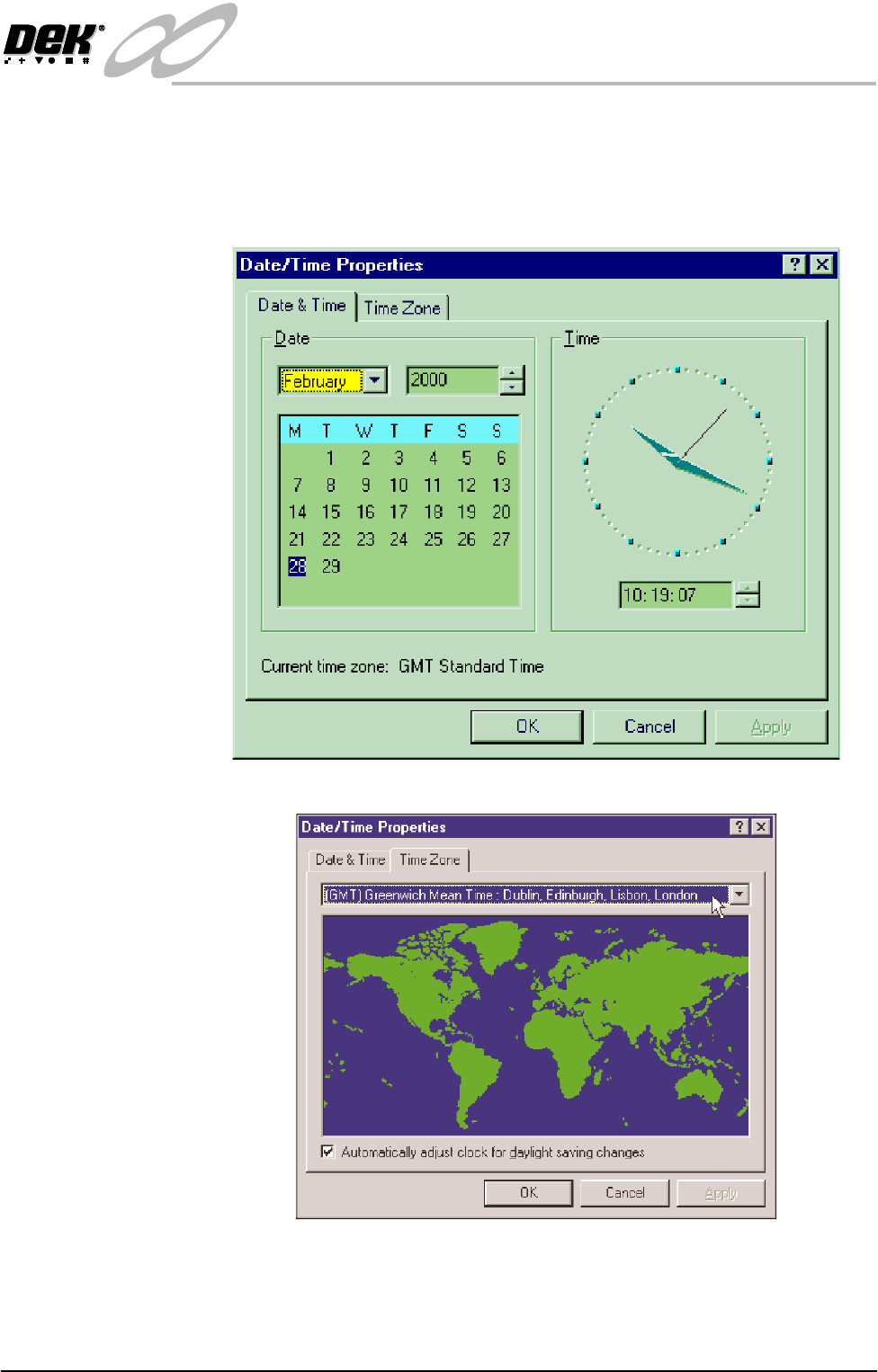
Set Time & Locale 8. In order for the machine PC to log events correctly, the system time, date and
locale must be set.
a. Using the mouse, double click on the time, displayed at the right hand side
of the Windows NT taskbar. The Date/Time Properties window is dis-
played.
b. Click on the Time Zone tab.
c. Select the appropriate locale/time zone from the drop down menu box.
d. Click on Apply.

INFINITY
EX
TRANSPORTATION
MACHINE POWER UP SEQUENCE
31.54 Technical Reference Manual Chapter Issue 3 Jan 04
e. Click on the Date & Time tab. Adjust the local time and date.
f. Select OK.
E Stop Loop
Operation
9. Carry out the following:
a. Restore the DEK 265 program.
b. Select Diagnost (F6).
c. The Module Diagnostics Page is displayed with the System Error mes-
sage, ‘System Power Down’ superimposed on top of it.
d. Press the System button to enable system power.
10.Check correct operation of all components of the E Stop loop, ie E Stop
Buttons, covers and external E Stop if fitted.
NOTE
If High Throughput Conveyor option is fitted, carry out Steps 15 and 16.
11.On completion of E stop loop check, Exit from the Diagnostics module.
12.Press the System button and raise the head using two button control.
13.Fit the head prop
14.Power down the machine.
15.On completion of E stop loop check, enter the Rail System Diagnostics
module and select Adjust and alter the board width to 250mm.
16.With HTC option fitted, carry out the following two procedures:
• Auxiliary Conveyor Rail Parallelism
• Auxiliary Conveyor Height Setting
Auxiliary Conveyor Rail Parallelism
WARNING
BOARD CLAMPS. EXTREME CARE MUST BE EXERCISED WHEN
WORKING IN THE TOOLING AREA OF THE MACHINE TO AVOID
INJURY. THE FOILS ON THE FRONT AND REAR BOARD CLAMPS
ARE VERY SHARP.
Front Rail To check and if required adjust the auxiliary conveyors front rail parallelism,
carry out the following procedure:
NOTE
The parallelism of the auxiliary conveyors rails is dependent on the front and
rear print station rails being parallel. Therefore, before any adjustment is
carried out an assessment of the parallelism of the print station rails must be
carried out.
1. Select Drive Rail to Board Width. The rails are driven to the board width
selected.
2. Adjust the both auxiliary conveyor rail widths to approximately 250mm.
3. Place one of the Board Clamp Setting Plates Pt No 140403 onto the print
station transport belts.
4. Manually slide the setting plate back and forth from the print station to the