instruction-manual-product-monitoring-data-acquisition-monitouch-V9-hardware-en.pdf - 第82页
3 2. Specifications of Components 3-17 Names and Specifications of Components V9 Series Unit Setting In the Local mode, select the type of keyboard to be conn ected. For details, refer to the separate V9 Ser ies T rouble…
3-16 2. Specifications of Components
Notes on Handling a USB Flash Drive
1. When removing the USB flash drive, select [Storage Removal] in the system menu, or press the
[Storage Removal] switch.
2. Do not turn off power to the unit when the USB flash drive is being accessed.
3. Make a backup copy of the USB flash drive at regular intervals.
4. If a disk error occurs and data read/write operations are disabled, execute ScanDisk on Windows
and try to restore the disk.
If the disk cannot be restored, format the device. Note that formatting will completely erase all
stored data. (For information on executing ScanDisk on Windows, refer to the relevant Windows
manual.)
5. USB flash drives have a limited number of write cycles. Consequently, frequent writing at short
intervals may shorten the service life of USB flash drives. When using a USB flash drive to save
logging/alarm data, take the logging time/monitoring intervals into consideration. Also, avoid
repeated writing using the CYCLE macro command.
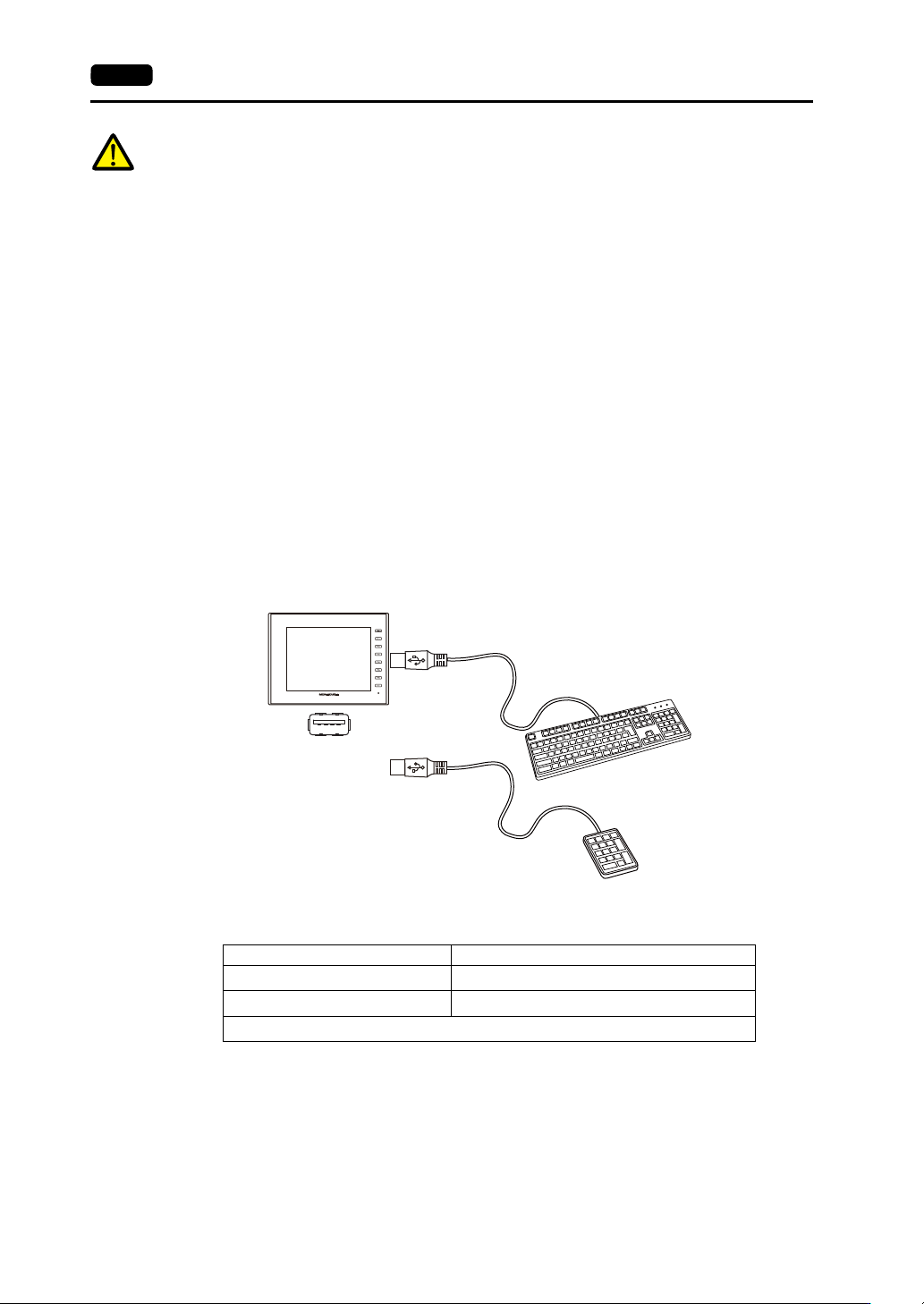
Keyboard and Numeric Keypad
Numeric values and characters can be entered by connecting a keyboard or numeric keypad to the V9
series unit.
Connection Example
Compatible Keyboards
V-SFT-6 Setting
An [Entry] icon must be registered on the screen where the keyboard is to be used.
In addition, setting of the numerical data or character display parts of [Entry Target] selected under
[Function] is required.
For details, refer to the V9 Series Reference Manual 1.
Type Description
Japanese keyboard 106 keyboard, 109 keyboard, etc.
US standard keyboard 101 keyboard, 104 keyboard, etc.
Numeric keypad
USB-A
V9
Keyboard
or
Numeric keypad
3
2. Specifications of Components 3-17
Names and Specifications of Components
V9 Series Unit Setting
In the Local mode, select the type of keyboard to be connected.
For details, refer to the separate V9 Series Troubleshooting/Maintenance Manual.
Mouse
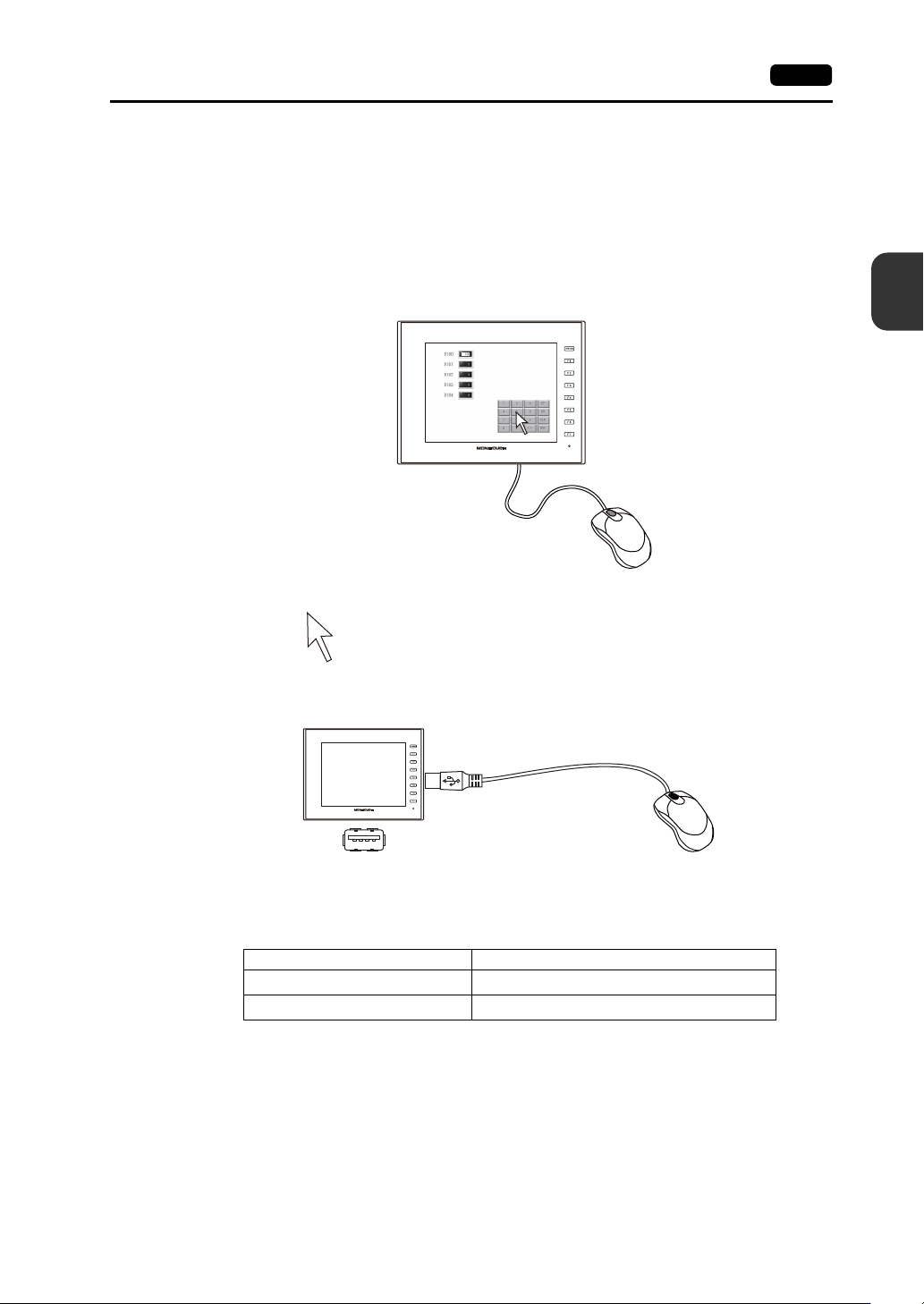
A mouse can be used to operate screens displayed on the V9 series unit by connecting a mouse to the
unit.
The mouse pointer displayed on the unit is shown below.
Connection Example
Mouse Operation
The mouse operations available on the unit are shown below.
Mouse Operation Action
Movement Moving the mouse pointer
Left-click Pressing a switch
USB-A
V9
Mouse
3-18 2. Specifications of Components
USB Hub
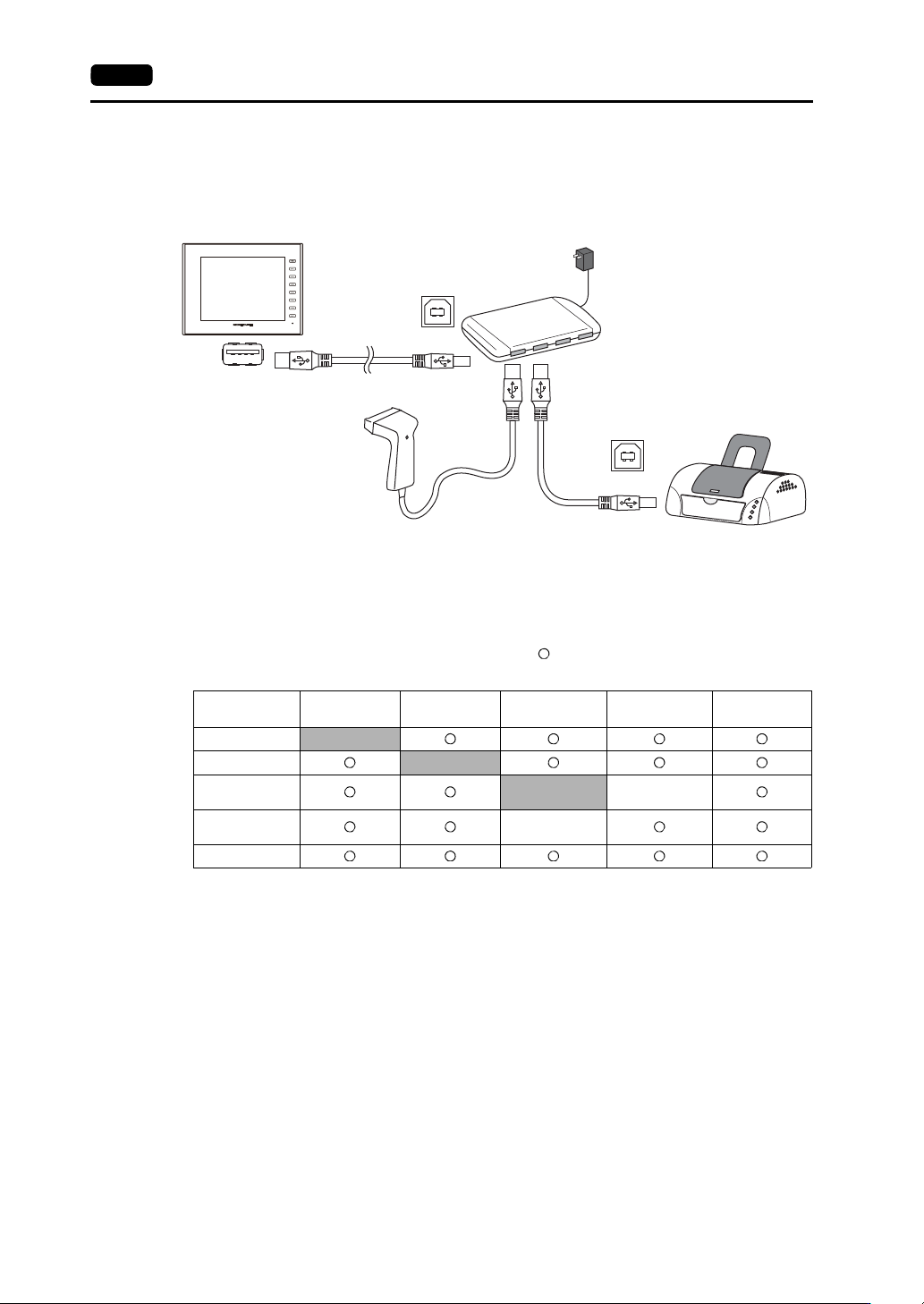
Devices like printers can be used at the same time by connecting a USB hub to the V9 series unit.
Connection Example
* A parallel printer can also be connected. (In this case, a parallel printer that is compatible with the V9 series
and a commercially available parallel-to-USB cable must be used (recommended cable: UC-PGT
manufactured by ELECOM).) For more information on compatible printer models, visit our website
(http://www.monitouch.com/)).
Combinations of Connected Devices
Combination of devices usable at the same time:
Combination of devices not usable at the same time:
* If these devices are connected at the same time, only the USB barcode reader will be recognized.
USB-A
USB-B
USB-B
V9
Printer
*
USB hub
Printer
USB Flash
Drive
USB Barcode
Reader
Keyboard/
Numeric Keypad
USB Mouse
Printer
-
USB Flash Drive
-
USB Barcode
Reader
-
Keyboard/
Numeric Keypad
USB Mouse
*
*