00198711-01_UM_X-Serie-S_EN.pdf - 第250页
5 Tasks at the placement machine Ins truction manual SIPLACE X-Series S 5.6 Alert information and online help From software version 713.0 Edition 11/2019 250 5.6 Alert information and online help If alerts occu r during …
Instruction manual SIPLACE X-Series S 5 Tasks at the placement machine
From software version 713.0 Edition 11/2019 5.5 The user interface
249
5.5.6 Application-oriented operation via color-coding markings
Icons, buttons and views can be highlighted in color. These color-coded highlights give you a clear
overview of when operator action is required or when warnings have been issued.
The station software uses the following color coded highlights:
5
Color State Meaning
Red Alert Operator action required.
Only available in the "Feeder module, components and noz-
zles" view.
Orange Warning Operator notification is present.
Immediate operator action is not required.
Only available in the "Feeder module, components and noz-
zles" view.
Green In progress Icon or button has placement machine under control and the
state is OK.
Only available in the "Production", "Feeder modules, compo-
nents and nozzles", "Boards", "Check sensors and functions"
and "Service" views.
5 Tasks at the placement machine Instruction manual SIPLACE X-Series S
5.6 Alert information and online help From software version 713.0 Edition 11/2019
250
5.6 Alert information and online help
If alerts occur during placement machine operations, the alert message in the status field of the
user interface will be shown in red. The icon for alert information will be active.
The button highlighted in red in the toolbar indicates that operator action is required.
5
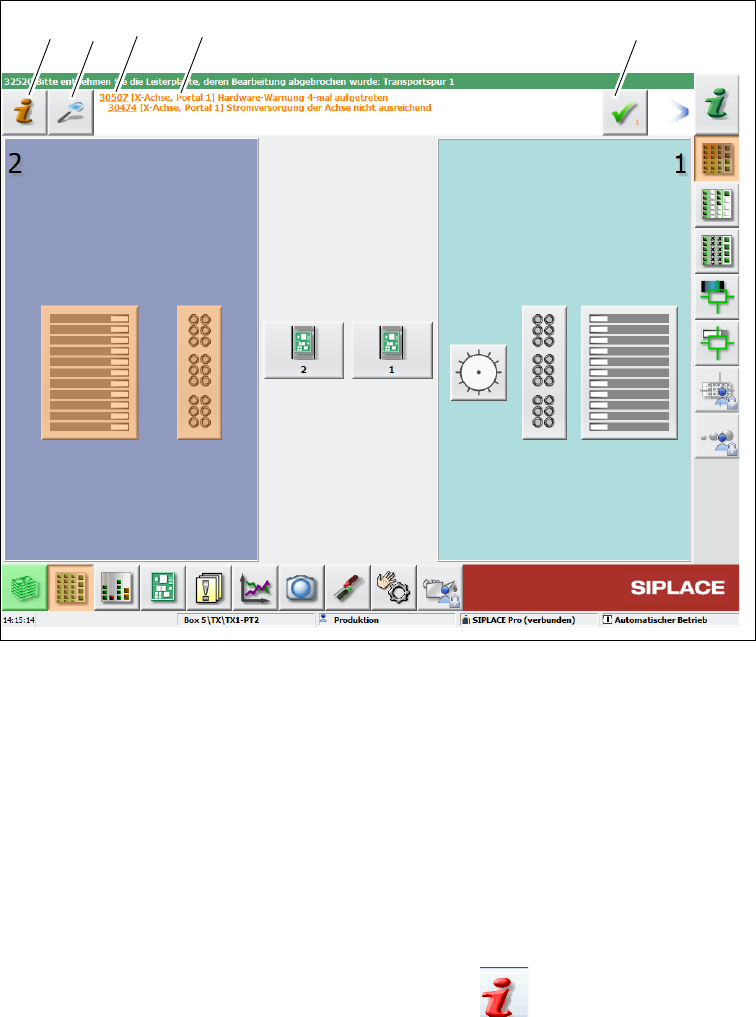
Fig. 5.6 - 1 "Production" view with alarm notification (example)
Legend for fig. 5.6 - 1
(1) Alert symbol "Alert information": for opening the help function for the current alert
(2) "Details" icon: for opening detailed information (e.g. error source, time of occurrence)
(3) Alert number
(4) Alert message: brief information about the alert
(5) "Acknowledge alert" icon: for deleting the alert display
5.6.1 Viewing information about the current alert
To view information about the current alert, click on the icon to start the help system for the
station computer. The main window of the help system will open with alert information. The infor-
mation refers to the alert currently shown and from which the help function was started.
(1)
(2) (3)
(4)
(5)
Instruction manual SIPLACE X-Series S 5 Tasks at the placement machine
From software version 713.0 Edition 11/2019 5.6 Alert information and online help
251
Once an alert has been resolved and the solution has been automatically determined by the place-
ment machine, this alert will be automatically removed from the status field.
If the solution is not recognized automatically, the alert can also be manually deleted from the sta-
tus field.
To do this, click on the icon; the alert message will no longer be shown in the status field.
5.6.2 Viewing information about the selected alert
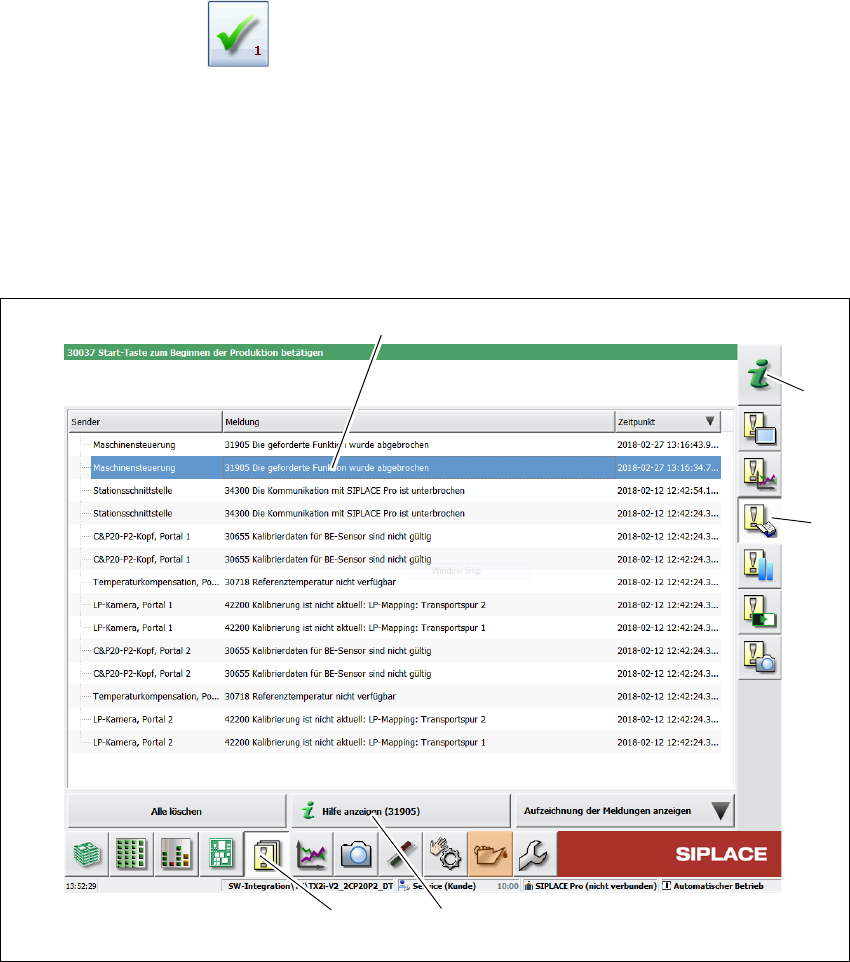
Click on the button (1) in the toolbar.
All the alerts which occurred will be listed.
Select the error category using the buttons in the vertical toolbar (2).
Click on a message in the alert list (3), to open detailed information about it.
. 5
Fig. 5.6 - 2 Example:Alarm list
Select the alert display for which you want to view information from the list of alerts.
Click on the "Show Help" (4) button to view the information.
To view information about a different alert, search the index of the help system (5) by entering the
alert number.
(5)
(2)
(3)
(4)
(1)