00191369-01.pdf - 第104页
3 Introduction and Basic Concepts User’ s M anual SIPLACE HS -50 3.2 Principles of the Graphic User I nterface Software Version SR.501.xx Edition 01/99 102 &RQWLQXHSU RFHVVLQJ This icon is dis played a fter &quo…
User’s Manual SIPLACE HS-50 3 Introduction and Basic Concepts
Software Version SR.501.xx Edition 01/99 3.2 Principles of the Graphic User Interface
101
,FRQVLQWKH:RUNLQJRU'LVSOD\$UHD
In main view, certain operating statuses (processing, error etc.) are indicated by different icons
or by changes in the color of the corresponding graphic in the display area.
0HDQLQJRIWKH,FRQVIRUWKH,QGLYLGXDO2SHUDWLQJ6WDWXVHV
0DFKLQHSRZHUXSDQGUHIHUHQFHUXQ
The user interface cannot be operated while this icon is displayed. The software is being
loaded. Then the status field displays the status "Waiting for reference run" and the action
"Press start key".
Å Press the start key. The reference run is then performed.
The machine is ready to perform assembly operations. The following icon is displayed.
6WRSSURFHVVLQJ3&%
When you click this icon, the current assembly operation is stopped.
Assembly of the PCBs located on the processing conveyors is completed and they are then
transported to the intermediate or output conveyor of the associated conveyor track. No PCBs
are transported into the machine.
Å Click the icon .
The icon changes to the icon presented below. This continues to be displayed until
assembly of the current PCBs has been completed and these have been transported into
the intermediate or output conveyor, i.e. until the processing conveyors have been
emptied.
$ IWHU6WRSSURFHVVLQJ3&%ZKLOHSURFHVVLQJFRQYH\RUVDUHHPSWLHG
(The triangle in the icon is continuously circled by a small yellow arrow.)
Once the processing areas have been emptied, the following icon is displayed.
3 Introduction and Basic Concepts User’s Manual SIPLACE HS-50
3.2 Principles of the Graphic User Interface Software Version SR.501.xx Edition 01/99
102
&RQWLQXHSURFHVVLQJ
This icon is displayed after "Stop processing PCB" or after a machine stop.
(The triangles in the icon move continuously from left to right.)
Click this icon to continue the interrupted operation once the error has been successfully elimi-
nated.
Å Click the icon .
Processing is now continued.
3URFHVVLQJ3&%
The PCB has been taken up be the system and is being processed. The PCB icon is displayed
in blue-green.
3URFHVVLQJRI3&%VWRSSHG
If processing of the PCB has been interrupted using "Stop processing PCB"" or has
been interrupted after a fatal error or because the Stop button has been pressed, the PCB icon
is again displayed in blue-green but now has contoured edges.
You can continue processing by clicking
or abort it by clicking the PCB icon.
NOTE
The procedure used to abort processing is described below.
User’s Manual SIPLACE HS-50 3 Introduction and Basic Concepts
Software Version SR.501.xx Edition 01/99 3.2 Principles of the Graphic User Interface
103
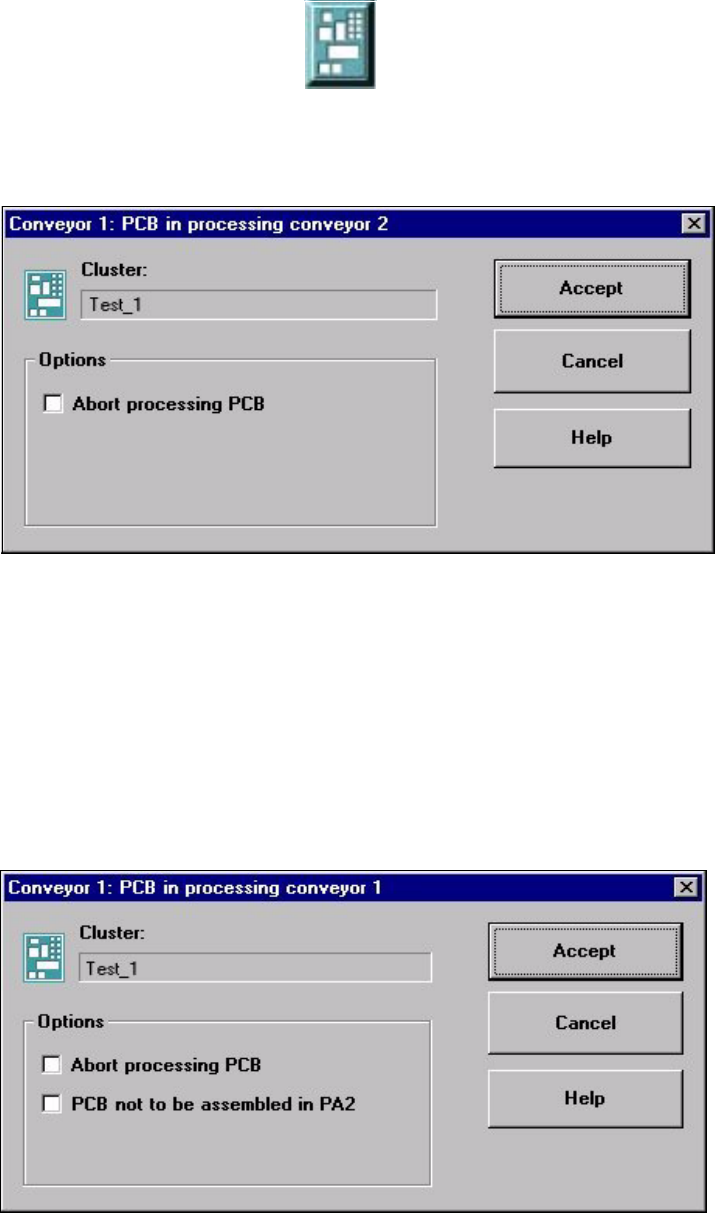
$ ERUWSURFHVVLQJ
Å Click the corresponding PCB icon .
If the PCB is located on processing conveyor 2, the following dialog box is opened.
Å Click the checkbox "Abort processing PCB".
Å Click the $FFHSW button.
Processing of the PCB is aborted.
The incompletely assembled PCB is transported to the output conveyor and the operator
is requested to remove it by hand.
If the PCB is located on processing conveyor 1, the following dialog box is opened.