00191369-01.pdf - 第347页
User’s Manual SIPLACE HS-50 8 E rror In formation Software Vers ion SR.501.xx E dition 01/99 8.2 Calling error information 345 ,QVHUWLQ JRUHGL WL QJFRPPHQW VRQH UURU V In all the error in formation views y o…
8 Error Information User’s Manual SIPLACE HS-50
8.2 Calling error information Software Version SR.501.xx Edition 01/99
344
NOTE
In addition, the icon for the current error type is displayed to the right of the error message
(red text) (see Chapter 4, section 4.2).
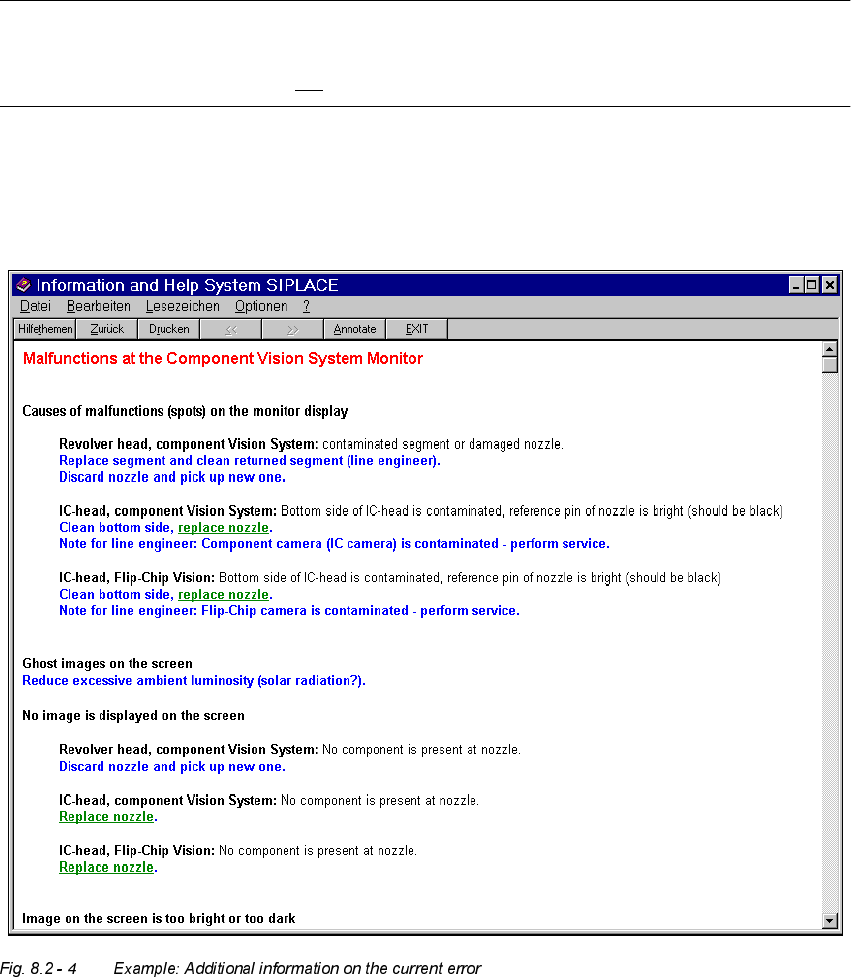
Å If necessary, click on a green, underlined text in order to call up special supplementary
information on the current error.
The display area switches to the information corresponding to the selected entry.
User’s Manual SIPLACE HS-50 8 Error Information
Software Version SR.501.xx Edition 01/99 8.2 Calling error information
345
,QVHUWLQJRUHGL WLQJFRPPHQWVRQH UURUV
In all the error information views you are able to enter comments which you can then subse-
quently edit if necessary. In this way, you can, for example, document the operations which
you have performed.
If a comment has been created in a view, this is indicated by the presence of a paper clip
icon.
,QVHUWLQJDFRPPHQW
Å Click the $QQRWDWHbutton in the view in question.
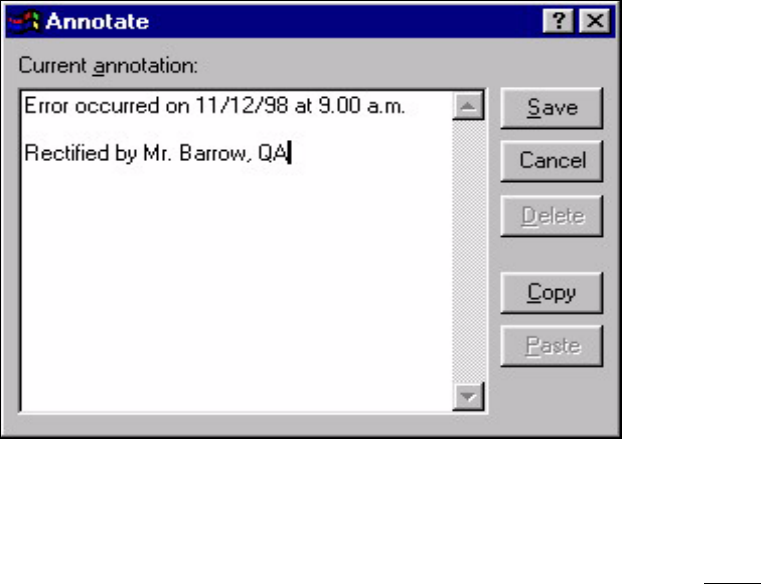
The following dialog box is opened.
Å Enter the text of your comment in the edit field.
Å Click the 6DYH button to confirm your input.
The dialog box is closed.
The paper clip icon is now displayed in the current help system view (see section 8.2 - 3
).
Click this icon if you want to open a window in which you can edit this comment.
'HOHWLQJDFRPPHQW
Å Click the paper clip symbol in the appropriate view.
The dialog box is opened with the stored comment.
Å Click the 'HOHWH button.
The dialog box is closed. The paper clip icon is no longer displayed in the current view.

8 Error Information User’s Manual SIPLACE HS-50
8.3 Clearing errors Software Version SR.501.xx Edition 01/99
346
&OHDULQJHUURUV
Once an error has been eliminated, it must be cleared. This is not necessary in the case of
errors which cause a machine stoppage since they are automatically cleared when assembly
is resumed.
Once cleared, the error message is no longer displayed in the status bar. However, it is still
entered in the error table for the corresponding error type (see example in Fig. 8.2 - 2
).
Å After eliminating the current error, click the &OHDUHUURU button in main view. The error
message is removed from the status bar and assembly can be continued.
r