iTAC Advance Issue 2, Mar 2018.pdf - 第29页
29 Issue 2 , Mar 18 The state can be changed - right click and select “change state to”. The WO will change state to as soon as will be activated. NOTES: Equipment ❑ Go to ADM\Master Data\Equipment To list all available …
28
Issue 2, Mar 18
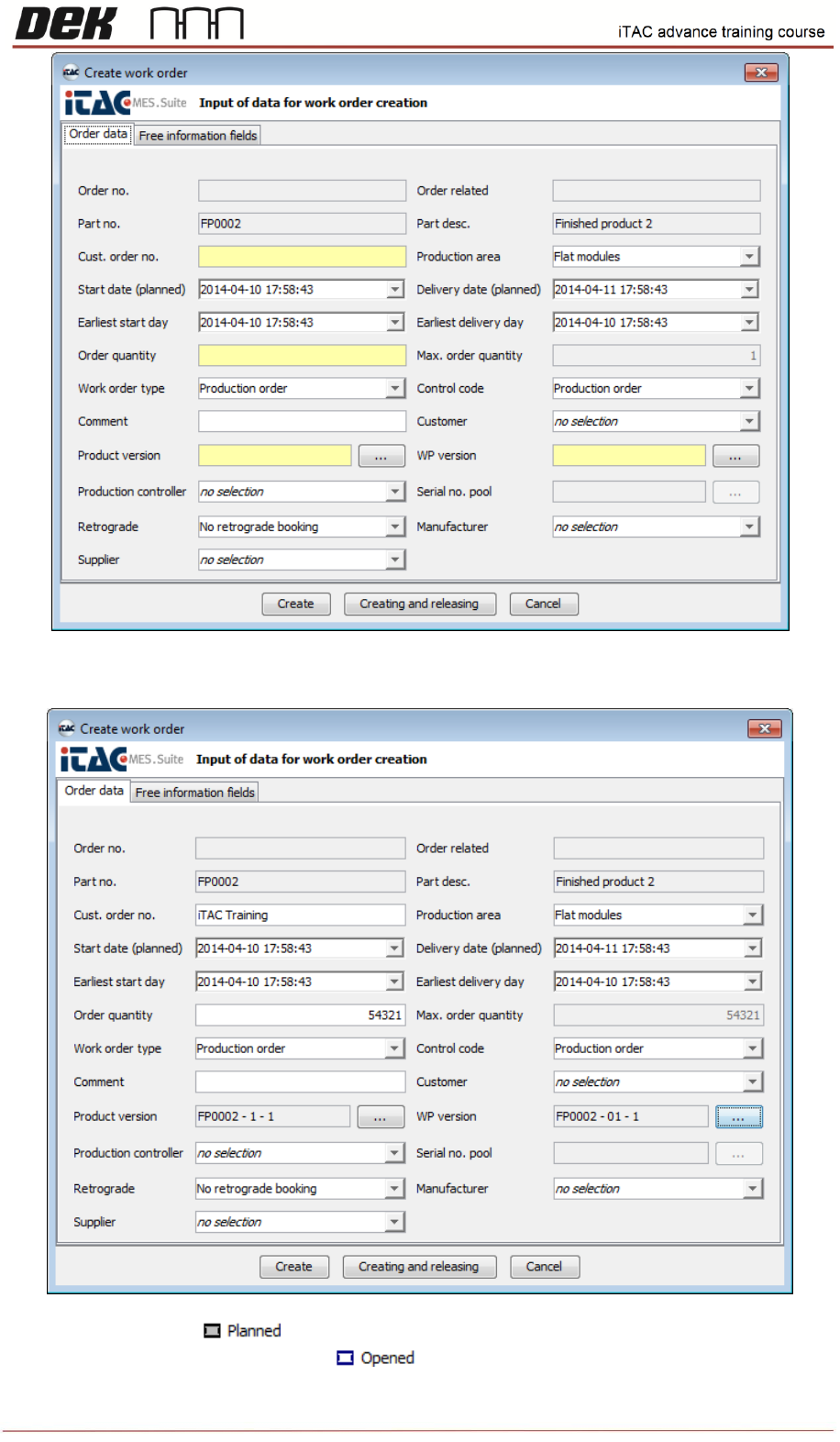
❑ Confirm either by Create (to be released later) or Creating and releasing button.
If WO is created the state is
If WO is created and released the state is
29
Issue 2, Mar 18
The state can be changed - right click and select “change state to”.
The WO will change state to as soon as will be activated.
NOTES:
Equipment
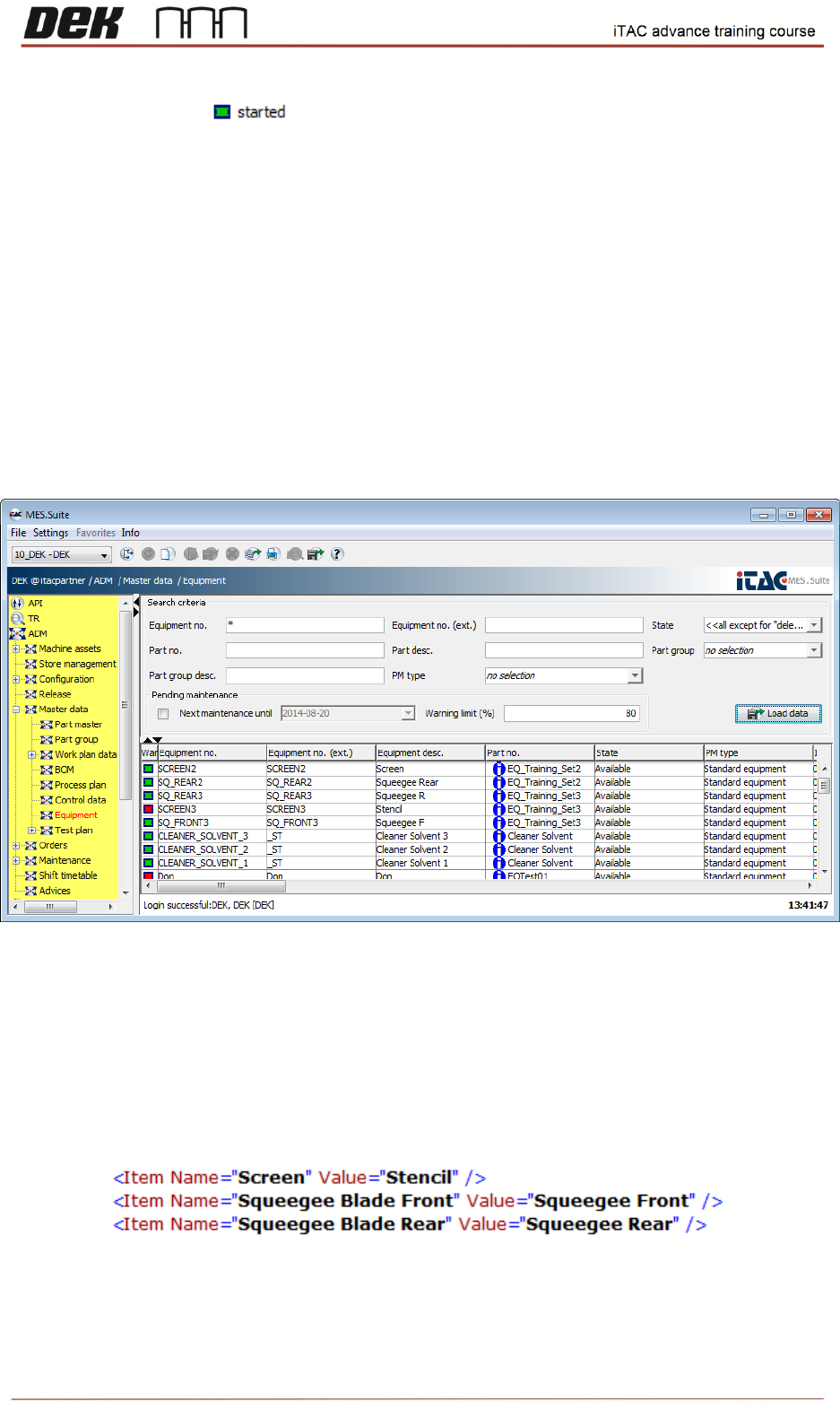
❑ Go to ADM\Master Data\Equipment
To list all available equipment type asterisk ("*") in equipment no. field, then click on load data.
Objective HO 7: Create new Equipment
Note: iTAC expert have to define the specific name for each equipment type (stencil,
squeegee, etc.) This name is to be used either as Equipment Description or as Part Number.
This name has to be defined in E:\Config\PluginData\iTAC7\ItacVerificationItems.xml. Item
Name equals to DEK “standard” name (in verification page), Value equals to the specific name
for each type of equipment defined in iTAC (either as Equipment Description or as Part
Number). See the snapshots below
30
Issue 2, Mar 18
New Equipment creation
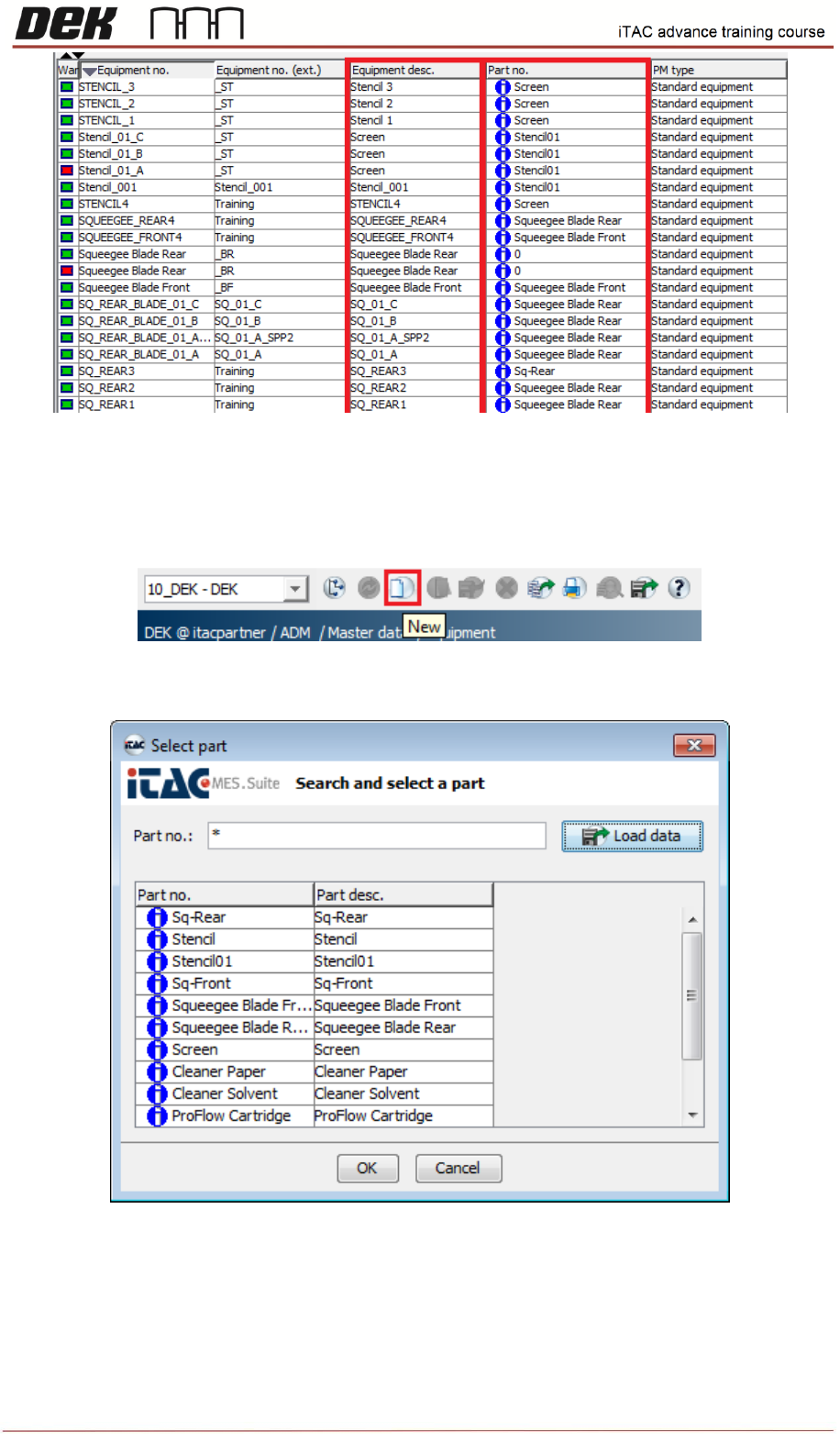
❑ Click on new in taskbar.
❑ Select appropriate equipment’s part number, click on OK.
In Equipment window fill in all fields in yellow (mandatory)
Equipment No. - contains the content of barcode, it has to be unique