iTAC Advance Issue 2, Mar 2018.pdf - 第36页
36 Issue 2 , Mar 18 ❑ Now can be either selected existing recipe (for later editing) and confirmed by OK or create d a new recipe. ❑ Click on Create new. ❑ Right click on left tab and select new test characteristic\Varia…
35
Issue 2, Mar 18
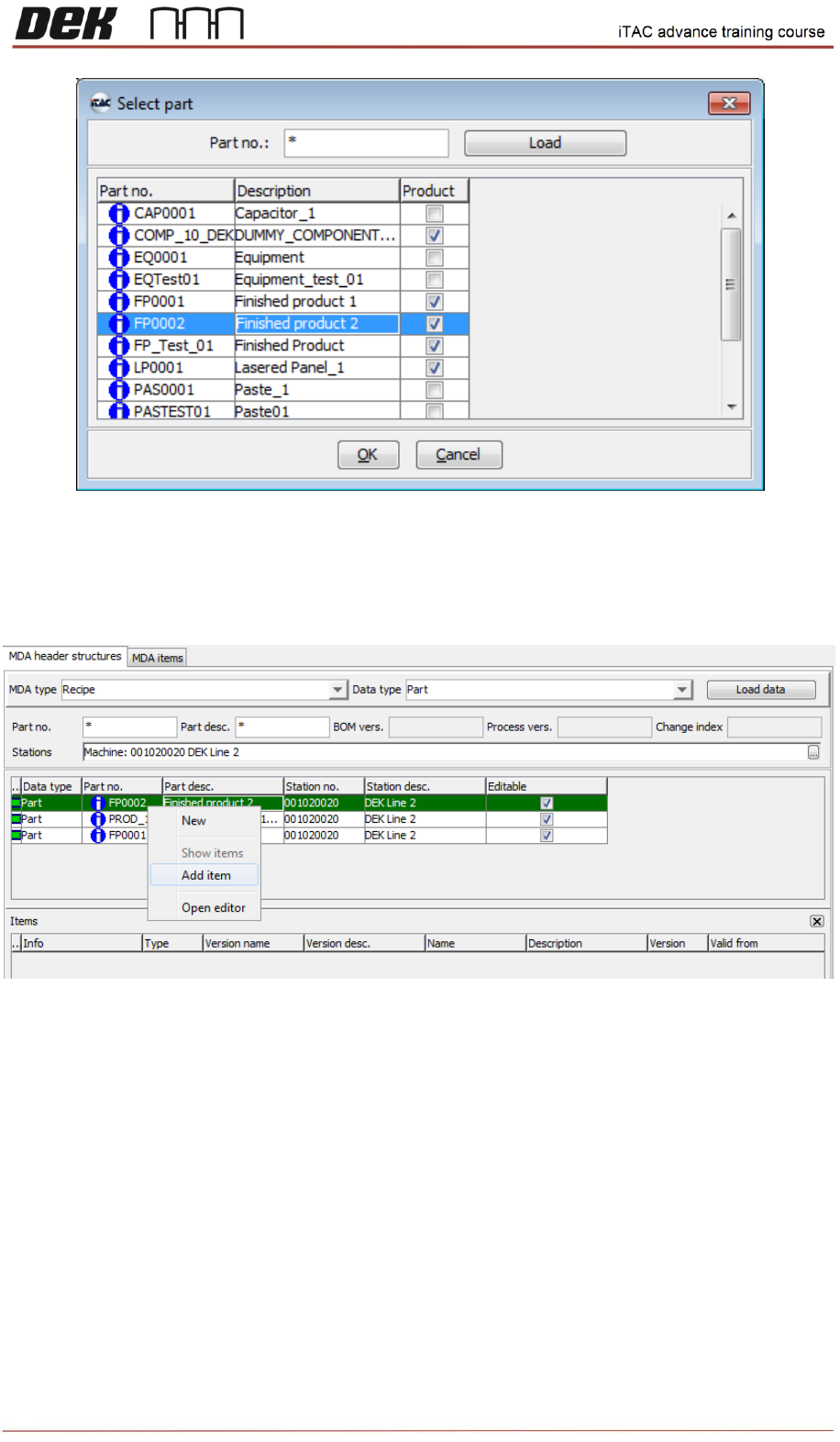
❑ The Recipe Header Structure is created. Product without recipe is marked in green colour.
Right click on product and select add item in order to add new recipe.
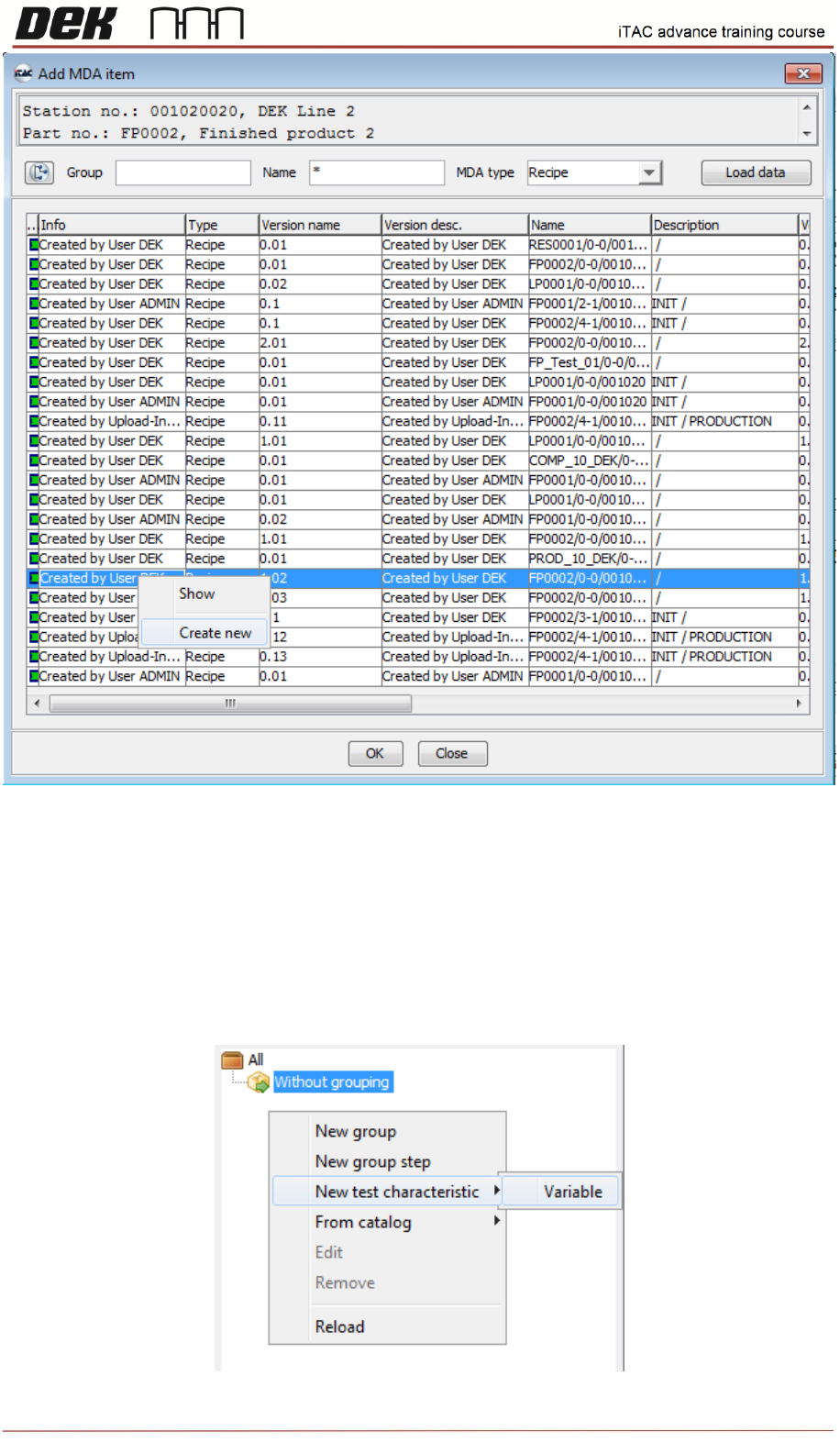
❑ In “Add MDA item” window click on “load data”. All recipes for site are displayed. When you
select recipe and right click then you can either show selected recipe or create new recipe.
36
Issue 2, Mar 18
❑ Now can be either selected existing recipe (for later editing) and confirmed by OK or created a
new recipe.
❑ Click on Create new.
❑ Right click on left tab and select new test characteristic\Variable
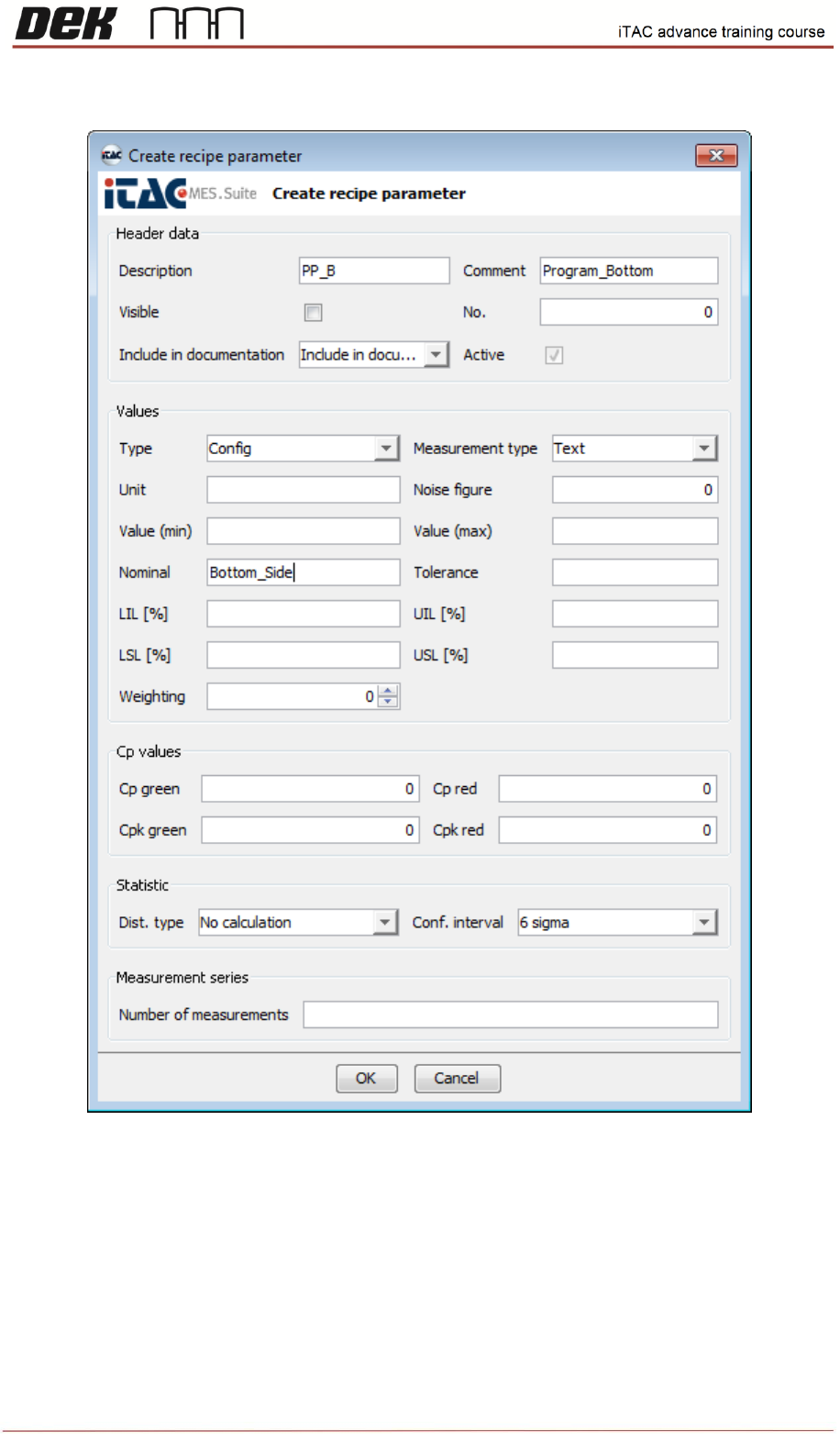
Three parameters have to be created in total for Top Side, Bottom Side and MES Key (MES Key
determines whether machine is running with MES or not)
37
Issue 2, Mar 18
❑ In Create recipe parameter window fill in following fields:
Descripton: Identificator of recipe parameter. Default setting is PP_B (Bottom side), PP_T (Top
side), MES (MES Key). Description may differ customer to customer. If the setting is different then
same parameters have to be corrected in “iTACmdaConfiguration” file in E:\Config\PluginData\iTAC7
folder.
See example: