iTAC Advance Issue 2, Mar 2018.pdf - 第72页
72 Issue 2 , Mar 18 Variant 3 Variant 3 Step Step Action Description Expected Result Actual Result 1 Assign & upload state ( PASS) PCB for the laser m arking machine. Activate W O on the line. Load correct program fo…
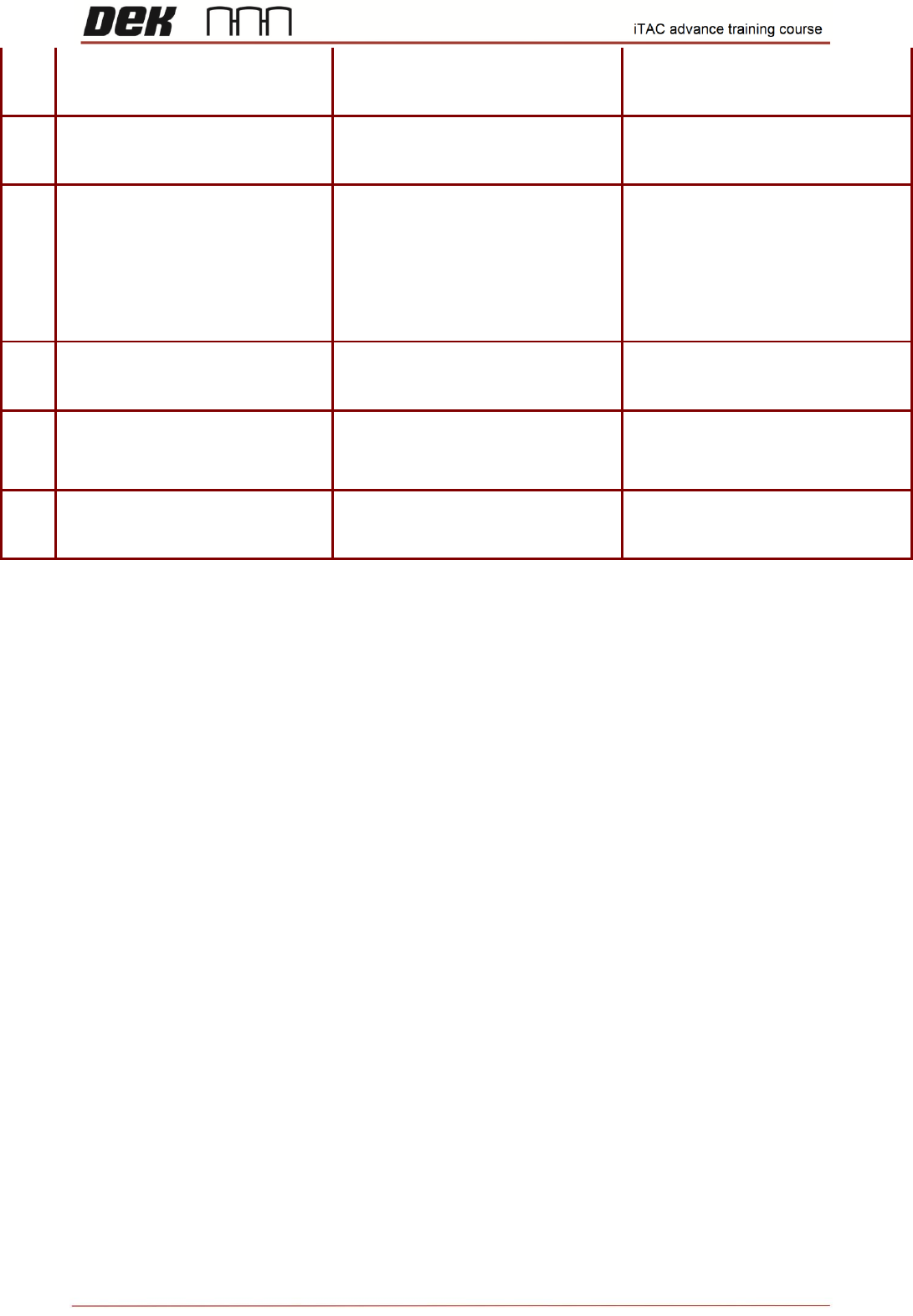
71
Issue 2, Mar 18
Check iTAC server on TR \ MIS -
Work order \ Order
scanned material should be setup
on the line and scanned equipment
rigged on the WO
13
Upload state (PASS/PASS) PCB
for the SPI Scan (PASS/PASS)
PCB on upline conveyor
PCB should be accepted by
machine
14
Create new recipe assigned to
Recipe dedicated machine. Kill
DEK software and modify
"iTACmdaConfiguration.xml"
accordingly. Reboot DEK
software. Verify all items, Scan
(PASS/PASS PCB on upline
conveyor
PCB should be accepted by
machine
15
Upload state (PASS/FAIL) PCB
for the SPI Scan (PASS/FAIL)
PCB on upline conveyor
PCB should be rejected by machine
16
Upload state (PASS/SCRAP)
PCB for the SPI Scan
(PASS/SCRAP) PCB on upline
conveyor
PCB should be accepted by
machine
17
Upload state (SCRAP) PCB for
the SPI Scan (SCRAP) PCB on
upline conveyor
PCB should be rejected by machine
NOTES:
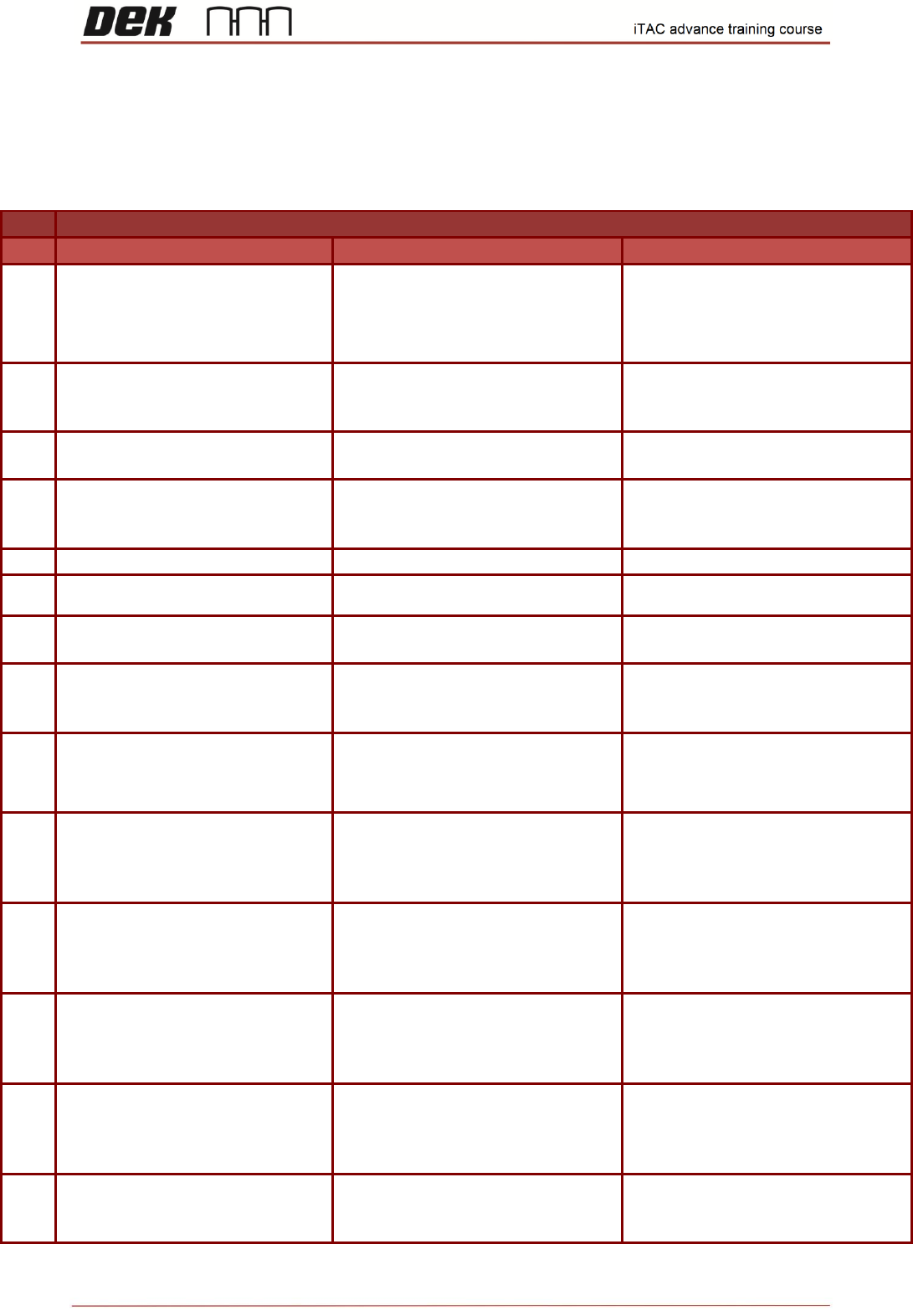
72
Issue 2, Mar 18
Variant 3
Variant 3
Step
Step Action Description
Expected Result
Actual Result
1
Assign & upload state (PASS)
PCB for the laser marking
machine. Activate WO on the line.
Load correct program for PN
activated in iTAC
Unverified (red cross) equipment
and material
2
Check iTAC server on TR \ MIS -
Work order \ Order
No material should be setup on the
line and no equipment rigged on the
WO
3
Open cover and scan required
equipment & material
All equipment and material should
be verified (green tick)
4
Check iTAC server on TR \ MIS -
Work order \ Order
scanned material should be setup
on the line and scanned equipment
rigged on the WO
5
Activate setup of current WO
WO should be activated
6
Scan (PASS) PCB on upline
conveyor
PCB should be accepted by
machine
7
Place PCB with no barcode on
upline conveyor
PCB should be rejected by machine
due to missing barcode
8
Scan PCB with barcode which is
not assigned to the laser marking
machine
PCB should be rejected by machine
due to unknown barcode
9
Assign & upload state (FAIL) PCB
for the laser marking machine.
Scan (FAIL) PCB on upline
conveyor
PCB should be rejected by machine
10
Assign & upload state (SCRAP)
for multiple PCB (Pass/Scrap) for
the laser marking machine.Scan
(SCRAP) PCB on upline conveyor
PCB should be accepted by
machine
11
Edit current stencil equipment and
set max. usage to same value as
on no. usages total. Scan (PASS)
PCB on upline conveyor
PCB should be rejected by machine,
once equipment no. of usages
exceed max. usages
12
Increase max. usage on current
stencil and rescan in open cover
page. Scan (PASS) PCB on upline
conveyor
PCB should be accepted by
machine
13
Edit current front squeegee
equipment and change it invalid
state. Scan (PASS) PCB on upline
conveyor
PCB should be rejected by machine,
due to invalid front squeegee
equipment
14
Make current front squeegee
equipment valid and rescan. Scan
(PASS) PCB on upline conveyor
PCB should be accepted by
machine
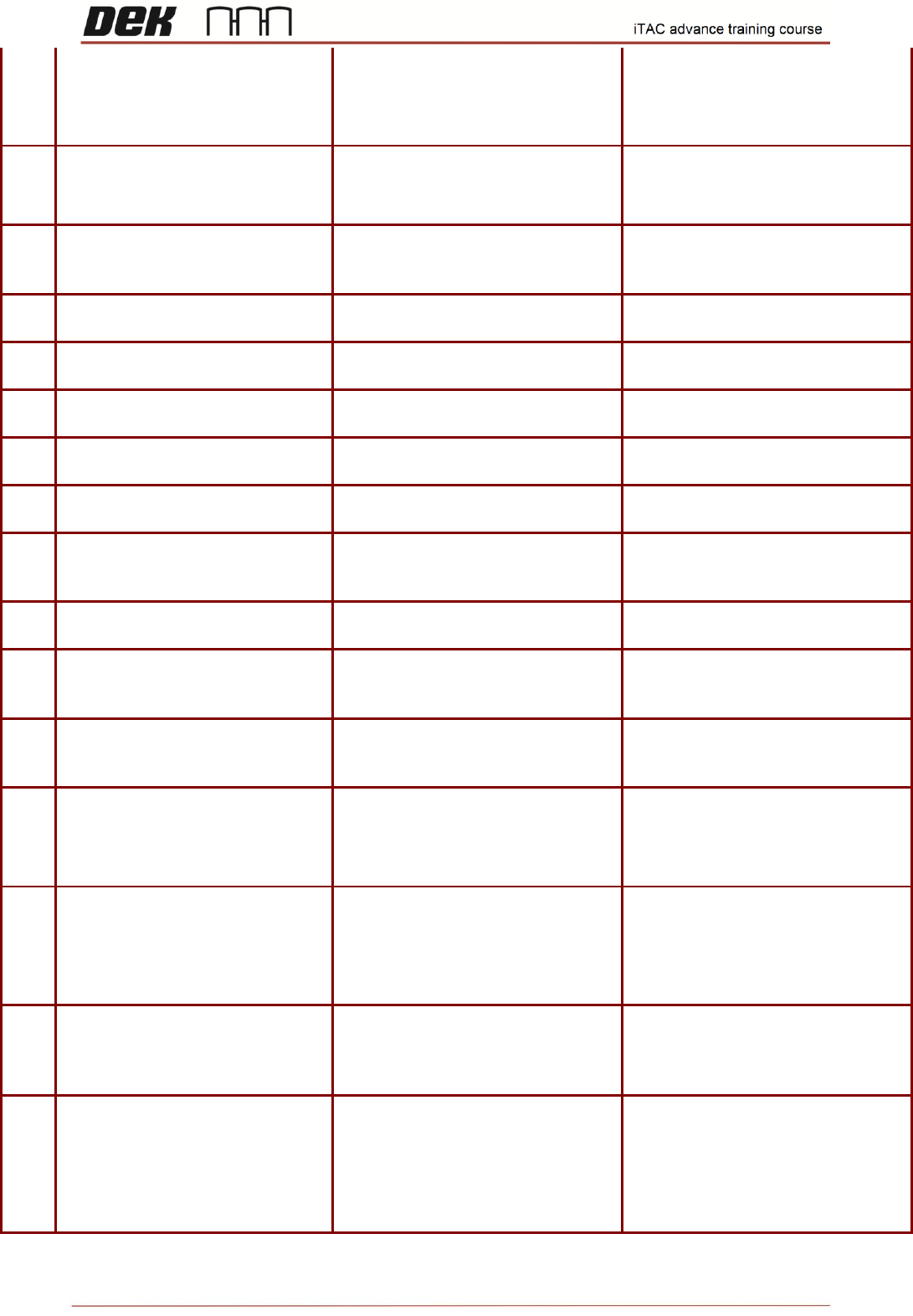
73
Issue 2, Mar 18
15
Open cover, un-verify rear
squeegee. In Setup
Product\Option\Verification disable
Squeegee Blade Rear. Scan
(PASS) PCB on upline conveyor.
PCB should be rejected by machine
due to un-rigged rear squeegee on
the iTAC
16
Enable Squeegee Blade Rear in
Verification page and rescan.
Scan (PASS) PCB on upline
conveyor.
PCB should be accepted by
machine
17
Use mlChangeMaterialBinData
and change quantity to 1 on used
paste container.
2nd PCB should be rejected by
machine due to 0 quantity
18
Scan new paste container with
expired date.
Material should remain unverified -
red cross
19
check in iTAC if paste container is
rigged
Paste container should not be
rigged
20
In iTAC extend expiry date for
current paste container and rescan
material should be verified - green
tick
21
re-check in iTAC if paste container
is rigged
Paste container should be rigged
22
Load another product on printer
all equipment and material should
be unverified (red cross)
23
Check iTAC server on TR \ MIS -
Work order \ Order for the Paste
Printer line
all material and equipment should
be deleted from the line and
unrigged from WO
24
Open cover and scan required
equipment & material
All equipment and material should
be verified (green tick)
25
Check iTAC server on TR \ MIS -
Work order \ Order for the Paste
Printer line
scanned material should be setup
on the line and scanned equipment
rigged on the WO
26
Scan (PASS) PCB on upline
conveyor
PCB should be rejected by machine
due to different product name in
recipe
27
Open cover and scan all
equipment & material.Disable
iTAC Product Verification in iTAC
plugin. Scan (PASS) PCB on
upline conveyor
PCB should be accepted by
machine
28
Enable iTAC Product Verification
in iTAC plugin. Load correct
product on Printer. Re-scan
required equipment & material.
Scan (PASS) PCB on upline
conveyor
PCB should be accepted by
machine
29
Activate another recipe (with
different product name) for current
product. Scan (PASS) PCB on
upline conveyor
PCB should be rejected by machine
due to different product name in
recipe
30
Activate original recipe. Create
new Work plan for current product
and assign new equipment with
different equipment description.
Create new WO and assign new
work plan. Activate new WO on
line
No reaction on the printer