iTAC Advance Issue 2, Mar 2018.pdf - 第46页
46 Issue 2 , Mar 18 Selected W O will appear on upper window (Activated WO across the entire line). ❑ Click on activate setup to activate work order. Active setup state has three states: red - no setup yellow - partial s…
45
Issue 2, Mar 18
Activation/Deactivation Work Orders
Objective HO 9: Activate selected WO on the line
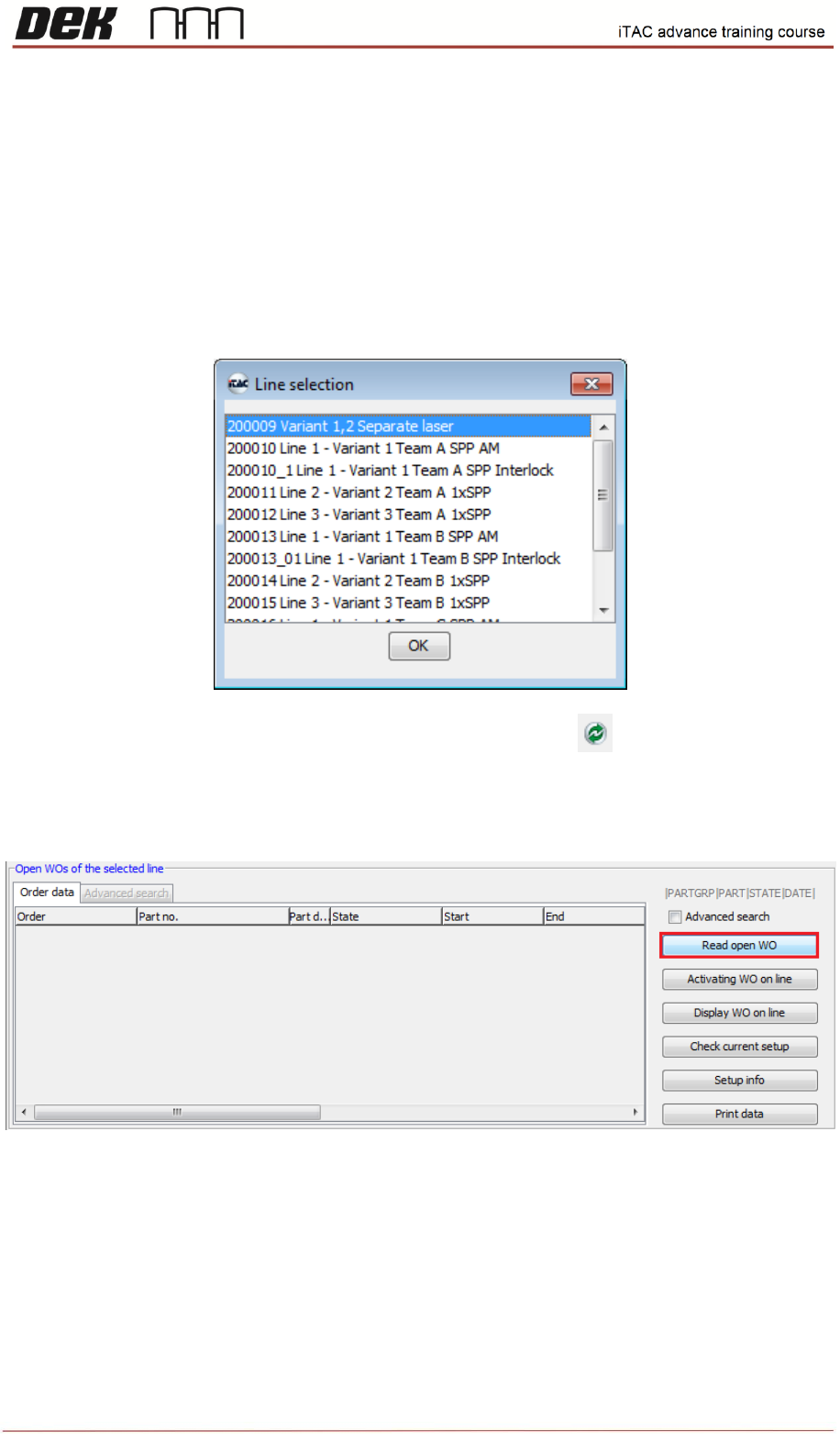
❑ Go to TR\MIS – Work Orders\Order
Select appropriate line and confirm by OK.
Note: If you wish to select another line click on refresh button on toolbar.
❑ Select “Read open WO” in lower window (Open WOs of the selected line) to list all open WO.
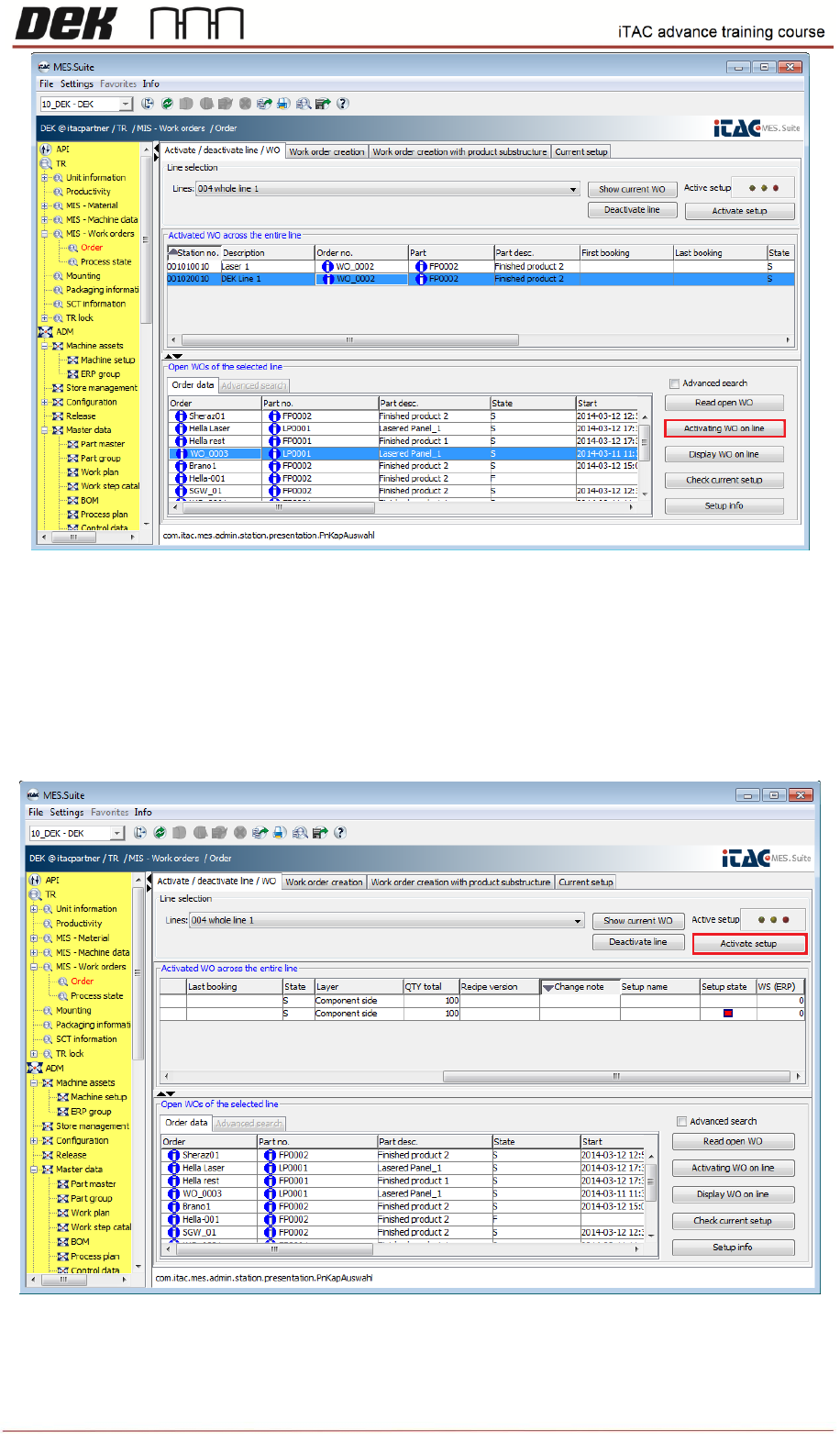
❑ Select required WO in lower window, then click on “Activation WO on line”
46
Issue 2, Mar 18
Selected WO will appear on upper window (Activated WO across the entire line).
❑ Click on activate setup to activate work order. Active setup state has three states:
red - no setup
yellow - partial setup of the line
green - line set up completely
47
Issue 2, Mar 18
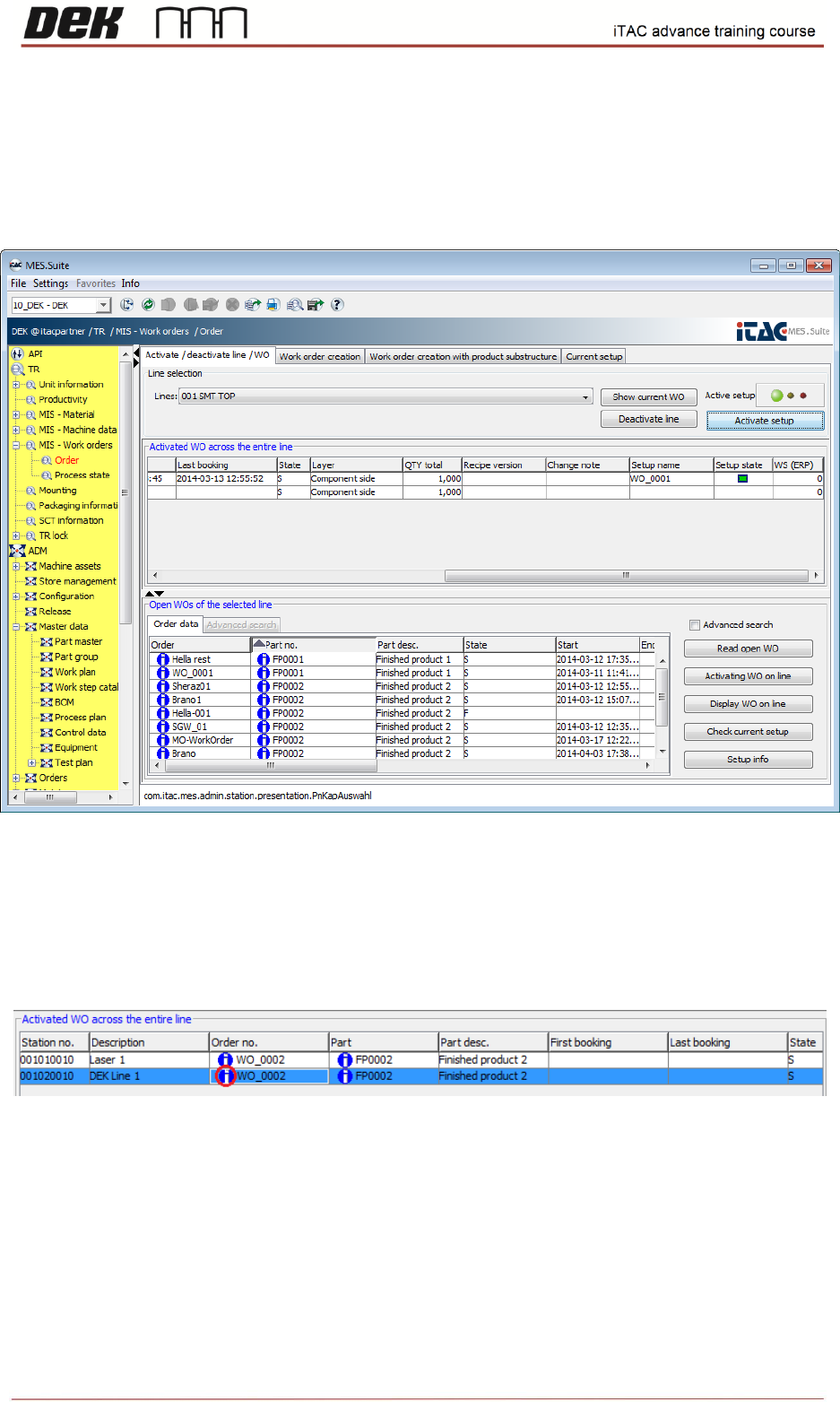
Note: The paste material has to be verified (rigged on iTAC) in order to completely activate
setup – green state. If WO is to be activated manually on machine, it has to be done prior
material verification.
Snap shot below demonstrate activated setup while paste material is rigged on iTAC.
There is an alternative way to activate setup on the machine. It can be done through API function
“TRActivateworkorder”. Refer to the IMSApi-Description iTAC manual or latest
imsAPI_Screen_Printer manual.
Double click on info icon on activated WO to find useful details, e.g. equipment state.
Following data is displayed: