SIPLACE Line Computer UNIX.pdf - 第150页
4 Data Management Us er Manual Line Computer UNIX 4.5 File Display Use r Interface Software Version 5 02.xx 10 /2000 Issue 148 I t I I 4.5.2.1 FILE menu - Opening This op tion can be used to select a new file wh ose cont…
User Manual Line Computer UNIX 4 Data Management
Software Version 502.xx 10/2000 Issue 4.5 File Display User Interface
147
I
t I I
Display area
This area shows the contents of the open file which may be edited, if necessary, provided the file is not write-
protected.
NOTE
Edited files may be saved via FILE --> Save or FILE --> Save as. In the case of a write-protected file (e.g. a
line configuration list) these menu items cannot be selected.
If the file contains more information than can fit in the display area, the contents can be scrolled by means of
the vertical scroll bar.
4 Data Management User Manual Line Computer UNIX
4.5 File Display User Interface Software Version 502.xx 10/2000 Issue
148
I
t I I
4.5.2.1 FILE menu
- Opening
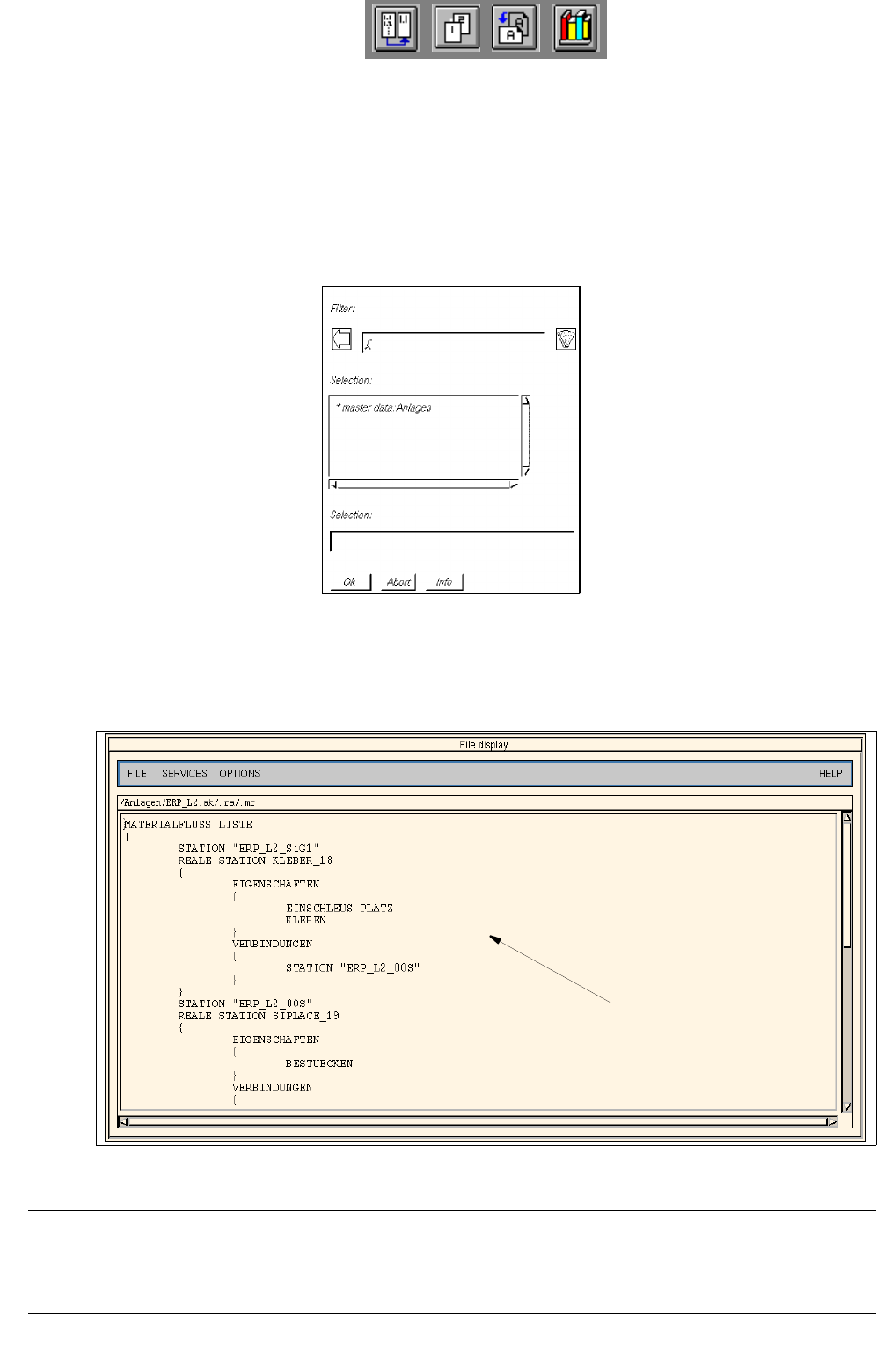
This option can be used to select a new file whose contents are to be displayed in the display area.
● Select FILE --> Open...
Depending on the data type selected under Options (see
page 4 - 152) an FSB containing the
applicable filter is opened. The following example is valid for the setting "Line configuration lists".
● Successively select the entries master data: Anlagen, ERP_L2.ak, .ra and .mf displayed in the FSB,
by double-clicking (or else by clicking once and confirming the selection with OK in each case).
The FSB is closed and the line configuration list of the line is displayed in the main window of the
File Display.
Fig. 4.5.2 Main Window "File Display - Line Configuration List"
NOTE
Whenever a file is "opened", a new window opens so that the contents of several different files may be com-
pared with one another.
line configuration list
User Manual Line Computer UNIX 4 Data Management
Software Version 502.xx 10/2000 Issue 4.5 File Display User Interface
149
I
t I I
4.5.2.2 SERVICES menu
- Search/Replace
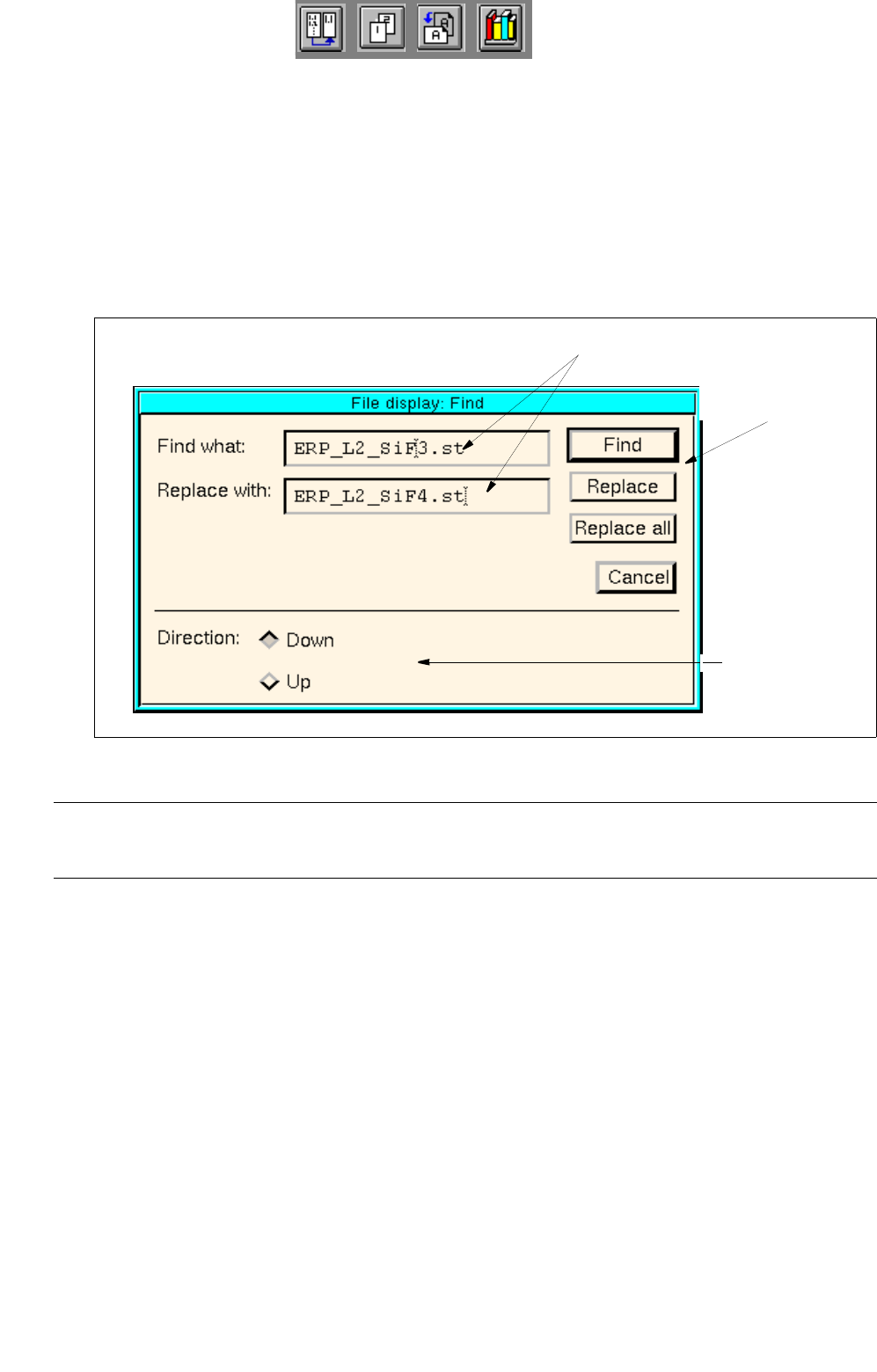
This button serves to open the window for the entry of search or replacement texts. In the editing fields
of this window any character strings desired can be entered which will subsequently be searched for
or replaced, respectively.
● Select SERVICES --> Search/Replace.
The search window for the entry of a search or replacement text is opened.
Fig. 4.5.3 Search Window "File Display"
NOTE
If the currently displayed file is write-protected, the buttons Replace and Replace all are inactive.
Setting area
The conditions for the find/replace procedure are defined in the setting area with the help of the respective
buttons.
Setting possibilities for the search/replace area:
- Down Find/replace action to be started from the cursor
position in the currently displayed file in downward
direction
- Up Find/replace action to be started from the cursor
position in the currently displayed file in upward
direction
editing fields
command
area
setting area