SIPLACE Line Computer UNIX.pdf - 第478页
15 Control / Error Message System User Manual Line Computer UNIX 15.1 Error Message System Software Version 5 02.xx 10 /2000 Issue 476 I t I I 15.1.1 Opening the "Error Message System" Display Window ● Clic k o…

User Manual Line Computer UNIX 15 Control / Error Message System
Software Version 502.xx 10/2000 Issue 15.1 Error Message System
475
I
t I I
15 Control / Error Message System
15.1 Error Message System
The task of the error message system is to collect all messages in the line computer system and to display
them. The system differentiates between various degrees of urgency of the messages. These messages are:
- simple informative messages on the status of the LC system
- error messages about errors that are not critical for the overall system
- alarm messages signalling serious errors in the LC system (danger for the overall system)
Simple Messages
Simple messages can comprise all types of messages that neither indicate an error nor request any user
response. They are displayed in the display area of the window (see
Fig. 15.1.1) sorted according to date and
time. The number of messages that can be displayed is limited. When the maximum number is reached, the
"oldest" messages are deleted when new messages arrive. In addition, all incoming messages are stored in a file.
Error Messages
Error messages are all messages indicating an error in the LC system. Their display is sorted according to date
and time. The number of messages that can be displayed is limited. When the maximum number is reached,
the "oldest" error messages are deleted when new messages arrive. In addition, all incoming error messages
are stored in a file.
Alarm Messages
Alarm messages are all messages indicating a serious error in the LC system. They are displayed in a separate
window on the monitor immediately after the individual error has occurred. Each alarm message must be
acknowledged by the user before any further alarm messages (if any) are displayed.
When alarm messages have been acknowledged by the user, they can subsequently be viewed in the display
area of the display window (see
Fig. 15.1.1) by activating the error signalling system.
15 Control / Error Message System User Manual Line Computer UNIX
15.1 Error Message System Software Version 502.xx 10/2000 Issue
476
I
t I I
15.1.1 Opening the "Error Message System" Display Window
● Click on the Error icon on the desktop. The display window is opened.
Upon the initial opening, any existing error messages are displayed first.
NOTE
The icon Errors always changes colour when new messages arrive that have not been viewed yet so
that the user is informed of the existence of current messages at all times.
15.1.2 Display Window "Error Message System"
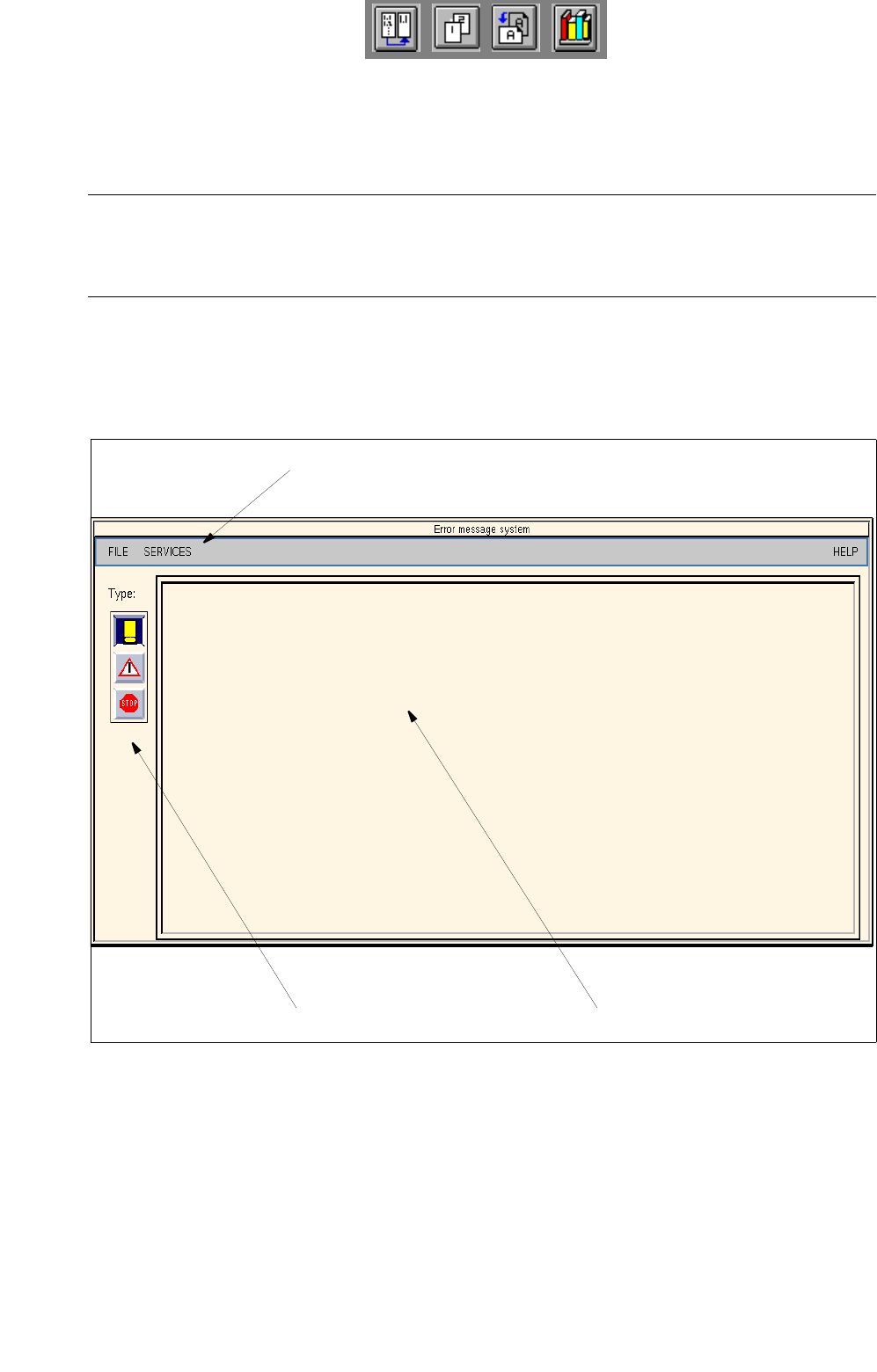
Fig. 15.1.1 Display Window "Error Message System"
The main window is subdivided into the following areas:
- Menu bar
- Display area
- Command area
display areacommand area
menu bar
User Manual Line Computer UNIX 15 Control / Error Message System
Software Version 502.xx 10/2000 Issue 15.1 Error Message System
477
I
t I I
Menu bar
The menu bar contains the menus "FILE", "SERVICES" and "HELP".
The menus "FILE" and "SERVICES" are described in
section 15.1.3 and section 15.1.4.
NOTE
Since the "HELP" menu is similar in function and operation to other application programs of the line computer,
it is comprehensively described in chapt. 2 of this manual.
Display area
In this area all messages of the selected message type are displayed sorted according to data and time. When
the display area contains more messages than can fit in this screen area, the screen content can be moved by
means of the scroll bars.
Command area
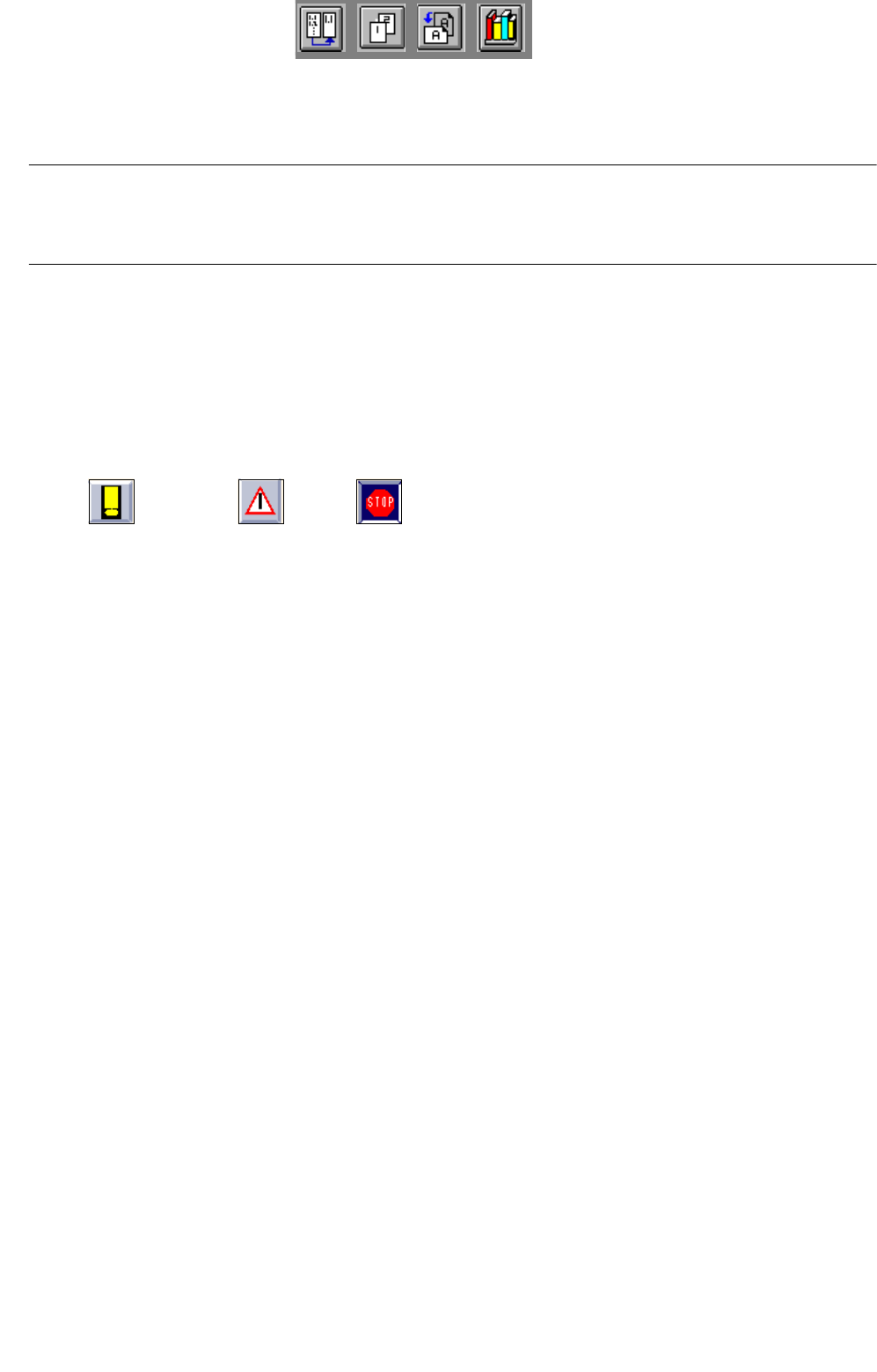
- Messages - Errors - Alarms
Clicking on the applicable icon causes existing messages of the selected message type
(messages, errors or alarms) to be displayed in the display area.
● Click on the Alarms icon, for example.
All existing alarm messages are listed in the display area. If a filter is defined (see
section 15.1.4),
the messages are filtered in accordance with the preset criteria.
15.1.3 FILE menu
-
Printing the currently displayed messages
● Click on FILE --> Print on the menu bar.
The currently displayed messages are output to the connected printer.
- Quit
This option serves to close the main window of the error message system.
● Click on FILE --> Quit.
The main window is closed, the information displayed in the display area is, however, retained.
15.1.4 SERVICES menu
- Printer selection ...
This option is used to select a connected printer.
● Click on OPTIONS --> Printer selection ...
The window for printer selection is opened (see
chapt. 2).
● Select the desired printer type.
● Confirm the selection with OK.